Verbouwing


Beste bezoeker van mijn blog,

De komende weken zal het even rustig zijn op mijn blog ik ben namelijk bezig met het verbouwen van ons nieuwe huis. Zodra alles klaar is zal ik weer wat meer tijd over hebben om te kunnen Freaken en komen de posts vanzelf weer.

Tot dan!

How To: Install VMware ESX 3.0.x from a USB flash drive


Paul Lalonde heeft een how to guide gemaakt voor het installeren van VMware ESX 3.0.x vanaf een USB flash drive.

Here’s a quick rundown on setting up a USB flash disk (ie. pen drive, flash key, etc.) to install ESX Server.
Requirements:
– You will need at least a 1 GB USB flash disk.
– You must have both the ESX 3.x CD-ROM and ISO image handy.
– You will need an ISO image extraction tool such as WinISO, MagicISO, or even WinRAR.
– You’ll need SYSLINUX, a Linux boot loader for removable media. Get it here: http://www.kernel.org/pub/linux/utils/boot/syslinux/syslinux-3.36.zip
– These instructions are based on a Windows PC for simplicity. If you’re a Linux guru, then you can obviously do this under Linux. You’d need to know how to mount .ISO images in order to extract files, etc.

Lees de hele guide hier: http://www.vmware.com/community


bron: http://www.vmwarewolf.com/installing-esx-server-from-a-usb-drive/

Server responds very slow when shadow copies are running


Event Id’s

eventID : 7001

VSS

VssAdmin: Unable to create a shadow copy: The shadow copy provider had an error. Please see the system and application event logs for more information.
Command-line: ‘C:\WINDOWS\system32\vssadmin.exe Create Shadow /AutoRetry=5 /For=\\?\Volume{c5b975b9-d6bc-11da-90ad-0050569c1bf5}\’.

eventid 12317,

File Server Resource Manager failed to enumerate share paths or DFS paths. Mappings from local file paths to share and DFS paths may be incomplete or temporarily unavailable. FSRM will retry the operation at a later time.

Event ID 12289, VSS

Volume Shadow Copy Service error: Unexpected error DeviceIoControl(\\?\Volume{c5b975b9-d6bc-11da-90ad-0050569c1bf5} – 0000012C,0x0053c008,000374C0,0,000384C8,4096,[0]). hr = 0x80070005.

For more information, see Help and Support Center at http://go.microsoft.com/fwlink/events.asp

Oplossing

Microsoft heeft een patch vrijgegeven welke een aantal shadow copies problemen oplost. Je kunt patch hier downloaden KB891957

Mocht deze patch het probleem niet verhelpen dan kun het als volgt oplossen: Restore de shadow copies configuratie naar default, dus disabled. Let op! alle shadow copies gaan verloren als je dit doet!

Configureer nu shadow copies zoals het was voordat je het naar default had gezet.

Mogelijke Oorzaak

Mijn collega ICT-Freak Jimmy kreeg deze event id’s nadat hij de partities van zijn fileserver had vergroot.

VCP-310: Passed


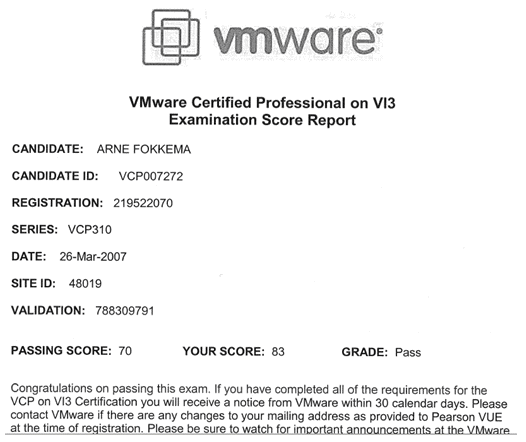
Ik ben vandaag geslaagd voor VCP-310. Ik had een score van 83 punten wat een tikkeltje tegen viel, maargoed gehaald is gehaald zullen we maar zeggen 😉

vpcexaminationscore.gif

Voor iedereen die het examen in de planning heeft, leer vooral goed de nieuwe features:

  • Resource Pools
  • DRS
  • HA
  • VCB
  • VMKernel networking
  • etc

In iedergeval succes met studeren 😉

How To: Disable Authentication within Remote Desktop Connection 6 Client


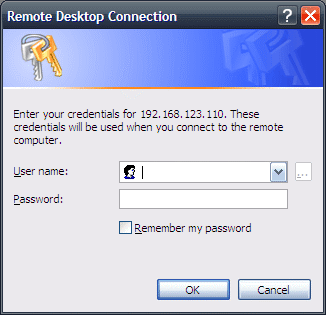
Je kent het wel, je doet Start – Run – mstsc /v servernaam /console om een server over te nemen en pats het onderstaande scherm verschijnt.

rdp6_2xauthentication.gif

Mijn collega ICT-Freak Jimmy heeft de oplossing gevonden voor het bovenstaande scherm. Hij stuite op de volgende link: http://forums.microsoft.com/TechNet waar IvanBrug de oplossing post. Thanx Ivan.

test

De oplossing voer je als volgt uit, open de default.rdp in wordpad:

Start – Run – Wordpad C:\Documents and Settings\%Username%\My Documents\default.rdp {enter}

Voeg daarna de volgende regel toe aan de default.rdp

EnableCredSSPSupport:i:0

Nu ben je van die vervelende melding af.

Mocht je nog custom RDP files hebben, dan dien je deze ook aan te passen met de bovenstaande regel.


Bron: http://forums.microsoft.com/TechNet

Windows Setup Hangs on Formatting when using a NFS datastore and ESX 3.0.1


Nadat ik het NFS verhaal in Windows geconfigureerd had (zie eerdere post:NFS on Windows 2003) wilde ik deze ook gaan gebruiken als datastore voor een aantal VM’s.

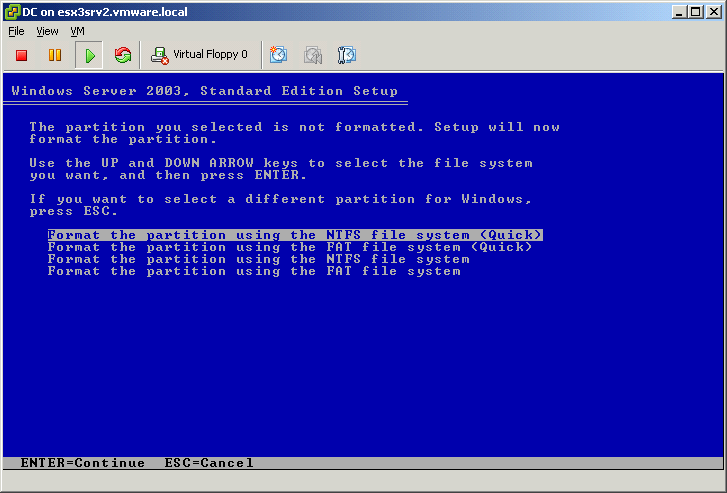
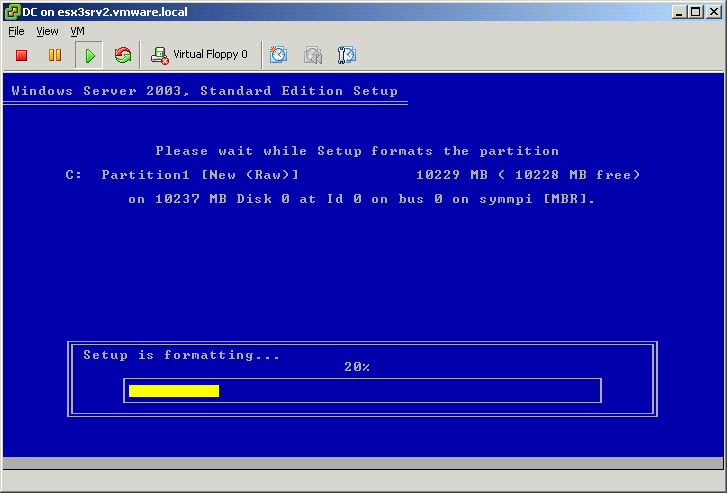
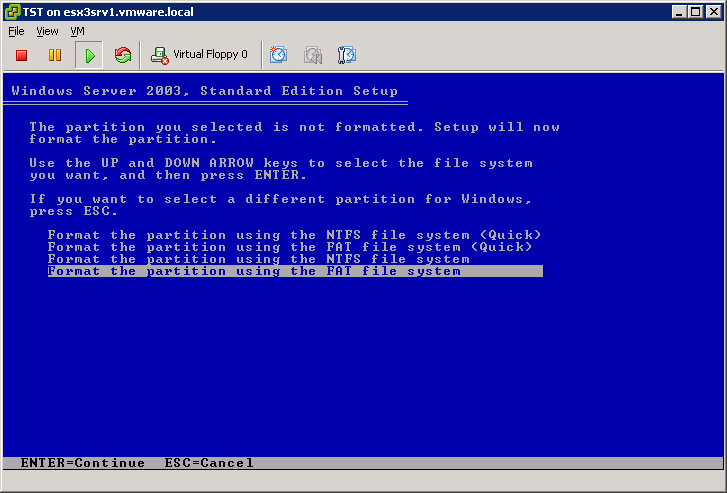
Dus ik had een VM gemaakt voor Windows Server 2003, Standard Edition. Toen ik bij het partitioneren van de hdd de partitie op NTFS quick wilde formateren liep dit helaas vast.

winsetuponnfsdatastore.gif

Het formateren blijft hangen op 20%.
winsetuponnfsdatastore1.gif

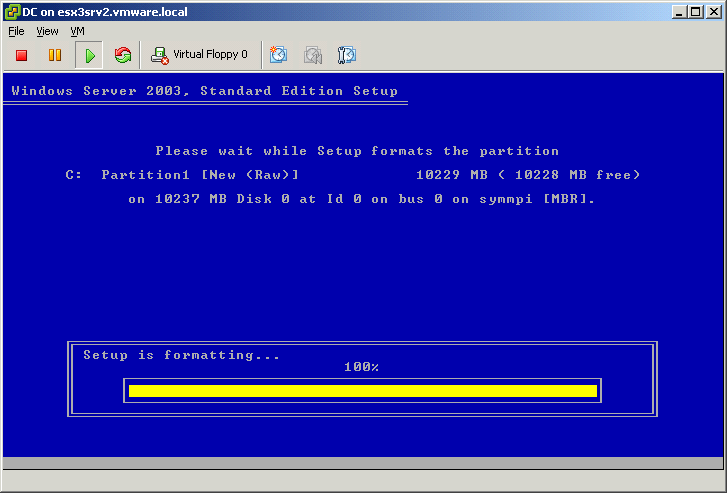
Na wat testen liep kwam ik erachter dat de setup alleen door loopt als je de partitie op FAT32 formateerd.
winsetuponnfsdatastore2.gif

Weet je het zeker?
winsetuponnfsdatastore3.gif

De partitie wordt geformateerd.
winsetuponnfsdatastore4.gif

Nadat de Windows installatie klaar is kun je met het volgende commando de partitie converteren naar NTFS
Convert C: /FS:NTFS

IBM: Your roadmap to linux


IBM heeft een stappen plan gemaakt voor degene die van Windows naar Linux over wilt stappen of voor degene die wat meer van Linux wil weten.

Step 1. Thinking in Linux The first step to success in Linux is learning to think in Linux. Take what you already know and redirect it to doing things the Linux way.

Step 2. Console crash course Linux provides great power and flexibility through the console. If it has been a while since you’ve spent much time at the command prompt, take a little time to reacquaint yourself with this environment by reviewing common commands you’ll use all the time.

Step 3. Introduction to Webmin While it is important to know the nuts and bolts of administration, it is often more convenient to have a tool. Also, a higher-level application makes complex configurations easier to handle. Webmin provides point-and-click configuration for beginning and experienced administrators.

Step 4. User administration If a system has no users, is it really a system? Learn about the Linux approach to users.

Step 5. Linux logging Linux makes extensive use of logging. Nothing is hidden from you. Becoming comfortable and familiar with logs will allow you to monitor the health of your system and track activities.

Step 6. Working with file systems File systems are at the heart of every server. Linux provides a lot of flexibility in its file systems.

Step 7. Networking Working unconnected is unthinkable in today’s world. Linux on the network unleashes its full potential. However, Linux networking looks very different on its face. You’ll need to learn some new terminologies and new tools.

Step 8. Backup and recovery The first line of defense against disaster is a backup of the data. Linux provides different options, some of which are very simple to work with.

Step 9. Installing software Linux can use prepackaged binary files, or you can compile programs directly from source code. The tools for installing Linux programs are very useful and provide functionality you might not expect.


Bron: http://www.vmware.com/community/ IBM Windows to Linux Roadmap

How To: Configure SAMBA on Ubuntu 6.10


Op deze pagina leer je hoe eenvoudig het is om SAMBA te installeren en verder te configureren. SAMBA wordt geïnstalleerd op Ubuntu Server 6.06 LTS.
Om te beginnen worden eerst de volgende packages worden geïnstalleerd:

apt-get install samba samba-common samba-doc libcupsys2-gnutls10 libkrb53 winbind smbclient

Daarna moet de smb.conf aangepast worden:

Vi /etc/samba/smb.conf
De smb.conf komt er al volgt uit te zien:

[global]
workgroup = WORKGROUP
netbios name = VMServer
server string = %h server (VMServer)

passdb backend = tdbsam
security = user
username map = /etc/samba/smbusers
name resolve order = wins bcast hosts
domain logons = yes
preferred master = yes
wins support = yes

# Set CUPS for printing
printcap name = CUPS
printing = CUPS
# Default logon
logon drive = H:
logon script = scripts/logon.bat
logon path = \\server1\profile\%U
# Useradd scripts
add user script = /usr/sbin/useradd -m %u
delete user script = /usr/sbin/userdel -r %u
add group script = /usr/sbin/groupadd %g
delete group script = /usr/sbin/groupdel %g
add user to group script = /usr/sbin/usermod -G %g %u
add machine script = /usr/sbin/useradd -s /bin/false/ -d /var/lib/nobody %u
idmap uid = 15000-20000
idmap gid = 15000-20000
# sync smb passwords woth linux passwords
passwd program = /usr/bin/passwd %u
passwd chat = *Enter\snew\sUNIX\spassword:* %n\n *Retype\snew\sUNIX\spassword:* %n\n .
passwd chat debug = yes
unix password sync = yes

# set the loglevel
log level = 3

[homes]
comment = Home
valid users = %S
read only = no
browsable = no

[printers]
comment = All Printers
path = /var/spool/samba
printable = yes
guest ok = yes
browsable = no

[netlogon]
comment = Network Logon Service
path = /home/samba/netlogon
admin users = Administrator
valid users = %U
read only = no

[profile]
comment = User profiles
path = /home/samba/profiles
valid users = %U
create mode = 0600
directory mode = 0700
writable = yes
browsable = no

! Let op: de netbiosnaam in de smb.conf moet hetzelfde zijn als je servernaam.

Voer nu de onderstaande commando’s uit:

mkdir /home/samba
mkdir /home/samba/netlogon
mkdir /home/samba/profiles
mkdir /var/spool/samba
chmod 777 /var/spool/samba/
chown -R root:users /home/samba/
chmod -R 771 /home/samba/

De bovenstaande commando’s maken de benodigde mappen aan en geven gelijk de juiste rechten mee.

Nu moet samba opnieuw worden opgestart. Dit gebeurd met het onderstaande commando:

/etc/init.d/samba restart

Nu moet het bestand /etc/nsswitch.conf aangepast worden:
hosts: files wins dns
Vervolgens moet de hosts file aangepast worden. Voeg hier alle werkstations binnen het netwerk toe.
/etc/hosts
192.168.0.100 server1
192.168.0.110 workstation1
192.168.0.111 workstation2
192.168.0.112 workstation3
192.168.0.113 workstation4

Voor het bewaren van de useraccounts gebruikt SAMBA de password database. Als eerste wordt de root accountaan de SAMBA password database toegevoegd.
smbpasswd -a root

Nadat de user is toegevoegd aan de SAMBA password database moet het volgende bestand aangemaakt worden:
/etc/samba/smbusers
Dit doe je met het onderstaande commando:
echo “root = Administrator” > /etc/samba/smbusers
De bovenstaande regel maakt de alias Administrator aan voor het root account.
De configuratie is nu zover dat er getest kan worden. Dit doe je door het volgende commando uit te voeren:

smbclient -L localhost -U%

Als alles goed staat krijg je geen error meldingen en komt er een soorgelijk logbestand zoals hieronder:

Domain=[MYWORKGROUP] OS=[Unix] Server=[Samba 3.0.14a-Ubuntu]Sharename Type Comment
——— —- ——-
netlogon Disk Network Logon Service
print$ Disk Printer Drivers
IPC$ IPC IPC Service (server1 server (Samba, Ubuntu))
ADMIN$ IPC IPC Service (server1 server (Samba, Ubuntu))
Domain=[MYWORKGROUP] OS=[Unix] Server=[Samba 3.0.14a-Ubuntu]
Server Comment
——— ——-
SERVER1 server1 server (Samba, Ubuntu)
Workgroup Master
——— ——-
MDKGROUP IPRG
MYWORKGROUP SERVER1
Voeg nu de standaard Windows groepen toe:

net groupmap modify ntgroup=”Domain Admins” unixgroup=root
net groupmap modify ntgroup=”Domain Users” unixgroup=users
net groupmap modify ntgroup=”Domain Guests” unixgroup=nogroup
Nu voeg je onderstaande code toe aan de /etc/samba/smb.conf


[vms]
comment = All Virtual Machines
path = /vms
read only = no
browsable = yes

[vmimages]
comment = De ISO bestanden
path = /vmimages
read only = no
browsable = yes

Herstart Samba:
/etc/init.d/samba restart

Nu heb je een share aangemaakt VMs deze kun je benaderen door op je Windows machine te browsen naar \\vmserver\VMs en \\vmserver\vmimages

bron: howtoforge