VMware: start a VM in ESX 3.5 on WS 6.5


Eric Sloof heeft het onderstaan de al gepost op zijn blog:

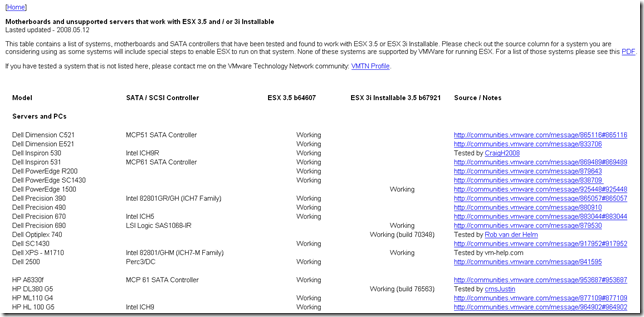
From the ESX or VC client, highlight the VM and select > Edit virtual machine settings
Select Resources tab
Un-check Unlimited in the right pane and lower Mhz count to 700
Select Advanced CPU in the left pane
Under Scheduling Affinity in the right pane > Select Run on processor(s):
Check "0"
Click OK to close VM edit window
Boot VM

VMware: Virtual Desktop Manager 2.1 Reviewers Guide


De VMware Virtual Desktop Manager 2.1 Reviewers Guide bevat de volgende onderwerpen:

  • VMware VDM 2.1 Overview

  • VMware VDM 2.1 Key Features and Components

  • VMware VDM 2.1 Requirements & Prerequisites

  • VMware VDM Agent, Client and Web Access Prerequisites

  • Firewall Modifications

  • How to Create VMware VDM Specific User Groups

  • How to Install the VDM Connection Server Standard Role

  • How to Install the VDM Replica Server Role

  • How to Load Balance VDM Connection Servers

  • How to Install the VDM Security Server Role

  • How to Login to the VDM Administrator Web Site

  • How To License VMware VDM 2.1

  • How to Configure VDM to Communicate with VMware VirtualCenter

  • How To Add a VDM Administrator

  • How To Edit the VDM Global Settings

  • How to Generate a Certificate Signing Request (CSR) Key

  • How to Submit CSR to your Certificate Authority

  • How to Add the New SSL Certificate to VMware VDM

  • How to Create the Base Virtual Machine

  • How To Install Windows XP on a VMware ESX Host

  • How to Install Applications

  • How to Apply Windows XP Patches and Security Updates

  • How to Add Group Policy Loopback Setting to VDM Managed Desktops

  • How to Install the VDM Agent

  • How to Create and Configure Virtual Machine Templates

  • How to Convert the Base Virtual Machine to Template

  • How to Configure VirtualCenter to Deploy Unique Virtual Machines from Templates

  • How to Create a Guest Customization Specification

  • How to Perform Maintenance to Existing Virtual Machine Templates

  • How to Implement VDM Specific Windows Group Policies

  • How to Prepare the Active Directory Environment for VMware Group Policies

  • How to Add the VDM Group Policy ADM Template

  • How to Add a New Individual Desktop

  • How to Assign (Entitle) Users / Groups to a Individual Virtual Desktop

  • How to Create a Persistent Desktop Pool

  • How To Assign (Entitle) Users / Groups to a Persistent Desktop Pool

  • How to Create a Non-Persistent Desktop Pool

  • How To Assign (Entitle) Users / Groups to a Non-Persistent Desktop Pool

  • How to Install the VDM Client on a Windows Client

  • How to Login to VDM 2.1 through the VDM Windows Client

  • How to Login to VDM 2.1 through the Web Access Client

Download de guide hier: vdm_2.1_reviewers_guide.pdf

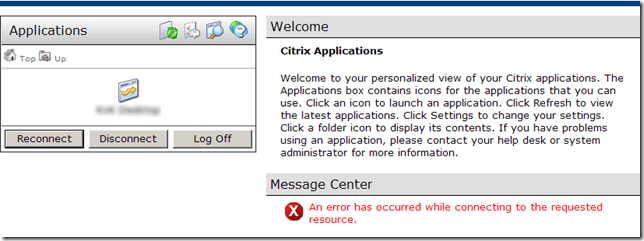
Citrix: An error has occurred while connecting to the requested resource


Ik heb al eens een oplossing gepost voor het onderstaande probleem. Zie de post hier.

Alleen deze keer kreeg ik ook de onderstaande melding in de eventlogs van de Web Interface server.

image

Ik ben vervolgens gaan zoeken op google. Als eerste kwam ik het volgende artikel tegen: CTX107181 dit bracht echter niet de oplossing. Na wat googlen kwam ik de volgende twee topics op het forum van Citrix tegen:

http://support.citrix.com/forums/thread.jspa?forumID=94&threadID=71332&start=15&tstart=0

http://support.citrix.com/forums/thread.jspa?forumID=137&threadID=87695&start=0&tstart=0

In een van die topics werd het volgende vermeld:

SET LOAD EVALUATORS TO DEFAULT!!!!!! DELETE ANY LOAD EVALUATORS YOU CREATED!!!!! ONCE EVERYTHING IS WORKING THANK CITRIX FOR BURNING YOUR LIFE AWAY WITH A PRODUCT THAT HAS ONE OF THE WORST METHODS OF ERROR REPORTING I HAVE EVER SEEN!! : (

Ik heb nu de load evaluator omgezet van Advanced naar Default. Het probleem was daarna opgelost.

Microsoft: Health Checks on Domain Controllers


Brian W. McCann heeft een korte post gemaakt over Health Checks on Domain Controllers.

Hieronder zie je de tools die hij beschrijft:

Dcdiag.exe /v >> c:\temp\pre_dcdiag.txt
This is a must and will always tell you if there is trouble with your DCs and/or services associated with it.

Netdiag.exe /v >> c:\temp\pre_Netdiag.txt
This will let me know if there are issues with the networking components on the DC. This along with the post test also is a quick easy way to ensure the patch I just installed is really installed (just check the top of the log)

Netsh dhcp show server >> c:\temp\pre_dhcp.txt
Some may not do this but I’ve felt the pain of a DHCP server somehow not being authorized after a patch. This allows me verify the server count and names.

Repadmin /showreps >> c:\temp\pre_rep_partners.txt
This shows all my replication and if it was successful or not. Just be aware that Global Catalogs will have more info here than a normal domain controller.

repadmin /replsum /errorsonly >> c:\temp\pre_repadmin_err.txt
This is the one that always takes forever but will let you know who you are having issues replicating with.

Bron: http://www.adminprep.com/articles/default.asp?action=show&articleid=101

Citrix: How to determine the software version


In deze post vind je de verschillende locaties, waar je de versie nummers van Citrix software terug kunt vinden.


Presentation Server / XenApp

HKLM\SYSTEM\CurrentControlSet\Control\Citrix

ProductBuild
ProductName
ProductVersionNum


Web Interface:

HKLM\Software\Citrix\Webinterface


Management Consoles:

HKLM\Software\Citrix\ProductCodes


ICA Client

C:\Program Files\Citrix\ICA Client\version.dat


Meer informatie vind je hier: CTX107570

VMware: New releases


VMware heeft weer nieuwe versie vrijgegeven van Workstation, ACE en VMware Server.

  • Added new releases for Workstation 5.5.7 and 6.0.4, ACE 1.0.6 and 2.0.4, and VMware Server 1.0.6.
  • Added support for Windows Vista Service Pack 1 on Workstation 6.0.4, ACE 2.0.4, Visual Studio Integrated Virtual Debugger, and Eclipse Integrated Virtual Debugger. Also modified Workstation support for Visual Studio and Eclipse integrated virtual debuggers. See “Windows Vista” on page 33.
  • http://www.vmware.com/pdf/GuestOS_guide.pdf
  •  

    Je kunt de software hier downloaden:

    Tools: Sysinternals Live


    image

    Het is nu mogelijk om je favoriete Sysinternals tool direct vanaf het internet te starten. Zo heb je altijd de meest recente versie van je tools.

    Hier een quote het Sysinternals Team:

    What is this?
    
    This is a file share allowing access to all Sysinternals utilities. 
    We have developed this to test an alternate distribution mechanism 
    for our utilities.
    
    This will allow you to run these tools from any computer connected 
    to the Internet without having to navigate to a webpage, 
    download and extract the zip file.
    
    If you are unfamiliar with Microsoft Windows Sysinternals, 
    it is highly recommended that you visit the website at 
    http://technet.microsoft.com/sysinternals before using these tools.
    
    If you have any questions or comments on this file share, 
    please email syssite@microsoft.com
    
    Regards,
    The Microsoft Windows Sysinternals Team


    De website vind je hier: http://live.sysinternals.com/


    Yosh van http://windowsconnected.com/blogs heeft hier zo zijn bedenkingen over:

    Maybe I am just being paranoid , but this very plain site that is hosted on a non-Microsoft.com domain name scares me.

    Wat vinden jullie?