How to: Disable the GoogleToolbarNotifier


Info over de GoogleToolbarNotifier vindt je hier: http://www.bleepingcomputer.com/

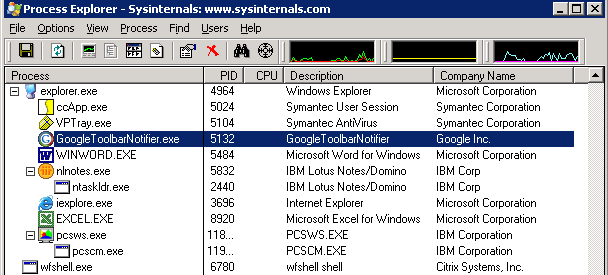
De GoogleToolbarNotifier wordt in elke sessie gestart via de HKCU- Run key. Zoals je ziet in in Process Explorer van Sysinternals:

googletoolbarnotifier.gif

Via de volgende kix code kun je de runkey laten verwijderen en start de GoogleToolbarNotifier niet meer op.

;* Disable GoogleUpdater
DelValue(“HKEY_CURRENT_USER\Software\Microsoft\Windows\CurrentVersion\Run”, “swg”)
If @error = 0 $LogItem = Log(“De GoogleToolbarUpdater is uitgeschakeld.”,$LogFile) EndIf

VMware: New Patches


VMware heeft vandaag weer een aantal patches voor ESX 3.0.1 vrij gegeven.

ESX-4825991 Patch | 05/15/07 | Critical Patch
ESX-5095559 Patch | 05/15/07 | Security Patch
ESX-5140477 Patch | 05/15/07 | Security Patch
ESX-6657345 Patch | 05/15/07 | General Patch
ESX-6704314 Patch | 05/15/07 | Security Patch
ESX-7281356 Patch | 05/15/07 | General Patch
ESX-7302867 Patch | 05/15/07 | Critical Patch
ESX-7408807 Patch | 05/15/07 | General Patch
ESX-7557441 Patch | 05/15/07 | General Patch

How to: Disable Internet Enhanced Security feature on a Terminal Server


Zodra een nieuwe gebruiker inlogt op een terminal/Citrix server kan het voorkomen dat de gebruiker het volgende scherm ziet zodra deze Internet Explorer opent:

iees.gif

In het volgende KB document van Microsoft lees je hoe je deze uit kunt schakelen: KB933991.

Ik heb de oplossing via het onderstaande stukje kixscript doorgevoerd.

Kixscript

;* Disable IE Enhanced Security feature

;* Disable IE Hardening policy
If @ProductType = “Windows Server 2003”
   WriteValue(“HKEY_CURRENT_USER\Software\Microsoft\Windows\CurrentVersion\Internet Settings\ZoneMap”, “IEHarden”, “0”, “REG_DWORD”)
      DelValue(“HKEY_CURRENT_USER\Software\Microsoft\Windows\CurrentVersion\Internet Settings”, “IEHardenIENoWarn”)
If @error = 0 $LogItem = Log(“Internet Explorer Enhanced Security feature is uitgeschakeld.”,$LogFile) Endif
Endif

Je kan het ook met de volgende registry file oplossen.

Registrykeys

Of Importeer de volgende registrykeys:

Windows Registry Editor Version 5.00

[HKEY_CURRENT_USER\Software\Microsoft\Windows\CurrentVersion\Internet Settings]
“IEHardenIENoWarn”=”0”

[HKEY_CURRENT_USER\Software\Microsoft\Windows\CurrentVersion\Internet Settings\Zonemap ]
“IEHarden”=”0”

VMware: How to add configuration parameters to a vmx file through VirtualCenter 2.0.x


Probleem

Mocht je gebruik willen maken van extra parameters in een vmx bestand van een VM, dan ben je vast wel eens tegen het volgende aangelopen:

Je maakt een aanpassing aan het vmx bestand via je favoriete editor. Je slaat het bestand op. Je bekijkt of de wijzigingen goed zijn doorgevoerd via het cat commando. Alles lijkt goed te zijn gegaan todat je de VM selecteerd binnen VirtualCenter 2.0.x deze geeft gelijk een melding dat er iets is veranderd en wil antwoord op de vraag of het correct is. Dit kreeg ik bij een VM die als fileserver diende met als gevolg een kleine hik in het netwerk.

Hoe kun je dit voorkomen

Dit alles kun je voorkomen door de regels in te voeren via VMware VirtualCenter Server. Het enige nadeel van deze manier van aanpassen is, dat de VM uit moet staan wil je een aanpassing door voeren aan het vmx bestand.

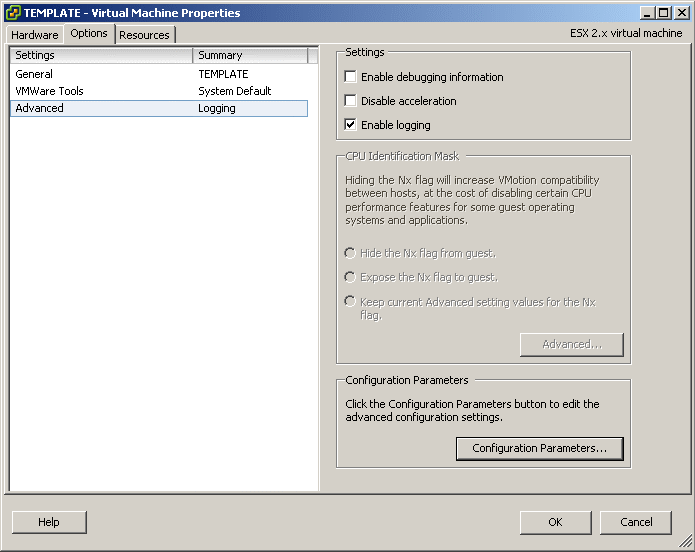
Stap 1: Sluit de VM af. Vraag de properties op van de VM en klik op de het tabblad Options.
editvmxvc2.gif

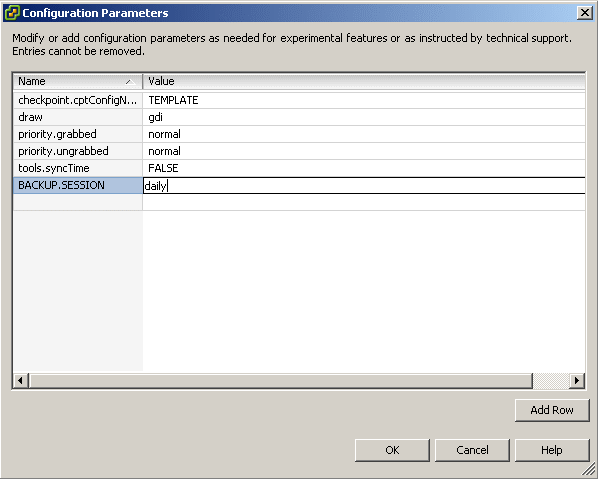
Stap 2: Klik op Add Row en voeg de aanpassing door. In mijn geval is het een parameter voor VMBK.
editvmxvc2_1.gif

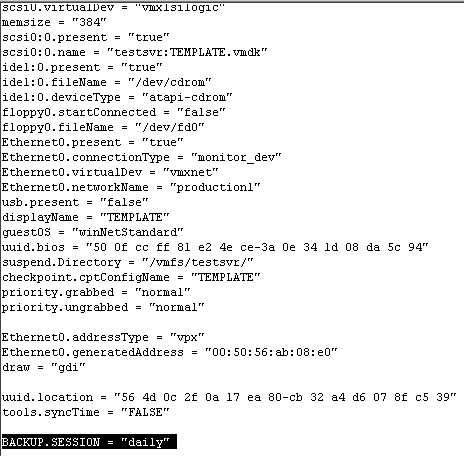
Resultaat: Zoals je ziet is het VMX bestand succesvol aangepast.
editvmxvc2_2.gif

Script: VMware ESX3 Patch downloader


Introduction
————
Instead of downloading ESX 3 patches individually this application automatically batch downloads patches for you and can be used repeatedly to maintain your local patch repository.

This utility is designed for Windows XP, Vista and Server 2003 but may work on other Windows Operating Systems.

No support is provided for the utility but we will endeavour to reply to email requests for assistance.

Instructions
————

1. Unzip all the zip file contents in to a folder on your PC

2. Open an internet browser and navigate to http://www.vmware.com/download/vi/vi3_patches.html#c4310

3. Select the patches you want to download by selecting the text and copying it to your clipboard, eg: Ctrl + C. You can select all the patches if you want, or just some of them. You don’t need to be particular about the tidying up any uneeded text as the application filters the patch names to correctly identify them.

4. Once you have made you selection, paste the selection in to the textfile.txt file which is already included.

Note: the textfile provided is current to 12 April 2007 for all VMware ESX 3.0.1 patches and will work correctly as it is.

5. Save the file, and then double-click the VIPatchDownloader-v100.vbs file to start downloading your patches (ensure you have an internet connection before you start). You will be prompted where you wish to place the patches and the application will create a new folder called ‘VIPatches’. Make sure you have sufficient rights to create files in the destination location that you choose. A progress window will appear but it may take a few moments to initialise after you’ve selected the destination so please be patient. Patches are downloaded sequentially.

Note: closing the progress window part way through patch downloading will not stop the application. It will continue to complete the selected downloads unless you end the wscript.exe process through Windows Task Manager and close any open download screens.

6. Once the downloads are complete the progress window will advise and then close after 5 seconds.

HTTP Proxy
———-
To use wget through a proxy you must first create an environment variable. Type the following at the Windows command prompt:

set http_proxy=http://proxy.example.com:8080

Replace proxy.example.com with your actual proxy server and replace 8080 with your actual proxy server port.

Download het script hier: http://www.xtravirt.com/

Hier zie je het script in actie:

esxpatchdownloadscript.gif

Linux: SCP from the Commandline


Even een korte uitleg over hoe je een bestand kunt kopieren van host A naar host B d.m.v. het commando scp.

scp filename username@server:dir/

  • filename: staat voor de naam van het bestand op de lokale PC
  • username: de username op de server
  • server: de naam van de shell server waar het bestand naar toe gekopieerd dient te worden.
  • dir: de map waarin het bestand geplaatst moet worden op de server.

Nadat je het commando hebt uitgevoerd dien je alleen nog het wachwoord van de user die op de server staat in te voeren. Daarna begint de kopieerslag.


Bron: http://www.ulyssis.org/node/420

EventID: 1202 SCECLI


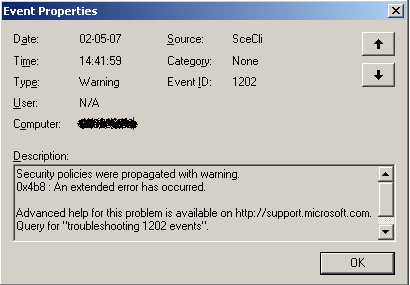
De laatste tijd kreeg ik nogal vaak de volgende melding in de eventvwr op een Domain Controller.

eventid1202scecli.gif

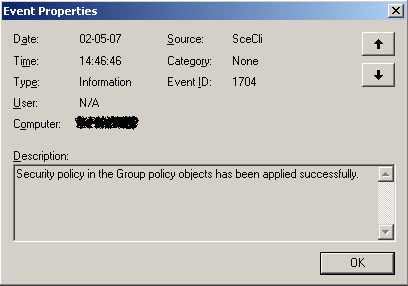
De oplossing was redelijk eenvoudig. KB260715 geeft als oorzaak het hernoemen van het Admin account met daarbij het gebruik van een bestaand account in het domein. Dit was bij ons het geval. Ik heb de policy aangepast zodat het account een andere naam krijgt.

eventid1202scecli1a.gif

How To: Upgrade WSUS 2.0 to WSUS 3.0


Hier een quote van Bink.nu

A month earlier then expected WSUS 3.0 is released to web!
Microsoft Windows Server Update Services (WSUS) 3.0 delivers new features including an MMC-based user interface with advanced filtering and reporting, improved performance and operational reliability, flexible deployment options to improve branch office support, and more content access through the Microsoft Update Catalog site.

Download WSUS 3.0 hier: http://go.microsoft.com/fwlink/?LinkId=89379

Hier vindt je meer informatie:
Release notes
Step-by-step: Getting started
WSUS 3.0 Overview
Deploying WSUS 3.0
WSUS 3.0 Operations guide
Script Center

Software requirements voor WSUS 3.0 server installatie

.Net 2.0 http://www.microsoft.com
MMC 3.0 http://www.microsoft.com
Microsoft Report Viewer http://www.microsoft.com

Stap 1: Backup maken

Maak eerst een backup van je database mocht deze extern draaien. Maak daarna een backup van de machine / VM.

Stap 2: requirements installeren

.Net 2.0 installeren, MMC 3.0 (Mocht je laatst SP2 voor Windows Server 2003 hebben geïnstalleerd, dan kun je deze stap overslaan) en Microsoft Report viewer.

Stap 3: WSUS 3.0 installeren

Nadat je de prerequirements hebt geïnstalleerd, kun je beginnen met de upgrade naar WSUS 3.0.

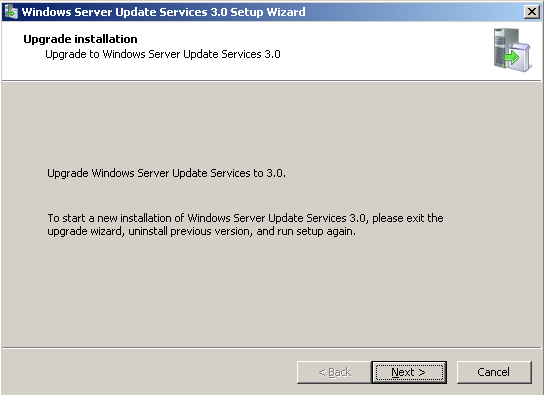
De setup wordt gestart en vindt een bestaande installatie van WSUS 2.0. Deze moet dus worden bijgewerkt naar WSUS 3.0.

upgradewsus.gif

upgradewsus2.gif

De Setup wizard vindt een bestaande installatie van MSDE 2000 deze moet worden bijgwerkt naar Windows Internal Databse.

upgradewsus3.gif

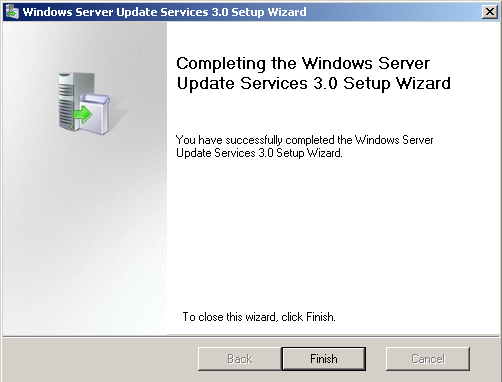
WSUS is bijgewerkt.

upgradewsus5.gif

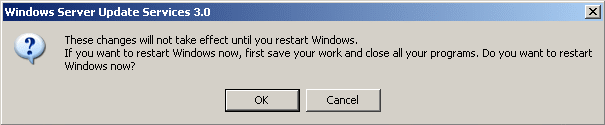
Herstart de Server.

upgradewsus6.gif

Nadat je het nieuwe console hebt geopent en verbinding hebt gemaakt met de server, kun je beginnen met het inrichten en onderhouden van je WSUS 3.0 server.

Happy Patching!

Er kunnen een aantal EventID’s optreden nadat de upgrade is uitgevoerd. Lees hier hoe je dat kunt oplossen.


Bron: http://bink.nu/Article9992.bink