vSphere: Set NFS Advanced Configuration Settings via esxcfg-advcfg


Yesterday I created a post about changing the advanced configuration settings for NFS via PowerCLI. Today I will show you how you can change the advanced configuration settings with the use of esxcfg-advcfg. This is quite useful for kickstart installations.

This is a snippet from my ks.cfg file:

# Set NFS advanced Configuration Settings
/usr/sbin/esxcfg-advcfg -s 30 /Net/TcpipHeapSize
/usr/sbin/esxcfg-advcfg -s 120 /Net/TcpipHeapMax
/usr/sbin/esxcfg-advcfg -s 10 /NFS/HeartbeatMaxFailures
/usr/sbin/esxcfg-advcfg -s 12 /NFS/HeartbeatFrequency
/usr/sbin/esxcfg-advcfg -s 5 /NFS/HeartbeatTimeout
/usr/sbin/esxcfg-advcfg -s 32 /NFS/MaxVolumes

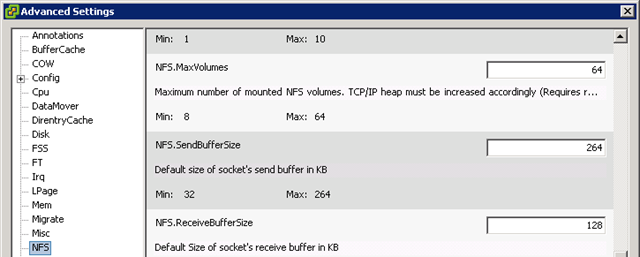
So how do you know what values you need to enter when you want to use this command. Bouke has a html version of the esxcfg manuals on his blog: http://www.jume.nl/esx4man/man8/esxcfg-advcfg.8.html. But this page doesn’t show the information I needed. Open the Advanced Settings screen in the vSphere client.

image

Open the NFS settings. Let’s use the NFS.MaxVolumes in this example. NFS is the ‘root’ folder the setting in this case MaxVolumes is the child folder. So if you want to change this setting via /usr/sbin/esxcfg-advcfg we need to use the /NFS/MaxVolumes. If you want to know what the current value is, just run the following command from the service console:

/usr/sbin/esxcfg-advcfg –g /NFS/MaxVolumes

This will be the output:

image

When you change the value to 32 via this command:

/usr/sbin/esxcfg-advcfg -s 32 /NFS/MaxVolumes

This will be the output:

image

vSphere ISO containing Intel 82575 and 82576 Gigabit Ethernet Adapter drivers


This post is a complete re-post from Eric Sarakaitis blog: http://www.vmwareadmins.com


So, after spending three days on this, I was finally able to get the  Intel 82575 and 82576 Gigabit Ethernet Adapter driver slipstreamed onto the installation media.

I first followed this: http://patrickvanbeek.wordpress.com/2010/01/30/slipstreaming-drivers-in-the-esx4i-install-iso/ to get the post install drivers working.

But I still had the problem of not being able to see the NIC’s during the install.

to do that, I had to explode the ESX 4.0u1 ISO and grab the initrd.img file from the isolinux folder.

To do the modifications of the img file I needed a linux guest… so I fired up a Ubuntu image on Lab Manager and SCP’d the img file there.

To extract the IMG file do:

1.mkdir ~/tmp
2.cd ~/tmp
3.cp /boot/initrd.img ./initrd.gz
4.gunzip initrd.gz
5.mkdir tmp2
6.cd tmp2
7.cpio -id < ../initrd.img

now you should have a lot of files in ~/tmp/tmp2 directories, including a lot of subdirectories like sbin,lib

Now you need to extract the igb.xml and igb.o from the VMware RPM (http://www.vmware.com/support/vsphere4/doc/drivercd/esx40-net-igb_400.1.3.19.12-1.0.4.html.)

I then moved these files to their respective locations within the exploded initrd.

the igb.xml went into

1./usr/share/hwdata/pciids/

the igb.o went into

1./usr/lib/vmware/vmkmod/

then pack the files back into the archive using the following command

1.cd ~/tmp/tmp2
2.find . | cpio –create –format=’newc’ > ~/tmp/newinitrd
3.cd ~/tmp
4.gzip newinitrd

now you would have a newinitrd.gz
rename this now –
mv newinitrd.gz as newinitrd.img
this is the new boot image now !!

I then re-created the ISO. Oddly enough, it worked on the first try 🙂

and the link to the ISO… http://www.vmwareadmins.com

vSphere: Hot Add or Remove a VMDK with a Linux VM


In this post I will show you how to hot add a new VMDK to a Linux VM. I will also post how to remove a VMDK if necessary.


Hot Add a new VMDK

Add the new VMDK:

image

After you added the new VMDK login to the VM and run fdisk –l

[root@nagios ~]#  fdisk -l

Disk /dev/sda: 21.4 GB, 21474836480 bytes
255 heads, 63 sectors/track, 2610 cylinders
Units = cylinders of 16065 * 512 = 8225280 bytes

   Device Boot      Start         End      Blocks   Id  System
/dev/sda1   *           1          13      104391   83  Linux
/dev/sda2              14        2610    20860402+  8e  Linux LVM

The new disk isn’t available yet so we have to do a SCSI bus rescan. You can run the following command to do a rescan:

echo "- – -">/sys/class/scsi_host/host0/scan

When you run the fdisk –l command after the rescan, you will see the new disk.

[root@nagios ~]# fdisk -l

Disk /dev/sda: 21.4 GB, 21474836480 bytes
255 heads, 63 sectors/track, 2610 cylinders
Units = cylinders of 16065 * 512 = 8225280 bytes

   Device Boot      Start         End      Blocks   Id  System
/dev/sda1   *           1          13      104391   83  Linux
/dev/sda2              14        2610    20860402+  8e  Linux LVM

Disk /dev/sdb: 10.7 GB, 10737418240 bytes
255 heads, 63 sectors/track, 1305 cylinders
Units = cylinders of 16065 * 512 = 8225280 bytes

Disk /dev/sdb doesn’t contain a valid partition table

The new disk doesn’t contain a valid parition table. This can be fixed with running the fdisk /dev/sdb command:

fdisk –l /dev/sdb n p 1 1 {enter} x b 1 128 w q

The options x b 1 128 will align the new parition.  For more info about, see Bob Plankers his post here: http://lonesysadmin.net/2010/03/30/i-will-keep-saying-it-align-your-partitions/

Now we have a valid parition table but no file system. Run the mkfs.ext3 /dev/sdb1 command to accomplish this task:

[root@nagios ~]# mkfs.ext3 /dev/sdb1
mke2fs 1.39 (29-May-2006)
Filesystem label=
OS type: Linux
Block size=4096 (log=2)
Fragment size=4096 (log=2)
1310720 inodes, 2620595 blocks
131029 blocks (5.00%) reserved for the super user
First data block=0
Maximum filesystem blocks=2684354560
80 block groups
32768 blocks per group, 32768 fragments per group
16384 inodes per group
Superblock backups stored on blocks:
        32768, 98304, 163840, 229376, 294912, 819200, 884736, 1605632

Writing inode tables: done
Creating journal (32768 blocks): done
Writing superblocks and filesystem accounting information: done

This filesystem will be automatically checked every 39 mounts or
180 days, whichever comes first.  Use tune2fs -c or -i to override.

Run the fdisk –l command to verify the new configuration:

[root@nagios ~]# fdisk -l

Disk /dev/sda: 21.4 GB, 21474836480 bytes
255 heads, 63 sectors/track, 2610 cylinders
Units = cylinders of 16065 * 512 = 8225280 bytes

   Device Boot      Start         End      Blocks   Id  System
/dev/sda1   *           1          13      104391   83  Linux
/dev/sda2              14        2610    20860402+  8e  Linux LVM

Disk /dev/sdb: 10.7 GB, 10737418240 bytes
255 heads, 63 sectors/track, 1305 cylinders
Units = cylinders of 16065 * 512 = 8225280 bytes

   Device Boot      Start         End      Blocks   Id  System
/dev/sdb1               1        1305    10482381   83  Linux

if you want to auto mount the new disk, you have to create a new folder and add an entry to the /etc/fstab file.

mkdir /disk2
nano or vi /etc/fstab

add the following line:
/dev/sdb1               /disk2                  ext2    defaults        1 2

Now you are ready to mount the new disk.

mount /dev/sdb1 /disk2/

These are all the steps.

Hot Remove a VMDK

If you want to remove an extra VMDK from a Linux VM,you need to follow these steps.

First you need to unmount the /dev/sdb1:

umount /dev/sdb1

Remove the /disk2 folder:

rmdir /disk2/

Remove the entry from the /etc/fstab:

nano or vi /etc/fstab

remove the following line:
/dev/sdb1               /disk2                  ext2    defaults        1 2

Delete the device:

echo 1 > /sys/block/sdb1/device/delete

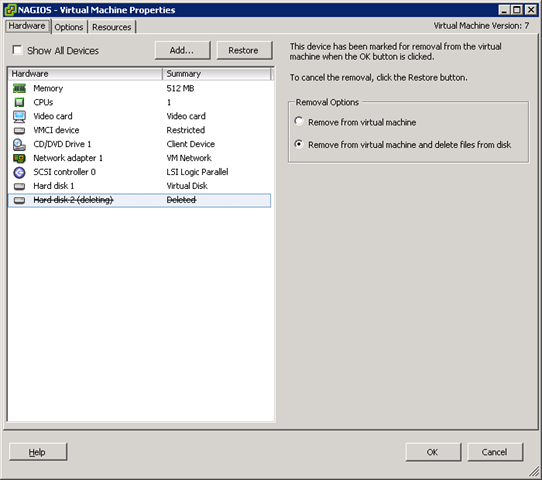
Remove the VMDK:

image

vSphere: Unattended ESX4 installation Tips & Tricks


In this post I will share some tips / tricks and scripts, which I used to create an unattended ESX4 installation.


One of the important lessons I have learned with creating a ks.cfg file for vSphere is how to use proper escaping.

for each $ in your script use a \ to escape it properly. See the example below:

VMHBA=\$(/usr/sbin/esxcfg-scsidevs -a |grep "Software iSCSI" |awk ‘{print \$1}’)

This form of escaping was necessary to get my script working. My script started with the following lines:

%post

cat > /root/esx01.sh <<EOF1

#!/bin/sh

and these are the last lines of the script:

##########################
# Finish
##########################
echo "Making sure the script runs only once"

EOF1

###Make esxcfg.sh eXcutable
chmod +x /root/esx01.sh

###Backup original rc.local file
cp /etc/rc.d/rc.local /etc/rc.d/rc.local.bak

###Make esx01.sh run from rc.local and make rc.local reset itself
cat >> /etc/rc.d/rc.local <<EOF
cd /tmp
/root/esx01.sh
mv -f /etc/rc.d/rc.local.bak /etc/rc.d/rc.local
shutdown -r now
EOF

The rest of this post, I will show you some tips about configuring Syslog, iSCSI, User creation, Change service console memory, Install Dell Open Manage agent, Set the host into maintenance mode.

But before I start with the tips mentioned above, I want to share a little trick a learned from  a comment from David on an excellent blog post by Robert Patton. In stead of using a long sleep at the beginning of your script, you can use the following tip:

hostd-vmdb

Before you start the post script, you have to wait until the hostd-vmdb service is ready. This is necessary  if you want to use the /usr/bin/vmware-vim-cmd command. With the following while loop, you can check the status of the hostd-vmdb service. When the service is ready, the script continues to configure your ESX server.

####################################################
#Wait until host service is ready
####################################################
while ! vmware-vim-cmd /hostsvc/runtimeinfo; do
sleep 20
done


I configured the Syslog settings at the beginning of my script, so I can monitor al the steps via the Syslog service:

Syslog

This is just an easy one. The only thing you have to do is echo the following lines:

####################################################
# Configure Syslog
####################################################
echo "# remote syslog server Splunk" >> /etc/syslog.conf
echo "*.* @192.168.123.219" >> /etc/syslog.conf
service syslog restart

The next tips is about the configuration of iSCSI.

Configure iSCSI

The following script part will add a new vSwitch1 called iSCSI and set the IP settings.

####################################################
# Add Storage Networking
####################################################
/usr/sbin/esxcfg-vswitch –add-pg="iSCSI" vSwitch1
/usr/sbin/esxcfg-vswitch –pg="iSCSI" -v 36 vSwitch1
/usr/sbin/esxcfg-vmknic -a -i 172.1.1.202 -n 255.255.255.0 "iSCSI"

/usr/sbin/esxcfg-route 192.168.123.254

# Refresh network settings
/usr/bin/vmware-vim-cmd internalsvc/refresh_network

The next step is to enable the iSCSI initiator and add a rule to the Firewall. After the 10 seconds sleep, the correct VMHBA will be selected for the rest of the steps. The VMHBA is saved in a variable which will be used to set the CHAP password, add the iSCSI Send Targets and perform a VMHBA rescan.

####################################################
# Configure iSCSI
####################################################
/usr/bin/vmware-vim-cmd hostsvc/firewall_enable_ruleset swISCSIClient
/usr/bin/vmware-vim-cmd hostsvc/storage/software_iscsi_enabled true

sleep 10

VMHBA=\$(/usr/sbin/esxcfg-scsidevs -a |grep "Software iSCSI" |awk ‘{print \$1}’)

# Set CHAP password
/usr/bin/vmware-vim-cmd hostsvc/storage/iscsi_enable_chap \$VMHBA iscsi_cluster_01 <chap_password>

# Add iSCSI Send Targets
/usr/bin/vmware-vim-cmd hostsvc/storage/iscsi_add_send_target \$VMHBA 172.1.1.10
/usr/bin/vmware-vim-cmd hostsvc/storage/iscsi_add_send_target \$VMHBA 172.1.1.11

sleep 15

/usr/sbin/esxcfg-rescan \$VMHBA

The rest of the vSwitches / Portgroups are left out of this post.


Add Users

If you want to add users with encrypted passwords, You can use the openssl passwd –1 command on
an existing ESX Server to generate a MD5 encrypted password.

image

This little trick can be used to generate the root password for ESX and to generate passwords for other users.

You can use the following line to set the root password during the installation:

# root Password
rootpw –iscrypted $1$EpQvSrYkznF6yCLKPQqZPUYr6z

and if you want to add more users to the Service console, you can use the following lines:

####################################################
# Add users
####################################################
/usr/sbin/useradd -p ‘\$1\$L4fGhr0F\$ImLwX47v3xZkAH4HrmBjr0′ -c "Arne Fokkema" afokkema

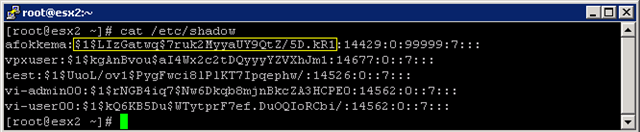
Instead of generating passwords, you can also use the string from the /etc/shadow file. You can open de file with cat and copy the string:
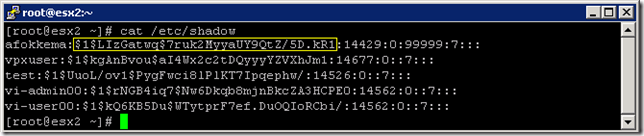
image


Change the vSwitch portnumber value to 120

To change the vSwitch portnumber to 120, you can use the following command:

####################################################
# Change the vSwitch portnumber to 120
####################################################
/usr/bin/vmware-vim-cmd  hostsvc/net/vswitch_setnumports vSwitch0 128

This will change the default setting to 120:
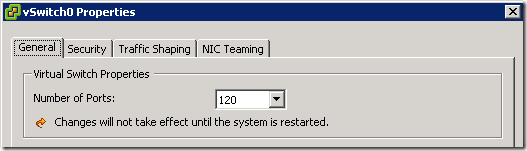
image


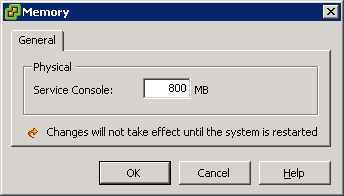
Change the Service Console Memory to 800MB

To change the Service Console memory to 800MB, you can use the following commands. These settings are applied after a reboot.

####################################################
# Configure Service Console Memory to 800MB
####################################################
/usr/bin/vmware-vim-cmd /hostsvc/memoryinfo 838860800
/usr/sbin/esxcfg-boot -b
/usr/sbin/esxcfg-boot -t

This is how it looks like in the vSphere client:

 image

Dell Open Manage Agent

The script below is a based on a script by Scot Hanson (aka @DellServerGeek) which you can find here.

This script will download the OM agent from an internal Webserver and opens the firewall for the Open Manage agent.

####################################################
# Dell OM Agent        
####################################################

mkdir -p /root/OM

#Download OM.tar.gz
esxcfg-firewall –allowOutgoing
lwp-download http://webserver/OM/OM.tar.gz /root/OM/.
esxcfg-firewall –blockOutgoing

cd /root/OM
tar -zxf OM.tar.gz
chmod a+x *.*

./linux/supportscripts/srvadmin-install.sh -x
#./linux/supportscripts/srvadmin-services.sh start

/usr/sbin/esxcfg-firewall -o 1311,tcp,in,OpenManageRequest

Enable vMotion

To enable vMotion, We use another variable to capture the right vmkernel portgroup:

####################################################
# Enable vMotion on the vMotion PG
####################################################

service mgmt-vmware restart
sleep 1m

VMK=\$(esxcfg-vmknic -l |grep vMotion |awk ‘{print \$1}’)
/usr/bin/vmware-vim-cmd hostsvc/vmotion/vnic_set \$VMK

# Refresh network settings
/usr/bin/vmware-vim-cmd internalsvc/refresh_network

Enter Maintenance mode

When the installation is ready, the ESX host will enter maintenance mode before it restarts to finalize the installation.

####################################################
# Enter Maintenance mode
####################################################
/usr/bin/vmware-vim-cmd /hostsvc/maintenance_mode_enter


It can cost you a lot of time to create a ks.cfg to match your vSphere environment. But when it’s ready, it will save you a lot of time deploying new hosts or redeploy other hosts.

If you have any additional scripts or tips please leave a comment or contact me on twitter: @afokkema


Sources:

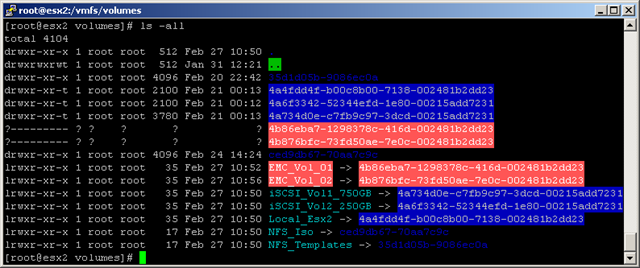
An important vSphere 4 storage bug is solved in patch ESX400-200912401-BG


image

Chad Sakac over at http://virtualgeek.typepad.com already blogged about the APD bug in December last year. You can find his post here. 

Just a short quote from Chad his post about the symptoms of this APD bug:

Recently saw a little uptick (still a small number) in customers running into a specific issue – and I wanted to share the symptom and resolution.   Common behavior:

  1. They want to remove a LUN from a vSphere 4 cluster
  2. They move or Storage vMotion the VMs off the datastore who is being removed (otherwise, the VMs would hard crash if you just yank out the datastore)
  3. After removing the LUN, VMs on OTHER datastores would become unavailable (not crashing, but becoming periodically unavailable on the network)
  4. the ESX logs would show a series of errors starting with “NMP”

Examples of the error messages include:

    “NMP: nmp_DeviceAttemptFailover: Retry world failover device "naa._______________" – failed to issue command due to Not found (APD)”

    “NMP: nmp_DeviceUpdatePathStates: Activated path "NULL" for NMP device "naa.__________________".

What a weird one…   I also found that this was affecting multiple storage vendors (suggesting an ESX-side issue).  You can see the VMTN thread on this here.


We found out about this issue during a big storage project. We where creating a lot of new LUNs and where removing a lot of the old LUNs. If you remove a LUN on a way not mentioned in Chad his post:

This workaround falls under “operational excellence”.   The sequence of operations here is important – the issue only occurs if the LUN is removed while the datastore and disk device are expected by the ESX host.   The correct sequence for removing a LUN backing a datastore.

  1. In the vSphere client, vacate the VMs from the datastore being removed (migrate or Storage vMotion)
  2. In the vSphere client, remove the Datastore
  3. In the vSphere client, remove the storage device
  4. Only then, in your array management tool remove the LUN from the host.
  5. In the vSphere client, rescan the bus.

So when we used the workaround described above, everything went fine. But at my current employer, we use a large LeftHand iSCSI SAN.  One of the great things of Lefthand SAN is the ability to move LUNs between different clusters. With the APD bug, we couldn’t use this option anymore.

When we discovered this APD bug we contacted VMware Support. After a couple of weeks we received an e-mail with the following fix.

I can now confirm that the APD (All paths dead) issue has been resolved by a patch released as part of P03.

To install this patch, please upgrade your hosts to vSphere Update 1 and use Update Manager to install the latest patches.

Please ensure that ESX400-200912401-BG is installed as this resolves the APD problem

We upgraded one of our clusters to Update 1 and installed the latest patches including the ESX400-200912401-BG patch. After installing the patch, we did some tests and I can confirm that the APD bug is history!!

To reproduce this issue I created two iSCSI LUNs on the EMC VSA. Instead of removing the LUNs I disconnected the iSCSI network to simulate this. So before I disconnected the iSCSI network, all LUNs are working just fine:

image

After I disconnected the iSCSI network and waited a while, all the paths to the EMC LUNs are dead and they are colored red:

image

This is just normal behavior but before installing the ESX400-200912401-BG patch, the ESX host will stall for 30 till 60 seconds. This means that all the VMs running on a host of which a LUN was disconnected will stall, even though the VM is on a different datastore!! I am happy that VMware has solved this APD bug.


If you want to make sure if you already installed the APD patch, you can easily verify this with the vCenter Update Manager.

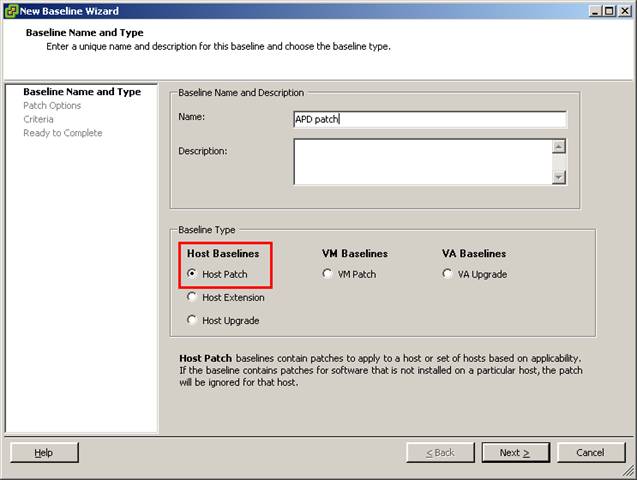
Go to the tab Update Manager and open the Admin View. Add a new baseline. Select the Host Patch option:

image

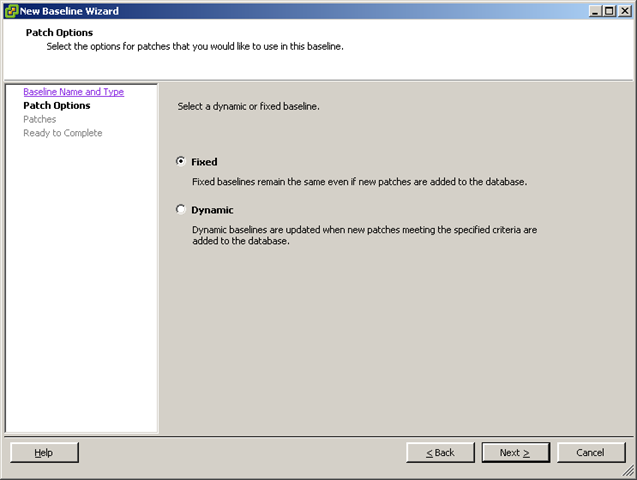
In the next screen select Fixed:

image 

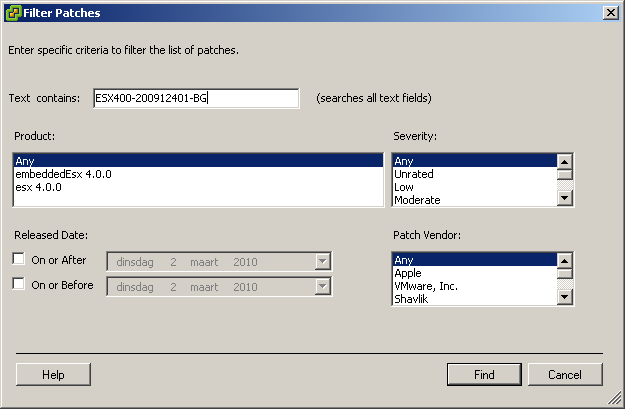
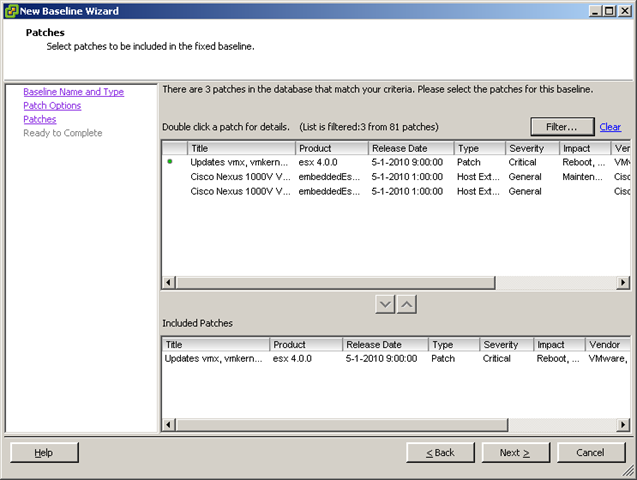
Now we are going to create a filter. Enter the name of the patch:

image

Select the ESX400-200912401-BG patch:

image

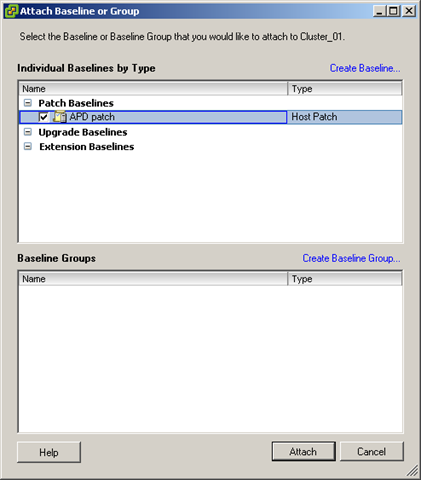
When the new baseline is ready, return to the Compliance view and attach the new baseline:

image

The final step is to perform a scan on your Datacenter, Cluster or ESX Host. Now wait and see if the patch is already installed or not.


More info about the patch can be found here:

For the readers who cannot upgrade to vSphere Update 1 and the latest patches, you can find some workarounds here:

VMware: vSphere & PowerCLI Update 1 released


image image

Finally the vSphere Client is supported on Windows 7 & Windows Server 2008 R2:

Windows 7 and Windows 2008 R2 support — This release adds support for 32-bit and 64-bit versions of Windows 7 as well as 64-bit Windows 2008 R2 as guest operating system platforms. In addition, the vSphere Client is now supported and can be installed on a Windows 7 platform.


You can find the downloads and release notes here:


ESX 4.0 Update 1: http://downloads.vmware.com/d/details/esx40u1/ZHcqYmQlcGpiZGVqdA==

Release note: http://downloads.vmware.com/support/vsphere4/doc/vsp_esx40_u1_rel_notes.html


ESXi 4.0 Update 1: http://downloads.vmware.com/d/details/esxi40u1/ZHcqYmQlcGhiZGVqdA==

Release Notes: http://downloads.vmware.com/support/vsphere4/doc/vsp_esxi40_u1_rel_notes.html


vCenter 4.0 Update 1: http://downloads.vmware.com/d/details/vc40u1/ZHcqYmQlcCpiZGVqdA==

Release notes: http://downloads.vmware.com/support/vsphere4/doc/vsp_vc40_u1_rel_notes.html


vSphere PowerCLI 4.0 Update 1: http://downloads.vmware.com/d/details/sdkwin40u1/ZHcqYmQlcHRiZGVqdA

Release notes: http://www.vmware.com/support/developer/windowstoolkit/wintk40u1/windowstoolkit40U1-200911-releasenotes.html

vCenter 4.0 and SQL 2008 as a Database server


image

Last week I had to install a vCenter 4.0 server with a database on a SQL 2008 x64 server. Before you can connect to the SQL 2008 x64 you have to install the new SQL server 2008 Native client. You can find it here:

Download and install the package:

image

In my earlier post about how to create an ODBC connection to use with vCenter 4 on a x64 version of Windows 2008. You already read about the “special” way of starting the ODBC data Source Administrator. Start it via: Start –Run – %systemdrive%\Windows\SysWoW64\Odbcad32.exe. The next step is to select the new Native Client version 10.0

image 
The rest of the stuff is still the same 😉

vSphere: False alarms on high VM Memory usage in vCenter 4.0


image

Since the upgrade to vCenter 4.0 and ESX 4.0 we got a lot of false alarms on VM memory usage. If you take a look in the advanced performance tab, at VM level. You’ll see that the VM is using all the assigned memory. When you take a look on the host OS, you’ll see that there is less memory usage then vCenter reports to you. I asked on Twitter if anyone else had seen this behavior before. @DuncanYB responded with a post, which he did earlier this year.  

So with the information from @DuncanYB I started a search at http://kb.vmware.com/ and found the following KB article: http://kb.vmware.com/kb/1014019. This article describes one of the symptoms that apply on our environment:

Summaries and Symptoms

Issues fixed in this patch (and their relevant symptoms, if applicable) include:

  • Fixes an issue where a guest operating system’s memory usage might be overestimated on Intel systems that support EPT technology or AMD systems that support RVI technology. This issue might cause the memory alarms in vCenter to go off spuriously even if the guest is not actively accessing a lot of memory.
  • Fixes an issue where DVFilter API’s fail for particular message types during message reordering.
  • Fixes an issue where DVfilter socket reads might fail if zero bytes are returned due to a connection close.
  • Fixes an issue with a DVFilter API where ESX might fail if a guest operating system is moved from one vswitch port to another. This fix allows dropping frames which are accidentally or maliciously posted to a different portset.
  • Fixes an issue where incorrect SysAlert() messages might be displayed on certain systems if the number of cache colors is not calculated correctly.
  • Fixes an issue with monitor or vmkernel crashing when running certain guest operating systems with a 32-bit monitor running in binary translation mode.
Deployment Considerations

BEFORE INSTALLING THIS PATCH: If you have set Mem.AllocGuestLargePage to 0 to workaround the high memory usage issue detailed in the Summaries and Symptoms section, undo the workaround by setting Mem.AllocGuestLargePage to 1.

I installed the patch on a Cluster whit this problem. After the installation of the patch mentioned in the KB article above, vCenter keeps sending false alarms. After a short search on the vmtn communities I found the following post of Paul1

I go to the Top-Level in Vcenter, klick "Alarms" and than "Definitions". Edit one of the definitions (don’t change anything) and then save it. After this the old alarms was gone in my environment

After “changing” the VM Memory Alarm definition, vCenter stops sending out false alarms.

PowerCLI: Set-dvSwitch


image

Last weekend I was playing around with the new dvSwitch feature in vSphere. So I created a dvSwitch and wanted to migrate my VM’s to it. Unfortunately this was not possible with the current version of PowerCLI. Normally you should be able to change the Network switch via:

Get-VM | Get-NetworkAdapter `
| Set-NetworkAdapter -NetworkName "traditional vswitch" -Confirm:$false

There must be a way to do this with PowerCLI but I didn’t know that way. So I asked Luc Dekens and the other PowerCLI guru’s for a solution. A couple of hours later Luc send me a script which was able to do exactly what I wanted to do.

The function / script can be found over here: http://poshcode.org/1373

You can start the function like this: Set-dvSwitch VirtualMachine dvSwitchPortgroup

image

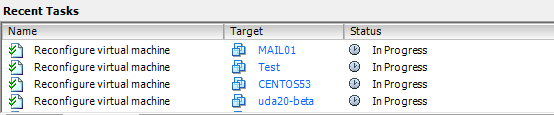
Just wait a couple of seconds till the Reconfigure virtual machine task is ready:

image

You can also run this function against all your VM’s via the following command:

$vms = Get-VM
foreach($vmName in $vms){
    Set-dvSwitch $vmName dvPG_production
}

Just wait a while and all your VM’s are migrated to the new dvSwitch:

image

If you want to start testing with the dvSwitch, keep an eye on http://lucd.info! @LucD22 is going to post an article about what you can do with PowerCLI and the dvSwitch.