Microsoft: IIS 7.0 Manager (Vista / XP)


Download de software hier:  inetmgr

Supported Operating Systems: Windows Server 2003 Service Pack 1; Windows Vista Service Pack 1; Windows XP Service Pack 2

  • You must have the Microsoft .NET Framework version 2.0 or greater installed.
  • If you are installing on Windows Vista:
    You must have Windows Vista Service Pack 1 beta installed
    You must have the Internet Information Services 7.0 Management Console installed.
  • If you are installing on Windows XP:
    You must have Windows XP Service Pack 2 installed
    If you are installing on Windows Server 2003:
    You must have Windows Server 2003 Service Pack 1 installed

Zodra je de software hebt gedownload en je PC voldoet aan de bovenstaande voorwaarden, kun je de IIS 7.0 manager installeren.
image

Daarna hoef je alleen nog maar verbinding te maken met de iis server, site of application.

image

Microsoft: FTP Service for IIS 7.0


 iis-logo-thumb

Microsoft has created a new FTP service that has been completely rewritten for Windows Server 2008. This new FTP service incorporates many new features that enable web authors to publish content better than before, and offers web administrators more security and deployment options. This new FTP service supports a wide range of features and improvements, and the following list contains several of the improvements in this version:

  • Integration with IIS 7.0: IIS 7.0 has a brand-new administration interface and configuration store, and the new FTP service is tightly integrated with this new design. The old IIS 6 metabase is gone, and a new configuration store that is based on the .NET XML-based *.config format has taken its place. In addition, IIS 7.0 has a new administration tool, and the new FTP server plugs seamlessly into that paradigm.
  • Support for new Internet standards: One of the most significant features in the new FTP server is support for FTP over SSL. The new FTP server also supports other Internet improvements such as UTF8, IPv6, and adaptive networking bandwidth usage.
  • Shared hosting improvements: By fully integrating into IIS 7.0, the new FTP server makes it possible to host FTP and Web content from the same site by simply adding an FTP binding to an existing Web site. In addition, the FTP server now has virtual host name support, making it possible to host multiple FTP sites on the same IP address. The new FTP server also has improved user isolation, now making it possible to isolate users through per-user virtual directories.
  • Extensibility and custom authentication: The new FTP server supports developer extensibility, making it possible for software vendors to write custom providers for FTP authentication. Microsoft is using this extensibility feature to implement two new methods for using non-Windows accounts for FTP authentication for IIS Managers and .NET Membership.
  • Improved logging support: FTP logging has been enhanced to include all FTP-related traffic, unique tracking for FTP sessions, FTP sub-statuses, additional detail fields in FTP logs, and much more.
  • New supportability features: IIS 7.0 has a new option to display detailed error messages for local users, and the FTP server supports this by providing detailed error responses when logging on locally to an FTP server. The FTP server also logs detailed information using Event Tracing for Windows (ETW), which provides additional detailed information for troubleshooting.

Download hier de FTP Service for IIS 7.0:

Zodra de software binnen is, kan er worden begonnen met de installatie. Dit is gewoon recht toe recht aan “next, next en finish”.

image

Hier kun je nog wat features kiezen.
image

Mocht je de “oude” FTP server al geïnstalleerd hebben staan dan moet je deze verwijderen. Wat ik wel jammer vind is dat hij dit pas aan het einde van de wizard aangeeft.
image

Open de ServerManager en klik op Roles. Scroll naar de IIS role en klik op Remove Role Services.

image

Haal het vinkje weg bij FTP Publishing Service.

image

Even opnieuw opstarten en je kunt de installatie wizard opnieuw starten.

image

Nadat de wizard klaar is kun je deze sluiten.

image

Als je vervolgens de Servermanager start en naar de IIS tab gaat, zie je dat er een aantal nieuwe mogelijkheden zijn.

image

Jammer dat de FTP Service voor IIS 7.0 niet in de final release van Windows Server 2008 is verwerkt.

Event: XTG V-EVENT


XTG_logoP1805U_CoolGray5U

XTG is u uw goeroe als het om virtualisatie gaat. Tijdens het XTG Virtualisatie Event (V-Event) op 3 oktober a.s. brengen wij u op de hoogte van alle actuele virtualisatietechnieken van o.a. Citrix, Parallels, Microsoft en VMware. Geen “sales”, geen “representatives” maar alleen onze eigen trainers met een kritische blik op de virtualisatiemarkt. De voordelen maar ook de nadelen, proven technology van de marktleider versus innovatie van de nieuwkomers!

Meer informatie vind je hier: http://www.xtg.nl/VEvent/

Citrix: Smart Citrix Client (Creating ICA files)


In Citrix Presentation Server 4.5 kun je niet ze eenvoudig als in Presentation Server 4.0 ICA files aanmaken. Gelukkig zijn er handige jongels zoals die van Virtual Technologies Software die voor dit soort vraagstukken een antwoord weten. In dit geval heb ik het over de tool Smart Citrix Client.

Screenshot - 27-6-2008 , 16_28_08

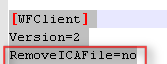
Nadat je de ICA file hebt opgeslagen open je deze in notepad en pas je de regel RemoveICAFile aan naar RemoveICAFile=no.

image

Je kunt de Smart Citrix Client hier downloaden:  SmartCitrixClient.zip

Building a OVF Repository with IIS 7.0


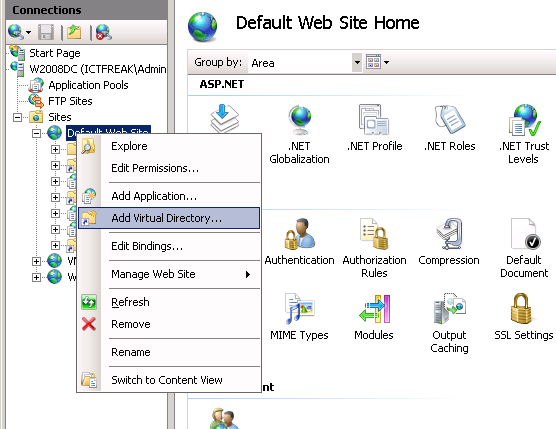
open de IIS management Console via Start – Run – inetmgr daarna voeg je een nieuwe Virtual Directory toe.

OVF_IIS7_1

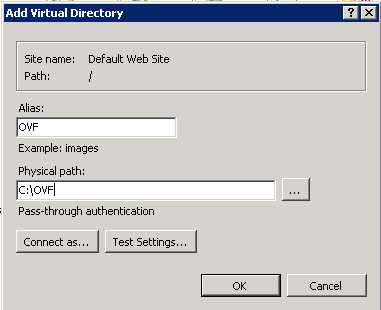
In mijn geval heb ik deze OVF genoemd en geeft het pad op naar de directory.

OVF_IIS7_2

Daarna moet je Directory Browsing inschakelen, anders gaat het helaas niet werken.

OVF_IIS7_3

Je kunt nog wat logging inschakelen.

OVF_IIS7_4

Als laatste moeten er nog een drietal MIME types worden toegevoegd:

  • .mf application/vmware
  • .ovf application/vmware
  • .vmdk application/vmware

OVF_IIS7_5

Vanaf nu kun je via de import wizard van VMware Workstation 6.5 beta 2 en VI 3.5 de appliances direct importeren d.m.v. een url die naar je OVF repository. Bijvoorbeeld http://iisserver/ovf/appliance.ovf

VMware: VMware Workstation 6.5 beta 2 Bin Hack


JHMJONG heeft de nieuwe bin hack op het vmug forum geplaatst.

Standaard wordt er een logfile bijgehouden voor de Beta versie waardoor het systeem traag wordt (CPU). In de directorie c:\program files\vmware\vmware workstation staat het vmwareproces onder de naam vmware-vmx-debug.exe.
-Rename deze file
-Copieer vmwware-vmx.exe naar vmware-vmx-debug.exe.

Jan bedankt voor het uitzoeken!


Bron: http://vmug.nl

VMware: Create an OVF appliance with Workstation 6 beta 2


In deze post laat ik zien hoe je een virtual appliance kunt aanmaken via de conversion wizard binnen Workstation 6.5 beta 2

Start de wizard op en selecteer de VM die je wilt omzetten. In “Step 2: Destination” kies je voor de optie Virtual Appliance (VA).

WS65_Create_OVF_1

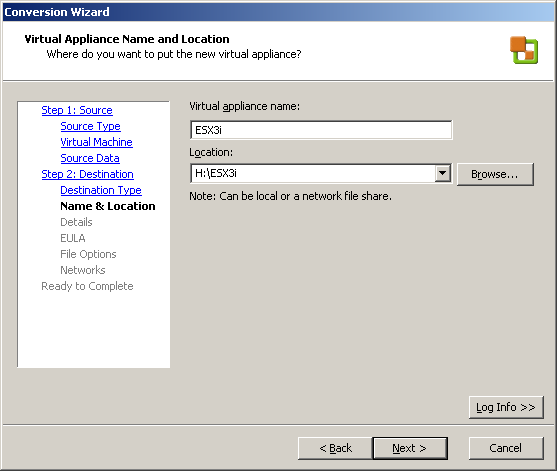
Geef een naam op en de plaats waar je de VA wilt plaatsen

WS65_Create_OVF_2

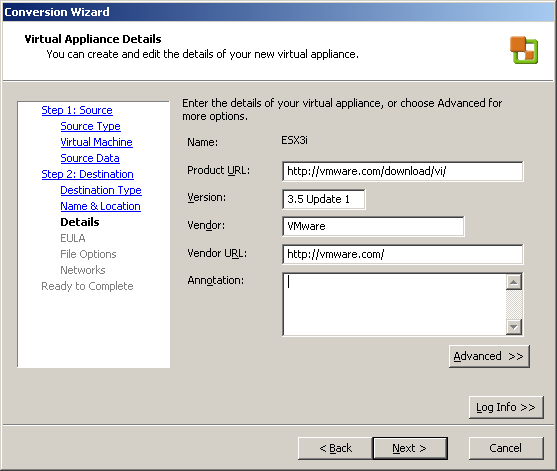
In het volgende scherm kun je wat extra informatie meegeven.

WS65_Create_OVF_3

En als je dat wilt kun je een license file toevoegen. Ik heb als test even een txt file toegevoegd.

WS65_Create_OVF_4

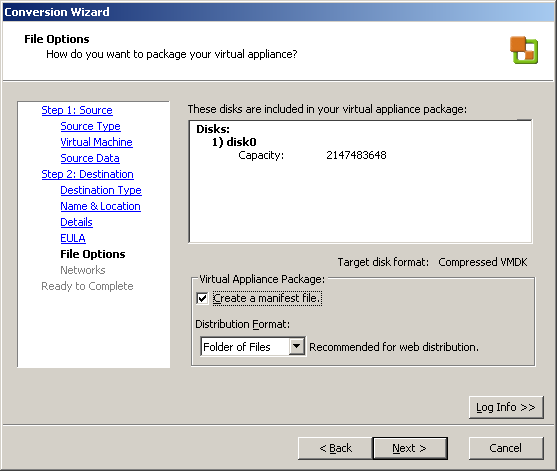
In het volgende scherm kun je nog een keuze maken wat betreft het Distribution Format.

WS65_Create_OVF_5

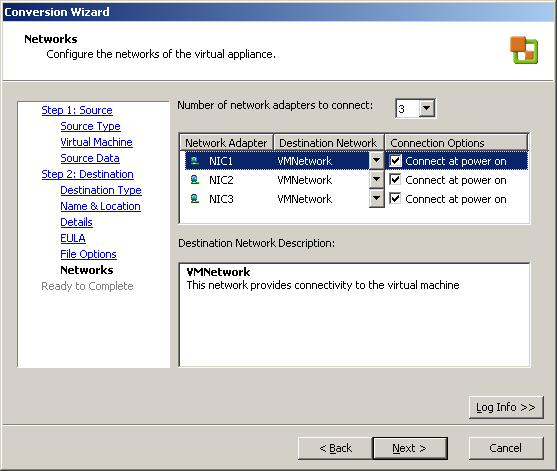
Als laatste kun je de VNics configureren.

WS65_Create_OVF_6

En als laatste vind je een overzicht van alle settings.

WS65_Create_OVF_7

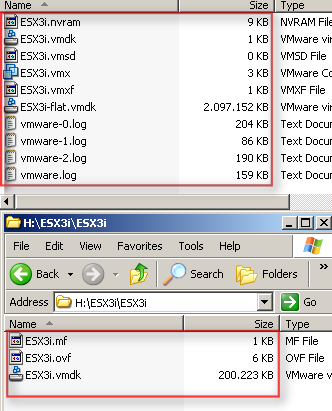
in het onderstaande plaatje zie je het verschil in grootte. De VM heeft een VMDK van 2GB de VA heeft een VMDK van 200MB. Zo kun je de master “template” VM’s in een klein formaat wegschrijven.

WS65_Create_OVF_8

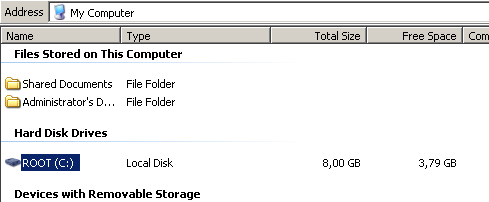
Als test heb ik ook nog een Windows XP VM omgezet naar OVF. Deze VM heeft een VMDK van 8GB.

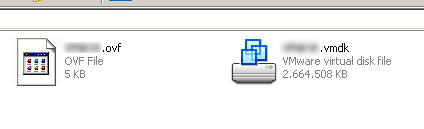
Binnen Windows ziet het er als volgt uit:

image

Na de conversie ziet het er als volgt uit:

image

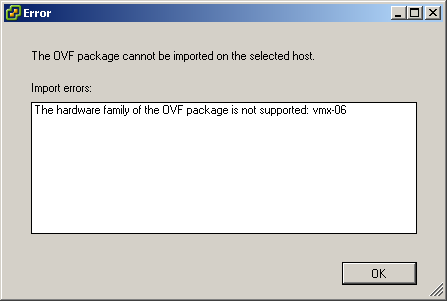
Er is echter een nadeel. Als de VM en de daarna gemaakt OVF’s is aangemaakt met WS 6.5. Kun je niet gebruiken in VI 3.5. Zie de onderstaande foutmelding:

image

Dit kun je oplossen door de volgende post na te lopen. Het komt er op neer dat de hardware version te hoog is van de VM. Als je deze downgrade naar version 5 werkt het wel.

VMware: Workstation 6.5 importing a OVF virtual Appliance


In de beta 2 van VMware Workstation 6.5 zit er een nieuwe import optie in de Converion Wizard. Het gaat hier om het importeren van een OVF vm. Voorheen moest je knoeien met een Java applicatie (zie deze post).

WS65_OVF

Kies voor de optie Virtual Appliance.

WS65_OVF_1

Daarna open je het OVF bestand van je harddisk of via een URL.

WS65_OVF_2

In het volgende scherm zie je wat details van de appliance.

WS65_OVF_3

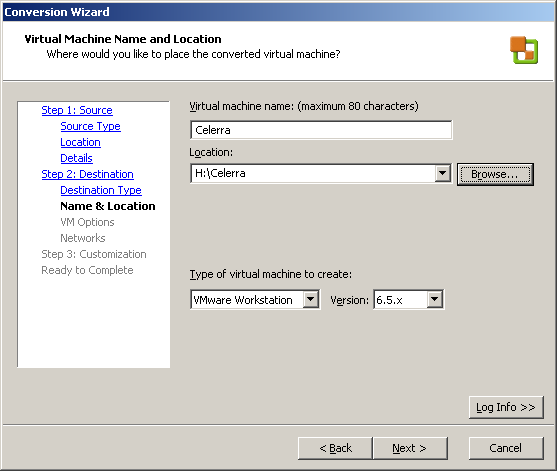
Geef de VM een naam en de locatie waar deze moet komen te staan. Verder kun je in dit scherm de virtual Machine version opgeven.

WS65_OVF_4

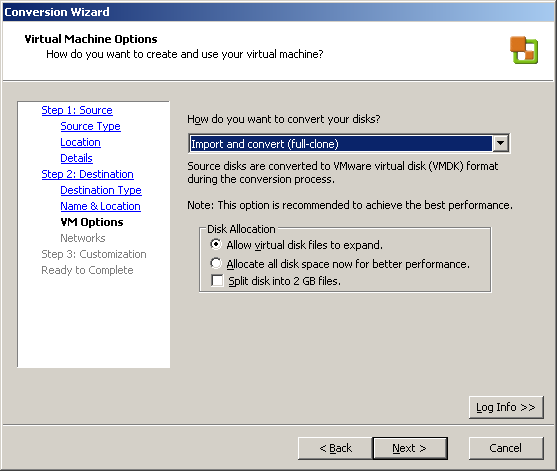
Maak een keuze voor de conversie

WS65_OVF_5

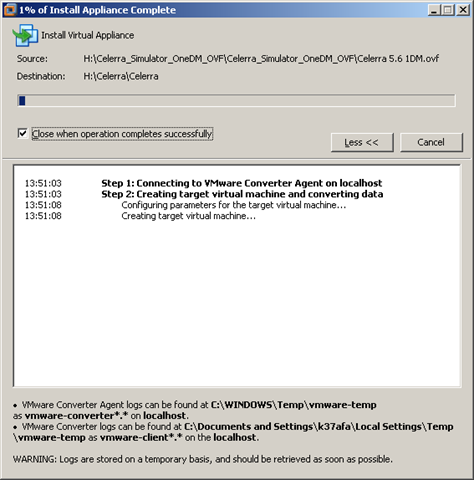
De opdracht wordt uitgevoerd.

WS65_OVF_6