Microsoft: New Vista (x64) Fixes


Bink melde vandaag op zijn site dat er weer een aantal fixes beschikbaar zijn voor Windows Vista. Hieronder vind je een lijst met fixes.

Windows Vista x64

Update for Windows Vista for x64-based Systems (KB945149)

Install this update to improve the graphics performance for multiple Graphics Processing Unit (GPU) scenarios on a system running Windows Vista.

Update for Windows Vista for x64-based Systems (KB945435)

Install this update to resolve an issue where delays are experienced while accessing a WebDAV share for the first time on a system running Windows Vista.

Update for Windows Vista for x64-based Systems (KB945145)

Install this update to resolve an issue where a user is prompted for Windows Live Passport credentials every time a document is accessed on a WebDAV site from a new workspace.

Update for Windows Vista for x64-based Systems (KB938660)

Install this update to resolve a performance issue on Windows Presentation Foundation (WPF)-based programs on a system running Windows Vista.

Windows Vista 32Bit

Update for Windows Vista (KB945149)

Install this update to improve the graphics performance for multiple Graphics Processing Unit (GPU) scenarios on a system running Windows Vista.

Update for Windows Vista (KB938660)

Install this update to resolve a performance issue on Windows Presentation Foundation (WPF)-based programs on a system running Windows Vista.

Update for Windows Vista (KB945435)

Install this update to resolve an issue where delays are experienced while accessing a WebDAV share for the first time on a system running Windows Vista.

Update for Windows Vista (KB944652)

Install this update to resolve an issue in administrative MMC snap-ins where icons display incorrectly on a Windows Vista-based computer with Windows Server 2003 Administration Tools Pack installed.

Update for Windows Vista (KB945145)

Install this update to resolve an issue where a user is prompted for Windows Live Passport credentials every time a document is accessed on a WebDAV site from a new workspace.


Bron: http://bink.nu/news/new-windows-fixes-available.aspx

How To: Disable the Presentation Server Console Splash Screen


Voor een aantal beheersdoeleinden moet je helaas nog steeds gebruik maken van het oude maar o zo bekende Presentation Server Console. Wat mij altijd irriteerde was het trage opstarten. Ik kwam er achter dat je via een simpele tweak afscheid kan nemen van het onderstaande splash screen. Wat volgens mij wel aardig wat opstarttijd scheelt.

CPSCS_Splashscreen

Open de properties van het Presentation Server Console en ga naar het tabblad Shortcut. voeg nu -nologo toe aan de Target.

CPSCS_Splashscreen_1

Sluit dit scherm af door alles te bevestigen met OK.

Nu start het console gelijk op met het onderstaande scherm.

CPSCS_Splashscreen_2

Bron: CTX101937

VMware: Installing Updates with VUM


In deze post zie je hoe ik mijn ESX 3.5 test server update via de VMware Update Manager. Ik ga er vanuit dat je de VUM al hebt geïnstalleerd en dat je de updates al gedownload hebt. Zo niet dan lees je hier hoe je dat kunt doen.

Selecteer de host die je wilt gaan updaten. In dit voorbeeld gaat het om esx3srv1.ictfreak.local. Daarna klik je op Attach Baseline….

VUM_1

Nu selecteer je de baseline die je wilt gaan gebruiken of je maakt er zelf een aan via Create New Baseline…

VUM_2

Klik nu nogmaals op de host en op het tabblad Update Manager. Klik daarna op het Scan icoon (tweede vanaf rechts).

VUM_3

Klik Yes om de host te gaan scannen

VUM_5

Nu worden de firewall porten open gezet en de host word gescanned.

VUM_6

Nadat de scan klaar is krijg je het onderstaande scherm te zien.

VUM_7

Klik nu nogmaals op de host en dan op Remediate (eerste icoontje vanaf rechts).

VUM_3

Selecteer vervolgens de baselines.

VUM_8

Bij het tabblad Updates kun je zien welke updates er geïnstalleerd worden. Hier kun je eventueel ook Updates uitschakelen.

VUM_9

Opmerking: in eerste instantie kreeg ik hier een error en kon ik niet verdergaan. Na een herstart van de VirtualCenter service en de Update Manager service, kon ik wel gebruik maken van de Remediate optie.

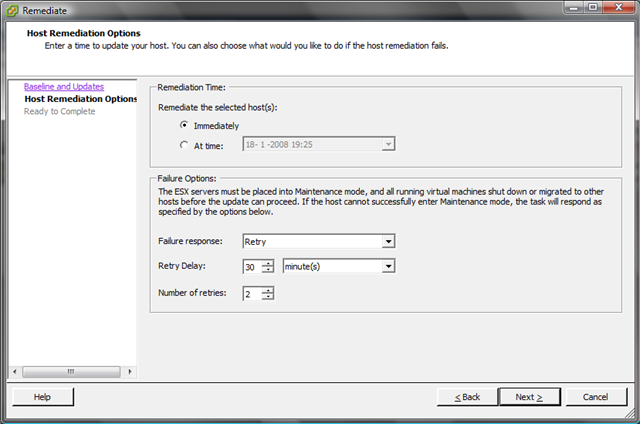
Ik wil de updates gelijk installeren dus kies ik voor de optie Immediately. Het is ook mogelijk om er een job voor te schedulen. Verder kun je hier instellen wat er moet worden gedaan, mocht er een update mis gaan. Ik heb dit op Default laten staan.

VUM_10

Nog even een overzicht van wat er gepatched gaat worden.

VUM_11

De ESX Server word in Maintenance mode geplaatst

VUM_12

En de updates worden stuk voor stuk geïnstalleerd.

VUM_13

Nadat de updates klaar zijn, word de ESX Server opnieuw opgestart en hoeft deze alleen nog maar uit de maintenance mode gehaald te worden.

VUM_14

Zoals je ziet is het build nummer bijgewerkt naar 70356. De updates zijn geïnstalleerd. Nu kijken of al mijn VM’s nog willen starten 😉

VMware: VMotion Corruption after applying the new ESX 3.5 patches [Update]


De Lone Sysadmin heeft een update geplaatst op zijn weblog over dit hele verhaal: http://lonesysadmin.net/2008/01/18/update-manager-vmotion-and-me/


De Lone Sysadmin maakte er al melding van op zijn blog http://lonesysadmin.net/ maar er schijnt dus een groot probleem te zijn met de nieuwe patches van VMWare ESX 3.5.

Nadat je de patches hebt geïnstalleerd raakt je VMotion switch corrupt. Door de VMotion Switch te verwijderen en weer opnieuw aan te maken, wordt het probleem opgelost. Meer informatie vind je in document: SR#1101801771


Bron: http://lonesysadmin.net/2008/01/18/update-manager-loss-of-vmotion-capabilities/

VMware: Download Updates For VUM


Voordat je met de VUM aan de gang kunt gaan, moet je eerst de VUM Plugin installeren. Dit spreek denk ik wel voor zich.

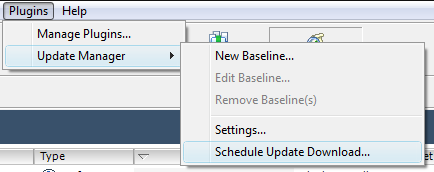
Nadat je de Update Manager Plugin hebt geïnstalleerd, kun je via het menu Plugins – Update Manager – Schedule Update Download…. een job aanmaken voor het downloaden van de updates.

VUM_Download_Patches_1

In deze post downloaden we alleen de ESX Server Updates

VUM_Download_Patches_2

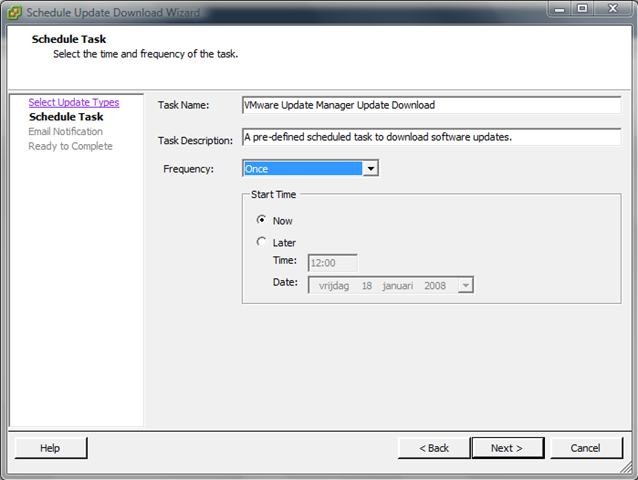
Ik wil dat de updates nu worden gedownload

VUM_Download_Patches_3

De updates worden gedownload.

VUM_Download_Patches_6

Linkedin: Join the VMware Groups


Eric Sloof had vandaag een mooie post over de verschillende Linkedin VMware groups. Inmiddels zijn de volgende groepen aangemaakt:

  • VMware Virtualization Group
  • VMware Certified Professional (VCP)
  • VMware Certified Instructor (VCI)
  • The Official Dutch VMUG
  • Virtualization.info Vanguards
  •  

Ik ben inmiddels lid van alle groepen behalve VCI. Come join us 😉

Meer info vind je hier: http://www.ntpro.nl/blog/archives/343-Join-The-VMware-LinkedIn-Groups.html

VMWare: Expand Desktop Virtualization Solution with Acquisition of Thinstall


Thinstall_logo

Hieronder een quote van het  persbericht:

“Delivering software applications to an organization’s workforce is the single largest cost of desktop administration today,” said Jeff Jennings, vice president of desktop products and solutions at VMware. “Thinstall’s third generation solution offers the best technological approach in the market for application virtualization, providing faster, easier and more secure delivery of software applications to desktop-based workforces. The addition of Thinstall to our desktop virtualization portfolio will help us to better deliver cost-effective and more flexible tools for quickly and securely provisioning desktops.”

Thinstall decouples applications from underlying operating systems, improving isolation and portability for applications across desktop environments.  Thinstall’s unique, agentless approach to application virtualization enables the rapid, secure and cost effective delivery of software applications to desktops. Agentless application virtualization, pioneered by Thinstall, requires no pre-installed software on physical or virtual PC’s and no new deployment infrastructure or management tools. Thinstall’s architecture integrates into existing application management systems to deliver virtualized applications across a variety of operating system versions (NT, 2000, XP, Vista) and enables applications to move with users as needed. Thinstall significantly decreases the time to value of a software application and reduces the overhead of costly integrations.  For example, a large federal agency turned to Thinstall to completely eliminate software installation conflicts that previously ran as high as 20%.  The same customer used Thinstall to cut regression testing by 70% as applications no longer had to be tested in every environment or with every other application.

Founded in 1999, Thinstall is used by more than 600 customers in government and commercial industries.  Thinstall customers have deployed thousands of virtualized applications to over a million desktops around the world. For more information about Thinstall please visit www.vmware.com/go/Thinstall.

Lees hier het hele persbericht: http://www.vmware.com/company/news/releases/thinstall.html

Hier vind je meer informatie over Thinstall met demo’s en podcasts: http://www.vmware.com/whatsnew/thinstall.html