Longhorn Beta 3 for everyone


Om bij de beta te kunnen komen dien je een Passport / live account te hebben. Daarmee log je in op de site en kun je vervolgens de beta “bestellen”. Helaas is het nog niet gelukt om de beta te downloaden.

De website kun je hier vinden: http://www.microsoft.com/windowsserver/longhorn

Hieronder een overzicht van de verschillende edities en de system requirements.

Product Editions

Windows Server “Longhorn” Standard Edition
This edition of Windows Server “Longhorn” provides key server functionality across most server roles and features. It includes both full and Server Core installation options.

Windows Server “Longhorn” Enterprise Edition
This edition builds on Windows Server “Longhorn” Standard Edition to provide greater scalability and availability, and adds enterprise technologies such as Failover Clustering and Active Directory Federation Services.

Windows Server “Longhorn” Datacenter Edition
This edition offers the same functionality as Windows Server “Longhorn” Enterprise Edition with support for additional memory and processors, and unlimited virtual image use rights.

Windows Web Server “Longhorn”
This edition is designed specifically for use as a web and applications server. Other server roles and the Server Core installation option are not available in this edition.

Windows Server “Longhorn” for Itanium-based Systems
This edition is designed for use with Intel Itanium 64-bit processors to provide web and applications server functionality on that platform. Other server roles and features may not be available

System Requirements

This software is intended for evaluation and deployment planning purposes only. If you plan to install the software on your primary machine, it is recommended that you back up your existing data prior to installation.

To use Windows Server® “Longhorn” Beta 3, you need:*
Processor Minimum: 1GHz
Recommended: 2GHz
Optimal: 3GHz or faster
Note: An Intel Itanium 2 processor is required for Windows Server “Longhorn” for Itanium-based Systems
Operating System Windows Server® “Longhorn” Beta 3
Required hard-disk space Minimum: 8GB
Recommended: 40GB (Full installation) or 10GB (Server Core installation)
Optimal: 80GB (Full installation) or 40GB (Server Core installation) or more
Note: Computers with more than 16GB of RAM will require more disk space for paging, hibernation, and dump files
Memory Minimum: 512MB RAM
Recommended: 1GB RAM
Optimal: 2GB RAM (Full installation) or 1GB RAM (Server Core installation) or more
Maximum (32-bit systems): 4GB (Standard) or 64GB (Enterprise and Datacenter)
Maximum (64-bit systems): 32GB (Standard) or 2TB (Enterprise, Datacenter and Itanium-based Systems)
Drive DVD-ROM drive
Other peripherals required Super VGA (800 × 600) or higher-resolution monitor
Keyboard and Microsoft Mouse or compatible pointing device

Additional information * Actual requirements will vary based on your system configuration and the applications and features you choose to install. Additional available hard-disk space may be required if you are installing over a network. For more information, please see http://www.microsoft.com/windowsserver/longhorn

Note: This product requires a valid product key for activation – you may install the product without activation, but if you do not enter a valid product key and activate within 30 days of installation, the software will cease to function. During installation you will be asked to select the edition of Windows Server “Longhorn” Beta 3 you wish to install. You must ensure you choose the edition of Windows Server “Longhorn” Beta 3 for which you have obtained a product key or you will not be able to activate the product.


VMware: TSX Nice Presentations are online


Helaas was ik er niet bij in Nice. Toch wilde ik de presentaties wel bekijken en dat kan vanaf nu.

Eric bedankt voor het posten van de link op je blog. Nu kunnen wij “thuisblijvers” toch nog even genieten van de presentaties.

De presentaties kun je hier downloaden: http://www.vmware-tsx.com/


Bron: http://www.ntpro.nl/blog/

VMware: Redo files (Snapshots) and Active Directory


Om even een punt aan te wakkeren met betrekking tot de discussie over het virtualizeren van een Domain Controller (vanaf nu DC red.) de volgende post. Redo files / Snapshots en DC’s. Toevallig had ik gisteren de nare ervaring van een redo file die afgelopen vrijdag gecommit werd met oude data. Je raad het al de desbetreffende DC was corrupt.

Even de voorgeschiedenis over hoe dit ontstaan is.

VMBK zoals het hoort

VMBK.pl word gestart. Deze maakt een redo file aan zodat er een hot backup plaats kan vinden.

vmbkredo.gif

Nadat de backup klaar is, wordt de redo file gecommit en worden alle wijzigingen die op het moment dat de redo file actief is, samengevoegd met de data op de vmdk. De data uit de redo file krijgt voorang op de data die al op de vmdk staat.

vmbkredo1.gif

Redo file als het mis gaat

In mijn geval was de vmbk.pl job blijven hangen. Door gebrek aan tijd kon ik de log files niet nakijken en kwam ik er pas afgelopen vrijdag achter. Nadat ik de ESX server (2.5.4 patch 4) opnieuw opgestart had ging de back-up job gewoon weer aan de slag die nacht. Maar wat er volgens mij gebeurd is nadat de backup klaar was, heeft vmbk de redo file gecommit die al meer dan week oud was. Balen want het was mijn eerste DC welke alle FSMO roles had etc.

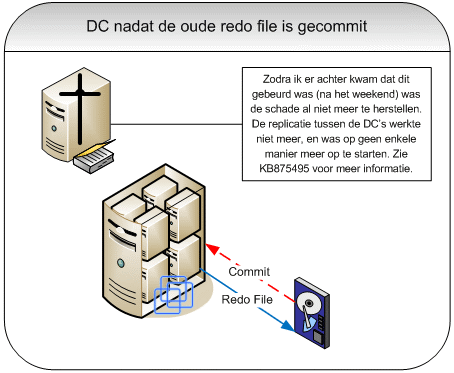
Zoals je in het volgende plaatje ziet wordt de oude redo file gecommit.

vmbkredo2.gif

En het gevolg is dat de DC corrupt raakt.

vmbkredo3.gif

EventID’s op de DC

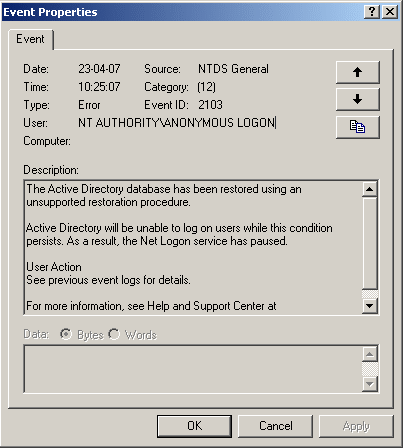
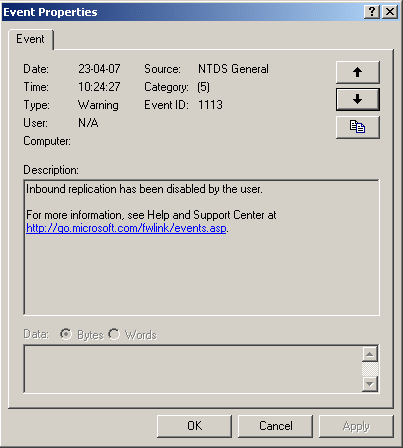
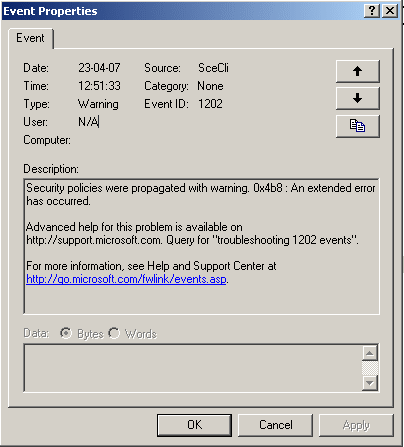
Hier vindt je een overzicht van alle evenID’s die optraden nadat de DC corrupt raakte.

dcaftercommit.gif

dcaftercommit1.gif

dcaftercommit2.gif

dcaftercommit3.gif

dcaftercommit4.gif

Hoe deze ellende weer herstellen

Volgens KB875495 is de enige oplossing na zo’n voorval als deze het “demoten” van de DC en het daarna weer opnieuw aanmaken van de AD.

FSMO roles verplaatsen

Voordat je dit gaat doen dien je de FSMO roles te verplaatsen (informatie over FSMO roles vindt je hier: http://www.petri.co.il/ en hier: KB197132). In KB324801 lees je hoe je na kunt gaan welke FSMO roles er actief zijn op de DC die verwijderd moet worden. Nadat je bent nagegaan welke FSMO roles er actief zijn dien je deze te verplaatsen. Hier http://www.windowsdevcenter.com/ vindt je meer informatie over het plaatsen van FSMO roles.

Het kan zijn dat de DC dermate beschadigd is, dat het verplaatsen niet meer mogelijk is. In dit geval moet je de FSMO roles “seizen”. Meer informatie over hoe dit in zijn werk gaat lees je hier: http://www.petri.co.il en KB255504.

DC demoten

Nadat je de FSMO roles hebt overgezet kun je de DC demoten. Dit kun je doen via start | Run | dcpromo {enter}.

In mijn geval lukt dit niet en moest ik het volgende commando gebruiken: start | Run | dcpromo /forceremoval {enter}. meer informatie over deze actie lees je in KB332199.

Mocht je gebruik moeten maken van de /forceremoval dan dien je nadat de DC gedemote is ook de oude data van de DC uit de werkende AD te halen. Hoe dit in zijn werk gaat kun je hier lezen: http://www.petri.co.il/

AD weer installeren

Nadat de AD geschoond is en de DC welke kapot was weer een stand alone server is, moet deze weer geconfigureerd worden als DC. Dit heb ik als volgt gedaan. De DC heb ik lid gemaakt van het domain. Daarna heb ik dcpromo (start | Run | dcpromo {enter}.) uitgevoerd en geconfigureerd als additionele domain controller.

Na dit alles kwam de replicatie weer op gang en werkte alles weer naar behoren.

Windows: Powercfg.cpl as a non-administrator


In deze post lees je hoe je users rechten kunt geven op de powercfg.cpl. Dit kan handig zijn voor gebruikers met een laptop die zelf de poweroptions moeten kunnen aanpassen.

Domain Controller

De volgende registry keys dien je toe te voegen aan de GPO. Dit doe je op Machine niveau.

Computer Configuration | Windows Settings | Registry

poweroptions.gif

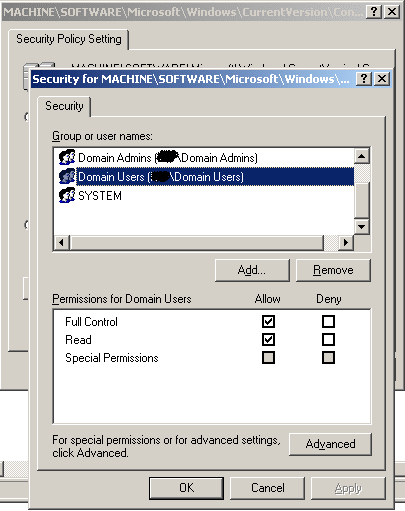
Vervolgens geef je de Domain Users groep Full Control

poweroptions2.gif

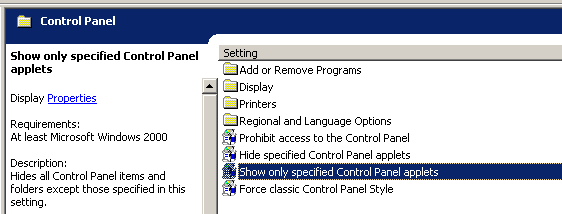
De volgende stap is het publiceren van de powercfg.cpl. Dit doe je op User niveau.

User Configuration | Administrative Templates | Show only specified Control Panel applets

Enable de policy

poweroptions3.gif

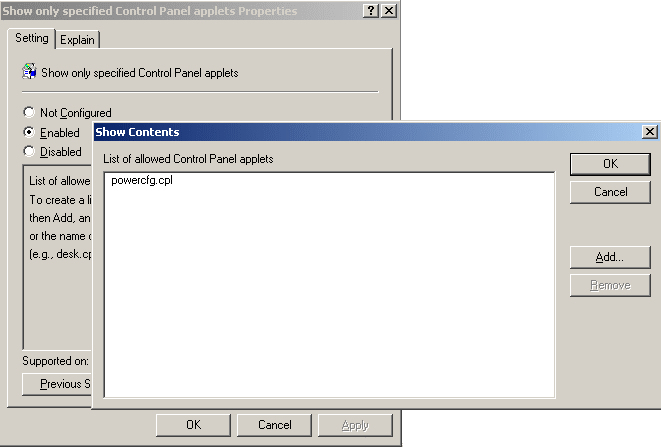
en voeg powercfg.cpl toe.

poweroptions4.gif

Client

Na een reboot van de client kan deze het Control Panel openen.

poweroptions_client.gif

Vervolgens kan de gebruiker de verschillende opties configureren.

poweroptions_client1.gif


bron: http://blogs.msdn.com/aaron_margosis/

Citrix: Must read before Upgrade to PS 4.5


Must Read

Citrix Presentation Server 4.5 Pre-Installation Update Bulletin: CTX110783

Readme for Citrix Presentation Server 4.5: CTX112222
Readme for the Clients 10.x for Windows: CTX112172
Readme for Citrix Licensing 4.5: CTX110840

Licensing: Migrating, Upgrading, and Renaming: CTX108655

Citrix Presentation Server 4.5 Installation Checklist EN: CTX112374

Extra Information

Server Cloning with Presentation Server 4.0: CTX107406

MetaFrame/Presentation Server Drive Remapping: CTX457309

Microsoft 2003 Sysprep Tool Changes the Drive Letter Assignment: CTX105535

How to Include the License Server Information in an Unattended Installation: CTX105536

Understanding MSI INstallation Logs: CTX415447

How to: Uninstall the Google Updater


Via het volgende batchscript, kun je de googleupdater verwijderen:

@Echo ########################################
@Echo ## Google Update uninstall script ##
@Echo ########################################

@Echo Off
SET GoogleUpdater = “C:\Program Files\Google\Google Updater\GoogleUpdater.exe”

If Exist GoogleUpdater goto Uninstall
@Echo GoogleUpder is not installed on your PC.
goto End

:Uninstall
GoogleUpdater -uninstall

@Echo Please restart your PC. goto End

:End
pause
exit


bron: http://www.google.com/support/