NetApp: Open Systems SnapVault for VI3


Paul Shannon poste het onderstaande op zijn blog: http://www.vm-aware.com/.

OSSV installs directly into the VMware ESX service console and acts as a very light-weight interface to backup Virtual Machines on NetApp storage and non-NetApp storage. It works best with NetApp Protection Manager, but works well as a stand-alone product.  There’s also an excellent Best Practice guide for OSSV available here.


Bron: http://www.vm-aware.com/

VMware: PowerShell Mini-Whitepaper


Mike Laverick heeft een mini-whitepaper geschreven over de VMware Powershell toolkit.

This mini-whitepaper walks you through the setup and configuration of PowerShell for VMware – and how to get up an running with Dmitry Sotnikov’s PowerGUI and PowerPack for VMware. I’d have to say I’ve been impressed by Dmitry’s work, and only hope things get better. Thanks Dmitry

Je kunt de mini-whitepaper hier downloaden: http://www.rtfm-ed.co.uk/?p=543

VMware: VMotion Info in Excel 2007


Open een nieuw werkblad. Klik op ‘Gegevens’ gevolgd door ‘Van andere bronnen – Van SQL Server’

image

Voer de naam in van de SQL server en eventueel een gebruikersnaam en wachtwoord.

image

Selecteer de tabel ‘VPX_EVENT

image

Als laatste sla je het gegevensbestand op.

image

Nu moet je inloggen op de VC database.

image

En daarna word de informatie naar binnen getrokken. Dit is nogal wat, zeker als je VC server al een tijdje draait.

image

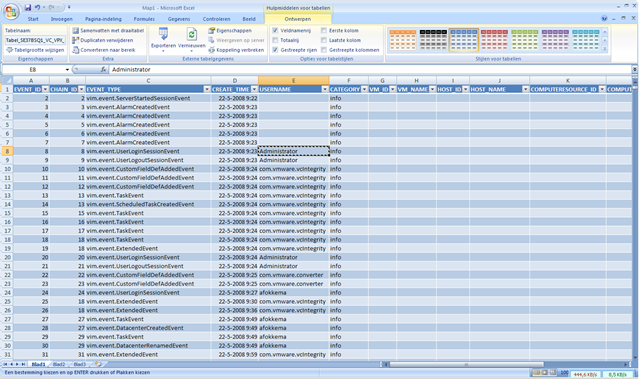
De informatie waar we naar op zoek zijn, is de VMotion informatie. Die kun je als volgt vinden:

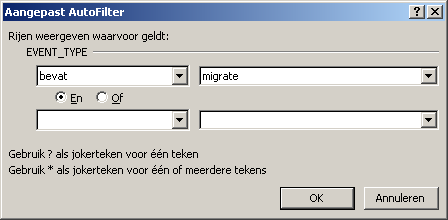
Open ‘Tekstfilters – Bevat…’

image

Geef nu het zoekwoord: ‘migrate’ op.

image

Daarna word er een selectie uitgevoerd en zie je alleen nog de rijen die van toepassing zijn.

image

Via de knop ‘Alles vernieuwen’ of Ctrl + Alt + F5 kun je de lijst vernieuwen.

image

VMware: VMotion Info


In deze post lees je hoe je informatie uit de VC database kunt halen d.m.v. een query. Het gaat dan in het bijzonder om het aantal VMotion taken die gestart zijn. Je kunt dan na gaan hoe vaak een VM wordt gevmotioned via een handmatige taak of via DRS.

De volgende query kun je loslaten op VC database:

SELECT vpx_event.event_type, vpx_event.vm_name, vpx_event.create_time from vpx_event where event_type like ‘%migrate%’
SELECT distinct(vpx_event.event_type) from vpx_event order by event_type


De volgende informatie komt dan terug uit de query:

Query_VC_VMotionInfo 

Het gaat dan om de volgende event_types:

  • vim.event.VmMigratedEvent (handmatige VMotion)
  • vim.event.DrsVmMigratedEvent (VMotion via DRS)


Meer informatie vind je in het volgende Topic op VMUG.nl gestart door Gabrie.

VMware: First benchmarks with 10 GigE


Generally this is exactly what we expected: to be able to provide good performance to many virtual servers which do network and/or disk-I/O only periodically without overprovisioning the whole infrastructure.

At the moment there is exactly one dual-port 10 GigE card in every VMware server and there are two physical connections to two different switches – a much cleaner setup than the 12 (!) GigE interfaces per server we had before

Lees de rest van de benchmark hier: http://21stcenturystorage.cebis.net

VMware: Top Things you should know about VI


Een tip: zie de volgende site: http://vmware-land.com/Top_10_Lists.html

Top 10 things you must read when trying to sell Vmware as a solution to management
Top 10 things you must read if you are new to VMware
Top 10 things you must read to get more technical with VI3
Top 10 things you must read about Vmware Storage (SAN/NAS/iSCSI/NFS)
Top 10 things you must read about Vmware Security
Top 10 things you must read about Vmware Troubleshooting
Top 10 things you must read about Vmware Networking
Top 10 things you must read about VirtualCenter
Top 10 things you must read about Vmware Performance
Top 10 things you must read about Memory
Top 10 things you must read about the ESX Service Console
Top 10 things you must read about Disaster Recover/Business Continuity and Vmware
Top 10 reasons to go to VMworld 2007

VMware: start a VM in ESX 3.5 on WS 6.5


Eric Sloof heeft het onderstaan de al gepost op zijn blog:

From the ESX or VC client, highlight the VM and select > Edit virtual machine settings
Select Resources tab
Un-check Unlimited in the right pane and lower Mhz count to 700
Select Advanced CPU in the left pane
Under Scheduling Affinity in the right pane > Select Run on processor(s):
Check "0"
Click OK to close VM edit window
Boot VM

VMware: Virtual Desktop Manager 2.1 Reviewers Guide


De VMware Virtual Desktop Manager 2.1 Reviewers Guide bevat de volgende onderwerpen:

  • VMware VDM 2.1 Overview

  • VMware VDM 2.1 Key Features and Components

  • VMware VDM 2.1 Requirements & Prerequisites

  • VMware VDM Agent, Client and Web Access Prerequisites

  • Firewall Modifications

  • How to Create VMware VDM Specific User Groups

  • How to Install the VDM Connection Server Standard Role

  • How to Install the VDM Replica Server Role

  • How to Load Balance VDM Connection Servers

  • How to Install the VDM Security Server Role

  • How to Login to the VDM Administrator Web Site

  • How To License VMware VDM 2.1

  • How to Configure VDM to Communicate with VMware VirtualCenter

  • How To Add a VDM Administrator

  • How To Edit the VDM Global Settings

  • How to Generate a Certificate Signing Request (CSR) Key

  • How to Submit CSR to your Certificate Authority

  • How to Add the New SSL Certificate to VMware VDM

  • How to Create the Base Virtual Machine

  • How To Install Windows XP on a VMware ESX Host

  • How to Install Applications

  • How to Apply Windows XP Patches and Security Updates

  • How to Add Group Policy Loopback Setting to VDM Managed Desktops

  • How to Install the VDM Agent

  • How to Create and Configure Virtual Machine Templates

  • How to Convert the Base Virtual Machine to Template

  • How to Configure VirtualCenter to Deploy Unique Virtual Machines from Templates

  • How to Create a Guest Customization Specification

  • How to Perform Maintenance to Existing Virtual Machine Templates

  • How to Implement VDM Specific Windows Group Policies

  • How to Prepare the Active Directory Environment for VMware Group Policies

  • How to Add the VDM Group Policy ADM Template

  • How to Add a New Individual Desktop

  • How to Assign (Entitle) Users / Groups to a Individual Virtual Desktop

  • How to Create a Persistent Desktop Pool

  • How To Assign (Entitle) Users / Groups to a Persistent Desktop Pool

  • How to Create a Non-Persistent Desktop Pool

  • How To Assign (Entitle) Users / Groups to a Non-Persistent Desktop Pool

  • How to Install the VDM Client on a Windows Client

  • How to Login to VDM 2.1 through the VDM Windows Client

  • How to Login to VDM 2.1 through the Web Access Client

Download de guide hier: vdm_2.1_reviewers_guide.pdf