VMware: New releases


VMware heeft weer nieuwe versie vrijgegeven van Workstation, ACE en VMware Server.

  • Added new releases for Workstation 5.5.7 and 6.0.4, ACE 1.0.6 and 2.0.4, and VMware Server 1.0.6.
  • Added support for Windows Vista Service Pack 1 on Workstation 6.0.4, ACE 2.0.4, Visual Studio Integrated Virtual Debugger, and Eclipse Integrated Virtual Debugger. Also modified Workstation support for Visual Studio and Eclipse integrated virtual debuggers. See “Windows Vista” on page 33.
  • http://www.vmware.com/pdf/GuestOS_guide.pdf
  •  

    Je kunt de software hier downloaden:

    VMware: VCB Demo


    Over at VMware Learning they have what I call a “secret” video that they don’t promote. This 15 minute video covers how to implement, configure, and use VMware VCB. This video is hard to find so I wanted to share it with all of the VMware Video readers! Click on the video icon to check it out!

    You can watch the video over here: vcb-live-demo

    Bron: http://vmwarevideos.com/vmware-vcb-training-video-from-vmware-learning

    VMware: Podcasts


    Introduction to Virtualization

    Rob and Jaleh from our product marketing team give a gentle quick overview of this whole virtualization thing. It’s a six minute intro even your boss will get, although it’s probably not quite right for your Mom.


    Server Consolidation

  • 5/12 – Server Consolidation using VMware Infrastructure
  • 5/19 – Building an Adaptive Infrastructure with VMware and HP
  • 5/26 – Server Consolidation Best Practices with VMWare and HP
  •  

    VMware VDI

    • VMware VDI Podcast: Desktop Virtualization in Global Enterprise
    • VMware VDI Podcast:  Customers Success VMware VDI Podcast: The Desktop Revolution
    • VMware VDI Podcast: Thinstall 


    Download the podcasts here: http://blogs.vmware.com/vmtn/2008/05/vmware-podcasts.html

    VMware: 10 things you must read about VirtualCenter


    VirtualCenter is the heart of any large VMware VI3 environment, with it you can centrally manage and administer all your ESX hosts. Some often overlooked area’s of VirtualCenter include the usage of templates and clones, performance reporting and roles & permissions. This top 10 list will help you maximize your investment into VirtualCenter and help you to take full advantage of all of its features and functionality. Of vital importance to VirtualCenter is it’s database where it stores all of its configuration and statistical data which must be properly maintained on an ongoing basis to ensure peak performance of VirtualCenter. This list contains a collection of presentations from VMworld and also various VMware tech notes and white papers that cover everything you will need to know about the database, the advantages and disadvantages of running VirtualCenter as a virtual machine, roles, permissions templates and how to properly configure it.

    Lees het hele artikel hier: http://www.virtual-strategy.com/

    VMware: Export a VM from VirtualCenter to VMware Workstation


    Nu de VMware Converter Enterprise is ingebouwd in VirtualCenter 2.5 is er een leuke feature bijgekomen. Je kunt nu een Export doen van een VM die in je VirtualCenter server geregistreerd staat.  Hoe dit in zijn werk gaat lees je hier.

    Let Op! deze feature kun je alleen gebruiken als de target VM uitstaat.

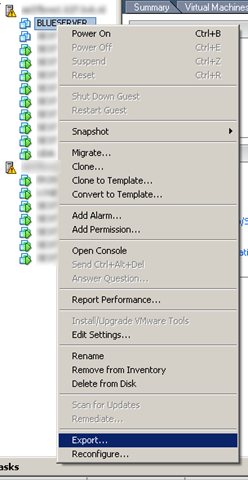
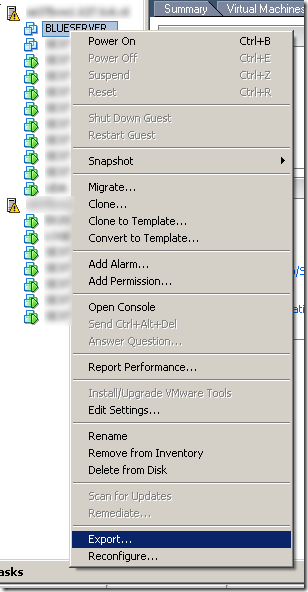
    Sluit de target VM netjes af. Klik rechts op de VM en kies de optie ‘Export…’
    Export_VM_From_VC25_1

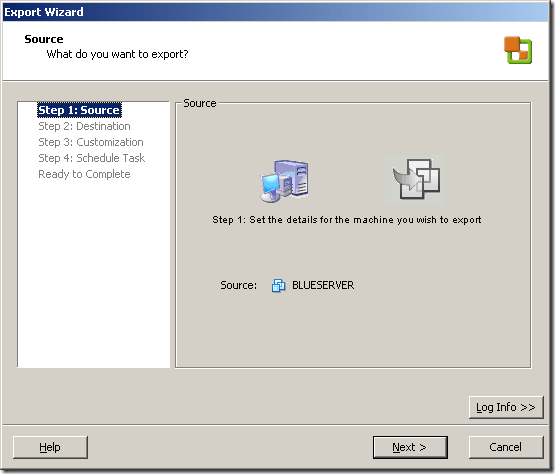
    De volgende wizard wordt gestart.

    Export_VM_From_VC25_2

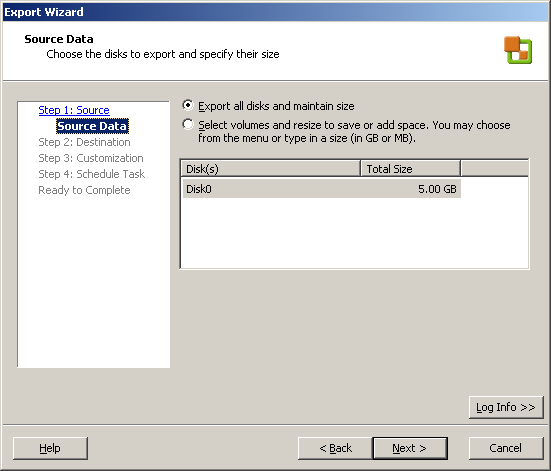
    In het onderstaande scherm kun je de grootte van de VMDK opgeven. Hier kun je deze dus vergroten of verkleinen.

    Export_VM_From_VC25_3

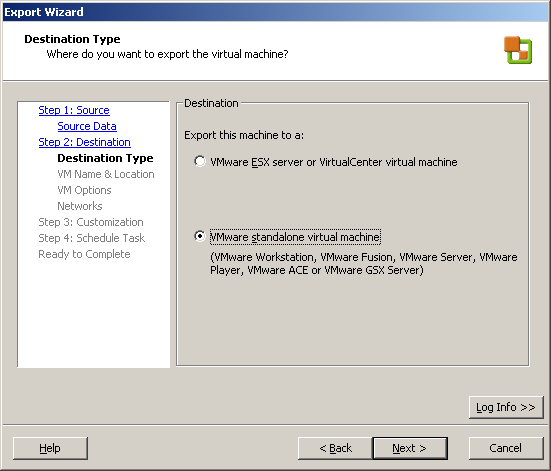
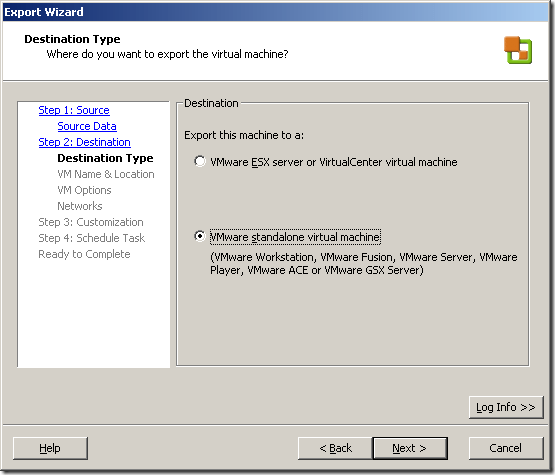
    Ik wilde de VM exporteren naar mijn laptop. Dus kies hier voor ‘VMware standalone virtual machine’. Je kunt er ook voor kiezen om de VM over te zetten naar je test ESX omgeving. Kies dan voor ‘VMware ESX server or VirtualCenter virtual machine’.
    Export_VM_From_VC25_4

    Geef de VM een naam. Voer de locatie in. Dit moet een share zijn die te benaderen is door de VMware Converter. Geef vervolgens een username en password op van een user die rechten heeft op de share. Als laatste geef je de type op. Ik kies voor portability dus voor ‘Workstation 5.x….’

    Export_VM_From_VC25_5

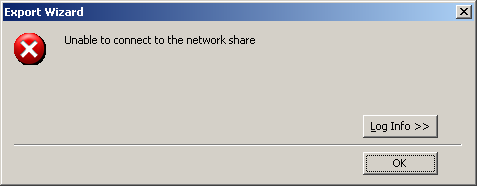
    Het kan zijn dat je de onderstaande foutmelding krijgt:

    Export_VM_From_VC25_error

    Dit kan komen door de (Windows) Firewall. Schakel deze tijdelijk uit en de wizard zal succesvol doorlopen.

    Geef nog even aan wat je wilt qua ‘Disk Space Allocation’.

    Export_VM_From_VC25_6

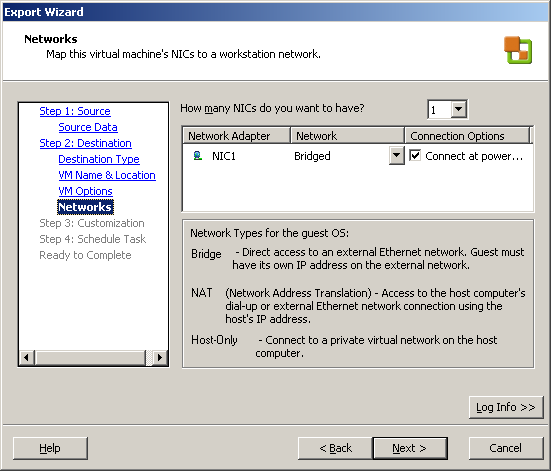
    Doe dit ook voor je netwerk instellingen

    Export_VM_From_VC25_7 

    Je kunt er voor kiezen om de ‘identity’ van de VM aan te passen. Ik doe dit echter niet.
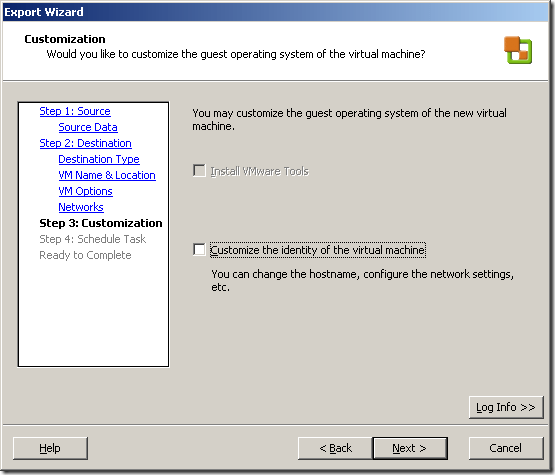
    Export_VM_From_VC25_8

    In de laatste stap kun je er voor kiezen om er een scheduled task van te maken.

    Export_VM_From_VC25_9

    Nog even een overzicht van de instellingen

    Export_VM_From_VC25_10

    En de job gaat op de afgesproken tijd lopen.

    Export_VM_From_VC25_11

    VMware: The request referst to an object that no longer exists…


    Ik wilde een oude NFS datastore, die niet meer in gebruik was verwijderen. Dus ik klikte op de ESX host in VirtualCenter en ging daarna naar het tabblad configuration. Hier klikte ik op ‘Storage’. Als laatste selecteerde ik de datastore gevolgd door ‘Remove’. Dit resulteerde in de volgende error:

    error

    Dit is eenvoudig op te lossen. Login op het service console van de ESX server waarop je de bovenstaande actie wilde uitvoeren. Daarna voer je het commando:

    service mgmt-vmware restart uit.

    Daarna kijk je weer in VirtualCenter en je zult zien dat de datastores weg zijn.

    VMware: Disable the getting Started tab within the VI Client


    Op de VirtualCenter server ziet de Getting Started tab er zo uit.

    image

    Op een remote client doet de tab niet veel. Ik moet nog even uitzoeken hoe dit kan. Verderop lees je hoe je dit ding uitzet.

    image


    Hoe schakel je die ‘vervelende’ Getting Started tabs uit.

    Open de VI client. Klik op ‘Edit’ en dan ‘Client Settings’.

    image

    Klik daarna op ‘Remove all tabs’ om de Getting Started tabs uit te schakelen.

    image

    VMware: Export and Import your Customization Specifications


    Het kan zijn dat je tijdens de upgrade naar VI3.5 er voor kiest om de VirtualCenter server opnieuw op te bouwen. Dit heb ik dus onlangs gedaan. Waar je op moet letten is dat je al je extra dingen migreert. Denk hier bij voorbeeld aan je Customization Specifications…

    Dit kan gelukkig heel eenvoudig. Open VirtualCenter. Klik op ‘Edit’ – ‘Customization Specifications…’

    image

    Klik vervolgens met rechts op je file gevolgd door ‘Export…’

    image

    Sla het bestand op en zorg er voor dat de nieuwe VirtualCenter server er bij kan komen.

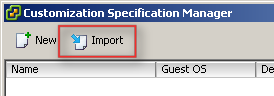
    Vervolgens importeer je het xml bestand op je nieuwe server.

    image

    Als de import is gelukt zie je de specificatie er weer tussen staan.

    image

    Xtravirt: Virtual SAN appliance


    image

    Gerben poste een bericht over deze appliance op zijn blog: http://gklooste.spaces.live.com/. Ik denk dat de mannen van Xtravirt weer een mooie job hebben afgeleverd.


    The Xtravirt Virtual SAN (XVS) appliance for VMware ESX3 Server is a free solution to provide the benefits of shared VMFS storage without the cost of a SAN – this allows the utilisation of otherwise unused local storage in the ESX server to facilitate enterprise level features such as vMotion, DRS and HA normally only available through the use of a shared storage device. All volume data is synchronously replicated between hosts, providing full fail-over capability with data integrity in the event of host, disk or appliance failure. The appliance is menu driven and has been designed to be as easy to configure as possible, and full documentation on the implemenation process is provided.

    Je kun XVS hier downloaden: xtravirt.com

    De manual vind je hier: xtravirt.com

    VMware: How to import a Standalone VM with Workstation 6.x


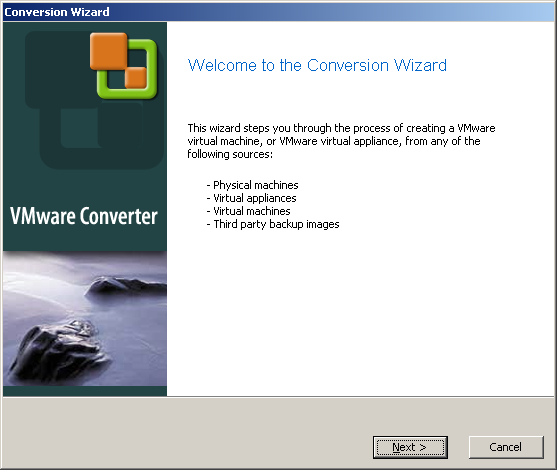
    In deze post zie je hoe eenvoudig het is om een standalone VMware Workstation VM kun importeren naar je VMware Virtual Infrastructure omgeving.

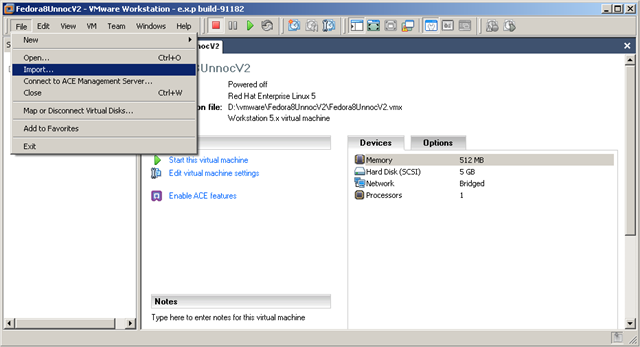
    Klik op ‘File’ en dan ‘Import…’

    image

    De volgende wizard start op.

    image

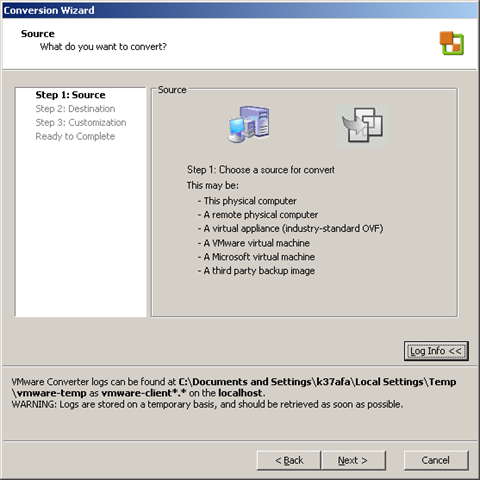
    Stap 1: de Source

    image

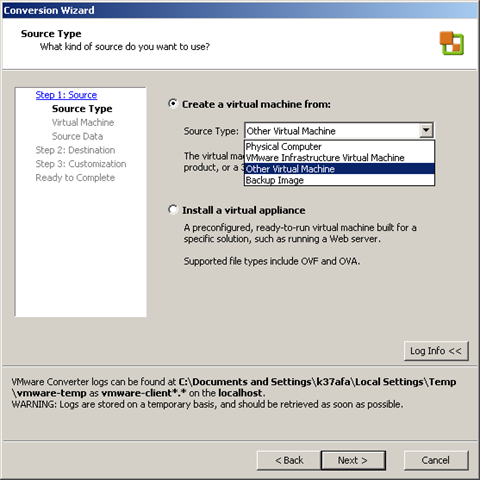
    Omdat ik een Stand Alone VM wil gaan importeren in mijn ESX omgeving kies ik voor ‘Other Virtual Machine’

    image

    Mocht het nodig zijn, dan kun je hier de Disk resizen

    image

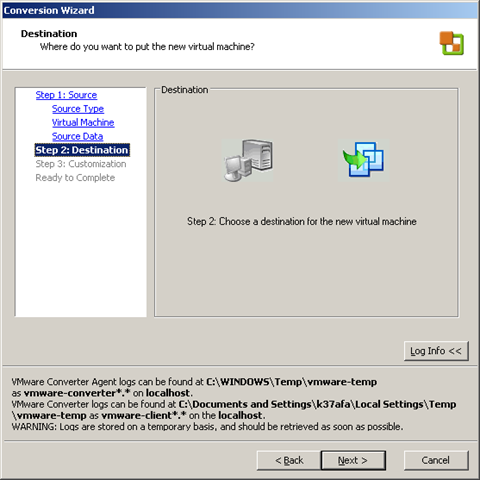
    Stap 2: de Destination

    image

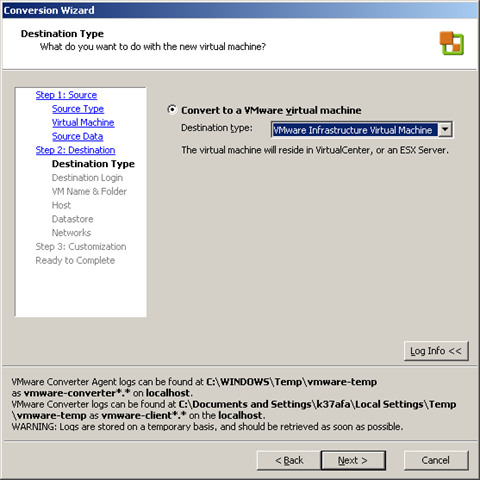
    Kies in het volgende scherm de optie ‘VMware Infrastructure Virtual Machine’

    image

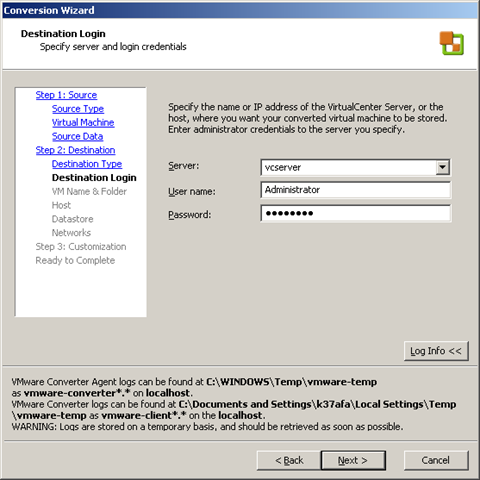
    Vul de gegevens in van je VirtualCenter server.

    image

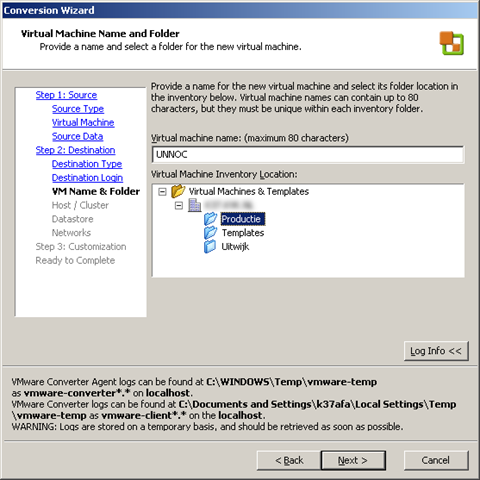
    Selecteer de Map waar de VM in moet worden geplaatst.

    image

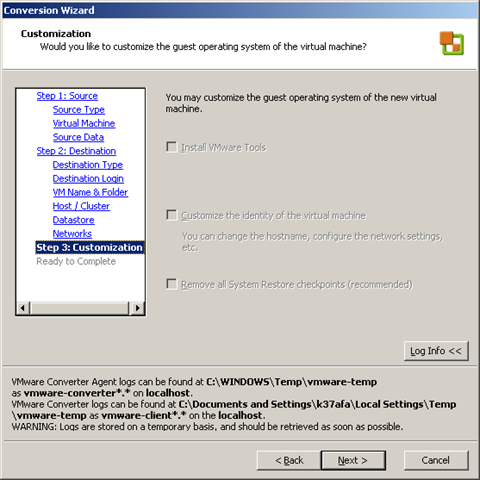
    De volgende stappen spreken voor zich totdat het volgende scherm komt. Hier valt op dat je geen van de opties kunt selecteren. Dit komt omdat deze VM op linux is gebasseerd. Was dit een Windows VM geweest, dan kon je wel een keuze maken in dit scherm.

    image

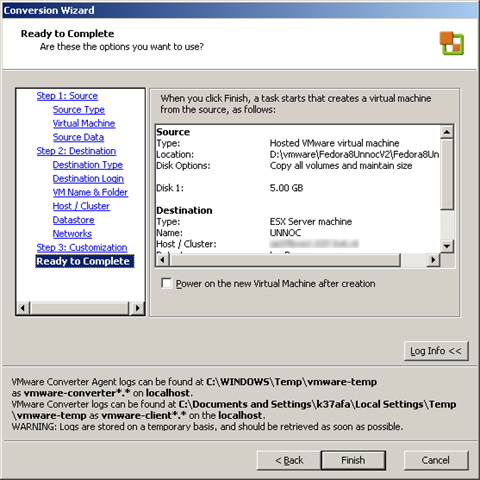
    Even een kort overzicht van de gekozen opties

    image

    De VM word geïmporteerd.

    image

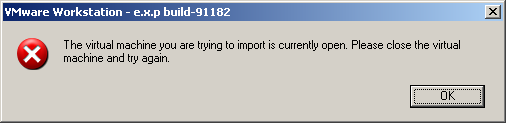
    Je kunt ook nog tegen de volgende foutmelding aanlopen:

    image

    Hadden ze dit niet aan het begin van de wizard kunnen melden :-S

    Dit los je als volgt op: sluit het tabblad van de VM en start de wizard nogmaals.