VMware: Virtual Machine is Already a Member of a Team Error.


Ik was bezig met het aanmaken van verschillende teams binnen VMware Workstation 6. Daarbij kopieerde ik een VM verschillende keren over de verschillende teams. De VM is mijn M0nowall Router die een statisch configuratie heeft. Nadat ik deze had gekopieerd wilde ik deze toevoegen aan een nieuw team.

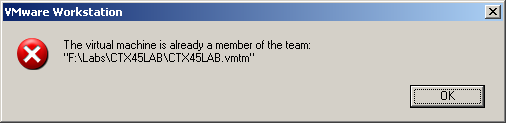
Dit lukte echter niet want ik kreeg de onderstaande error.

ws6teamerror

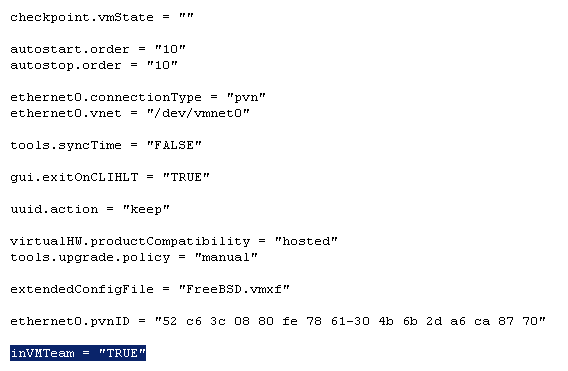
Dit kun je echter simpel oplossen. Open het VMX bestand van de gekopieerde VM en pas de waarde inVMTeam = “TRUE” aan naar “FALSE”.


ws6teamerror1

Nu kun je de VM wel toevoegen aan de andere teams.

VMware: VMTS Patchmanager (build 2878)


De VMTS Patchmanager is een leuk, gratis en veelzijdig product.

Met de volgende pluspunten:

  • Centrale plaats voor het downloaden van de ESX Patches.
  • VirtualCenter support.
  • Een console voor het patch proces.

Er zijn helaas ook minpunten:

  • Geen support voor patch rollups (patch1).
  • Geen upgrade support (esx 3.0.1 naar esx 3.0.2). Patrick wees me er op dat deze optie er wel in zit.

Donwload de tool hier: http://www.vmts.net/VMTSPatchManager.htm

Hier vind je de quickstart: http://www.vmts.net/VMTSPatchManagerQuickStart.htm

En als laatste de manual: http://www.vmts.net/VPMSampleManual.asp

In de rest van de post zie je hoe eenvoudig het is om met deze tool een esx server te updaten.

Continue reading “VMware: VMTS Patchmanager (build 2878)”

VMware: Virtualize SQL Server?


Op deze vraag heeft VMware een antwoord namelijk de volgende whitepaper: SQLServerWorkloads.pdf.

De bovenstaande whitepaper is een performance study van VMware en HP over hoe je een  SQL server wel of niet moet Virtualiseren.

Dit is de conclusie van de performance study:

The performance results we describe in this paper support the conclusion that running Microsoft SQL Server 2005 inside VMware virtual machines can provide an effective production-ready platform for running transaction-processing workloads.
Your IT organization can leverage the sizing data we present in this white paper to deploy Microsoft SQL Server successfully using VMware Infrastructure 3. By comparing effective workload throughput and resource utilization for your datacenter with the results presented in this paper, you can design and size your virtualized environment to meet your SLA targets.
The number of actual users and transactions you can support in a production environment will, of course, depend on the specific applications used and the intensity of user activity. The results of
Conclusions 12 VMware SQL Server Performance in a VMware Infrastructure 3 Environment
our tests clearly demonstrate that in a VMware Infrastructure 3 environment, the transaction throughput scales almost linearly even as the number of clients increases, for every configuration we tested. Our results show that the throughput rate of UP virtual machine is comparable for 32-bit and 64-bit environments. However, for SMP virtual machines, the throughput rate is slightly higher in a 64-bit environment compared to a 32-bit environment. Further, SMP virtual machines can service a higher number of users. One disadvantage of SMP virtual machines is that they have higher CPU costs per transaction than UP virtual machines. From a performance perspective, we recommend using SMP virtual machines rather than UP virtual machines for Microsoft SQL Server, and if possible, a 64-bit environment if your application stack supports it.
VMware: VirtualCenter 2.0.2 Update 2


Quote van de VMware Website:

VirtualCenter 2.0.2 Update 2 release includes all the fixes from the VirtualCenter 2.0.2 Update 1 release and also includes fixes for certain globalization issues. These globalization fixes are primarily for the Japanese and German releases of VirtualCenter.

This release is intended for any customer who is installing the English version of VirtualCenter on a non-English operating system. Customers using the English version of VirtualCenter on an English operating system can upgrade to either VirtualCenter 2.0.2 Update 1 or VirtualCenter 2.0.2 Update 2. Both of these Update releases cover the same set of resolved/known issues with the exception of the globalization fixes present in Update 2.

This maintenance release includes changes to VirtualCenter Management Server and VI Client software. If you upgrade a VirtualCenter Server host using this maintenance release, you must also upgrade all VI Client hosts. You can upgrade the Windows client hosts by downloading the software from an upgraded VirtualCenter Server host, or by selecting VI Client from the VirtualCenter installation startup page.

Lees hier de release notes: http://www.vmware.com/support/vi3/doc/releasenotes_vc202u2.html

En download de update hier: http://www.vmware.com/download/vi/


Bron: http://blogs.vmware.com/news/2007/11/vmware-virtualc.html

Error Joining Domain: The Endpoint format is invalid.


Ik had een VM binnen VMware Workstation opgebouwd. Deze heb ik daarna via de VMware Converter overgezet naar mijn ESX omgeving met het vinkje: Install VMware Tools.

Door deze optie treed er een fout op binnen de VMWare Tools waardoor ik de volgende foutmelding kreeg bij het Joinen van het domein.

joindomain error

De oplossing vond ik op de blog van david hochstaetter. Het is vrij simpel. De VMWare Tools deïnstalleren. De VM opnieuw opstarten. Toevoegen aan het domein. Vervolgens de VM weer opnieuw opstarten. En als laatste installeer je de VMware Tools weer.

Website: The virual Search


http://www.thevirtualsearch.com/ is een search enginge gebasseerd op de google en zoekt in 200+ websites/blogs (inclusief https://ictfreak.wordpress.com 😉 ). De website is opgezet door Thomas van de weblog http://scalethemind.com/.

Op de website vind je onder de tools knop de volgende drie tools:

  • Firfox/Internet Explorer 7 Search Plugin
  • Google Gadget
  • Web Site/Blog Search Box

Bron: http://www.ntpro.nl/blog/

How to: Install VMware ESX 3.0.2 update 1


In deze post lees je hoe je de nieuwe update voor ESX kunt installeren.

Vanaf het console via esxupdate:

  1. Upload het esx-upgrade-from-esx3-3.0.2-61618.tar.gz bestand via Win of FastSCP naar de /tmp folder op je ESX host.
  2. Kijk of de MD5SUM klopt. Dit doe je met het volgende commando: md5sum esx-upgrade-from-esx3-3.0.2-61618.tar.gz de volgende md5sum moet er uit komen: 43b3617c401e71622c72b10cfcdbc5fe esx-upgrade-from-esx3-3.0.2-61618.tar.gz.
  3. Zodra de md5sum overeenkomt kun je het bestand uitpakken. Dit doe je met het volgende commando: tar zxvf esx-upgrade-from-esx3-3.0.2-61618.tar.gz
  4. Open nu de nieuwe directory CD /61618
  5. Voer het volgende commando uit om de upgrade te starten: esxupdate -n update (blz: 164 vi3_installation_guide.pdf)
  6. Het upgrade process is gestart:
    [root@esx3srv1 61618]# esxupdate -n update
    INFO: No repository URL specified, going with file:/tmp/61618
    INFO: Configuring…
    INFO: Preparing to install VMware ESX Server 3.0.2-61618…

    Aan het einde zie je als het goed is de volgende melding verschijnen:

    INFO: — TOTALS: 9 packages installed, 0 pending or failed, 0 removed, 0 excluded —
    INFO: Install succeeded – please come again.

  7. Reboot de server via het commando: reboot -n

Meer informatie over het installeren / upgraden en patchen van VMware ESX vindt je in deze manual: http://www.vmware.com/pdf/vi3_installation_guide.pdf

Via de ISO (CD-Rom)

  1. Download het ISO bestand
  2. Bekijk of de md5sum overeen komt md5sum upgrade-esx-3.0.2-61618.iso
  3. Het volgende zou eruit moeten komen: b532310bfd1a785a4a7e9b4bb20b703f upgrade-esx-3.0.2-61618.iso
  4. Als de md5sum klopt, brand je de iso en start je de server op vanaf de iso.
  5. Meer informatie vind je op blz: 164 van vi3_installation_guide.pdf

Bron: http://www.vmware.com/support/vi3/doc/releasenotes_esx302_update1.html#whatsnew