VMware: ESX Server 3.1.0 / VirtualCenter 2.1.0 features list – Updated with full details


Alessandro Perilli van virtualization.info heeft een lijst gepubliceerd met daarin de features die beschikbaar komen in ESX 3.1.0 en VC 2.1.0.

Hieronder vind je alvast een aantal punten

  • DMotion
    Unofficially introduced with ESX Server 3.0.1, in its first version DMotion is a special VMotion operation only capable of moving running virtual machines from an ESX Server 2.5.x host to a new ESX Server 3.x., without shared SAN LUN mandatory requirement.
    In ESX Server 3.1 this capability will be extended, allowing hot migration of running virtual machines between ESX 3.1 hosts through the Ethernet cable.
  • Patch management system for host and virtual machines (UpdateManager)
    ESX Server 3.1 will finally introduce an automated patch management system called UpdateManager. This solution will be able to update both host itself and virtual machines (both Microsoft Windows and Red Hat Enterprise Linux).
    UpdateManager will feature security backup before patching and automated rollback if something goes wrong.
  • VMware Consolidate Backup (VCB) and VMware Converter integration
    VirtualCenter 2.1 will now allow restoring VCB images with an integrated version of VMware Converter.
  • Server consolidation advisor
    VirtualCenter 2.1 will expose a server consolidation assistant able to analyze which physical machines should be converted in virtual ones, and where to move existing VMs among available hosts.
    (note that with this feature VMware is further extending competition with PlateSpin, covering both features with PowerRecon and PowerConvert)
  • Guest OS disaster recovery capability
    VirtualCenter 2.1 will be able to recognize a failure inside a virtual machine and restart it through VMware HA module.
  • Power saving capability (Distributed Power Management)
    VirtualCenter 2.1 will introduce a new resources utilization analysis feature, able to verify when a physical host can be powered off, VMotion-ing its virtual machines on other hosts without impacting performances.
  •  

    Lees de rest van het artikel hier: http://www.virtualization.info/

    How To: Install MGE Network Shutdown Module V3 within the Service Console of ESX 3.0.x


    Deze post is ook als pdf geplaatst op www.vmug.nl

    De software die je nodig hebt is de Network Shutdown Module Linux x86 Console.

    Download de software hier: http://www.mgeups.com/.

    Verder vindt je hier een Whitepaper: http://www.mgeups.com.

    Zodra alle Software binnen is kunnen we beginnen.

    Continue reading “How To: Install MGE Network Shutdown Module V3 within the Service Console of ESX 3.0.x”

    DS4300: Logical Drive Not On Preferred Path


    Na het aanmaken van een aantal nieuwe Lun’s op de DS4300 kregen we de onderstaande melding. 

    drivenotonpreferredpath

    Dit kun je eenvoudig oplossen maar doe dit wel binnen je Maintenance Window want er kan een korte pauze optreden tussen het SAN en de servers die er gebruik van maken. Om deze melding weg te krijgen log je in op de Storage Manager. Vervolgens klik je op Advanced – Recovery – Redistribute Logical Drives.

    drivenotonpreferredpath1

    Deze taak was op ons SAN binnen de minuut uitgevoerd. Dit hangt er natuurlijk vanaf hoeveel Lun’s je aanbied en over hoeveel paden deze worden aangeboden.

    UDA: Ghost image deploymend through PXE


    Een post van tsyko in het udaforum: http://www.ultimatedeployment.org/forum/ vondt ik hoe eenvoudig het was:

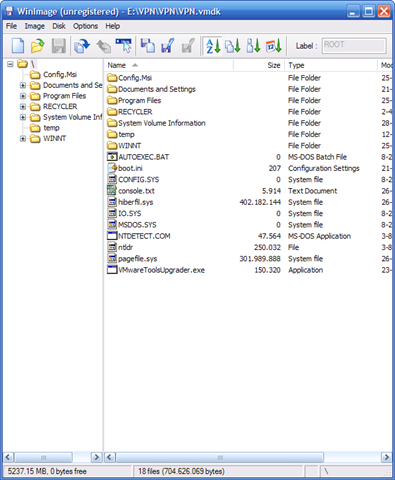
    1. You need to use a program called WINIMAGE to modify ghost.dsk so that it thinks it is a 2.8mb disk.
    2. I ssh into the UDA machine and edit /var/public/tftproot/pxelinux.cfg/default
      and add
      label ghost
      kernel GHOST\kernels\memdisk
      append initrd=GHOST\images\ghost.dsk

    3. then you need to edit /var/public/tftproot/messages.txt
      and add
      ghost Norton Ghost PXE Boot
    4. Download this zip file
      http://www.lhsc.vic.edu.au/Downloads/pxeghost/PXEGhost.zip
      and extract the contents into /var/public/tftproot/GHOST
    5. place the modified ghost.dsk into the /var/public/tftproot/GHOST/images folder

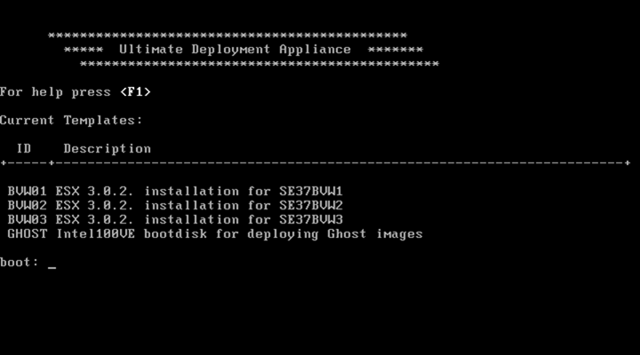
    Zodra je nu een PC opstart via PXE, krijg je het onderstaande menu.

    udascreen

    Tool: Wink 2.0


    winklogo

    Wink is een gratis software voor het creeëren van tutorials en presentaties.

    wink

    Hieronder vindt je een featurelist .

    Features:

    • Freeware: Distributed as freeware for business or personal use. However if you want to redistribute Wink, you need to get permission from the author.
    • Cross-Platform: Available for all flavours of Windows and various versions of Linux (x86 only).
    • Audio: Record voice as you create the tutorial for explaining better.
    • Input formats: Capture screenshots from your PC, or use images in BMP/JPG/PNG/TIFF/GIF formats.
    • Output formats: Macromedia Flash, Standalone EXE, PDF, PostScript, HTML or any of the above image formats. Use Flash/html for the web, EXE for distributing to PC users and PDF for printable manuals.
    • Multilingual support: Works in English, French, German, Italian, Danish, Spanish, Serbian, Japanese, Brazilian Portuguese and Simplified/Traditional Chinese.
    • Smart Capture Tools: Capture screenshots automatically as you use your PC, based on mouse and keyboard input (great time saver and generates professional captures).
    • Performance/Quality: Creates highly compressed Flash presentations (few kbs to few hundreds of kbs, much smaller than competing commercial products) ideal for using on the web.

    • Tools:
      • Navigation buttons to move to next/previous/random frames in the presentation, you can use custom bitmaps for these buttons (full transparency/alpha channel support).
      • Callouts and shapes for displaying text explanations. The inbuilt Callout Editor is used to create custom shaped callouts as you want.
      • Intuitive drag-n-drop editing of the frame, callout, cursor, navigation buttons and the title elements.
      • Advanced features like templates, cursor editing, palettes, background images, control bars & preloaders for the flash output etc.
      • Completely PC and Web ready with exports to PDF, HTML, SWF and EXE formats.
      • Innovative compression techniques applied to reduce filesize of output Flash file. Generated flash file plays in Flash players from version 3 and above, giving you widest array of target audience.
      • Uncompressed output to allow you import the output of Wink into other Flash editors.

    Download de tool hier: http://www.debugmode.com/wink/download.php

    How To: Set The Date and Time within Linux and VMware ESX


    Met het commando date kun je de datum uitlezen die nu actief is op je linux of VMware ESX server.

    date

    Fri Jul 27 23:11:29 CEST 2007

    Via het commando date kun je ook de tijd aanpassen dit doe je als volgt:

    date month, day, hour, minute, and year dus als volgt: date 073108492007

    om de datum en tijd in te stellen op Tue Jul 31 08:49:00 CEST 2007

    Met het commando hwclock kun je net even wat meer zaken regelen.

    hwclock –show kun je de huidige datum en tijd weergeven
    Fri 27 Jul 2007 02:09:31 PM CEST -0.102211 seconds

    hwclock –set –date “07/27/07 13:49:00” stel je de datum in op 27 juli 2007 en de tijd op 14:09:31.

    Gebruik hwclock –show om de instelling te controlleren.

    Je kan de klok ook met de systeemtijd synchroniseren.

    Dit doe je met het volgende commando

    hwclock –hctosys

    Als laatste kun je ook de hardware klok synchroniseren met de systeem tijd.

    Dit doe je met het volgende commando

    hwclock –systohc

    How To: Run Putty from the Commandline


    In deze how to beschrijf ik hoe je Putty kunt starten via de commandline of via Start – Run. Voordat je kunt beginnen moet je eerst putty downloaden. Het makkelijkste werkt de putty installer. Deze installeerd putty in de C:\Program Files\Putty directory.

    putty

    Download de Putty installer hier: putty-0.60-installer.exe

    Vervolgens moet je een system variable in te voeren. Open de System Properies, Tabblad Advanced en klik op Environment Variables

    putty1

    Klik op de Path variable gevolgd door edit.

    putty2

    Voer nu het volgende path in: C:\Program Files\Putty;

    putty3

    en sluit af met OK.


    Vanaf nu kun je via Start – Run – Putty – servernaam een sessie starten naar de ssh server.

    Ook kun je binnen cmd een sessie starten door het volgende commando Putty – servernaam te gebruiken.