Demo: Uniserver IaaS platform (dutch)


Sinds oktober 2009 ben ik werkzaam bij Uniserver Internet. In de tijd dat ik binnen kwam werd er hard gewerkt aan een oplossing om IaaS aan te gaan bieden op ons UniStructure (vSphere/Dell/HP/Juniper) platform.  Sinds dit jaar is deze dienst ook in de markt gezet via een partner model. De klant moet dus eerst partner worden om toegang te krijgen tot de IaaS omgeving. De partners zijn Automatiseerders vanuit het hele land.

Maar hoe werkt deze dienst nu? Dit kun je zien in volgende demo:

De bovenstaande demo is gisteren gegeven op de ICT Dag Midden- Nederland: http://www.ictdag2010.nl/

Meer informatie over de IaaS dienst vind je hier: http://uniserver.nl/

Working with the Veeam Powershell toolkit


After the short introduction of the Veeam Powershell toolkit in my earlier post, It was about time to play with the Toolkit. In this post I will show you how to create a Backup Job and how to add VM’s to the backup job.

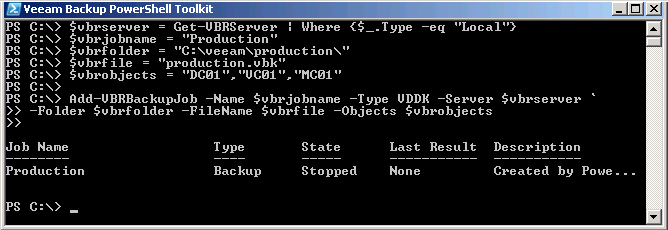
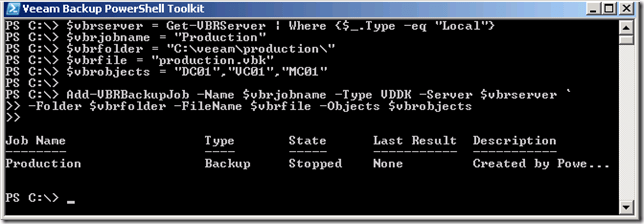
Lets start to add a new Veeam and Replication backup job called “Production” and add the following VM’s: DC01, VC01 and MC01:

$vbrserver = Get-VBRServer | Where {$_.Type -eq "Local"}
$vbrjobname = "Production"
$vbrfolder = "C:\veeam\production\"
$vbrfile = "production.vbk"
$vbrobjects = "DC01","VC01","MC01"

Add-VBRBackupJob -Name $vbrjobname -Type VDDK -Server $vbrserver `
-Folder $vbrfolder -FileName $vbrfile -Objects $vbrobjects

The backup job is created and the following output will be generated on the console:
image

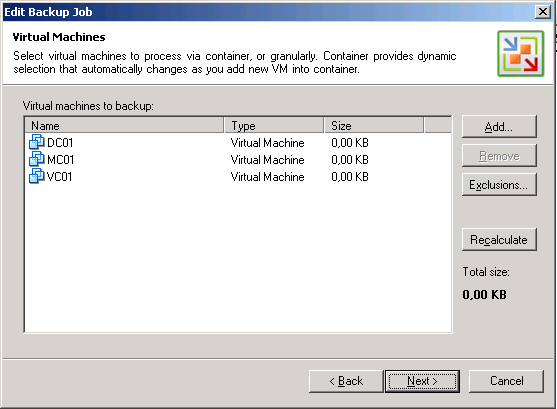
You can verify the Job settings and the selected VM’s inside the GUI:

image

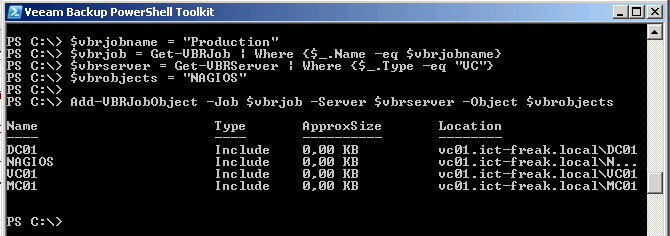
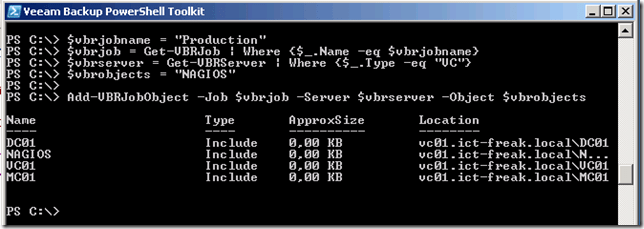
If you want to add an extra VM to the backup job. You can run the following code to add a VM called NAGIOS:

$vbrjobname = "Production"
$vbrjob = Get-VBRJob | Where {$_.Name -eq $vbrjobname}
$vbrserver = Get-VBRServer | Where {$_.Type -eq "VC"}
$vbrobjects = "NAGIOS"

Add-VBRJobObject -Job $vbrjob -Server $vbrserver -Object $vbrobjects

Annotation: the $vbrserver parameter is different than the first script in this post. When you want to add an Object to an existing job, you need to use the vCenter server as the backup source instead of the Veeam Backup server because you need to add an object from vCenter server to the backup job. See help for more info:

get-help Add-VBRJobObject -Detailed

The output from the command:

NAME

    Add-VBRJobObject

SYNOPSIS

    Add VMs or VM containers to the existing job.

SYNTAX

    Add-VBRJobObject [-Job] <CBackupJob> [-Server] <CHost> [-Objects] <String[]

    > [-WarningAction <ActionPreference>] [-WarningVariable <String>] [<CommonP

    arameters>]

    Add-VBRJobObject [-Job] <CBackupJob> [-Server] <CHost> [-Entities] <CEntity

    []> [-WarningAction <ActionPreference>] [-WarningVariable <String>] [<Commo

    nParameters>]

DESCRIPTION

    Add VMs or VM containers to the existing backup, replication or copy job.

PARAMETERS

    -Job <CBackupJob>

        Provide an object of the existing backup, replication or copy job.

    -Server <CHost>

        Provide an object of the ESX/ESXi server on which VMs or VM containers

        reside.

    -Objects <String[]>

        Provide objects of VMs or containers of VMs that you want to back up, r

        eplicate or copy.

When the command completed successfully you will see the following output:
image

To be continued…

Linux: Disk Timeout settings not increased by VMware Tools


Recently I had some issues with Linux VM’s which became read-only. In my earlier post about disk-timeout settings I wrote about the timeout value being increased during the VMware Tools installation. But how does the VMware Tools install change this value. I though the solution can be found within the vmware-config-tools.pl script. So to find the vmware-config-tools.pl script just run:

[root@linuxvm1 ~]# type vmware-config-tools.pl
vmware-config-tools.pl is /usr/bin/vmware-config-tools.pl

No run the less commmand:

less /usr/bin/vmware-config-tools.pl

press / and type 180 now you see the info we are looking for:

image

The disk timeout value can only be changed with Linux kernel 2.6.13 or higher. Ok so what if you use a Linux distribution with a kernel older than 2.6.13? From KB51306:

VMware has identified a problem wherein file systems may become read-only after encountering busy I/O retry or SAN or iSCSI path failover errors.

The same behavior is expected even on a native Linux environment, where the time required for the file system to become read-only depends on the number of paths available to a particular target, the multi-path software installed on the operating system, and whether the failing I/O was to an EXT3 Journal. However, the problem is aggravated in an ESX Server environment because ESX Server manages multiple paths to the storage target and provides a single path to the guest operating system, which effectively reduces the number of retries done by the guest operating system.

These guest operating systems are affected:

  • RHEL5 (RedHat)
  • RHEL4 U6
  • RHEL4 U4
  • RHEL4 U3
  • SLES10
  • SLES9 SP3 
    Note: This issue may affect other Linux distributions based on early 2.6 kernels as well, such as Ubuntu 7.04.

This situation can lead to serious issues and can only be solved with a reboot of the VM. But there is a workaround. From KB1009465:

Increasing the timeout value

The timeout value for a Linux block device can be set using sysfs.
Note: This is usually increased automatically when deploying VMware-Tools, but if it is not installed, you will need increase it manually.

Check the current values using the following command:

for a in /sys/class/scsi_generic/*/device/timeout; do echo -n "$a "; cat "$a" ; done;

Increase the timeout value for an individual disk using the following command. For example to change the values for device sdc, run:

echo 180 > /sys/block/sdc/device/timeout

Run the following command to change the timeout values for all devices to 180:

for i in /sys/class/scsi_generic/*/device/timeout; do echo 180 > "$i"; done

you can add the following command:

for i in /sys/class/scsi_generic/*/device/timeout; do echo 180 > "$i"; done

to the /etc/rc.d/rc.local file to make sure the disk timeout is changed during startup.

Source:  
KB1009465 http://kb.vmware.com/
KB51306 http://kb.vmware.com/
VMTN communities http://communities.vmware.com/thread/257251

Device eth0 has different MAC address than expected, ignoring.


After testing the Instant Recovery of a Linux web server. See my previous post about this Recovery process. The Linux web server has no network connection. I quick look at ifconfig only showed the loopback adapter. So I tried ifup eth0 and run into to following error:

image

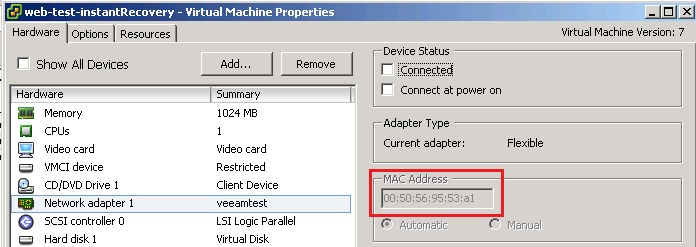
This can simply be fixed by changing the MAC address. Open the Virtual Machine Properties and write down the MAC Address:

image

open the /etc/sysconfig/network-scripts/ifcfg-eth0 in your favorite editor and change the HWADDR to the new MAC address and save the file.

image

The final step is to restart networking via /etc/init.d/network restart.

Veeam Backup PowerShell Toolkit


We start with some information from the user guide veeam_backup_5_0_user_guide_pg.pdf :

Veeam Backup & Replication 5.0 comes with PowerShell extension — a snap-in to Microsoft Windows PowerShell 2.0. Windows PowerShell is a powerful command-line tool that allows administrators to automate some Veeam Backup & Replication activities. Veeam extends functionality of Windows PowerShell 2.0, and now administrators may use PowerShell to automate Veeam backup, replication and copy job creation and editing, VMs restores, replica failover and other operations.

Before installing Veeam PowerShell snap-in, make sure that Microsoft Windows PowerShell 2.0 is installed on the Veeam Backup & Replication console. To download Microsoft Windows PowerShell, use the following link: http://support.microsoft.com/kb/968929.

PowerShell uses cmdlets — simple single-function commands that can be run in the command-line shell. Cmdlets are specialized .NET classes that implement specific actions. Veeam PowerShell provides a set of its own cmdlets which correspond to actions you can perform via Veeam Backup & Replication UI. Please keep in mind that actions performed with PowerShell have the same force as actions performed via Veeam Backup & Replication 5.0 — for example, if you delete some job with PowerShell scripts, the job will be removed from the VeeamBackup database, and you will not be able undo changes.

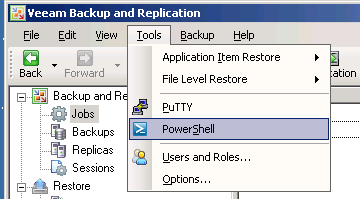
To start the Veeam Backup PowerShell Toolkit, open Veeam Backup and Replication to Tools –> PowerShell:image

The Veeam Backup PowerShell Toolkit starts:

image

There are 75 cmdlets. You can verify this via:

(Get-VBRCommand).Count

image

If you need more information about a cmdlet you can use the get-help cmdlet:

Get-Help Add-VBRBackupJob
Get-Help Add-VBRBackupJob -Full

image

More information about the Veeam Backup PowerShell Toolkit can be found on page 164 of the veeam_backup_5_0_user_guide_pg.pdf user guide,

You can expect some more posts about the Veeam Backup PowerShell Toolkit in the coming weeks.

Veeam: Instant Recovery Fails – Unable to Mount filesystem


Before I start with the solution to the error mentioned in the title of this post I want to share some information about Veeam Instant Recovery. I wanted to test the new feature Instant Recovery. So how does Instant Recovery work? This quote comes from the veeam_backup_5_0_user_guide.pdf user guide:

With Veeam Backup & Replication, you can immediately recover a VM from a created backup file. Instant VM recovery accelerates VM restore, allowing you to improve recovery time objectives and decrease downtime of production VMs.

When performing instant recovery, Veeam Backup & Replication creates an independent temporary copy of a VM in your VMware environment and immediately starts it (if necessary). You can then move this copy to your production storage using Storage vMotion and cold migration to finalize recovery, or alternatively, replicate a restored VM with Veeam Backup & Replication and then fail over to the created replica during the next maintenance window. You can also use a recovered VM for testing purposes to make sure VM guest OS and applications are functioning properly.

Similar to the SureBackup recovery verification technology, instant VM recovery does not require you to extract a VM from a backup and move it across datacenter — it mounts a VM directly from a compressed backup file on a selected ESX host. The archived image of a VM remains in a read-only state to avoid unexpected modifications. All changes to a virtual disk that take place while a VM is running are logged to an auxiliary file on the Veeam Backup server or any datastore you select. These changes are discarded as soon as a restored VM is removed.

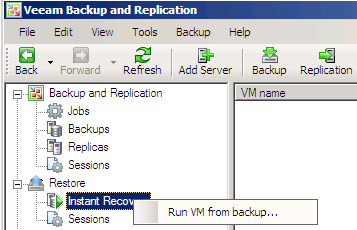
Let’s start an Instant Recovery restore job:

image 

Continue reading “Veeam: Instant Recovery Fails – Unable to Mount filesystem”

vSphere: Storage vMotion of a virtual machine might stop responding at 18%


For some reason a couple of storage vMotions went really slow. So I looked in the logs and found the following lines in the vmware.log:

Oct 15 11:43:37.889: Worker#0| DISKLIB-VMFS :CopyData ‘/vmfs/volumes/xxxxx/vm1/vm1_1-flat.vmdk’ : failed to move data (Cannot allocate memory:0xc0009).
Oct 15 11:43:37.890: Worker#0| DISKLIB-LIB : DiskLib_Clone: Could not perform clone using vmkernel data mover. Falling back to non-accelerated clone. Cannot allocate memory

I started a Google search and found the following thread http://communities.vmware.com/message/1545132 in the communities. A short quote from richardt his post:

"This problem is caused by the VMFS3-DM (Data Mover) having to use contiguous memory space on the host. Apparently, when host’s kernel memory usage is >50% and memory has been fragmented, the DM cannot allocate more space and throws the errors.

I couldn’t get any fix that day so a made an internal case and got focused on another case. The next day I was reading the release notes of patch ESX400-302009402-SG and found the following quote:

Storage vMotion of a virtual machine might stop responding at 18%, and might be completed after a long time, even though other Storage vMotion operations on the host might continue without any errors. If you try to cancel the Storage vMotion operation when it stops responding, the system disconnects the ESX host from the vCenter Server and automatically connects it after a few minutes.

The vmware.log file might contain the following error:
Could not perform clone using vmkernel data mover. Falling back to non-accelerated clone. Cannot allocate memory

The VMkernel log file might contain the following error:
status Out of memory copying 16777216 bytes from file offset 0 to file offset 0, bytesTransferred = 0 extentsTransferred: 0

This issue occurs because the DataMover cannot allocate contiguous physical space when the host’s kernel memory usage is around 50% and the memory is fragmented. The operation fails back to the Application layer data movement. The operation continues and succeeds, but might take more time when compared to the usual DataMove time. The DataMover requires 16MB of contiguous physical memory on the ESX host for each DataMover thread. This patch provides a fix to make DataMover work with fragmented memory.

Installing patch ESX400-302009402-SG did resolve this issue.


Source: KB1023759

How to manage iSCSI targets with PowerCLI part 2


In part 2 of this series I will show how to remove iSCSI targets with PowerCLI.

But first, let’s see which targets are configured on vSphere host esx2.ict-freak.local:

$esx = Get-VMHost "esx2.ict-freak.local"
Get-IScsiHbaTarget -IScsiHba ($esx | Get-VMHostHba -Type iScsi | Where {$_.Model -eq "iSCSI Software Adapter"})

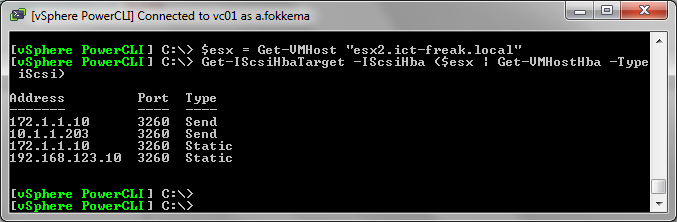
The following targets are configured:

image

In this post I want to show you how to remove the target with PowerCLI. So I opened the vSphere PowerCLI Cmdlets Reference and searched for the Remove-IScsiHbaTarget. On this page you’ll find the following examples:

————– Example 1 ————–

Get-IScsiHbaTarget -Address 10.23.84.73 -Type Send | Remove-IScsiHbaTarget

Retrieves and removes the targets of type Send on the specified address.

————– Example 2 ————–

Remove-IScsiHbaTarget -Target (Get-IScsiHbaTarget -Address 10.23.84.73)

Removes the specified iSCSI HBA targets.

Unfortunately this example doesn’t work because the –Address parameter doesn’t exist in VMware vSphere PowerCLI 4.1 build 264274.

Continue reading “How to manage iSCSI targets with PowerCLI part 2”