How to manage iSCSI targets with PowerCLI part 1


In part 1 of this series I want to show some basic reporting and how you can add a single target and multiple targets to your vSphere hosts. Let’s start with a simple script to report all the targets on all your vSphere hosts:

$esxHosts = Get-VMhost
foreach($esx in $esxhosts){
$hba = $esx | Get-VMHostHba -Type iScsi 
    Write-Host "=========================================="
    Write-Host "iSCSI Targets on $esx"
    Write-Host "=========================================="
    Get-IScsiHbaTarget -IScsiHba $hba -Type Send | Sort Address
    Write-Host " "
}

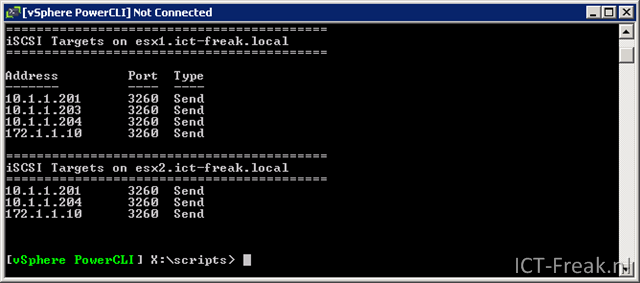
The following output will be generated:

image

Continue reading “How to manage iSCSI targets with PowerCLI part 1”

PowerCLI: Enable Beacon Probing or Link Status Only on a vSwitch


In some cases you need to troubleshoot your network infrastructure from your vSphere hosts all the way back into your core network. In this case you can enable beacon probing and watch your log files for issues. But before I continue to show how to enable beacon probing I want to share some information about what beacon probing is and when is it recommended to be used :

Beacon Probing is a network failover detection mechanism that sends out and listens for beacon probes on all NICs in the team and uses this information, in addition to link status, to determine link failure.

This detects failures, such as cable pulls and physical switch power failures, but not configuration errors, such as a physical switch port being blocked by spanning tree or misconfigured to the wrong VLAN or cable pulls on the other side of a physical switch that are not detected by link status alone.
Beacon probing is most useful to detect failures in the closest switch to the ESX hosts, where the failure does not cause a link-down event for the host.

You can use beaconing with 2 NICs, but this only detects failures on the immediate uplink. If you really want to detect upstream failures, use beaconing with 3 or more NICs.
When there are only two NICs in service and one of them loses connectivity it is unclear which NIC needs to be taken out of service as both no longer receive beacons. Using at least 3 NICs in such a team allows for N – 2 failures where N is the number of NICs in the team before getting into an ambiguous situation.

Source:KB1005577

More information about beacon probing can be found here: http://blogs.vmware.com/networking/ and in part 4 of the great vSwitch debate: http://kensvirtualreality.wordpress.com/2009/04/10/the-great-vswitch-debate-part-4/

Continue reading “PowerCLI: Enable Beacon Probing or Link Status Only on a vSwitch”

How To: Configure vSphere 4.1 Active Directory Authentication


In this post I will show you how to setup Active Directory Authentication in vSphere 4.1.

What do we need tot do:

– Before you start. Please make sure that DNS and NTP are fully functional.
– Create an AD group called "ESX Admins" on a Windows Domain Controller
– Add users to that group
– Configure ESX/ESXi server’s "Directory Services"

If your ESX hosts and Active Directory Domain controllers are able to find each other via DNS, you’re ready to go to the next step of this setup. We need to create a group called “ESX Admins” and add the users with administrator permissions in vCenter to this group. When you choose a different name for the group, you will not be able to use Active Directory Authentication. I found this in the vsp_41_esx_server_config.pdf:

vCenter Server registers any selected Windows domain user or group through the process of assigning permissions. By default, all users who are members of the local Windows Administrators group on vCenter Server are granted the same access rights as any user assigned to the Administrator role. Users who are members of the Administrators group can log in as individuals and have full access.
Users who are in the Active Directory group ESX Admins are automatically assigned the Administrator role.

After creating the ESX Admins group it’s now time to join the ESX host to the Windows Domain. When you’re managing a small environment, you can do this with five a six mouse clicks per ESX host.

Continue reading “How To: Configure vSphere 4.1 Active Directory Authentication”

vSphere: vCenter shows VMName (Invalid)


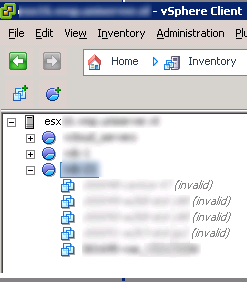
After some issues with a NFS share I noticed that a couple of VM’s changed to Invalid. The VM was still fully operational but vCenter didn’t recognized the VM’s anymore.

image

I found the following knowledge base article: http://kb.vmware.com/kb/1015778 which describes the following symptoms:

•Virtual machines display as invalid in vCenter Server
•The command service mgmt-vmware restart fails to stop the management agent
•The command vmware-cmd -l returns the error:

PANIC: SyncWaitQ: The system limit on the total number of open files has been reached

•The command ps -auxwww shows a large amount of SSHD processes running

In my case the solution was to restart the management agent on the host where the VM’s where running on.

vSphere: Set NFS Advanced Configuration Settings via esxcfg-advcfg


Yesterday I created a post about changing the advanced configuration settings for NFS via PowerCLI. Today I will show you how you can change the advanced configuration settings with the use of esxcfg-advcfg. This is quite useful for kickstart installations.

This is a snippet from my ks.cfg file:

# Set NFS advanced Configuration Settings
/usr/sbin/esxcfg-advcfg -s 30 /Net/TcpipHeapSize
/usr/sbin/esxcfg-advcfg -s 120 /Net/TcpipHeapMax
/usr/sbin/esxcfg-advcfg -s 10 /NFS/HeartbeatMaxFailures
/usr/sbin/esxcfg-advcfg -s 12 /NFS/HeartbeatFrequency
/usr/sbin/esxcfg-advcfg -s 5 /NFS/HeartbeatTimeout
/usr/sbin/esxcfg-advcfg -s 32 /NFS/MaxVolumes

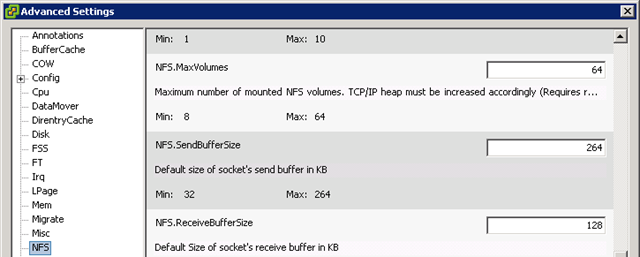
So how do you know what values you need to enter when you want to use this command. Bouke has a html version of the esxcfg manuals on his blog: http://www.jume.nl/esx4man/man8/esxcfg-advcfg.8.html. But this page doesn’t show the information I needed. Open the Advanced Settings screen in the vSphere client.

image

Open the NFS settings. Let’s use the NFS.MaxVolumes in this example. NFS is the ‘root’ folder the setting in this case MaxVolumes is the child folder. So if you want to change this setting via /usr/sbin/esxcfg-advcfg we need to use the /NFS/MaxVolumes. If you want to know what the current value is, just run the following command from the service console:

/usr/sbin/esxcfg-advcfg –g /NFS/MaxVolumes

This will be the output:

image

When you change the value to 32 via this command:

/usr/sbin/esxcfg-advcfg -s 32 /NFS/MaxVolumes

This will be the output:

image

PowerCLI: Changing Advanced Configuration Settings for NFS


 go2.wordpress[1]  image_thumb[1] 

After reading Jase’s post http://www.jasemccarty.com/blog/?p=532 about setting the advanced configuration settings. I wanted to create a script and add it to the Community Powerpack (more info about the Powerpack here: http://www.virtu-al.net/2010/06/04/goodbye-virtu-al-hello-community/)

So I created two PowerCLI scripts to achieve this. You can see a short demo here:


This script will be added to the new version of the Powerpack.If you don’t want to wait until  the new version of the Community Powerpack comes online, you can use the following script to set the advanced settings on all of your ESX hosts:

param(
    [parameter(Mandatory = $true)]
    [string[]]$vCenter
)

Connect-VIServer $vCenter

$esxHosts = Get-VMHost | Sort Name
foreach($esx in $esxHosts){
    Write-Host "Updating TCP and NFS Advanced Configuration Settings on $esx"

    # Update TCP Settings
    if((Get-VMHostAdvancedConfiguration -VMHost $esx -Name Net.TcpipHeapSize).Values -ne "30"){
        Set-VMHostAdvancedConfiguration -VMHost $esx -Name Net.TcpipHeapSize -Value 30 -Confirm:$false
    }
    if((Get-VMHostAdvancedConfiguration -VMHost $esx -Name Net.TcpipHeapMax).Values -ne "120"){
        Set-VMHostAdvancedConfiguration -VMHost $esx -Name Net.TcpipHeapMax -Value 120 -Confirm:$false
    }

    # Update NFS Settings
    if((Get-VMHostAdvancedConfiguration -VMHost $esx -Name NFS.HeartbeatMaxFailures).Values -ne "10"){
        Set-VMHostAdvancedConfiguration -VMHost $esx -Name NFS.HeartbeatMaxFailures -Value 10 -Confirm:$false
    }
    if((Get-VMHostAdvancedConfiguration -VMHost $esx -Name NFS.HeartbeatFrequency).Values -ne "12"){
        Set-VMHostAdvancedConfiguration -VMHost $esx -Name NFS.HeartbeatFrequency -Value 12 -Confirm:$false
    }
    if((Get-VMHostAdvancedConfiguration -VMHost $esx -Name NFS.HeartbeatTimeout).Values -ne "5"){
        Set-VMHostAdvancedConfiguration -VMHost $esx -Name NFS.HeartbeatTimeout -Value 5 -Confirm:$false
    }
    if((Get-VMHostAdvancedConfiguration -VMHost $esx -Name NFS.MaxVolumes).Values -ne "64"){
        Set-VMHostAdvancedConfiguration -VMHost $esx -Name NFS.MaxVolumes -Value 64 -Confirm:$false
    }
}


You can start the script with the parameter –vCenter in my case this is vc01:

image

The script will generate the following output.

image

Note on the first ESX host I already changed the NFS.HeartbeatFrequency during the test of the cmdlets.