Veeam is offering you the opportunity to win a FREE PASS to VMworld 2012 October 09-11 in Barcelona

So go to http://go.veeam.com and register to make a change of winning a FREE PASS. You need to register before September 24 so hurry up!
Veeam is offering you the opportunity to win a FREE PASS to VMworld 2012 October 09-11 in Barcelona
So go to http://go.veeam.com and register to make a change of winning a FREE PASS. You need to register before September 24 so hurry up!
Today I was struggling with an ESX host. The ESX host was unable to leave the Windows domain. I got the following error:

From the vSphere client I was unable to fix this issue. Apply Host profile failed also with the same error. So I started a search in the VMware KB and found an article about problems while attempting to join a Windows domain. In this article you’ll find a way to clean up the AD configuration from the CLI.
The solution for me was to stop the lsassd service:
/etc/init.d/lsassd stop
Remove the db directory:
/etc/likewise/db directory
and start the lasassd service again:
/etc/init.d/lsassd start
Now I was able to leave the Windows domain.
I just want to share two KB articles about the Admin account used in vCenter Operations Manager 5.x vApp. I had some trouble logging in as admin and these articles helped me solve the issue.
Details
vCenter Operations Manager 5.x locks out the admin account on the vApp if you try to log in with incorrect credentials three times in a row.
Solution
Determine whether the admin account is locked out
- Log in to the console of the UI VM as root user.
- Run the following command twice: su admin.
The admin account is locked if the console displays a message that reads Account locked due to XX failed login, where XX stands for the number of failed login attempts.- Repeat the above steps on the Analytics VM to check if the admin account there is locked out.
Unlock the admin account
- Log in to the console of the UI VM as root user.
- Run the following command: pam_tally --user admin --reset.
- Repeat the above steps on the Analytics VM if the admin account there is locked out.
Disable the automated lockout for the admin account (optional)
- Log in to the console of the UI VM as root user.
- Remove or comment out the following line from file /etc/pam.d/common-auth:
auth requisite pam_tally.so deny=3- Repeat the above steps on the Analytics VM to disable the lockout functionality there.
Note: The admin account is unlocked automatically when you disable this functionality.
Source: KB2030185
Details
This article describes how to reset passwords in vCenter Operations Manager 5.x. The procedure for the root user is different from the admin user. Both procedures are documented here.
Solution
Resetting the root user password
If you forget the root user password, you can reset this password by booting into single user mode.
To reset the root user password:
- In the vSphere Client, power off both the UI and Analytics virtual machines.
- Select the powered-off UI virtual machine, right-click it, and choose Open Console in the pop-up menu.
- From the virtual machine console window, hit the green |> button to power on the UI virtual machine .
- When the boot screen appears, quickly click inside the window and enter a space.
The boot process halts and the countdown from 7 to 0 at the bottom of the screen clears.
Note: You have only a few seconds to accomplish this step. If you do not halt the boot countdown, you have to start over.- Make sure the first line is selected (SUSE Linux Enterprise …), and press e.
A boot parameters menu appears.- Go to the second line (beginning with “kernel /vmlinuz-….”), and press e again.
You are dropped into a grub prompt, and the cursor is positioned at the end of the line.- Enter a space, followed by the parameter init=/bin/sh, and press Enter.
The space and the parameter are appended to the line onscreen. Once you press Enter, you are returned to the previous boot parameters screen, with the kernel line highlighted.- Press b to boot.
You see a short boot sequence, followed by a shell prompt.
Note: This step overwrites the temporary changes made in Step 7, and all boot parameters revert to their previous values.- Run this command to reset the root user password:
passwd- Repeat Steps 1-9 for the Analytics virtual machine.
Note: Make sure that you enter the same new password for both the UI and the Analytics virtual machines.
Resetting the admin user passwordIf you forget the admin user password for vCenter Operations Manager, a script is available for you to re-set that password.
For the 5.0 version only, you must download and use the script attached to this document.
For vCenter Operations 5.0.1 and subsequent versions, the script will be available in the vApp.
To reset the admin password, follow these steps. If you are on a version later than 5.0, go to Step 3.
- If you are on the 5.0 version, download and unzip the file resetadminpwd.zip to obtain the script fileresetadminpwd.sh.
- Save resetadminpwd.sh on the UI virtual machine in the /usr/lib/vmware-vcops/user/conf/install folder.
- Make the script executable.
chmod 755 resetadminpwd.sh- As root, run the script resetadminpwd.sh on the UI virtual machine:
./resetadminpwd.sh new-passwordSource: KB2013358

It’s been a while since I did a post on my blog. But today I am back with a short review of the upcoming release of PHD Virtual Backup version 6.0. A couple of other Dutch bloggers also posted about the new PHD Virtual Backup v6 release. You can read their posts here:
PHD Virtual Backup has some great new features. These are the features I like the most:
Eliminate costly downtime and meet SLA’s with PHD Instant Recovery.
PHD Instant Recovery allows users to make an application available as quickly as possible in the event of a failure, without the need for additional infrastructure or a lengthy restore process.
In the event of a failure, PHD Instant Recovery will simply:
- Turn on a VM using the data that resides directly on the backup target, enabling users to experience next to no downtime.
- Then, once ready, users can either leverage VMware Storage vMotion or use PHD Motion to move the VM’s to production storage.
Properly quiesce an application prior to backup (especially helpful for Windows 2008 R2 running on Citrix XenServer guests) Perform any post backup processes, such as automated log truncation, shrinking, etc.
Adoption of virtualization is growing at a rapid rate and more sophisticated, mission critical applications such as Microsoft Exchange and SQL Server are being virtualized every day.
PHD Virtual Backup v6.0 provides the ability to take an application aware backup for any application allowing users to maintain confidence that backups of their mission critical applications will complete without fail.
While PHD Virtual currently offers file recovery for any Operating System, PHD Virtual Backup v6.0 takes ease of use to a whole new level with the addition of a new file recovery method. This new method consumes fewer resources and provides unprecedented flexibility with file recovery by eliminating the need to allocate additional virtual appliances dedicated to the process. Simply select the new CIFS file recovery option to present your backup data out to any user that needs to recover files, Exchange emails, or other application items. Those that currently enjoy the flexibility and security of sharing backup data out using iSCSI can continue to use that method as well.
You can read the whole list of new features here: http://phdvirtual.com/solutions/new-6-version or watch the video below:
Before we start with the installation of the product I want to show you the System Requirements and some information about the Backup Storage you can use with PHD Virtual Backup version 6.0.
In one of my previous posts you can find a PowerCLI script to report the dvPortgroup ports usage. In this post you’ll find a PowerCLI script to report the overall status of the dvSwitches in your environment. The script will report the dvSwitch Name, Version, Total ports maximum, Total ports in use and the total ports left on the dvSwitch.
Just copy the script below:
$dvSwitchInfo = @()
foreach($dvSwitch in (get-virtualSwitch -distributed |Sort Name)){
    $details = "" | Select Name, Version, Totalports, Portsinuse, Portsleft

    $totalPorts = $dvSwitch.ExtensionData.Config.MaxPorts
    $Portsinuse = $dvSwitch.ExtensionData.Config.NumPorts
    $portsleft = ($totalPorts - $Portsinuse)

    $details.Name = $dvSwitch.name
    $details.Version = $dvSwitch.ExtensionData.Summary.ProductInfo.Version
    $details.Totalports = $totalPorts
    $details.Portsinuse = $Portsinuse
    $details.Portsleft = $portsleft

    $dvSwitchInfo += $details
}
$dvSwitchInfo
The output will look like this:

I will create another script to combine the information of the dvSwitch and the dvPortgroups available on the dvSwitch to a complete html report like the vCheck.
In this post I will show you how you can generate a simple report of your dvPortgroups. The report shows the Name of the dvPortgroup, The portbinding configuration, The total ports configured, The total ports in use and last but not least the total ports left on the dvPortgroup.
The script below will search for all distributed portgroups in your vCenter where you’re connected to with PowerCLI.
$pgInfo = @()
foreach($pg in (get-virtualportgroup -distributed | Sort Name)){
    $details = "" | Select Name, PortBinding, Totalports, Portsinuse, Portsleft

    $totalPorts = $pg.ExtensionData.PortKeys.count
    $Portsinuse = $pg.ExtensionData.vm.count
    $portsleft = ($totalPorts - $Portsinuse)

    $details.Name = $pg.name
    $details.PortBinding = $pg.PortBinding
    $details.Totalports = $totalPorts
    $details.Portsinuse = $Portsinuse
    $details.Portsleft = $portsleft

    $pgInfo += $details
}
$pgInfo | Export-Csv -UseCulture -NoTypeInformation C:\Scripts\dvPortgroupInfo.csv
The CSV output will look like this:
| Name | PortBinding | Totalports | Portsinuse | Portsleft |
| vlan1 | Static | 32 | 4 | 28 |
| vlan2 | Static | 32 | 0 | 32 |
| vlan3 | Static | 32 | 7 | 25 |
| vlan4 | Static | 32 | 1 | 31 |
| vlan5 | Static | 32 | 12 | 20 |
| vlan6 | Static | 32 | 0 | 32 |
With a simple PowerCLI script you can create a report of all your dvPortgroups. I am going to create another PowerCLI script to use as a Nagios plugin to see witch of the dvPortgroups have less than <X> ports left. So to be continued.
Today I was playing around with the vSphere Distributed Switch and trying to reach the configuration maximums of it by creating lots of dvPortgroups. But when I reached the port numbers above 8192, the dvPortgroup wasn’t created and I got the following error:
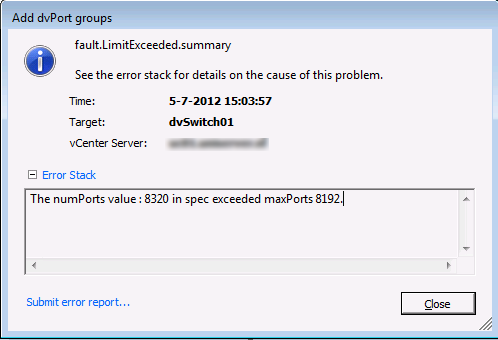
From KB1038193 I used the resolution to change the default max numPorts from 8192 to 20000. The 20000 value is also the one mentioned in the Configuration Maxium document: vsp_41_config_max.pdf so I don’t know why VMware used the 8192 max value. If anyone can explain why this extra limit if effective, please let me know.
The solution from KB1038193:
Symptoms
- You cannot configure more than 8192 virtual ports in vCenter Server vNetwork Distributed Switch (vDS).
- You see the error:
The numPorts value : 8256 in spec exceeded maxPorts 8192.Purpose
This article provides steps to increase the maximum number of vDS ports.
Resolution
Changing the maximum number of vDS ports by using vSphere PowerCLI
vSphere PowerCLI can be used to automate the different virtual machine tasks. It provides an easy-to-use C# and PowerShell interface to VMware vSphere APIs. For more information, see the VMware vSphere PowerCLI Documentation.
To change the maximum number of vDS ports, you can use this PowerCLI snippet:
$dvs = Get-VirtualSwitch -Distributed -Name DVSName | Get-View
$cfg = New-Object -TypeName VMware.Vim.DVSConfigSpec
$cfg.MaxPorts = 20000
$cfg.configVersion = $dvs.config.configVersion
$dvs.ReconfigureDvs_Task( $cfg )
I have changed the code slightly to report the current configuration. you can use this script or the one from the KB article:
# dvSwitchName
$dvSwitchName = "dvSwitch01"

$dvs = Get-VirtualSwitch -Distributed -Name $dvSwitchName | Get-View
Write-Host "The current configuration of MaxPorts = $($dvs.Config.MaxPorts)" -for Yellow
$cfg = New-Object -TypeName VMware.Vim.DVSConfigSpec

# Org
#$cfg.MaxPorts = 8192

# New
$cfg.MaxPorts = 20000

$cfg.configVersion = $dvs.config.configVersion
$dvs.ReconfigureDvs_Task( $cfg ) | Out-Null

# Report new configuration
$dvs = Get-VirtualSwitch -Distributed -Name $dvSwitchName | Get-View
Write-Host "The new configuration of MaxPorts = $($dvs.Config.MaxPorts)" -for Green
Output:

Source: KB1038193
Today I was trying to upgrade a test Veeam server with a Veeam v5 deployment to the latest v6.1 release. I used the following KB article to perform the upgrade KB1363. But when I tried to install the v6.1 software I got the following warning message:
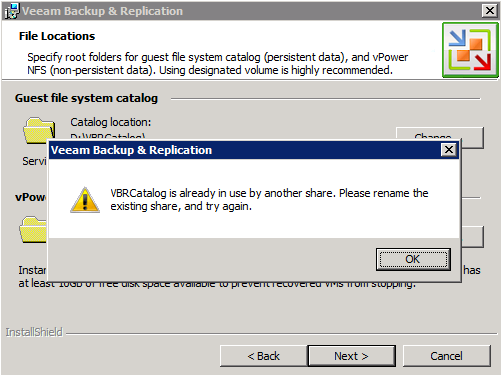
I think this ‘issue’ is some legacy stuff from moving the VBR catalog to another location. If you want to know how you can move the VBRCatalog to a different partition. Just read my previous post  .
.
To fix this ‘issue’ just remove the file share:
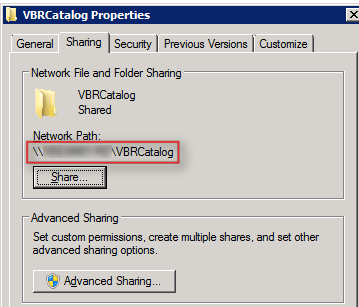
Now you’re good to go. Just restart the setup wizard and install version 6.1 and have fun.
Today I was testing Host Profiles (again) and I must say it works a lot better than during my previous tests. There was only one thing very annoying during my tests. When the host was in maintenance mode, I applied the Host Profile and performed a check. Everything was OK and the host was compliant. But when the host was out Maintenance mode and I checked if the host was still compliant, I received the following message:

Unfortunately there’s no knowledgebase article which describes those messages so I started to Google and found a post on the VMware Communites by khushal: http://communities.vmware.com/message/1357268
1. Open vCenter go to Home — > Management –> Host Profiles
2. Right Click on the Host Profile you are using for your Cluster and Select Edit
3. Expand the profile Profile
– Profile-name
– Firewall configuration
* – Ruleset Configuration*
* – faultTolerance*
Select Ruleset and check the checkbox in right hand “*Flag Indicating whether ruleset should be enabled”
Click OK.
and check Compliance again in Cluster.
To fix the annoying messages I did change the aam and faultTolerance settings via:
Continue reading “Host Profiles: Ruleset xxxx doesn’t match the specification”
In this short post I will show a PowerCLI script I wrote to copy ISO files from datastore y to datastore x. The datastores are in the same vCenter and virtual datacenter accessible but the vSphere hosts are located inside two different IP subnets and a firewall rule prevents to copy files between the two subnets. So I had to think about a work around. Well this one is easy. On the vCenter server I created a script to peform the following steps:
The PowerCLI script to perform the described tasks:
New-PSDrive -location (get-datastore template-01) -name tpl01 -PSProvider VimDatastore -Root '\'
New-PSDrive -location (get-datastore template-02) -name tpl02 -PSProvider VimDatastore -Root '\'

$isos = ls tpl01:\iso\ | % {$_.Name}
foreach($iso in $isos){
    Write-Host "copy $($iso) to C:\tmp" -fore Yellow
    Copy-DatastoreItem -item tpl01:\iso\$iso -Destination C:\tmp

    Write-Host "copy $($iso) to template-02\iso" -fore Yellow
    Copy-DatastoreItem -item C:\tmp\$iso -Destination tpl02:\iso

    Write-Host "removing the tmp file $($iso) from C:\tmp" -fore Yellow
    Remove-Item C:\tmp\$iso -confirm:$false

    Write-Host "done" -fore Green
}
So once again PowerCLI to the rescue.
 ICT-Freak.nl