Script: Removehba.sh updated


image

Bouke Groenescheij van www.jume.nl heeft een update van zijn removehba script online gezet. Met dit script kun je in een handomdraai op een linux distro een ESX cd zo aanpassen dat je tijdens de installatie van een ESX server de HBA’s niet hoeft los te koppelen.

"So I went ahead and made some changes to the script which pulls apart the extra files, edits them and repacks it all up in one go…

Thanks to both of you for your work. I’ve been using my updated install media now for http deployments for a while without any issues. Its a great install process not having to worry about the san being disconnected. using the nework boot iso and a kickstart file, I can have a host rebuilt in under 15mins. That includes a reboot and configuring all my networks, hp agents & tweaks etc."

De download vind je hier: http://www.jume.nl

Microsoft: Active Directory Design Considerations


image

Mark Wilson heeft een serie artikelen gemaakt over het ontwerpen van een Active Directory.

Bron: http://www.markwilson.co.uk/blog/

Microsoft: Hyper-V Server 2008 RTM


image

So what exactly is Microsoft Hyper-V Server 2008? Following are some bits I’ve collected that you might not see/read on the Web site or TechNet (or maybe you will).

  • Hyper-V Server 2008 was built using the Windows hypervisor and other components, including base kernel and driver technologies. Microsoft Hyper-V Server 2008 shares kernel components with Windows Server 2008.
  • Microsoft Hyper-V Server 2008 contains a sub-set of components that make up Server Core deployment option of Windows Server 2008, and has a similar interface and look and feel. But as you know, Server Core has roles like DNS, DHCP, file. Hyper-V Server 2008 is just virtualization.

  • Because Hyper-V Server 2008 shares kernel components with Windows Server 2008, we don’t expect special hardware drivers to be required to run Microsoft Hyper-V Server.

  • The maximum number of guest instances that can run on Microsoft Hyper-V Server 2008 is 128 (of course this is dependent on the hardware, memory and workloads). Additionally, each guest OS must have a valid license.

  • Hyper-V Server 2008 runs/supports all the guest OSes supported by its big brother, WS08 Hyper-V. See here for a complete list.

  • Windows Server licenses are not included with Microsoft Hyper-V Server 2008. Client access licenses (CALs) are only required for Windows Server and all Windows Server images that are virtualized, regardless of virtualization platform (e.g., ESXi). No CALs are required for Hyper-V Server 2008.

Download Hyper-V Server here: http://www.microsoft.com/servers/hyper-v-server/how-to-get.mspx

More info here: http://www.microsoft.com/servers/hyper-v-server/product-information.mspx


Bron: http://blogs.technet.com/virtualization/

Windows: vsp1cln.exe


When you install Vista SP1, a backup of all replaced files is made. This is done so you can roll back to pre-
SP1 if you desire. SP1 has been out for some time now and many of you will no doubt be satisfied with using
it. In this guide, you will learn how to reclaim disk space taken up by the Vista SP1 install.

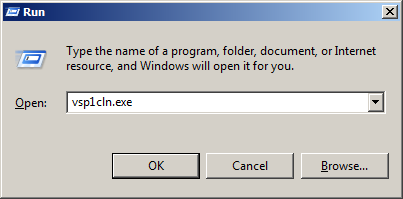
You can start vsp1cln.exe with the following command:

Start – Run – vsp1cln.exe

image

The vsp1cln.exe process is started.

Are you sure??

image

After running this tool, you cannot uninstall Vista SP1.

VMware: Hyper-V on Server Core vs ESXi


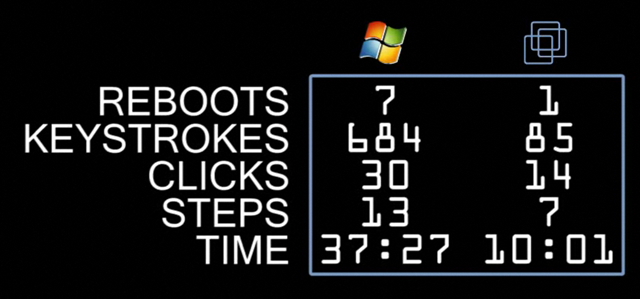
VMware heeft een vergelijking gemaakt tussen Hyper-V op Server Core vs ESXi. Hieronder zie je de uitkomst van deze test. Verder vind je twee videos met meer informatie over de installatie van beide Hypervisors en een video over het configureren van iSCSI op beide Hypervisors.

picture_3

Video 1: http://www.vmware.com/technology/whyvmware/resources/esxi-hyper-v-installation.html

This first video shows every step required to install Hyper-V and ESXi on a fresh machine.  We kept count of the elapsed time, reboots, mouse clicks and keystrokes each product needed and it clearly shows the huge advantage the truly thin and OS-free ESXi architecture has in installation speed and simplicity.  ESXi goes from bare-metal to fully installed in one-third the time, half the mouse clicks, hundreds fewer keystrokes and just one reboot vs. seven compared to Hyper-V.  The simplicity of the ESXi wizard-driven installation is striking compared to the arduous process needed to first get the Server Core OS installed and then configure Hyper-V in a command line environment.

Video 2: http://www.vmware.com/technology/whyvmware/resources/hyper-v-side-by-side-esxi.html

Our second video starts where the first left off and takes Hyper-V and ESXi through the steps needed to configure two iSCSI datastores for VM use.  iSCSI setup is a standard task for any virtualization user that wants to take advantage of shared storage for VM migration and high availability.  ESXi’s Windows-based Virtual Infrastructure client makes the iSCSI setup quick and easy.  For Hyper-V, the "Windows you know" is nowhere to be seen.  Instead, working with Server Core requires you to key in a long sequence of obscure commands to configure iSCSI initiators and targets, partitions and file systems.  We generously showed the Hyper-V setup executed with no delays, although it took us hours of digging through Microsoft documents and knowledgebase articles to find the right commands to use when configuring iSCSI in Server Core.

Bron: http://blogs.vmware.com/virtualreality/2008/09/esxi-vs-hyper-v.html

VI Toolkit: Set VMware Tools Upgrade Policy


Tijdens het googlen naar informatie over de VI Toolkit kwam ik het onderstaande script tegen.

Connect-VIServer <VirtualCenterServer>
#  NAME: set-VMautoUpdate.ps1
#  AUTHOR: angoletti1 / LucD
#  SOURCE:  http://communities.vmware.com/message/937094#937094

[Reflection.Assembly]::LoadWithPartialName("vmware.vim")

$vmConfigSpec = New-Object VMware.Vim.VirtualMachineConfigSpec
$vmConfigSpec.Tools = New-Object VMware.Vim.ToolsConfigInfo
$vmConfigSpec.Tools.ToolsUpgradePolicy = "UpgradeAtPowerCycle"

Get-VM | % { (Get-View $_.ID).ReconfigVM($vmConfigSpec)}


Via dit script kun je in één keer alle VM’s aanpassen.

Bron: http://www.blkmtn.org/the-value-of-digging-through-an-SDK

Release: VMware Server 2.0


Vmware heeft vandaag ook VMware Server 2.0 uitgebracht.

New Features in VMware Server 2

  • New operating system support: The broadest operating system support of any host-based virtualization platform currently available, including support for Windows Server 2008, Windows Vista Business Edition and Ultimate Edition (guest only), Red Hat Enterprise Linux 5 and Ubuntu 8.04.
  • 64-bit operating system support: Use 64-bit guest operating systems on 64-bit hardware to enable more scalable and higher performing computing solutions.  In addition, Server 2 will run natively on 64-bit Linux host operating systems. 
  • VMware Infrastructure (VI) Web Access management interface: VI Web Access management interface provides a simple, flexible, secure, intuitive and productive management experience.  Plus, access thousands of pre-built, pre-configured, ready-to-run enterprise applications packaged with an operating system inside a virtual machine at the Virtual Appliance Marketplace.
  • Independent virtual machine console: With the new VMware Remote Console, you can access your virtual machine consoles independent of the VI Web Access management interface.
  • More scalable virtual machines: Support for up to 8 GB of RAM and up to10 virtual network interface cards per virtual machine, transfer data at faster data rates from USB 2.0 devices plus add new SCSI hard disks and controllers to a running virtual machine.
  • Volume Shadow Copy Service (VSS):  Properly backup the state of the Windows virtual machines when using the snapshot feature to maintain data integrity of the applications running inside the virtual machine.
  • Support for Virtual Machine Interface (VMI): This feature enables transparent paravirtualization, in which a single binary version of the operating system can run either on native hardware or in paravirtualized mode to improve performance in specific Linux environments.
  • Virtual Machine Communication Interface (VMCI): Support for fast and efficient communication between a virtual machine and the host operating system and between two or more virtual machines on the same host.
  • Support for VIX API 1.5: This feature provides a programming interface for automating virtual machine and guest operations.

Vraag hier je licentie aan en download de software: http://www.vmware.com/freedownload/login.php?product=server20

Release: VMware Workstation 6.5


Ik keek net op de VMware site om Workstation 6.5 beta te downloaden en tot mijn verbazing lijkt Workstation 6.5 RTM te zijn.

image

Klik op het plaatje om naar de download site te gaan.

image

Hier vind je de release notes: http://vmware.com/support/ws65/doc/releasenotes_ws65.html

En de Guest OS guide vind je hier: http://blogs.vmware.com/guestosguide/2008/09/latest-update-2.html (thanks Duncan).

VI Toolkit: Create an Overview Of All cmdlets


Het volgende commando genereerd een html file met daarina een overzicht van alle VI cmdlets.

Get-Command -PSSnapin VMware.VimAutomation.Core | ConvertTo-Html –Property CommandType,Name,Definition -title "VIToolkit" > D:\vitoolkit_cmdlets.html

Voer deze code wel  uit als een oneliner!


Het volgende overzicht wordt gegenereerd:

image

Nu heb je in een oogopslag een overzicht van alle cmdlets.