VMware: New Patches


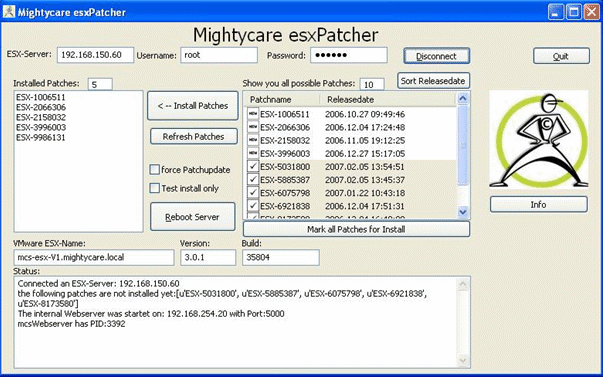
VMware heeft vandaag weer een aantal patches voor ESX 3.0.1 vrij gegeven.

ESX-4825991 Patch | 05/15/07 | Critical Patch
ESX-5095559 Patch | 05/15/07 | Security Patch
ESX-5140477 Patch | 05/15/07 | Security Patch
ESX-6657345 Patch | 05/15/07 | General Patch
ESX-6704314 Patch | 05/15/07 | Security Patch
ESX-7281356 Patch | 05/15/07 | General Patch
ESX-7302867 Patch | 05/15/07 | Critical Patch
ESX-7408807 Patch | 05/15/07 | General Patch
ESX-7557441 Patch | 05/15/07 | General Patch

Script: VMware ESX3 Patch downloader


Introduction
————
Instead of downloading ESX 3 patches individually this application automatically batch downloads patches for you and can be used repeatedly to maintain your local patch repository.

This utility is designed for Windows XP, Vista and Server 2003 but may work on other Windows Operating Systems.

No support is provided for the utility but we will endeavour to reply to email requests for assistance.

Instructions
————

1. Unzip all the zip file contents in to a folder on your PC

2. Open an internet browser and navigate to http://www.vmware.com/download/vi/vi3_patches.html#c4310

3. Select the patches you want to download by selecting the text and copying it to your clipboard, eg: Ctrl + C. You can select all the patches if you want, or just some of them. You don’t need to be particular about the tidying up any uneeded text as the application filters the patch names to correctly identify them.

4. Once you have made you selection, paste the selection in to the textfile.txt file which is already included.

Note: the textfile provided is current to 12 April 2007 for all VMware ESX 3.0.1 patches and will work correctly as it is.

5. Save the file, and then double-click the VIPatchDownloader-v100.vbs file to start downloading your patches (ensure you have an internet connection before you start). You will be prompted where you wish to place the patches and the application will create a new folder called ‘VIPatches’. Make sure you have sufficient rights to create files in the destination location that you choose. A progress window will appear but it may take a few moments to initialise after you’ve selected the destination so please be patient. Patches are downloaded sequentially.

Note: closing the progress window part way through patch downloading will not stop the application. It will continue to complete the selected downloads unless you end the wscript.exe process through Windows Task Manager and close any open download screens.

6. Once the downloads are complete the progress window will advise and then close after 5 seconds.

HTTP Proxy
———-
To use wget through a proxy you must first create an environment variable. Type the following at the Windows command prompt:

set http_proxy=http://proxy.example.com:8080

Replace proxy.example.com with your actual proxy server and replace 8080 with your actual proxy server port.

Download het script hier: http://www.xtravirt.com/

Hier zie je het script in actie:

esxpatchdownloadscript.gif

VMware: Redo files (Snapshots) and Active Directory


Om even een punt aan te wakkeren met betrekking tot de discussie over het virtualizeren van een Domain Controller (vanaf nu DC red.) de volgende post. Redo files / Snapshots en DC’s. Toevallig had ik gisteren de nare ervaring van een redo file die afgelopen vrijdag gecommit werd met oude data. Je raad het al de desbetreffende DC was corrupt.

Even de voorgeschiedenis over hoe dit ontstaan is.

VMBK zoals het hoort

VMBK.pl word gestart. Deze maakt een redo file aan zodat er een hot backup plaats kan vinden.

vmbkredo.gif

Nadat de backup klaar is, wordt de redo file gecommit en worden alle wijzigingen die op het moment dat de redo file actief is, samengevoegd met de data op de vmdk. De data uit de redo file krijgt voorang op de data die al op de vmdk staat.

vmbkredo1.gif

Redo file als het mis gaat

In mijn geval was de vmbk.pl job blijven hangen. Door gebrek aan tijd kon ik de log files niet nakijken en kwam ik er pas afgelopen vrijdag achter. Nadat ik de ESX server (2.5.4 patch 4) opnieuw opgestart had ging de back-up job gewoon weer aan de slag die nacht. Maar wat er volgens mij gebeurd is nadat de backup klaar was, heeft vmbk de redo file gecommit die al meer dan week oud was. Balen want het was mijn eerste DC welke alle FSMO roles had etc.

Zoals je in het volgende plaatje ziet wordt de oude redo file gecommit.

vmbkredo2.gif

En het gevolg is dat de DC corrupt raakt.

vmbkredo3.gif

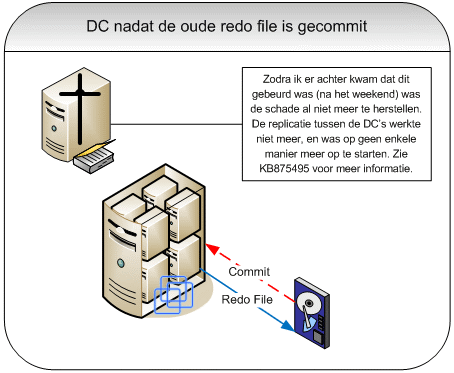
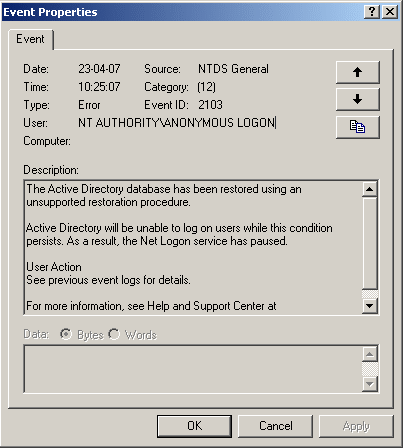
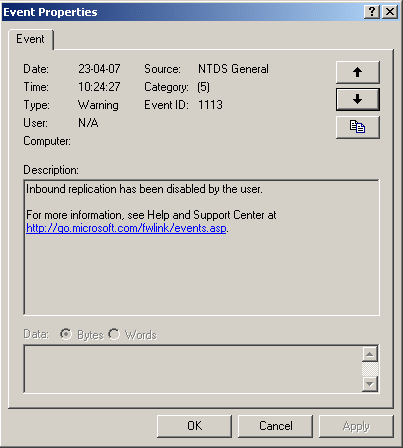
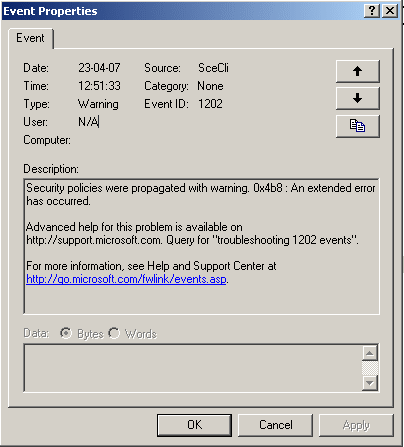
EventID’s op de DC

Hier vindt je een overzicht van alle evenID’s die optraden nadat de DC corrupt raakte.

dcaftercommit.gif

dcaftercommit1.gif

dcaftercommit2.gif

dcaftercommit3.gif

dcaftercommit4.gif

Hoe deze ellende weer herstellen

Volgens KB875495 is de enige oplossing na zo’n voorval als deze het “demoten” van de DC en het daarna weer opnieuw aanmaken van de AD.

FSMO roles verplaatsen

Voordat je dit gaat doen dien je de FSMO roles te verplaatsen (informatie over FSMO roles vindt je hier: http://www.petri.co.il/ en hier: KB197132). In KB324801 lees je hoe je na kunt gaan welke FSMO roles er actief zijn op de DC die verwijderd moet worden. Nadat je bent nagegaan welke FSMO roles er actief zijn dien je deze te verplaatsen. Hier http://www.windowsdevcenter.com/ vindt je meer informatie over het plaatsen van FSMO roles.

Het kan zijn dat de DC dermate beschadigd is, dat het verplaatsen niet meer mogelijk is. In dit geval moet je de FSMO roles “seizen”. Meer informatie over hoe dit in zijn werk gaat lees je hier: http://www.petri.co.il en KB255504.

DC demoten

Nadat je de FSMO roles hebt overgezet kun je de DC demoten. Dit kun je doen via start | Run | dcpromo {enter}.

In mijn geval lukt dit niet en moest ik het volgende commando gebruiken: start | Run | dcpromo /forceremoval {enter}. meer informatie over deze actie lees je in KB332199.

Mocht je gebruik moeten maken van de /forceremoval dan dien je nadat de DC gedemote is ook de oude data van de DC uit de werkende AD te halen. Hoe dit in zijn werk gaat kun je hier lezen: http://www.petri.co.il/

AD weer installeren

Nadat de AD geschoond is en de DC welke kapot was weer een stand alone server is, moet deze weer geconfigureerd worden als DC. Dit heb ik als volgt gedaan. De DC heb ik lid gemaakt van het domain. Daarna heb ik dcpromo (start | Run | dcpromo {enter}.) uitgevoerd en geconfigureerd als additionele domain controller.

Na dit alles kwam de replicatie weer op gang en werkte alles weer naar behoren.

VMBK: Backup with different session names


De VMBK backup duurt helaas iets te lang om elke dag een een full backup te maken. Nu heb ik voor gekozen om twee backup scenario’s te gaan gebruiken.

  1. Daily: de VM’s waar de data veel veranderd. Bijvoorbeeld DC’s, fileserver en mailserver
  2. Full: Alle VM’s. Deze job draait in het weekend. Dit zijn VM’s die vrij statisch zijn.

Dit kun je als volgt configureren. Maak twee vmbk-config.conf files aan (vmbk-daily.conf en vmbk-full.conf). Maak vervolgens een lijst van VM’s die met de daily backup meegenomen moeten worden. Pas het VMX bestand aan van de VM’s door BACKUP.SESSION=daily toe te voegen. Als laatste stap maak je de cronjob aan.

Deel van de vmbk-daily.conf file. Het enige wat je veranderd is de BackupSession value, zodat alleen de VM’s met BACKUP.SESSION=daily in het vmx bestand, worden meegenomen in de backup.

Daily

Configfile VMBK:


#Version 1.01.2
#set timeout
#Timeout=60000
Timeout=180000
#minimum space required for add RedoLOG
minspaceforRedo=1024
# backup esx host configuration
backupESX=true
BackupSession=”daily”
#directory where file
destination=/mnt/esxbackup/

Deel van de vmbk-full.conf file. Dit bestand is default gebleven met betrekken tot de BackupSession value.

Full

Configfile VMBK:


#Version 1.01.2
#set timeout
#Timeout=60000
Timeout=180000
#minimum space required for add RedoLOG
minspaceforRedo=1024
# backup esx host configuration
backupESX=true
BackupSession=”default”
#directory where file
destination=/mnt/esxbackup/

VMX bestand

Voor de dagelijkse backup voeg je de onderstaande regel toe aan het VMX bestand:
BACKUP.SESSION=daily

Cronjob

De volgende stappen moeten worden gedaan om de cronjob aan te maken.

Open /etc/cron.d/vmbk-cron.sh en voeg de onderstaande regels toe of pas deze aan naar jouw situatie.


#!/bin/bash
#copy on directory /etc/crond and configure /usr/local/etc/vmbk-default.conf
30 23 * * 1 root /usr/local/bin/vmbk.pl -C /usr/local/bin/vmbk-daily.conf > /dev/null 2>&1
30 23 * * 2 root /usr/local/bin/vmbk.pl -C /usr/local/bin/vmbk-daily.conf > /dev/null 2>&1
30 23 * * 3 root /usr/local/bin/vmbk.pl -C /usr/local/bin/vmbk-daily.conf > /dev/null 2>&1
30 23 * * 4 root /usr/local/bin/vmbk.pl -C /usr/local/bin/vmbk-daily.conf > /dev/null 2>&1
30 23 * * 5 root /usr/local/bin/vmbk.pl -C /usr/local/bin/vmbk-daily.conf > /dev/null 2>&1
30 5 * * 0 root /usr/local/bin/vmbk.pl -C /usr/local/bin/vmbk-full.conf > /dev/null 2>&1

30 23 * * 1 staat voor Maandag om 23:00 uur wordt de backup gestart.

Door de onderstaande commando’s uit te voeren wordt de cronjob geïnstalleerd:
cp /usr/local/bin/vmbk-cron.sh /etc/cron.d/vmbk-cron.sh

chmod 755 /etc/cron.d/vmbk-cron.sh
touch /etc/cron.d/vmbk-cron.sh

Met het volgende commando herstart je de cron service:
/sbin/service crond restart

Zie deze post over het aanpassen van vmx bestanden.

VM: Cold Migration between ESX 2.5.x and ESX 3.0.x


Voor de upgrade van VMware ESX 2.5.x naar VI3 zijn er een aantal mogelijkheden voor het upgraden van de VM zijn hardware versie.

Cold Migration

In deze post behandel ik de migratie door middel van Cold Migration. De methode heeft als nadeel dat de VM uit moet staan. In de omgeving waar ik nu zit staan twee ESX servers gekoppeld aan een SAN. De ESX versie is 2.5.4 patch4. Een test server is voorzien van ESX 3.0.1. met de laatste patches. Omdat er geen HBA beschikbaar is in de test server kan ik helaas geen gebruik maken van DMotion, daarom maak ik gebruik van Cold Migration.

In het onderstaande plaatje zie je de inhoud van het VMX bestand zoals deze nu is op ESX 2.5.x.

coldmigrationesx25xtovi3_1.gif

En dan gaan we nu beginnen met het migreren. Sluit de VM af. Klik vervolgens met de rechtermuis op de VM gevolgt door Migrate. Het onderstaande scherm verschijnt.

coldmigrationesx25xtovi3_2.gif

Zoals je in de melding ziet “Migration will cause the virtual machine’s configuration to be modified, to preserve the CPU feature requirements fort its guest OS.”

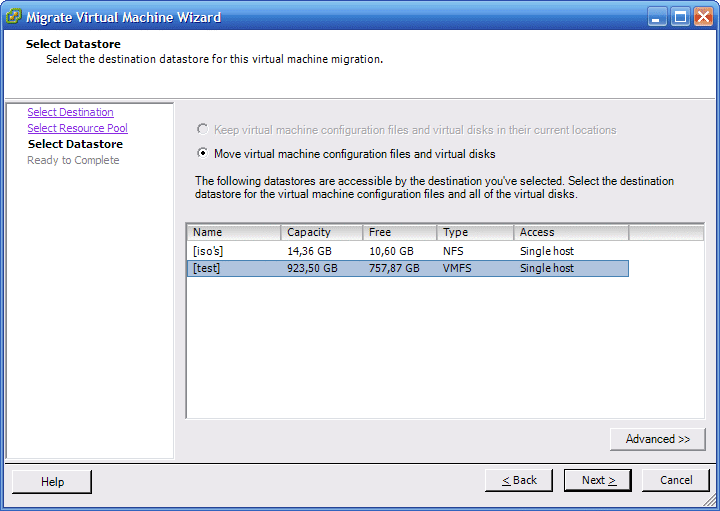
Selecteer vervolgens de Resource Pool en de Datastore waar de nieuwe VM moet komen te staan.
coldmigrationesx25xtovi3_3.gif

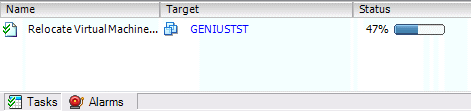
De VM wordt gemigreerd.
coldmigrationesx25xtovi3_4.gif

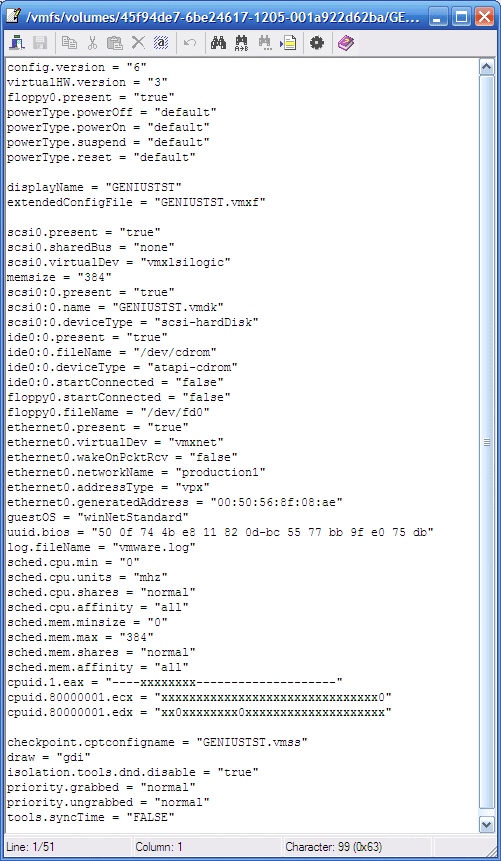
Nadat dit proces klaar is zul je zien dat het VMX bestand er nu heel anders uit ziet. Zo valt bijvoorbeeld de nieuwe regel virtualHW.version = “3” op.
coldmigrationesx25xtovi3_5.gif

VMware-Tools

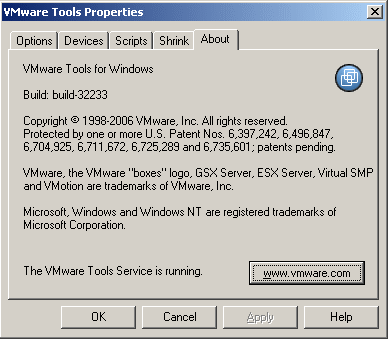
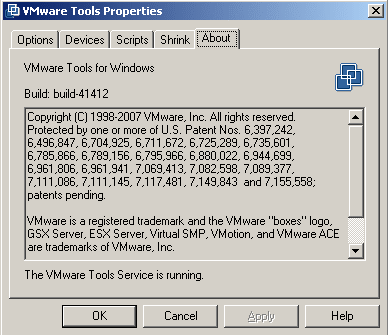
Na de migratie zul je zien dat de VMware-Tools niet worden bijgewerkt. Dit is nog een actie die je handmatig moet uitvoeren.

coldmigrationesx25xtovi3_6.gif

De nieuwe versie van VMware-Tools is geïnstalleerd.

coldmigrationesx25xtovi3_7a.gif

Upgrade Hardware

Na deze actie is de Hardware wel geschikt gemaakt voor ESX 3.0.x alleen is de hardware nog niet bijgwerkt naar de nieuwste versie. Dit kun je doen door de VM weer af te sluiten. Vervolgens in VirtualCenter 2.0.x de VM te selecteren, rechtermuis knop en dan upgrade hardware.

Dit is een actie die maar een kant op werkt. Na deze actie kun je VM niet meer terugplaatsen op ESX 2.5.x.

Zodra je de actie visaversa wilt gaan uitvoeren krijg je de volgende foutmelding: coldmigrationesx25xtovi3_8.gif

Vervolgens ziet het VMX bestand er zo uit:

#!/usr/bin/vmware
config.version = “8”
virtualHW.version = “4”
floppy0.present = “true”
powerType.powerOff = “default”
powerType.powerOn = “default”
powerType.suspend = “default”
powerType.reset = “default”

How To: Install VMware ESX 3.0.x from a USB flash drive


Paul Lalonde heeft een how to guide gemaakt voor het installeren van VMware ESX 3.0.x vanaf een USB flash drive.

Here’s a quick rundown on setting up a USB flash disk (ie. pen drive, flash key, etc.) to install ESX Server.
Requirements:
– You will need at least a 1 GB USB flash disk.
– You must have both the ESX 3.x CD-ROM and ISO image handy.
– You will need an ISO image extraction tool such as WinISO, MagicISO, or even WinRAR.
– You’ll need SYSLINUX, a Linux boot loader for removable media. Get it here: http://www.kernel.org/pub/linux/utils/boot/syslinux/syslinux-3.36.zip
– These instructions are based on a Windows PC for simplicity. If you’re a Linux guru, then you can obviously do this under Linux. You’d need to know how to mount .ISO images in order to extract files, etc.

Lees de hele guide hier: http://www.vmware.com/community


bron: http://www.vmwarewolf.com/installing-esx-server-from-a-usb-drive/

Windows Setup Hangs on Formatting when using a NFS datastore and ESX 3.0.1


Nadat ik het NFS verhaal in Windows geconfigureerd had (zie eerdere post:NFS on Windows 2003) wilde ik deze ook gaan gebruiken als datastore voor een aantal VM’s.

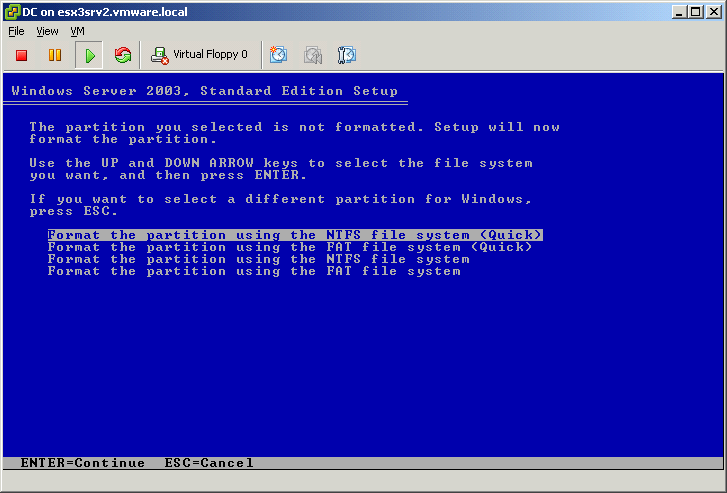
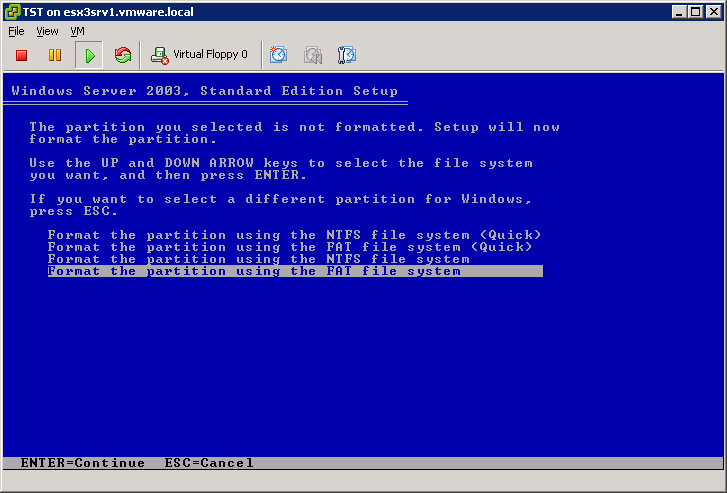
Dus ik had een VM gemaakt voor Windows Server 2003, Standard Edition. Toen ik bij het partitioneren van de hdd de partitie op NTFS quick wilde formateren liep dit helaas vast.

winsetuponnfsdatastore.gif

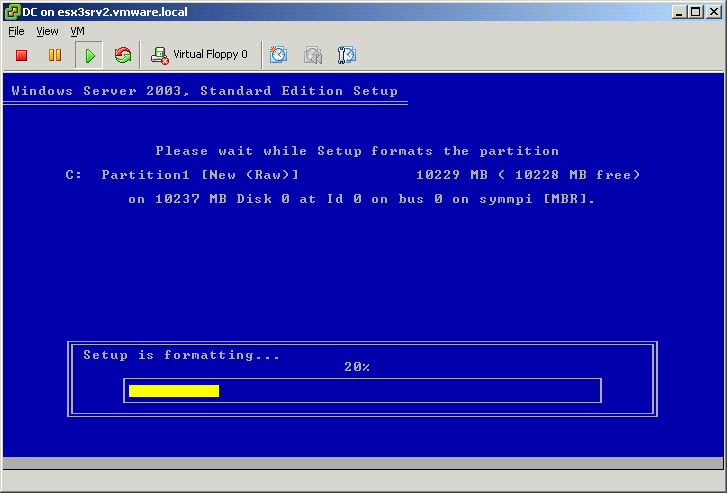
Het formateren blijft hangen op 20%.
winsetuponnfsdatastore1.gif

Na wat testen liep kwam ik erachter dat de setup alleen door loopt als je de partitie op FAT32 formateerd.
winsetuponnfsdatastore2.gif

Weet je het zeker?
winsetuponnfsdatastore3.gif

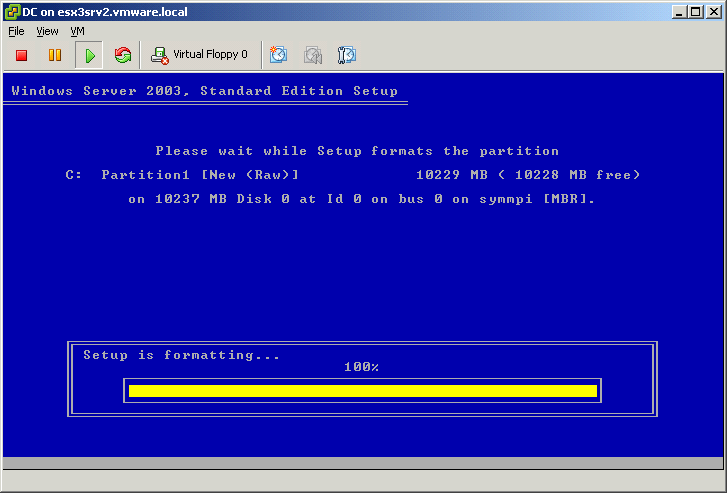
De partitie wordt geformateerd.
winsetuponnfsdatastore4.gif

Nadat de Windows installatie klaar is kun je met het volgende commando de partitie converteren naar NTFS
Convert C: /FS:NTFS

iSCSI and VMware ESX3


In deze post som ik even een paar punten op waar je rekening mee moet houden als je gebruik gaat maken van iSCSI in een VI3 omgeving.

Network

Network Speed and Duplex: 1 Gigabit and Full duplex

There are two types of ISCSI initiators

Software based: Software based iSCSI initiators have a code built into VMKernel which carries out the transporting job, using software initiators, the ESX server connects to a LAN through an existing NIC card using network stacks, in short you can implement iSCSI without purchasing specialized hardware. You also need to open a firewall port by enabling the iSCSI software client service.

Hardware based : Hardware based iSCSI initiators: requires HBA cards which are specialized to transport iSCSI cmds over LAN to the target. Currently ESX Server supports only Qlogic QLA4010 iSCSI HBA.

Discovery methods

Static: Only available for Hardware based iSCSI initiators, you can manually add additional targets or remove unneeded targets. If you remove a dynamically discovery static target, the target can be returned to the list the next time a rescan happens, the HBA is reset, or the system is rebooted.

Dynamic: to use this method enter the address of the target device so that the initiator can established a discovery session with this target. The target device then responds by forwarding a list of additional targets that the initiator is allowed to access.

Failover

Active/Active = Fixed
Active/Passive = MRU

The initiators can use one of the following formats

IQN (iSCSI qualified name)
EUI (extended unique indentifier)

IQN can be up to 255 characters long and has the following format:

iqn.year-mo.unique_reversed_domain_name:unique_name,where year-mo represents the year and month your domain name was registered,reserved_domain_name

Authentication

ESX does not support Per-target credentials

The authentication type of iSCSI is CHAP (Challenge Handshake Authentication Protocol) only unidirectional CHAP authentication is supported.
Only one set of CHAP credentials per software initiator

Others

Max iSCSI LUNS: 8

Clustering is not official supported for iSCSI


bron: http://www.vmware.com/support/pubs/vi_pubs.html http://esxvmware.spaces.live.com/