VMware: Citrix on VMware Recommendations


Sven Huisman heeft weer een goede post geplaastst op zijn weblog.

Verron Martina from VMware dropped me an e-mail with a lot of recommendations for running Citrix in a VI3.x environment. These recommendations come from other system engineers from VMware working in the field. Thanks Verron, for sharing this.

Technical Recommendations:

  • I used the ballooning driver. Some Citrix forums will tell you not to use it but for us the ballooning driver made a complete difference.
  • Start by using only one vCPU per VM and if possible use affinity to make sure that the VM is not running on the same core as the console or another VM.
  • The sweet spot we found was to assign only 2GB to the VM and something between 30 and 40 users per VM.
  • Our target was not to beat a physical CPS server with a single VM but get more aggregated users using 2 or 3 VMs (depending on the number of cores available) with no more than 40 users per VM. Do not over commit the cores as that will lose advantage.
  • The final target for us was to demonstrate that the VMs running simultaneously on the same physical server can get a higher number of users (between 70 and 90% more) than a normal CPS installed on the same HW while user experience (keyboard-screen response times, login times, app launch times, etc) are very similar.
  • Some times we have to be patient and wait a few minutes for the VM to get steady, then the magic shows up and the VMs will surpass the physical server regarding load tolerance.
  • Regarding login times, the VM can show longer times; however, once the user is in, the VMs will look fast. Check than DNS servers are not getting messy as this is commonly the problem with long login times.
  • Make sure that the network interfaces are using fixed speed when connecting to the network, do not leave auto negotiated speeds. The best is to use 1000 mbps FULL DUPLEX. :-s
  • Use one virtual disk for Windows and CPS and a different virtual disk for Windows paging of the same VM.
  • When installing VMware tools use a custom installation and remove the shared folder feature. This is very important as Citrix seems not to like that and it is a useless feature on ESX as it’s meant for Workstation.

  • Follow VMware’s best practices for performance tuning on ESX (http://www.vmware.com/pdf/vi_performance_tuning.pdf)
  • Build your template Citrix virtual machine from scratch (don’t convert an existing physical server).
  • Use a single virtual CPU for the template vm
  • This will allow the Windows operating system in the guest to use a uni-processor HAL, as opposed to a SMP HAL, streamlining the guest operating system.
  • Configure the template vm for 2-4 GB RAM..
  • Configure separate virtual disks (VMDK files) for the operating system and the pagefile.
  • Ensure you align the NTFS partition in the VMDK prior to the Windows installation in the guest (at Netapp – http://media.netapp.com/documents/tr-3593.pdf;  at VMware – http://www.vmware.com/vmtn/resources/608).
  • Use a 64-bit Windows installation. :-s
  • Have an understanding of what an ‘acceptable’ threshold of users will be… Some customers see an increase in the number of users per Citrix instance when virtualized, some see fewer.  You should go into it with the expectation that you may get fewer users, as well as what you would like to see (ie 80% of physical or better?  70%?).


Bear in mind that even if you get fewer users per vm than in a physical environment, there are many other benefits to using virtualized Citrix servers:

Deployment:

  • One of the things many Citrix shops struggle with is their deployment process – how do we maintain an up-to-date image for the farm that incorporates the required applications and accommodates the hardware in question… rolling out Windows, including updates and patches, and the Citrix software (though this could be handled by Citrix Installation Manager).  Either way, you are maintaining server images somewhere  either through the use of a complicated installation script, or through imaging software such as Ghost.
  • Deploying a virtual machine through the use of templates is far quicker and more efficient than any other physical imaging process you might have used.  VMs can be deployed in a matter of minutes using templates.  The templates themselves can be created from existing virtual machines, and can be copied and used with VMware snapshots or SAN/NAS snapshots, giving you the ability to easily maintain a library of templates for different types of operating systems, applications, etc.

Disaster recovery:

  • Setting up a Citrix farm to failover to another site requires a large investment in hardware, and man-hours to configure the remote site to handle all the applications necessary.  Furthermore, the hardware in the remote site has to be of the same type as the primary, or your deployment strategy has to take hardware differences into account.
  • Using virtual machines, all you need to do to enable a DR site is have a copy of the required virtual machines in the remote location – hence you only need to set up the farm once, and maintain a copy of it in the remote location.  Spinning up your DR or business continuity site is a matter of ‘powering up’ the virtual machines.  VMware Site Recovery Manager may even help automate that process.

Stability:

  • Since the citrix system is accessed by users like a PC on a regular basis, a Citrix server is more prone to failure than a regular server (though, with proper maintenance, hopefully less prone than a desktop).  Server outages mean lost productivity for your users, and a significant effort in troubleshooting the problem, since Terminal Services is a good deal more complicated than a regular server.
  • To properly design for the outages we know we will have, you have to have extra capacity in the farm to handle the overflow users when one of the servers is down.  This is true for both planned and unplanned downtime.
  • VMware ESX has been recognized in the industry as one of the most stable platforms to be introduced… ever.  This means fewer outages due to host failures.  Also, since we standardize and virtualize the hardware of the guest operating systems, this holds true across different hosts, enabling your virtual machines to run across hosts from different manufacturers and chipsets.
  • See http://redmondmag.com/features/article.asp?EditorialsID=2400

Application Deployment:

  • Many Citrix shops do a good deal of work maintaining multiple images – deploying applications in ‘stovepipe’ configurations…  that is to say, multiple small groups of Citrix servers, each dedicated to a specific set of applications.  Frequently, this is due to largely due to application incompatibility.  However, it results in the Citrix admin being required to maintain several different images for the Citrix farm.
  • Even if the shop has standardized on a single Citrix image, they will not be using the company’s standard application deployment methodology…  Terminal Services is too funky with regards to application deployment, and requires much handholding.  Most Citrix shops has compeletely separate processes for packaging applications for a PC versus a Citrix server.
  • VMware ThinApp (http://www.thinstall.com) can be used to image your applications separately from the Citrix image… In fact, an application that has been packaged with ThinApp on Windows 2003 will work on Terminal Services, Citrix, Windows XP, and Vista, eliminating the need to package that application for the different platforms.  Furthermore, ThinApp includes a ‘sandbox’ to prevent applications from conflicting with each other.  You simply place the packaged application on a file share on the network, accessible to the Citrix servers (or PCs, or both), and you are done.  Your users simply execute the application from the shared directory, and they are off and running.  This results in a win-win for the customer – the ability to package an application once, and use it for either a PC environment or a Citrix environment.

Bron: http://virtualfuture.info/2008/07/citrix-on-vi3x-recommendations/

VMware: Collecting troubleshooting information


VMware heeft het document met  ID10003749 bijgewerkt. In dit document vind je een overzicht van de verschillende VMware producten. Als je op een product klikt krijg je een nieuwe document met daarin de stappen die je moet ondernemen om de juiste informatie voor VMware Support te verzamelen.

Klik op het plaatje om naar het document te gaan:

image

VMware: Clustering VirtualCenter 2.5 with MSCS


Eric Sloof heeft een document op zijn blog geplaatst over hoe je VC 2.5 kunt clusteren met MSCS. Dit document is geschreven door Chris Skinner een Technical trainer van VMware.


This paper documents the steps to successfully implement a high availability solution for VirtualCenter 2.5 using Microsoft’s cluster services. There are some basic requirements to start the process. Microsoft requires Active Directory for cluster services. Additionally, Windows 2003 Enterprise server or higher will be necessary. This document was compiled from several sources. It demonstrates creating a VC cluster on the same ESX host (cluster-in-a-box) with a SAN-based quorum disk. The hyperlinks at the end of the document has more detailed information for other types of configurations, such as, cluster-across-boxes and physical-to-virtual.


Chris and Eric, thanks for sharing

Bron: ntpro.nl

VMware: VMotion Info in Excel 2007


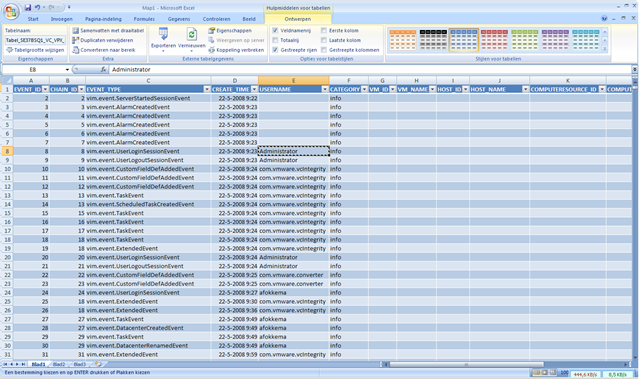
Open een nieuw werkblad. Klik op ‘Gegevens’ gevolgd door ‘Van andere bronnen – Van SQL Server’

image

Voer de naam in van de SQL server en eventueel een gebruikersnaam en wachtwoord.

image

Selecteer de tabel ‘VPX_EVENT

image

Als laatste sla je het gegevensbestand op.

image

Nu moet je inloggen op de VC database.

image

En daarna word de informatie naar binnen getrokken. Dit is nogal wat, zeker als je VC server al een tijdje draait.

image

De informatie waar we naar op zoek zijn, is de VMotion informatie. Die kun je als volgt vinden:

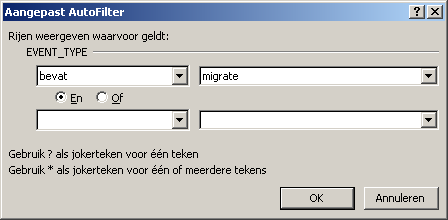
Open ‘Tekstfilters – Bevat…’

image

Geef nu het zoekwoord: ‘migrate’ op.

image

Daarna word er een selectie uitgevoerd en zie je alleen nog de rijen die van toepassing zijn.

image

Via de knop ‘Alles vernieuwen’ of Ctrl + Alt + F5 kun je de lijst vernieuwen.

image

VMware: VMotion Info


In deze post lees je hoe je informatie uit de VC database kunt halen d.m.v. een query. Het gaat dan in het bijzonder om het aantal VMotion taken die gestart zijn. Je kunt dan na gaan hoe vaak een VM wordt gevmotioned via een handmatige taak of via DRS.

De volgende query kun je loslaten op VC database:

SELECT vpx_event.event_type, vpx_event.vm_name, vpx_event.create_time from vpx_event where event_type like ‘%migrate%’
SELECT distinct(vpx_event.event_type) from vpx_event order by event_type


De volgende informatie komt dan terug uit de query:

Query_VC_VMotionInfo 

Het gaat dan om de volgende event_types:

  • vim.event.VmMigratedEvent (handmatige VMotion)
  • vim.event.DrsVmMigratedEvent (VMotion via DRS)


Meer informatie vind je in het volgende Topic op VMUG.nl gestart door Gabrie.

VMware: Top Things you should know about VI


Een tip: zie de volgende site: http://vmware-land.com/Top_10_Lists.html

Top 10 things you must read when trying to sell Vmware as a solution to management
Top 10 things you must read if you are new to VMware
Top 10 things you must read to get more technical with VI3
Top 10 things you must read about Vmware Storage (SAN/NAS/iSCSI/NFS)
Top 10 things you must read about Vmware Security
Top 10 things you must read about Vmware Troubleshooting
Top 10 things you must read about Vmware Networking
Top 10 things you must read about VirtualCenter
Top 10 things you must read about Vmware Performance
Top 10 things you must read about Memory
Top 10 things you must read about the ESX Service Console
Top 10 things you must read about Disaster Recover/Business Continuity and Vmware
Top 10 reasons to go to VMworld 2007

VMware: VCB Demo


Over at VMware Learning they have what I call a “secret” video that they don’t promote. This 15 minute video covers how to implement, configure, and use VMware VCB. This video is hard to find so I wanted to share it with all of the VMware Video readers! Click on the video icon to check it out!

You can watch the video over here: vcb-live-demo

Bron: http://vmwarevideos.com/vmware-vcb-training-video-from-vmware-learning

VMware: Podcasts


Introduction to Virtualization

Rob and Jaleh from our product marketing team give a gentle quick overview of this whole virtualization thing. It’s a six minute intro even your boss will get, although it’s probably not quite right for your Mom.


Server Consolidation

  • 5/12 – Server Consolidation using VMware Infrastructure
  • 5/19 – Building an Adaptive Infrastructure with VMware and HP
  • 5/26 – Server Consolidation Best Practices with VMWare and HP
  •  

    VMware VDI

    • VMware VDI Podcast: Desktop Virtualization in Global Enterprise
    • VMware VDI Podcast:  Customers Success VMware VDI Podcast: The Desktop Revolution
    • VMware VDI Podcast: Thinstall 


    Download the podcasts here: http://blogs.vmware.com/vmtn/2008/05/vmware-podcasts.html

    VMware: 10 things you must read about VirtualCenter


    VirtualCenter is the heart of any large VMware VI3 environment, with it you can centrally manage and administer all your ESX hosts. Some often overlooked area’s of VirtualCenter include the usage of templates and clones, performance reporting and roles & permissions. This top 10 list will help you maximize your investment into VirtualCenter and help you to take full advantage of all of its features and functionality. Of vital importance to VirtualCenter is it’s database where it stores all of its configuration and statistical data which must be properly maintained on an ongoing basis to ensure peak performance of VirtualCenter. This list contains a collection of presentations from VMworld and also various VMware tech notes and white papers that cover everything you will need to know about the database, the advantages and disadvantages of running VirtualCenter as a virtual machine, roles, permissions templates and how to properly configure it.

    Lees het hele artikel hier: http://www.virtual-strategy.com/

    VMware: Export a VM from VirtualCenter to VMware Workstation


    Nu de VMware Converter Enterprise is ingebouwd in VirtualCenter 2.5 is er een leuke feature bijgekomen. Je kunt nu een Export doen van een VM die in je VirtualCenter server geregistreerd staat.  Hoe dit in zijn werk gaat lees je hier.

    Let Op! deze feature kun je alleen gebruiken als de target VM uitstaat.

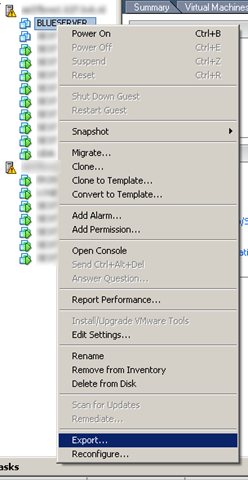
    Sluit de target VM netjes af. Klik rechts op de VM en kies de optie ‘Export…’

    Export_VM_From_VC25_1

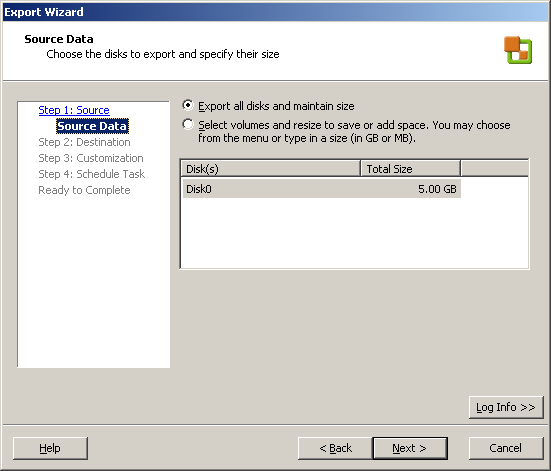
    De volgende wizard wordt gestart.

    Export_VM_From_VC25_2

    In het onderstaande scherm kun je de grootte van de VMDK opgeven. Hier kun je deze dus vergroten of verkleinen.

    Export_VM_From_VC25_3

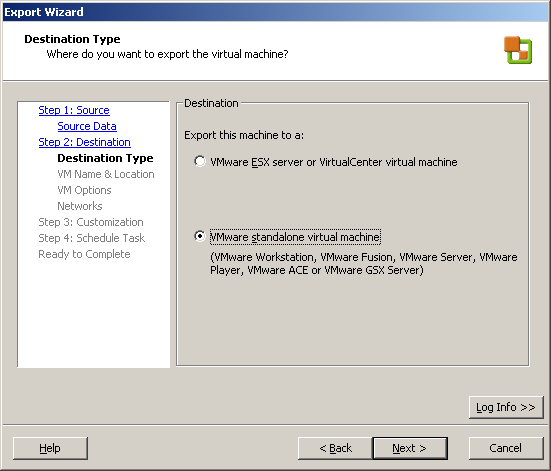
    Ik wilde de VM exporteren naar mijn laptop. Dus kies hier voor ‘VMware standalone virtual machine’. Je kunt er ook voor kiezen om de VM over te zetten naar je test ESX omgeving. Kies dan voor ‘VMware ESX server or VirtualCenter virtual machine’.

    Export_VM_From_VC25_4

    Geef de VM een naam. Voer de locatie in. Dit moet een share zijn die te benaderen is door de VMware Converter. Geef vervolgens een username en password op van een user die rechten heeft op de share. Als laatste geef je de type op. Ik kies voor portability dus voor ‘Workstation 5.x….’

    Export_VM_From_VC25_5

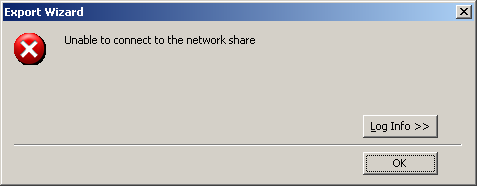
    Het kan zijn dat je de onderstaande foutmelding krijgt:

    Export_VM_From_VC25_error

    Dit kan komen door de (Windows) Firewall. Schakel deze tijdelijk uit en de wizard zal succesvol doorlopen.

    Geef nog even aan wat je wilt qua ‘Disk Space Allocation’.

    Export_VM_From_VC25_6

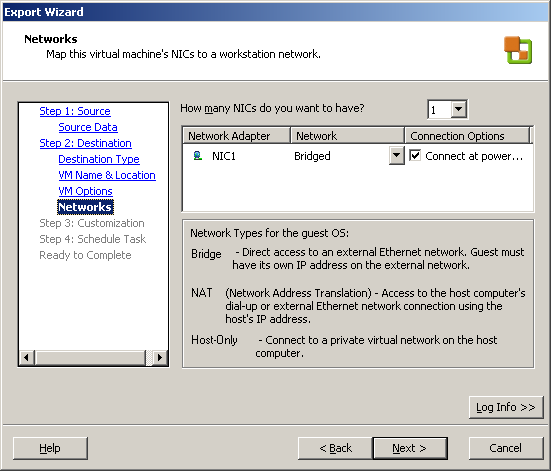
    Doe dit ook voor je netwerk instellingen

    Export_VM_From_VC25_7 

    Je kunt er voor kiezen om de ‘identity’ van de VM aan te passen. Ik doe dit echter niet.

    Export_VM_From_VC25_8

    In de laatste stap kun je er voor kiezen om er een scheduled task van te maken.

    Export_VM_From_VC25_9

    Nog even een overzicht van de instellingen

    Export_VM_From_VC25_10

    En de job gaat op de afgesproken tijd lopen.

    Export_VM_From_VC25_11