VMware: First benchmarks with 10 GigE


Generally this is exactly what we expected: to be able to provide good performance to many virtual servers which do network and/or disk-I/O only periodically without overprovisioning the whole infrastructure.

At the moment there is exactly one dual-port 10 GigE card in every VMware server and there are two physical connections to two different switches – a much cleaner setup than the 12 (!) GigE interfaces per server we had before

Lees de rest van de benchmark hier: http://21stcenturystorage.cebis.net

VMware: Top Things you should know about VI


Een tip: zie de volgende site: http://vmware-land.com/Top_10_Lists.html

Top 10 things you must read when trying to sell Vmware as a solution to management
Top 10 things you must read if you are new to VMware
Top 10 things you must read to get more technical with VI3
Top 10 things you must read about Vmware Storage (SAN/NAS/iSCSI/NFS)
Top 10 things you must read about Vmware Security
Top 10 things you must read about Vmware Troubleshooting
Top 10 things you must read about Vmware Networking
Top 10 things you must read about VirtualCenter
Top 10 things you must read about Vmware Performance
Top 10 things you must read about Memory
Top 10 things you must read about the ESX Service Console
Top 10 things you must read about Disaster Recover/Business Continuity and Vmware
Top 10 reasons to go to VMworld 2007

VMware: start a VM in ESX 3.5 on WS 6.5


Eric Sloof heeft het onderstaan de al gepost op zijn blog:

From the ESX or VC client, highlight the VM and select > Edit virtual machine settings
Select Resources tab
Un-check Unlimited in the right pane and lower Mhz count to 700
Select Advanced CPU in the left pane
Under Scheduling Affinity in the right pane > Select Run on processor(s):
Check "0"
Click OK to close VM edit window
Boot VM

VMware: Virtual Desktop Manager 2.1 Reviewers Guide


De VMware Virtual Desktop Manager 2.1 Reviewers Guide bevat de volgende onderwerpen:

  • VMware VDM 2.1 Overview

  • VMware VDM 2.1 Key Features and Components

  • VMware VDM 2.1 Requirements & Prerequisites

  • VMware VDM Agent, Client and Web Access Prerequisites

  • Firewall Modifications

  • How to Create VMware VDM Specific User Groups

  • How to Install the VDM Connection Server Standard Role

  • How to Install the VDM Replica Server Role

  • How to Load Balance VDM Connection Servers

  • How to Install the VDM Security Server Role

  • How to Login to the VDM Administrator Web Site

  • How To License VMware VDM 2.1

  • How to Configure VDM to Communicate with VMware VirtualCenter

  • How To Add a VDM Administrator

  • How To Edit the VDM Global Settings

  • How to Generate a Certificate Signing Request (CSR) Key

  • How to Submit CSR to your Certificate Authority

  • How to Add the New SSL Certificate to VMware VDM

  • How to Create the Base Virtual Machine

  • How To Install Windows XP on a VMware ESX Host

  • How to Install Applications

  • How to Apply Windows XP Patches and Security Updates

  • How to Add Group Policy Loopback Setting to VDM Managed Desktops

  • How to Install the VDM Agent

  • How to Create and Configure Virtual Machine Templates

  • How to Convert the Base Virtual Machine to Template

  • How to Configure VirtualCenter to Deploy Unique Virtual Machines from Templates

  • How to Create a Guest Customization Specification

  • How to Perform Maintenance to Existing Virtual Machine Templates

  • How to Implement VDM Specific Windows Group Policies

  • How to Prepare the Active Directory Environment for VMware Group Policies

  • How to Add the VDM Group Policy ADM Template

  • How to Add a New Individual Desktop

  • How to Assign (Entitle) Users / Groups to a Individual Virtual Desktop

  • How to Create a Persistent Desktop Pool

  • How To Assign (Entitle) Users / Groups to a Persistent Desktop Pool

  • How to Create a Non-Persistent Desktop Pool

  • How To Assign (Entitle) Users / Groups to a Non-Persistent Desktop Pool

  • How to Install the VDM Client on a Windows Client

  • How to Login to VDM 2.1 through the VDM Windows Client

  • How to Login to VDM 2.1 through the Web Access Client

Download de guide hier: vdm_2.1_reviewers_guide.pdf

VMware: New releases


VMware heeft weer nieuwe versie vrijgegeven van Workstation, ACE en VMware Server.

  • Added new releases for Workstation 5.5.7 and 6.0.4, ACE 1.0.6 and 2.0.4, and VMware Server 1.0.6.
  • Added support for Windows Vista Service Pack 1 on Workstation 6.0.4, ACE 2.0.4, Visual Studio Integrated Virtual Debugger, and Eclipse Integrated Virtual Debugger. Also modified Workstation support for Visual Studio and Eclipse integrated virtual debuggers. See “Windows Vista” on page 33.
  • http://www.vmware.com/pdf/GuestOS_guide.pdf
  •  

    Je kunt de software hier downloaden:

    VMware: VCB Demo


    Over at VMware Learning they have what I call a “secret” video that they don’t promote. This 15 minute video covers how to implement, configure, and use VMware VCB. This video is hard to find so I wanted to share it with all of the VMware Video readers! Click on the video icon to check it out!

    You can watch the video over here: vcb-live-demo

    Bron: http://vmwarevideos.com/vmware-vcb-training-video-from-vmware-learning

    VMware: Podcasts


    Introduction to Virtualization

    Rob and Jaleh from our product marketing team give a gentle quick overview of this whole virtualization thing. It’s a six minute intro even your boss will get, although it’s probably not quite right for your Mom.


    Server Consolidation

  • 5/12 – Server Consolidation using VMware Infrastructure
  • 5/19 – Building an Adaptive Infrastructure with VMware and HP
  • 5/26 – Server Consolidation Best Practices with VMWare and HP
  •  

    VMware VDI

    • VMware VDI Podcast: Desktop Virtualization in Global Enterprise
    • VMware VDI Podcast:  Customers Success VMware VDI Podcast: The Desktop Revolution
    • VMware VDI Podcast: Thinstall 


    Download the podcasts here: http://blogs.vmware.com/vmtn/2008/05/vmware-podcasts.html

    VMware: 10 things you must read about VirtualCenter


    VirtualCenter is the heart of any large VMware VI3 environment, with it you can centrally manage and administer all your ESX hosts. Some often overlooked area’s of VirtualCenter include the usage of templates and clones, performance reporting and roles & permissions. This top 10 list will help you maximize your investment into VirtualCenter and help you to take full advantage of all of its features and functionality. Of vital importance to VirtualCenter is it’s database where it stores all of its configuration and statistical data which must be properly maintained on an ongoing basis to ensure peak performance of VirtualCenter. This list contains a collection of presentations from VMworld and also various VMware tech notes and white papers that cover everything you will need to know about the database, the advantages and disadvantages of running VirtualCenter as a virtual machine, roles, permissions templates and how to properly configure it.

    Lees het hele artikel hier: http://www.virtual-strategy.com/

    VMware: Export a VM from VirtualCenter to VMware Workstation


    Nu de VMware Converter Enterprise is ingebouwd in VirtualCenter 2.5 is er een leuke feature bijgekomen. Je kunt nu een Export doen van een VM die in je VirtualCenter server geregistreerd staat.  Hoe dit in zijn werk gaat lees je hier.

    Let Op! deze feature kun je alleen gebruiken als de target VM uitstaat.

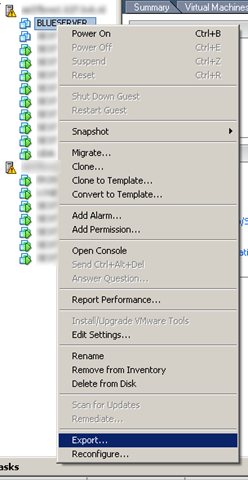
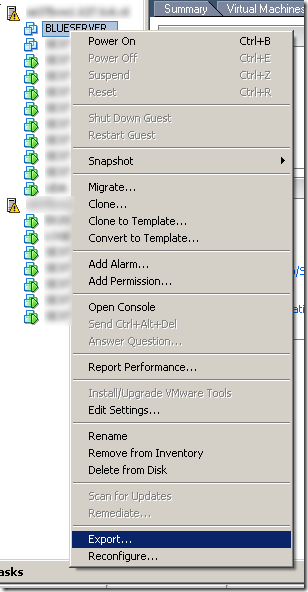
    Sluit de target VM netjes af. Klik rechts op de VM en kies de optie ‘Export…’
    Export_VM_From_VC25_1

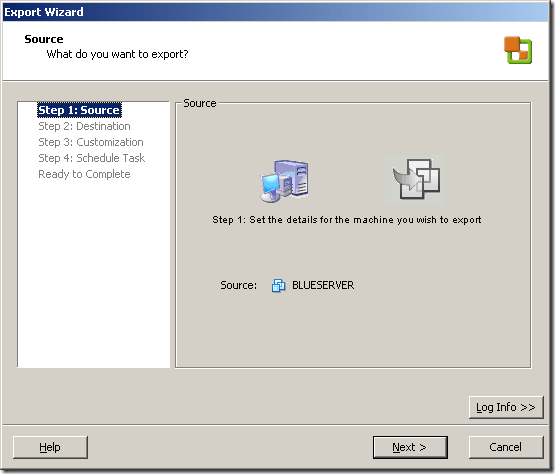
    De volgende wizard wordt gestart.

    Export_VM_From_VC25_2

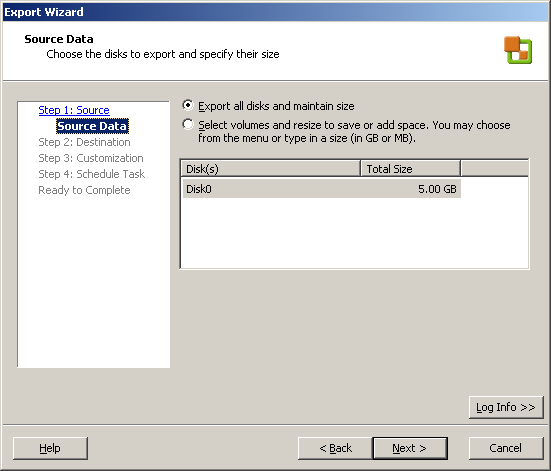
    In het onderstaande scherm kun je de grootte van de VMDK opgeven. Hier kun je deze dus vergroten of verkleinen.

    Export_VM_From_VC25_3

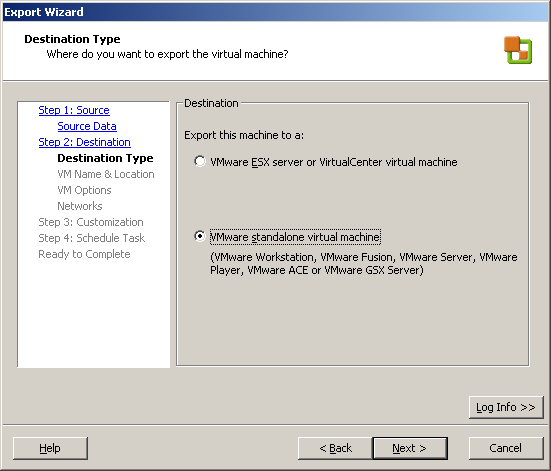
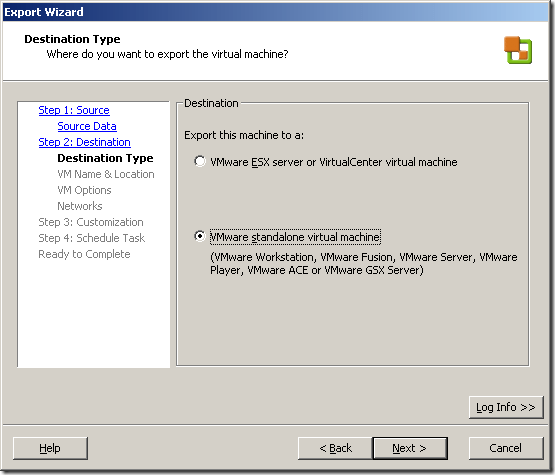
    Ik wilde de VM exporteren naar mijn laptop. Dus kies hier voor ‘VMware standalone virtual machine’. Je kunt er ook voor kiezen om de VM over te zetten naar je test ESX omgeving. Kies dan voor ‘VMware ESX server or VirtualCenter virtual machine’.
    Export_VM_From_VC25_4

    Geef de VM een naam. Voer de locatie in. Dit moet een share zijn die te benaderen is door de VMware Converter. Geef vervolgens een username en password op van een user die rechten heeft op de share. Als laatste geef je de type op. Ik kies voor portability dus voor ‘Workstation 5.x….’

    Export_VM_From_VC25_5

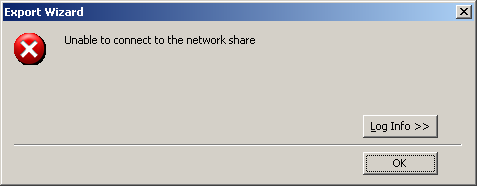
    Het kan zijn dat je de onderstaande foutmelding krijgt:

    Export_VM_From_VC25_error

    Dit kan komen door de (Windows) Firewall. Schakel deze tijdelijk uit en de wizard zal succesvol doorlopen.

    Geef nog even aan wat je wilt qua ‘Disk Space Allocation’.

    Export_VM_From_VC25_6

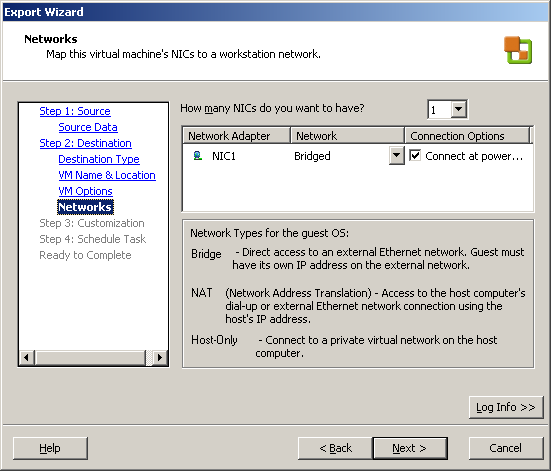
    Doe dit ook voor je netwerk instellingen

    Export_VM_From_VC25_7 

    Je kunt er voor kiezen om de ‘identity’ van de VM aan te passen. Ik doe dit echter niet.
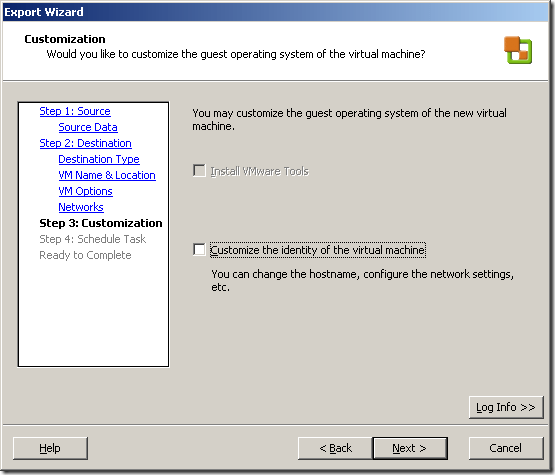
    Export_VM_From_VC25_8

    In de laatste stap kun je er voor kiezen om er een scheduled task van te maken.

    Export_VM_From_VC25_9

    Nog even een overzicht van de instellingen

    Export_VM_From_VC25_10

    En de job gaat op de afgesproken tijd lopen.

    Export_VM_From_VC25_11