

Cisco just published a small preview clip about the Nexus 1000V:
Source: http://www.virtualization.info/2008/10/demo-cisco-nexus-1000v-and-vmware.html
Cisco just published a small preview clip about the Nexus 1000V:
Source: http://www.virtualization.info/2008/10/demo-cisco-nexus-1000v-and-vmware.html

Hugo Peeters van www.peetersonline.nl heeft een powershell script gemaakt voor het instellen van de video hardware acceleration level. Zoals je weet staat dit bij een standaard installatie van Windows Server 2003 (en ook andere versies) standaard op none.
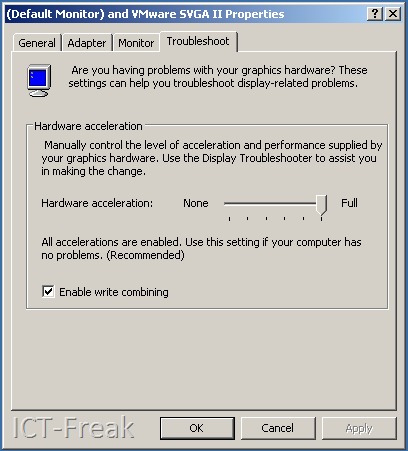
Via het script van Hugo kun je in een keer deze setting aanpassen op alle VM’s (Windows 2003 servers en deze moeten wel aan staan). Zie de onderstaande quote van Hugo:
I have created a simple, fire-and-forget script that sets the Hardware Video Acceleration Level for all your (Windows Server 2003 and Powered On) VM’s to Full. This way you can always enjoy smooth mouse movements when working in the console!
Het script kun je hier downloaden: http://www.peetersonline.nl/index.php/vmware/setting-video-hardware-acceleration-level/
Duncan posted a news item about the vCenter Administrator Portal Server over here: http://www.yellow-bricks.com/ and here http://blogs.vmware.com/.
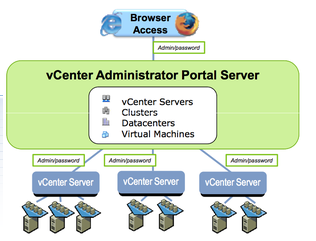
What can you expect at this moment:
- Single sign-on to multiple vCenter Servers
- Monitor events and alarms across multiple vCenter Servers
- Search and track inventory across multiple vCenter Servers
- Launch VI Client in context to manage vCenter Servers
- Search for virtual machines across multiple vCenter Servers
- Launch virtual machine consoles
- Utilizes permissions setup in vCenter Servers
- Unified view for: vCenter Servers, Datacenters, Clusters, Hosts, Virtual Machines
- Access summary view of inventory objects, rolled up across vCenter Servers, for comparison and monitoring purposes
You can download your copy here: http://communities.vmware.com/community/beta/vcadminportal
Ik kwam VMRUN tegen in een post op de site: http://itknowledgeexchange.techtarget.com/virtualization-pro/ hier stond ook een link naar het volgende document: http://www.vmware.com/pdf/vix160_vmrun_command.pdf.
Hieronder laat ik even wat opties zien:
Power on a virtual machine with VMware Workstation on a Windows host:
vmrun start "drive:\path to vmx\vm.vmx"Power on a virtual machine with VMware Server 2.0:
vmrun -T server -h https://10.0.1.8/sdk -u root -p <pass> start "[storage1] WinXP/WinXP.vmx"Run CMD within the VM with VMware Workstation on a Windows host:
vmrun -T ws -gu <user> -gp <pass> runProgramInGuest WinXP\WinXP.vmx -activeWindow cmd.exeList processes in a Linux guest, and kill the process numbered 8192:
vmrun -T ws -gu <user> -gp <pass> listProcessesInGuest Ubuntu/Ubuntu.vmx
vmrun -T ws -gu <user> -gp <pass> killProcessesInGuest Ubuntu/Ubuntu.vmx 8192
List processes in a Linux guest, and kill the process numbered 8192:
vmrun -T ws -gu <user> -gp <pass> listProcessesInGuest Ubuntu/Ubuntu.vmx
vmrun -T ws -gu <user> -gp <pass> killProcessesInGuest Ubuntu/Ubuntu.vmx 8192
Best wel een krachtige tool. Toch had ik liever gezien dat VMware ook voor Workstation en Server een powershell omgeving had gemaakt. Misschien komt dit in de toekomst nog.

In het onderstaande filmpje wordt in het kort uitgelegd wat de VM Monitor is en wat het kan:
Een stap voor stap walk through vind je hier: http://www.petri.co.il/monitor-vmware-esx-server-performance-for-free-vm-monitor.htm
Let er wel op dat je bij het configureren van het snmp verhaal de file /etc/snmp/snmpd.conf file moet editen en dat je in de firewall van VMware ESX de snmp server open zet.
Je kunt de tool hier downloaden: http://www.solarwinds.com/products/freetools/vm_monitor.aspx

Voordat je de VCB proxy aan het SAN gaat koppelen moet je eerst de volgende stappen uitvoeren om de automatic drive letter assignment uit te zetten. Doe je dit niet dan kun je hier tegen aanlopen:
vcb-proxy-forgot-to-disable-automount
Open een commandprompt:
Start nu DISKPART.exe en voer de volgende twee commando’s uit:
automount disbable
automount scrub
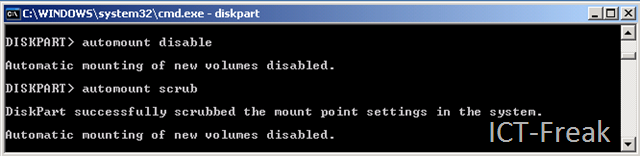
Daarna doe je nog twee keer EXIT om Diskpart en het command prompt af te sluiten.
Na deze actie kun je met een gerust hart je HBA configureren.
ExtPart.exe kun je hier downloaden: http://support.dell.com/support/downloads/
Start de ExtPart.exe op en pak de bestanden uit naar de default directory.
In deze post voeg ik 2GB toe aan de VM.
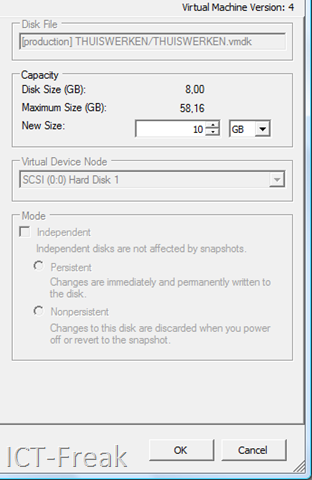
Even wachten totdat de taak klaar is.

Nu wordt het tijd om naar de tool ExtPart.exe te kijken.
Via het commando: ExtPart.exe /? krijg je de volgende output:
C:\dell\ExtPart>extpart /?
ExtPart – Utility to extend basic disks (Build 1.0.4)
(c) Dell Computer Corporation 2003Usage: extpart [volume size]
volume – volume to expand. eg. f:, g: etc. (only basic volumes)
size – size in megabytes to expand the volumeReturn codes for script mode
(If parameters are not specified extpart will run in interactive mode)
0 – Success
1 – Parameter error. size parameter is invalid
2 – Invalid volume or failed to connect to volume
3 – Invalid volume type or failed to get volume properties
4 – Requested size is invalid or volume expansion operation failed
5 – Unable to retrieve volume properties after expansion completed
6 – Invalid size requested for expansion (minimum value is 8 MB)
Oké nu we weten hoe het commando werkt voeren we het volgende commando uit:
ExtPart.exe C: 2048 (je moet de waarde in MB’s opgeven)
C:\dell\ExtPart>extpart.exe C: 2048
ExtPart – Utility to extend basic disks (Build 1.0.4)
(c) Dell Computer Corporation 2003Current volume size : 8181 MB (8578934272 bytes)
Current partition size : 8181 MB (8578934784 bytes)New volume size : 10228 MB (10725732352 bytes)
De opdracht lijkt succesvol maar we kijken het nog even na binnen Windows:
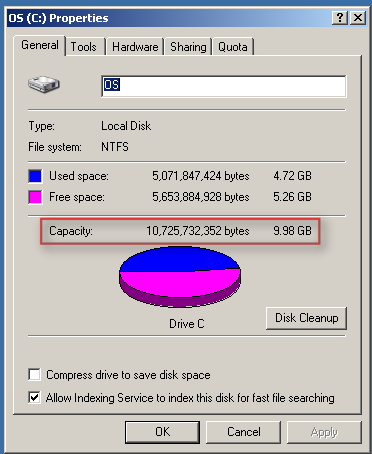
De credits gaan naar drexciya die deze tool tipte op het vmug forum: http://www.vmug.nl

Chris Skinner een Senior Technical Instructor at VMware PSO-Education heeft een aantal papers geschreven over het integreren van backup software en VCB.
Op de viops site van VMware kun je de volgende papers vinden:
Bron: http://www.ntpro.nl/blog/archives/692-Integrating-Symantec-Backup-Exec-12.5-with-VCB-1.5.html
Na de upgrade naar VirtualCenter 2.5 u3 kreeg ik de volgende error op één van mijn ESX servers:

In mijn geval was de volgende oplossing voldoende:
- Login to ESX Server via ssh client as root user
- cd /tmp
- mkdir vmware-root
Meer informatie en andere oplossingen voor deze foutmelding kun je hier vinden: ttp://www.vmwarewolf.com/failed-to-install-the-virtualcenter-agent-service/
Eric Reitz posted the following steps on his blog about how to connect to VMware Server with the VI Client.
- You will need to install the Virtual Infrastructure Client (VI Client) 2.5.
- You will need to have your ports open if you have your firewall up the defaults it takes are 8333 (SSL) 8222 (normal)
- On the VI Client for server put in https://<servername>:8333 or http://<servername>:8222 or what ever ports you choose at install.
- Then add your Admin account to the host for Username and Password

In the following screen you will see the VMware Server overview within the VI Client:

Bron: http://theregime.wordpress.com/2008/03/04/how-to-connect-vi-client-25-to-vmware-server-20/
 ICT-Freak.nl