Troubleshoot TCP connection issues from the ESX Service Console

If you need to troubleshoot TCP connection issues from your ESX host. You will notice that Telnet isn’t available on your ESX host. But VMware posted a workaround in KB1010747. The reason why VMware did not include the Telnet package is simple:

The TELNET package does not ship with the ESX service console. While the TELNET daemon is clearly a security risk, the TELNET client may be a useful tool in diagnosing TCP session connectivity between the ESX Service Console and TCP ports on a foreign host.

The workaround is a Python script. You can copy the following script to your ESX host and place it in /tmp directory.

#!/usr/bin/python
# TCP connection "tester" -
# provide the hostname/IP address followed by port number (if no port
# is specified, 23 is assumed ;) 
# program will connect to the port and read till either it receives a
# newline or 5 seconds expire
# be sure to chmod 755
import sys
import telnetlib
import socket

PORT = ""
argc = len(sys.argv)

if argc == 3 :
    PORT = sys.argv[2]
elif argc < 2 or argc > 3:
    print "usage %s host <port> \n" % sys.argv[0]
    sys.exit()

HOST = sys.argv[1]

try:
    tn = telnetlib.Telnet(HOST,PORT)
except socket.error, (errno, strerror):
    print " SockerError( %s ) %s\n" %  (errno, strerror)
    sys.exit()

print tn.read_until("\n ",5)
print "connection succeeded\n"
tn.close()
sys.exit()

If you want to test if a particular TCP port is reachable from your ESX host. You can use the script like this:

[root@esx01 ~]# ./testtcp vc01.ict-freak.loc 443

connection succeeded

[root@esx01 ~]#

In case the TCP port is not reachable from your ESX host. The script will just hang on your command and will eventually time out:

[root@esx01 ~]# ./testtcp vc01.ict-freak.loc 443
SockerError( 110 ) Connection timed out

You can also cancel the script by pressing CTRL + C

I didn’t test the script from ESXi. If you did, please leave a comment.

Source: KB1010747

PowerCLI: Return the iSCSI Software Adapter

In my previous postsabout how to manage iSCSI targets with PowerCLI part 1 and part 2. I used the following line to return the iSCSI adapter:

$hba = $esx | Get-VMHostHba -Type iScsi

But when I used this line against a vSphere 4.1 update 1 host with Broadcom BCM5709 (Dell Poweredge R710). vSphere will use these adapters as Broadcom iSCSI Adapters. And when you run the $hba = $esx | Get-VMHostHba -Type iScsi one-liner, it will return all the vmhba adapters.

[vSphere PowerCLI] C:\> $esx | Get-VMHostHba -Type iScsi

Device     Type         Model                          Status

——     —-         —–                          ——

vmhba32    IScsi        Broadcom iSCSI Adapter         unbound

vmhba33    IScsi        Broadcom iSCSI Adapter         unbound

vmhba34    IScsi        Broadcom iSCSI Adapter         unbound

vmhba35    IScsi        Broadcom iSCSI Adapter         unbound

vmhba37    IScsi        iSCSI Software Adapter            online

This “problem” can easily be resolved with a Where statement. In the following Where statement you look for a Model that equals “iSCSI Software Adapter”. There is only one Software adapter in ESX(i) so it will return the right vmhba. The PowerCLI line will look like this:

$esx | Get-VMHostHba -Type iScsi | Where {$_.Model -eq "iSCSI Software Adapter"} 

[vSphere PowerCLI] C:\> $esx | Get-VMHostHba -Type iScsi | Where {$_.Model -eq "iSCSI Software Adapter"}

Device     Type         Model                          Status

——     —-         —–                          ——

vmhba37    IScsi        iSCSI Software Adapter         online

So the bottom line. Test your code on different setups and update it when necessary ;-)

Storage vMotion only one hard disk to another datastore in vSphere

Sometimes it’s necessary to only migrate a single hard disk from a VM. This is the case when someone adds two 1 TB VMDK’s and fills them up completely. The maximum size of a VMFS datastore is 2TB minus 512 bytes. So in this case the datastore will be completely filled with no space left to keep the VM running. So if you want  to migrate just one hard disk to make sure the VMFS datastore will not fill up. You can use the vSphere client or PowerCLI to do perform this “advanced” Storage vMotion.

Note: if you want to reclaim your “wasted” storage back from your SAN, you have to recycle the whole datastore. So you have to migrate the other hard disks and configuration files as well.

vSphere Client

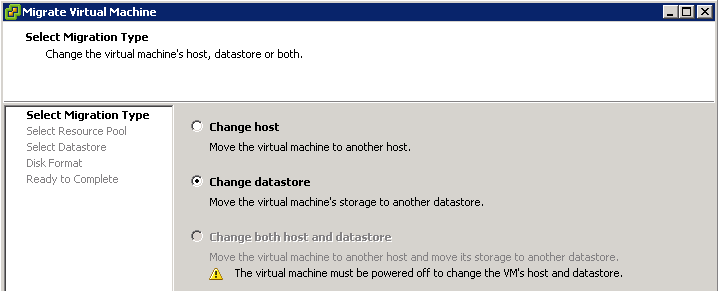
Start the Migrate Virtual Machine wizard and select datastore:

image

Read more of this post

PowerCLI: Host Networking Device info

In this post I will share a simple PowerCLI script which generates some Network Device information from your vSphere hosts. The information you’ll get is the vmHost name, device name, linkspeed and MAC address.

$vmHostNicInfo = @()
foreach($vmHost in (Get-VMHost | Sort Name)){
    foreach($nic in $vmhost.NetworkInfo.PhysicalNic){ 
        $Details = "" | Select vmHost, Device,Linkspeed,Mac

        $Details.vmHost = $vmhost.Name
        $Details.Device = $nic.Extensiondata.Device
        $Details.Linkspeed = ($nic.Extensiondata.Linkspeed).SpeedMB
        $Details.Mac = $nic.Extensiondata.Mac
    
        $vmHostNicInfo += $Details
    }
}
$vmHostNicInfo | Format-Table -AutoSize

The output will look like this:image

But what if you only want to see the devices with a link speed lower then 1000? Well that’s possible with the following end line:

$vmHostNicInfo | Where {$_.Linkspeed -lt "1000"} |  Format-Table -AutoSize

image

Or if you want to know which device/host belongs to a particular MAC address. You can use the following end line:

$vmHostNicInfo | Where {$_.Mac -eq "00:07:e9:1f:f9:bf"} |  Format-Table -AutoSize

image

So with a small script, you’re able to export valuable data.

Review: PHD Virtual Backup

Before I start with this post I first want to welcome a new sponsor: PHD Virtual.


In this post I will be doing a short review, sponsored by PHD, of the latest version of PHD backup. In this post I will show the following topics:

  1. install the PHD Virtual Backup Console and Plug-in
  2. Deploy OVF template of the PHD Virtual Backup Appliance
  3. Configure the PHD Virtual Backup Appliance
  4. Add VMs to a Backup job
  5. Restore a complete VM
  6. Restore individual Files
  7. Conclusion

So let’s start with the installation.

Read more of this post

PowerCLI: Easy NFS datastore setup

It’s a new year so let’s start with a new PowerCLI post. This post is inspired by the blog post of @alanrenouf: PowerCLI easy vswitch portgroup setup. I love the whole idea of taking a good working config from a vSphere host and use it on a fresh installed vSphere host to make sure it’s compliant.  In this post I will show you how to perform the same trick with NFS datastores like Alan did with the vSwithes and Portgroups.

My home lab contains two HP ml110 g5 and a simple P4 box with some hard disks to add shared storage to the lab. It’s running Debian linux and is capable of presenting iSCSI targets, NFS and SAMBA shares .I use NFS as shared storage for my vSphere lab.

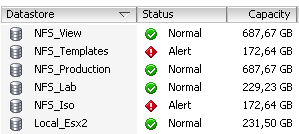
On esx2.ict-freak.local I use the following NFS datastores:

image

But I messed up the configuration of the other vSphere host in my lab called esx1.ict-freak.local. So I had to reset the network settings and lost all the NFS datastores:

image

So I needed to add the five NFS shares. This is a nice task for PowerCLI and the New-Datastore cmdlet:

Update: I had to remove the last / from the Path variable. If you do not remove the last / the script will mount the NFS share but with a new UUID. See Damian Karlson his post about this subject here.

Read more of this post

vMotion error: Virtual machine must be running in order to be migrated

Today I wanted to Storage vMotion a VM to a new datastore. But for the first time I got a general error message:

image

followed up by a general system error message:

image

I got the same message when I tried to start a “normal” vMotion. So I start to troubleshoot this error. First I looked at the vmware.log of the VM. Nothing unusual in there. So the next stop was the VMkernel. But there was nothing unusual in it too. So I used the good old Microsoft like fix to restart the VMware services at the Service Console using the following command:

service mgmt-vmware restart

after a minute or so I was able to start a vMotion again and after the vMotion completed I started the storage vMotion I was planning to do and this worked like a charm again.

To recap. Sometimes you need to restart the mgmt-vmware to fix the connection between the vSphere host and vCenter.

PowerCLI: RE: Disallowing Multiple VM Console Sessions

Frank Denneman posted today about disallowing multiple VM console session in a high-secure virtual infrastructure design: http://frankdenneman.nl/2010/11/disallowing-multiple-vm-console-sessions

The first thing popped up in my mind was why not automate this setting with PowerCLI. So I created a function called Set-MaxMKSConnections:

Function Set-MaxMKSConnections{
param(
    [parameter(Mandatory = $true)]
    [string[]]$vmName,
    $Sessions
)
    $vmConfigSpec = New-Object VMware.Vim.VirtualMachineConfigSpec

       $extra = New-Object VMware.Vim.optionvalue
    $extra.Key="RemoteDisplay.maxConnections"
    $extra.Value="$Sessions"
    $vmConfigSpec.extraconfig += $extra

        $vm = Get-VM $vmName | Get-View
        $vm.ReconfigVM($vmConfigSpec)
}

You can run this function by copying the code into the PowerCLI window. To run it on a single VM, you can use the following line:

Set-MaxMKSConnections -vmName Thinapp -Sessions 1

To run it on all your VM’s, you can use the following foreach loop:

$vms = Get-VM
foreach($vm in $vms){
    Set-MaxMKSConnections -vmName $vm -Sessions 1
}

The configuration is changed even on Virtual Machines that are powered on (you need to restart the VM to activate the new setting):

image

If you want to raise the maxConnections value back to 2 or another value, you can change the –Sessions parameter with the correct value and run the script again.

Reconfigure DNS settings and add vSphere hosts to Windows DNS

I needed to change the DNS setup in our vSphere environment. Instead of doing this by hand on every host I decided to create a script. First I needed a script to add the A and PTR records to the Windows DNS servers. I remembered a post by the scripting guys so I took their function and added it to my script. The final step is to change de vSphere host DNS configuration. This one is easy with PowerCLI and a simle for loop.

Warning! If you are using vSphere 4.1 and the vSphere hosts are joined to a Windows domain. You are not able to change the DNS settings!

From the Hey Scripting Guy post I quote the following about the new-dnsrecord function:

I’ve written various scripts in the past to work with individual record types, and I’ve found that each class has slightly different syntax and requirements. This makes life awkward when you want to start automating this process, because you have to have a different script or function for each record type. I decided I wanted a universal script for creating records so that I could create multiple records at the same time from minimal information. The following script shows the function that I came up with to create A, PTR, MX, and CNAME records—these being the most common ones I have to deal with. We will be using the MicrosoftDNS_ResourceRecord class with varying inputs.

I have combined the new-dnsrecord function with some PowerCLI code to accomplish my goal of migrating the DNS settings of all the vSphere hosts and to add all the hosts to the DNS servers. I did this task by running the following script:

Read more of this post

Demo: Uniserver IaaS platform (dutch)

Sinds oktober 2009 ben ik werkzaam bij Uniserver Internet. In de tijd dat ik binnen kwam werd er hard gewerkt aan een oplossing om IaaS aan te gaan bieden op ons UniStructure (vSphere/Dell/HP/Juniper) platform.  Sinds dit jaar is deze dienst ook in de markt gezet via een partner model. De klant moet dus eerst partner worden om toegang te krijgen tot de IaaS omgeving. De partners zijn Automatiseerders vanuit het hele land.

Maar hoe werkt deze dienst nu? Dit kun je zien in volgende demo:

De bovenstaande demo is gisteren gegeven op de ICT Dag Midden- Nederland: http://www.ictdag2010.nl/

Meer informatie over de IaaS dienst vind je hier: http://uniserver.nl/

Follow

Get every new post delivered to your Inbox.

Join 975 other followers