PowerCLI: Add multiple values to a VMX file


image

@bjornbats asked me if I knew a way to add multiple values to a VMX file via PowerCLI. I remembered a blog post from Carter at http://blogs.vmware.com/vipowershell/ about this subject. So I tested the code and changed it a little bit. Now you can create a CSV file with the Keys and Values you want to change and the script will add them to the VMX file.

The CSV file I used looks like this:

Key,Value
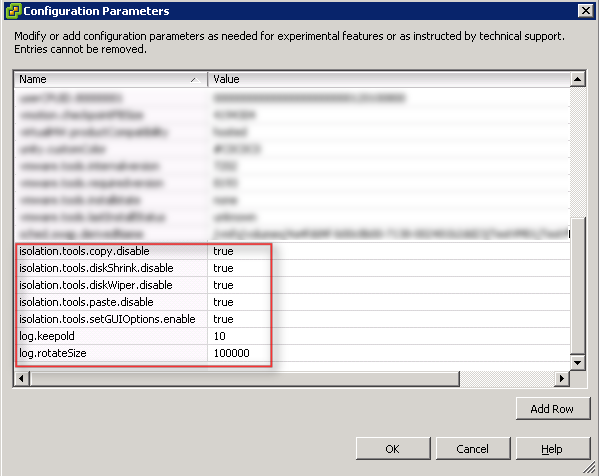
isolation.tools.copy.disable,true
isolation.tools.diskShrink.disable,true
isolation.tools.diskWiper.disable,true
isolation.tools.paste.disable,true
isolation.tools.setGUIOptions.enable,true
log.keepOld,10
log.rotateSize,100000

The script below will add the entry’s from the CSV file to every VMX file, even when the VM is still running. I don’t know if you need to reboot the VM to apply the changes. So if someone can test that for me, please leave a comment with the results.

$vCenter = Read-Host "Enter your vCenter servername"
Connect-VIServer $vCenter

$import = Import-Csv "C:\Scripts\PS\vmxsettings.csv"

$vms = Get-View -ViewType VirtualMachine | where {-not $_.config.template}

$vmConfigSpec = New-Object VMware.Vim.VirtualMachineConfigSpec

    foreach($item in $import){

        $extra = New-Object VMware.Vim.optionvalue
        $extra.Key=$item.Key
        $extra.Value=$item.Value
        $vmConfigSpec.extraconfig += $extra
    }

    foreach($vm in $vms){

        $vm.ReconfigVM($vmConfigSpec)
    }

Disconnect-VIServer –Confirm:$false

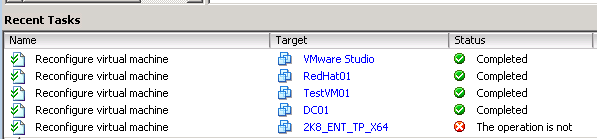
When you start the script, you will notice that vCenter is very busy reconfiguring the virtual machines:

image

You will notice The operation is not… warning in the recent tasks window. This is because the Get-View -ViewType VirtualMachine will also add the Templates.

And here you can see the added lines into your VMX file:

image

PowerCLI: Change VMware Tools Options


image

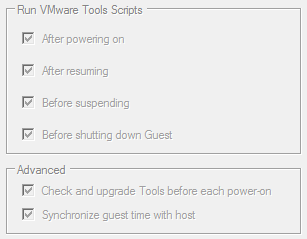
In this post you will learn how to change the VMware Tools settings in the Options menu which you can find in the vSphere Client:

image

You can enable or disable these features via the following PowerCLI script:

$vCenter = Read-Host "Enter vCenter Server name"

Connect-VIServer $vCenter

$vmConfigSpec = New-Object VMware.Vim.VirtualMachineConfigSpec
$vmConfigSpec.Tools = New-Object VMware.Vim.ToolsConfigInfo
$vmConfigSpec.Tools.AfterPowerOn = $true
$vmConfigSpec.Tools.AfterResume = $true
$vmConfigSpec.Tools.BeforeGuestStandby = $true
$vmConfigSpec.Tools.BeforeGuestShutdown = $true
$vmConfigSpec.Tools.SyncTimeWithHost = $true
$vmConfigSpec.Tools.ToolsUpgradePolicy = "Manual" # "UpgradeAtPowerCycle"

Get-VM | % { (Get-View $_.ID).ReconfigVM($vmConfigSpec)}

Disconnect-VIServer -Confirm:$false


Just change the $true values to $false if you want to disable the feature. If you want to change the Tools Upgrade Policy to Upgrade at startup just remove "Manual" # and it should change the Policy.

This is what you see when the VM is still active:

image image

This script will change the configured settings on All the VM’s.  If you want to change the settings on a particular VM just change Get-VM into Get-VM vmname

vCenter 4 on Windows x64 and 32 bit DSN


image

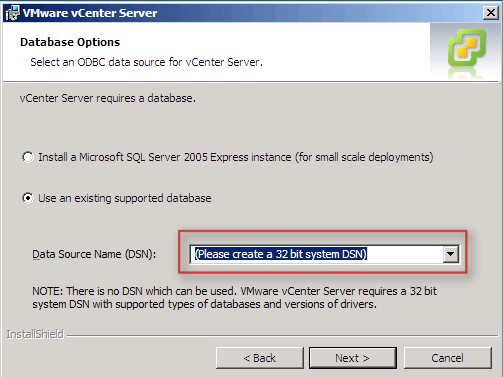
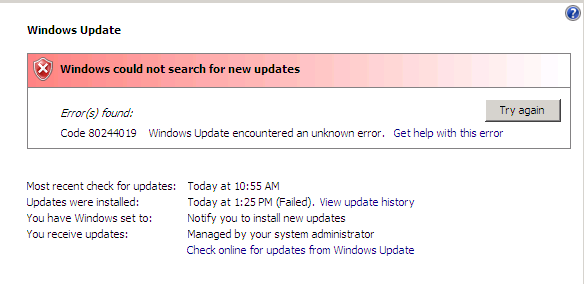
Today I installed a Windows Server 2008 x64 VM to use as vCenter 4 server. Everything went fine until the DSN option gave me the (Please create a 32 bit system DSN) message.

image

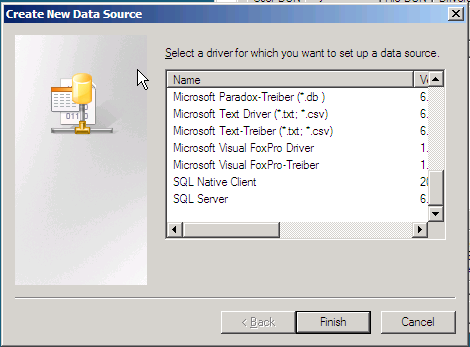
I created the DSN via: Start – Run – msodbcad32. The weird thing I noticed was the small amount of options available, only two as you can see in the picture below.

image 

To solve this issue, start Odbcad32.exe from the following location %systemdrive%\Windows\SysWoW64\Odbcad32.exe instead of Start –Run – Odbcad32.

Now we have the options we need:

image

Create a new system DSN for vCenter and vCenter Update Manager. Start the vCenter installer and select the right DSN:

image

More information about this issue can be found in: KB942976


Source: http://www.vmwarewolf.com/32-bit-odbc-dsn-for-vsphere/

Powershell: Working with Excel and error HRESULT: 0x80028018


 image

If you want to use Microsoft Excel in your Powershell scripts.

$Excel = New-Object -Com Excel.Application
$Excel.visible = $True
$Excel = $Excel.Workbooks.Add()


You can run into the following error:

image

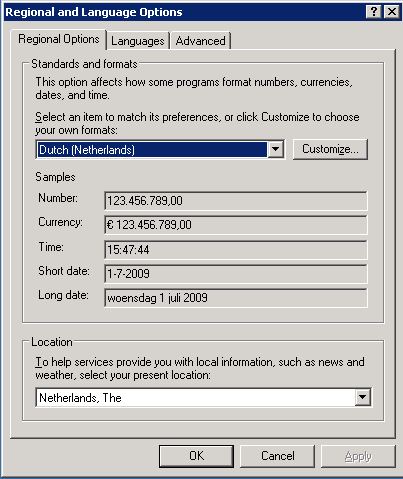
The work around for this issue was changing the Regional Options back to United States International.

image

Microsft created a work around. More info can be found in in: KB320369

guillermooo has created a port to Powershell. Just copy the following code and you should be able to open Excel and create a new workbook.

I didn’t test this script block so let me know if it works 😉

$ci = new-object system.globalization.cultureinfo "en-US"

$e = New-Object -COM "Excel.Application"
$e.Visible = $True
$e.UserControl= $True
$books = $e.Workbooks
$books.PSBase.GetType().InvokeMember( `
       "Add", `
       [system.reflection.bindingflags]::InvokeMethod, `
       $null, $books, $null, $ci)

Source: http://stackoverflow.com/questions/687891/exception-automating-excel-2007-with-powershell-when-calling-workbooks-add

PowerCLI: Generate an Excel sheet with VM info


image

The following script is part of another script but I wanted to show you some nice Powershell stuff in combination with Microsoft Excel.

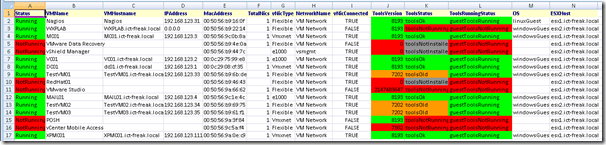
This script will generate an Excel sheet with some VM information. It will color the cell red if the Powerstate equals to NotRunning.

$vCenter = Read-Host "Enter your vCenter servername"

Connect-VIServer $vCenter

$xlCSV = 6
$xlXLS = 56
$csvfile = "C:\beforeHWchange.csv"
$xlsfile = "C:\beforeHWchange.xls"

$Excel = New-Object -ComObject Excel.Application
$Excel.visible = $True
$Excel = $Excel.Workbooks.Add()

$Sheet = $Excel.Worksheets.Item(1)
$Sheet.Cells.Item(1,1) = "Status"
$Sheet.Cells.Item(1,2) = "VMName"
$Sheet.Cells.Item(1,3) = "VMHostname"
$Sheet.Cells.Item(1,4) = "IPAddress"
$Sheet.Cells.Item(1,5) = "MacAddress"
$Sheet.Cells.Item(1,6) = "TotalNics"
$Sheet.Cells.Item(1,7) = "vNicType"
$Sheet.Cells.Item(1,8) = "NetworkName"
$Sheet.Cells.Item(1,9) = "vNicConnected"
$Sheet.Cells.Item(1,10) = "ToolsVersion"
$Sheet.Cells.Item(1,11) = "ToolsStatus"
$Sheet.Cells.Item(1,12) = "ToolsRunningStatus"
$Sheet.Cells.Item(1,13) = "OS"
$Sheet.Cells.Item(1,14) = "ESXHost"

$intRow = 2

$WorkBook = $Sheet.UsedRange
$WorkBook.Interior.ColorIndex = 19
$WorkBook.Font.ColorIndex = 11
$WorkBook.Font.Bold = $True


#$vms = Get-Folder Lab | Get-VM
$vms = Get-VM

foreach($vm in $vms){

  $vmnic = Get-NetworkAdapter -VM $vm
  $vmview = get-VM $vm | Get-View

if($vm.Guest.State -eq "NotRunning"){
  $Sheet.Cells.Item($intRow, 1) = [String]$vm.Guest.State
  $Sheet.Cells.Item($intRow, 1).Interior.ColorIndex = 3
}
elseif($vm.Guest.State -eq "Unknown"){
  $Sheet.Cells.Item($intRow, 1) = [String]$vm.Guest.State
  $Sheet.Cells.Item($intRow, 1).Interior.ColorIndex = 48
}
else{
  $Sheet.Cells.Item($intRow, 1) = [String]$vm.Guest.State
  $Sheet.Cells.Item($intRow, 1).Interior.ColorIndex = 4
}

$Sheet.Cells.Item($intRow, 2) = $vmview.Name 
$Sheet.Cells.Item($intRow, 3) = $vmview.Guest.HostName
$Sheet.Cells.Item($intRow, 4) = [String]$vm.Guest.IPAddress
$Sheet.Cells.Item($intRow, 5) = $vmnic.MacAddress
$Sheet.Cells.Item($intRow, 6) = $vmview.Guest.Net.Count
$Sheet.Cells.Item($intRow, 7) = [String]$vmnic.Type
$Sheet.Cells.Item($intRow, 8) = $vmnic.NetworkName 
$Sheet.Cells.Item($intRow, 9) = $vmnic.ConnectionState.Connected

if($vmview.Config.Tools.ToolsVersion -eq "8193"){
  $Sheet.Cells.Item($intRow, 10) = [String]$vmview.Config.Tools.ToolsVersion
  $Sheet.Cells.Item($intRow, 10).Interior.ColorIndex = 4
}
else{
  $Sheet.Cells.Item($intRow, 10) = [String]$vmview.Config.Tools.ToolsVersion
  $Sheet.Cells.Item($intRow, 10).Interior.ColorIndex = 3
}

if($vmview.Guest.ToolsStatus -eq "toolsNotInstalled"){
  $Sheet.Cells.Item($intRow, 11) = [String]$vmview.Guest.ToolsStatus
  $Sheet.Cells.Item($intRow, 11).Interior.ColorIndex = 48

}
elseif($vmview.Guest.ToolsStatus -eq "toolsNotRunning"){
  $Sheet.Cells.Item($intRow, 11) = [String]$vmview.Guest.ToolsStatus
  $Sheet.Cells.Item($intRow, 11).Interior.ColorIndex = 3    
}
elseif($vmview.Guest.ToolsStatus -eq "toolsOld"){
  $Sheet.Cells.Item($intRow, 10) = [String]$vmview.Config.Tools.ToolsVersion
  $Sheet.Cells.Item($intRow, 10).Interior.ColorIndex = 45
  $Sheet.Cells.Item($intRow, 11) = [String]$vmview.Guest.ToolsStatus
  $Sheet.Cells.Item($intRow, 11).Interior.ColorIndex = 45    
}
else{
  $Sheet.Cells.Item($intRow, 11) = [String]$vmview.Guest.ToolsStatus
  $Sheet.Cells.Item($intRow, 11).Interior.ColorIndex = 4
}    

if($vmview.Guest.ToolsRunningStatus -eq "guestToolsRunning"){
  $Sheet.Cells.Item($intRow, 12) = $vmview.Guest.ToolsRunningStatus
  $Sheet.Cells.Item($intRow, 12).Interior.ColorIndex = 4
}
else{
  $Sheet.Cells.Item($intRow, 12) = $vmview.Guest.ToolsRunningStatus
  $Sheet.Cells.Item($intRow, 12).Interior.ColorIndex = 3
}

$Sheet.Cells.Item($intRow, 13) = $vmview.Guest.GuestFamily
$Sheet.Cells.Item($intRow, 14) = $vm.Host.Name

$intRow = $intRow + 1}

$WorkBook.EntireColumn.AutoFit()

sleep 5

$Sheet.SaveAs($xlsfile,$xlXLS)
$Sheet.SaveAs($csvfile,$xlCSV) 

Disconnect-VIServer -Confirm:$false


The output will look like this:
image