CentOS: How To Create a Local VMware Repository


image_thumb1[1] image_thumb[1]

The first step is to configure the repository server. Before you can start, you have to install the createrepo package. Just run the following command:

yum install createrepo

If you didn’t already, also install Apache on the Server that’s hosting the repository.

Let’s create a folder structure so we can place the rpm’s on the server. In case you want create a repository for 32 bit and 64 bit CentOS. You have to create a i386 and a x86_64 directory.

i368:

/var/www/html/repo/centos/5/i386/vmware

Upload your rpm files to the vmware directory and run the createrepo command:

createrepo /var/www/html/repo/centos/5/i386/vmware/

x86_x64

/var/www/html/repo/repo/centos/5/x86_64/vmware

Upload your rpm files to the vmware directory and run the createrepo command:

createrepo /var/www/html/repo/centos/5/x86_64/vmware/

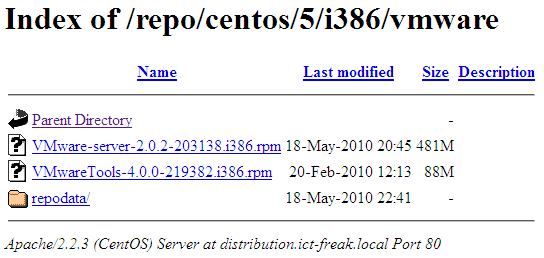
The next step is to test the repository. Just open your favorite web browser and browse to the url. In my case this is: http://distribution.ict-freak.local/repo/centos/5/i386/vmware.
image

If this works, your local vmware repository is ready for action. But first we need to add the repository on the client side.

Open the following file in your favorite text editor

/etc/yum.repos.d/vmware_local.repo

Add the following lines and edit the baseurl so it will match your environment.

[vmware_local]
name=Uniserver CentOS-$releasever-$basearch
baseurl=http://distribution.ict-freak.local/repo/centos/$releasever/$basearch/vmware/
gpgcheck=0
enabled=1

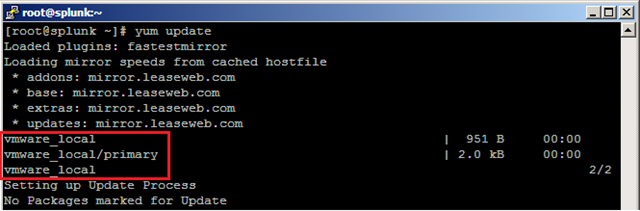
Save the vmware_local.repo file and run the yum update command.
image

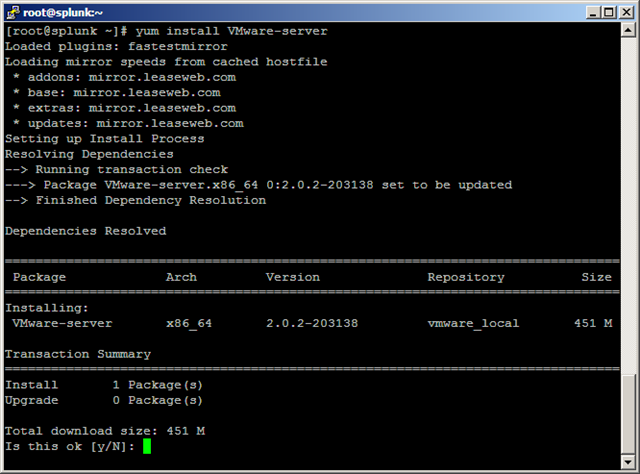
Now you’re ready to install packages from the vmware_local repository. Let’s install VMware server 2.0.2-203138 by running the following command:

yum install VMware-server

The install process will start:
image

When you also upload the VMware Tools rpm file, you can install or update the package with the following commands:

Install:

yum install VMwareTools

Update:

yum update VMwareTools

When you need to upgrade de VMware Tools, the only thing you have to do is upload the new rpm file and run the yum update command. The finals step is to run the vmware-config-tools.pl script. But this step can be replaced by the check-vmware-tools script. More info about this script can be found here: http://bit.ly/97fpcD

PowerCLI: Script to Schedule Memory and or vCPU up/downgrade


After creating the Restart-VMs.ps1 script, I also created a script to schedule vHardware changes. With this script, you’re able to upgrade or downgrade the amount of memory and or the amount of vCPU’s of a VM. Just lik the restart script, you can schedule this script and change the recommended parameters.

These are the parameters you need to supply to the script. The first two parameters are mandatory. When you supply all the parameters, you are able to add/remove Memory and add/remove vCPU’s.

-vCenter enter the vCenter server you want to connect to. It’s possible to connect to multiple vCenter servers.
-vmName enter the name of the VM you want
-MemoryMB enter the amount of memory you want to add or remove from the VM. Be sure you enter the amount in MB.
-MemoryOption Supply the option add or remove.
-CPUCount Enter the amount of vCPU’s you want to add or remove from the VM.
-CPUOption Supply the option add or remove.

This is how the script works.

  1. Connect to vCenter
  2. Shutdown the selected VM
  3. Add/remove memory and or vCPU’s
  4. Poweron the selected VM
  5. Disconnect vCenter

Now it’s time for an example. I have a VM called NAGIOS and needed to remove 512MB RAM and needed to add an extra vCPU. So I started the script with the following parameters:

.\Change-VM_Memory_CPU_Count.ps1 -vCenter vc01.ict-freak.local -vmName NAGIOS -MemoryMB 512 -MemoryOption Remove -CPUCount 1 -CPUOption Add

The VM is powered off and the memory is downgraded to 1024MB RAM and the total number of vCPU’s upgraded to 2.

image

You can download the script below.

Continue reading “PowerCLI: Script to Schedule Memory and or vCPU up/downgrade”

PowerCLI Schedule a restart job for one or multiple VM’s


I created the following script to schedule some restart jobs overnight. The goal for this script was to add some parameters so you don’t have to edit the script file itself to schedule it for another VM or a group of VM’s.

####################################################################
#
# Restart-VMs.ps1
# 
# -vCenter vCenter Server or Servers to connect to. 
# Example -vCenter "vc01","vc02"
# -vmName the VM or VMs to restart.
# Example -vmName "VM1" or -vmName "VM1","VM2"
# # Example: #.\Restart-VMs.ps1 -vCenter vc01.ict-freak.local -vmName "VM1","VM2" # # Version 1.0 May 2010 Arne Fokkema www.ict-freak.nl @afokkema # ##################################################################### param( [parameter(Mandatory = $true)] [string[]]$vCenter, [parameter(Mandatory = $true)] [string[]]$vmName ) $VIServer = Connect-VIServer $vCenter If ($VIServer.IsConnected -ne $true){ Write-Host "error connecting to $vCenter" -ForegroundColor Red exit } foreach($vm in $vmName){ Write-Host "Going to restart $vm" Restart-VMGuest -VM (Get-VM $vm) -Confirm:$false } Disconnect-VIServer -Confirm:$false

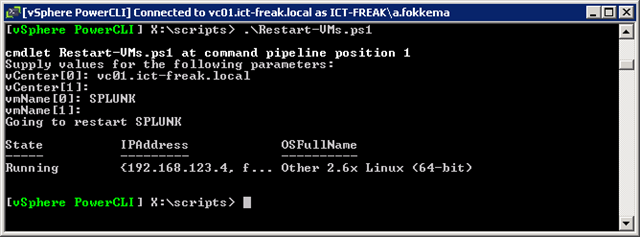
Let’s start to run the script from the PowerCLI console first:

image

I started the script without setting any of the parameters. Since these two parameters are necessary  to run the script, you will be asked to enter the parameters, before you can continue.


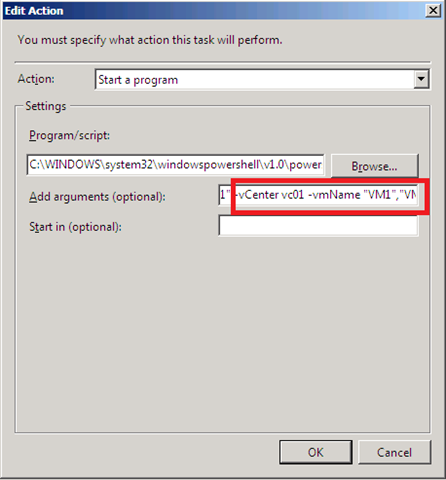
Now it’s time to schedule the script in Windows Server 2008. Just create a simple scheduled task with the following settings:

The first line below is the Program/script: setting. The second line is the Add arguments setting.

C:\WINDOWS\system32\windowspowershell\v1.0\powershell.exe

-PSConsoleFile "C:\Program Files (x86)\VMware\Infrastructure\vSphere PowerCLI\vim.psc1" " &  "C:\Scripts\Restart-VMs.ps1" -vCenter vc01 -vmName "VM1","VM2"

image

When you are going to use this script, be absolutely sure you are allowed to restart the VM’s you scheduled.

vSphere ISO containing Intel 82575 and 82576 Gigabit Ethernet Adapter drivers


This post is a complete re-post from Eric Sarakaitis blog: http://www.vmwareadmins.com


So, after spending three days on this, I was finally able to get the  Intel 82575 and 82576 Gigabit Ethernet Adapter driver slipstreamed onto the installation media.

I first followed this: http://patrickvanbeek.wordpress.com/2010/01/30/slipstreaming-drivers-in-the-esx4i-install-iso/ to get the post install drivers working.

But I still had the problem of not being able to see the NIC’s during the install.

to do that, I had to explode the ESX 4.0u1 ISO and grab the initrd.img file from the isolinux folder.

To do the modifications of the img file I needed a linux guest… so I fired up a Ubuntu image on Lab Manager and SCP’d the img file there.

To extract the IMG file do:

1.mkdir ~/tmp
2.cd ~/tmp
3.cp /boot/initrd.img ./initrd.gz
4.gunzip initrd.gz
5.mkdir tmp2
6.cd tmp2
7.cpio -id < ../initrd.img

now you should have a lot of files in ~/tmp/tmp2 directories, including a lot of subdirectories like sbin,lib

Now you need to extract the igb.xml and igb.o from the VMware RPM (http://www.vmware.com/support/vsphere4/doc/drivercd/esx40-net-igb_400.1.3.19.12-1.0.4.html.)

I then moved these files to their respective locations within the exploded initrd.

the igb.xml went into

1./usr/share/hwdata/pciids/

the igb.o went into

1./usr/lib/vmware/vmkmod/

then pack the files back into the archive using the following command

1.cd ~/tmp/tmp2
2.find . | cpio –create –format=’newc’ > ~/tmp/newinitrd
3.cd ~/tmp
4.gzip newinitrd

now you would have a newinitrd.gz
rename this now –
mv newinitrd.gz as newinitrd.img
this is the new boot image now !!

I then re-created the ISO. Oddly enough, it worked on the first try 🙂

and the link to the ISO… http://www.vmwareadmins.com