View Composer: Error during provisioning: Failed to authenticate to AD


Last weekend I was busy with a vCenter migration from vCenter 4.0 on a 32 bit Windows 2003 server to a vCenter 4.1 update 1 server on a Windows 2008 R2 64 bit VM. The database is already running on a separate database server.  The one thing special in this setup was VMware View Composer. So I started the migration and everything went well. vCenter was up and running and VMware View Composer service was started. So it was time to test the provisioning of new Desktops. I changed the pool to deploy 2 new desktops. The process ended with an error:image

I was unable to fix this by myself so I contacted VMware Support and after a while we came up with the following solution: Login to the VMware View Administrator and browse to the vCenter Server page:View Configuration – Servers and select the vCenter server in the the vCenter Servers window and press edit. Now select the Quickprep user for the Desktop pool with the error and press edit:

image

And enter the password for the Quickprep user:

image

After re-entering the password for the Quickprep user, we where ready to test the Desktop pools again. We did a test with an existing Desktop pool and a new pool and both worked as expected. The Desktop pools are working again. I want to thank VMware support for the quick and accurate support.

Veeam: Calculate Destination Storage Needs with Powershell


This post is about how to calculate the storage needs for the configured Veeam Backup Jobs.  When you edit or create a new backup job in Veeam Backup and Replication. You can use the Check Space button to verify if there is enough space to write the backup to disk:

image

But is it possible to get this values via Powershell. The answer is yes. Before you can calculate these values you need to know the formula which Veeam uses to calculate the storage needs. This is the formula:

Backup size = C * (F*Data + R*D*Data)
Replica size = Data + C*R*D*Data

Data = sum of processed VMs size (actually used, not provisioned)
C = average compression/dedupe ratio (depends on too many factors, compression and dedupe can be very high, but we use 50% – worst case)
F = number of full backups in retention policy (1, unless backup mode with periodic fulls is used)
R = number of rollbacks (or increments) according to retention policy (14 by default)
D = average amount of VM disk changes between cycles in percent (we use 10% right now, but will change it to 5% in v5 based on feedback… reportedly for most VMs it is just 1-2%, but active Exchange and SQL can be up to 10-20% due to transaction logs activity – so 5% seems to be good average)

This formula comes from the Veeam Communities: http://www.veeam.com/forums. There is a lot of good information there. So make sure to visit it once in a while Knipogende emoticon.

So now we know the formula, the next step will be to find the data to fill the parameters to calculate the disk space requirements. It’s time to start a script editor to write some Powershell code.  First we start to make sure the Veeam Powershell snapin is loaded:

if((Get-PSSnapin -Name VeeamPSSnapIn -ErrorAction SilentlyContinue) -eq $null){
    Add-PSSnapin "VeeamPSSnapIn"
}

The following variables are necessary to calculate the disk space needed to save the job to disk.  First we need to the local disk info so we can return the freespace of the partition where the job will be written to.  The avgcr variable is equal to C in the formula. The numFull variable, well you can guess where that stands for. This variable equals the F in the formula. The retaincycles variable equals the R in the formula. The last variable,

avgdiskchanges equals the D in the formula.

    $diskinfo = Get-WmiObject Win32_logicaldisk
    $options = $vbrjob.GetOptions()
    $avgcr = "50"
    $numFull = $options.FullBackupFrequency
    $retaincycles = $options.RetainCycles
    $avgdiskchanges = "5"

The script that will do the magic:

if((Get-PSSnapin -Name VeeamPSSnapIn -ErrorAction SilentlyContinue) -eq $null){
    Add-PSSnapin "VeeamPSSnapIn"
}

$DestinationStorage = @()
foreach($vbrjob in (Get-VBRJob | Sort Name)){
    $Details = "" | Select JobName, Driveletter, TotalVMs, TotalCapacityinGB, FreespaceinGB, SourceDatainGB, EstimatedFullBackupSizeinGB, EstimatedRequiredSpaceinGB, StorageNeededinGB
    
    $diskinfo = Get-WmiObject Win32_logicaldisk
    $options = $vbrjob.GetOptions()
    $avgcr = "50"
    $numFull = $options.FullBackupFrequency
    $retaincycles = $options.RetainCycles
    $avgdiskchanges = "5"
    
    $driveLetter = $vbrJob.Info.TargetDir.Split("\")[0]
    $partition = $diskinfo | Where {$_.DeviceID -eq $driveLetter}
    $TotalCapacity = [math]::round($partition.Size / 1GB, 2)
    $FreeSpace = [math]::round($partition.FreeSpace / 1GB, 2)
    $JobSize = [math]::round($vbrjob.Info.IncludedSize / 1GB, 2) #TotalSize in Veeam Console
    $FullBackupSize = $jobSize / 2
    $JobMath = "{0:P0}" -f $avgcr / 100 * ($numFull * $JobSize + $retaincycles * ("{0:P0}" -f $avgdiskchanges / 100 *  $JobSize)) 
    $JobMath2 = [math]::round($JobMath, 2)

    $Details.JobName = $vbrjob.Name
    $Details.Driveletter = $driveLetter 
    $Details.TotalVMs = ($vbrJob.GetObjectsInJob()).Count
    $Details.TotalCapacityinGB = $TotalCapacity
    $Details.FreespaceinGB = $FreeSpace
    $Details.SourceDatainGB = $JobSize
    $Details.EstimatedFullBackupSizeinGB = $FullBackupSize
    $Details.EstimatedRequiredSpaceinGB = $JobMath2 + $JobSize
    $Details.StorageNeededinGB = ($JobMath2 + $JobSize) - $FreeSpace
    $DestinationStorage += $Details
}
$DestinationStorage

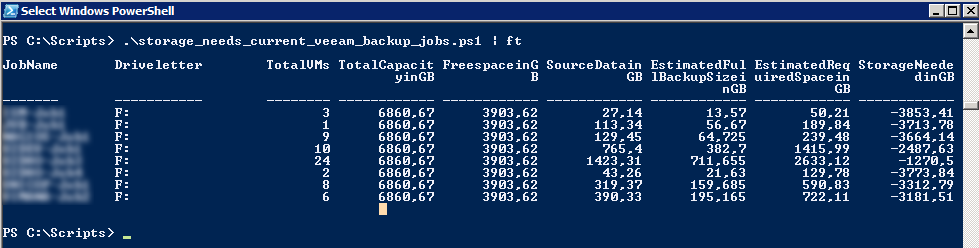
And it’s output:

image

I hope you like this script and if you have any questions please leave a comment.

Disk Hard disk # has incorrect changed block tracking configuration


Today another Veeam troubleshooting trick. It’s possible that you’ll receive the following error in one of your Veeam Backup Jobs:

Verifying change block tracking:
Disk “Hard disk 1” has incorrect changed block tracking configuration

This is how it looks like in the Veeam Backup console:

image

The procedure which Veeam describes in the solution for this problem works like this:

  1. Shutdown the VM
  2. VM – Edit Settings – Options – General – Configuration Parameters…
  3. Change every item with ctkEnabled to false
  4. Start the VM
  5. Start the Backup Job to see if this is the solution for this problem.
  6. This is how you change the parameter to false:

image

In my case, the above solution did not solve the problem. So I had to troubleshoot the VM. While checking the configuration a noticed that the Disk was configured with the Independent mode enabled. You can change this setting when the VM is powered off. Go to Hardware, select the Hard disk and disable the checkbox by Independent:

image

The setting above can only be changed when the VM is powered off, if you’re using the vSphere client. It’s also possible to change this setting, on-the-fly with PowerCLI. That rimes Winking smile.

You can run the following one-liner to disable the Independent mode:

Get-VM <vmName> | % { Get-HardDisk -VM $_ | Where {$_.Persistence -eq "IndependentPersistent"} | `
% {Set-HardDisk -HardDisk $_ -Persistence "Persistent" -Confirm:$false} }

Disclaimer: this one-liner worked for me in my environment but test this first because I don’t know exactly what the impact is of this change.

Veeam: Module Snapshot poweron failed. Unable to retrieve the current working directory


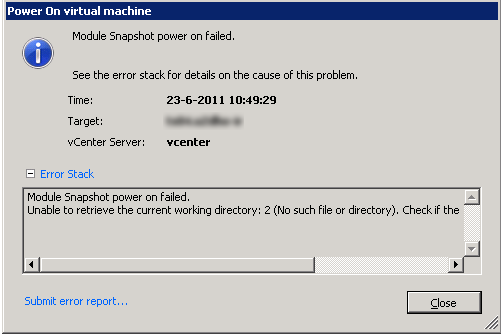
After performing an Instant Recovery you might get the following error when the VM is trying to power on:

image

After a quick search on the Veeam Forums I found the following topic: http://www.veeam.com/forums/ about the same issue. In this topic I found the following solution to this issue:


Well, finally i get the issue fixed. I think it could be considered a bug. Let me explain.
If i set “F:\” as a vPower NFS destination, the error shows up. But if i set “F:\any_directory”, then all runs perfect!.
Well i write this here to help anybody with the same issue.

So vPowerNFS cannot be pointed directly to the drive letter of a partition. To change this setting you can use registry editor and your mouse, but you can also run the following Powershell script to change this setting:

$vPowerNFSDir = "D:\vPowerNFS\"

if((Test-Path $vPowerNFSDir) -eq $false){
    New-Item $vPowerNFSDir -type directory
}

If((Get-ItemProperty "HKLM:\Software\VeeaM\Veeam Backup and Replication" -name "NFSDefaultRootPath").NFSDefaultRootPath -ne $vPowerNFSDir){
    Set-ItemProperty "HKLM:\Software\VeeaM\Veeam Backup and Replication" -name "NFSDefaultRootPath" -value $vPowerNFSDir
}

if((Get-Service -DisplayName "Veeam Backup Service").Status -eq "Running"){
    Restart-Service -displayname "Veeam Backup Service"
}

if((Get-Service -DisplayName "Veeam vPower NFS Service").Status -eq "Running"){
    Restart-Service -displayname "Veeam vPower NFS Service"
}

The only thing you have to change in this script is the $vPowerNFSDir variable to the correct location of your Veeam Backup & Recovery Server. This script will check if the folder exists, If this is not the case it will create the folder. The next step is to check the Registry key for the correct location. If this is not the case the script will change the Registry for you. The last step is to restart the Veeam Backup Service and the Veeam vPower NFS Service.

Source: http://www.veeam.com/forums/

PowerCLI: Easy iSCSI Send Target setup


In January this year I created a post about Easy NFS datastore setup with PowerCLI. In this post I showed how you can use a reference host to copy all the NFS share configurations to the new host. In this post I will show you how to do the exact same thing only for iSCSI Send targets. I finally find some time to write this post which I promised to write in part 2 of my PowerCLI and iSCSI series.

The following script will check the $REFHOST, in my case esx2.ict-freak.local for all the iSCSI Send targets configured on that host. After that the script will check if all the iSCSI Send targets exists on the $NEWHOST. If this is not the case the script will add the missing Send Targets.

$REFHOST = Get-VMHost "esx2.ict-freak.local"
$NEWHOST = Get-VMHost "esx1.ict-freak.local"

$REFHBA = Get-VMHostHba -VMHost $REFHOST -Type iScsi | Where {$_.Model -eq "iSCSI Software Adapter"}
foreach($target in (Get-IScsiHbaTarget -IScsiHba $REFHBA -Type Send)){
    $target = $target.Address
        $NEWHBA = Get-VMHostHba -VMHost $NEWHOST -Type iScsi | Where {$_.Model -eq "iSCSI Software Adapter"}
        If ((Get-IScsiHbaTarget -IScsiHba $NEWHBA -Type Send | Where {$_.Address -eq $target} -ErrorAction SilentlyContinue )-eq $null){
            Write-Host "Target $($target) doesn't exist on $($NEWHOST)" -fore Red
            New-IScsiHbaTarget -IScsiHba $NEWHBA -Address $target | Out-Null
        }        
}

But there is more..

Continue reading “PowerCLI: Easy iSCSI Send Target setup”

PowerCLI: Return the iSCSI Software Adapter


In my previous postsabout how to manage iSCSI targets with PowerCLI part 1 and part 2. I used the following line to return the iSCSI adapter:

$hba = $esx | Get-VMHostHba -Type iScsi

But when I used this line against a vSphere 4.1 update 1 host with Broadcom BCM5709 (Dell Poweredge R710). vSphere will use these adapters as Broadcom iSCSI Adapters. And when you run the $hba = $esx | Get-VMHostHba -Type iScsi one-liner, it will return all the vmhba adapters.

[vSphere PowerCLI] C:\> $esx | Get-VMHostHba -Type iScsi

Device     Type         Model                          Status

——     —-         —–                          ——

vmhba32    IScsi        Broadcom iSCSI Adapter         unbound

vmhba33    IScsi        Broadcom iSCSI Adapter         unbound

vmhba34    IScsi        Broadcom iSCSI Adapter         unbound

vmhba35    IScsi        Broadcom iSCSI Adapter         unbound

vmhba37    IScsi        iSCSI Software Adapter            online

This “problem” can easily be resolved with a Where statement. In the following Where statement you look for a Model that equals “iSCSI Software Adapter”. There is only one Software adapter in ESX(i) so it will return the right vmhba. The PowerCLI line will look like this:

$esx | Get-VMHostHba -Type iScsi | Where {$_.Model -eq "iSCSI Software Adapter"} 

[vSphere PowerCLI] C:\> $esx | Get-VMHostHba -Type iScsi | Where {$_.Model -eq "iSCSI Software Adapter"}

Device     Type         Model                          Status

——     —-         —–                          ——

vmhba37    IScsi        iSCSI Software Adapter         online

So the bottom line. Test your code on different setups and update it when necessary 😉

Veeam: Change Restore points and deleted VMs retention period


If you want to change the amount of restore points and the deleted VMs retention period, you can do this for your backup jobs by hand. But if you need to change a lot of Veeam Backup & Replication Jobs like I needed to do. You can find these settings in the Backup Job properties:

image

If you’re a reader of my blog, you know I like to automate this kind of jobs with Powershell. So I created a function to perform this change for me.

The function:

#requires -pssnapin VeeamPSSnapIn
Function Change-RestorePoints{
<#
.SYNOPSIS
    Change the Backup restore points and deleted VMs retention period
.DESCRIPTION

.NOTES
    Authors: Arne Fokkema
.PARAMETER JobName
    A Backup Job in Veeam Backup & Replication
.PARAMETER RetainDays
    The amount of restore points
.PARAMETER RetainCycles
    The amount of days for Deleted VMs retention period    
.EXAMPLE
    PS> Change-RestorePoints -JobName "Job-01" -RetainDays "21" -RetainCycles "21"
#>
    param(
        [parameter(valuefrompipeline = $true,
            position = 0,
            Mandatory = $true,
            HelpMessage = "Enter a Veeam B&R JobName")]
            $JobName,
        [parameter(valuefrompipeline = $true,
            position = 0,
            Mandatory = $true,
            HelpMessage = "Enter the amount of restore points to keep on disk")]
            $RetainDays,
        [parameter(valuefrompipeline = $true,
            position = 0,
            Mandatory = $true,
            HelpMessage = "Enter a deleted VMs retention period in days")]
            $RetainCycles
    )

    begin{
        $vbrjob = Get-VBRJob  | where {$_.Name -eq $JobName} 
    }
    
    process{
        $options = $vbrjob.GetOptions()
        $options.RetainDays = $RetainDays
        $options.RetainCycles = $RetainCycles
        Write-Host "Changing RetainDays: $($RetainDays) and RetainDays: $($RetainCycles) for job: $($vbrjob.Name)"
        $vbrjob.SetOptions($options)
    }
}

To change a particular job on a Veeam Backup & Replication server you can use the following one-liner:

Change-RestorePoints -JobName "Job-01" -RetainDays "30" -RetainCycles "30"

To change all the jobs on a particular Veeam Backup & Replication Server you can use the following foreach loop:

foreach($job in (Get-VBRJob | Sort Name)){
    Change-RestorePoints -JobName $job.Name -RetainDays "14" -RetainCycles "14"
}

The output will look like this:

image

Veeam: How to change the Job notification settings with Powershell


Today just a quick post about how Powershell can help you change the VM attribute option in Veeam Backup & Replication. Imaging that you have 20 backup jobs and you want or need to change the VM attribute settings. You can do this for every job with 10 mouse clicks or you can do it in five seconds by running the script from this post.

This is the setting I am talking about from the GUI:

image

When you change the “Notes” value to some custom field in you environment, the script will apply this setting for you.

if((Get-PSSnapin -Name VeeamPSSnapIn -ErrorAction SilentlyContinue) -eq $null){
    Add-PSSnapin "VeeamPSSnapIn"
}

$vbrserver = Get-VBRServer | Where {$_.Type -eq "VC"}
Foreach($vbrjob in (Get-VBRJob)){    
    $options = $vbrjob.GetOptions()
    $options.VmAttributeName = "Notes"
    $options.SetResultsToVmNotes = $true
    $vbrjob.SetOptions($options)
}

The first three lines of code checked if the VeeamPSSnapIn is loaded, if this is not the case it will be loaded via the Add-PSSnapin.

  • The backup options will be loaded via the .GetOptions() method.
  • VmAttibuteName is the value which you normally enter in the attribute field.
  • SetResultsToVmNotes is the checkbox to enable this setting.
  • via .SetOptions() method you can apply the new settings.

Veeam: Change the Veeam Storage Optimization with Powershell


In Veeam Backup and Replication you can choose three different types of Storage optimization.

image

See the blog post on the Veeam website for more info: http://www.veeam.com/blog

From @gostev I received the following tip:

Note that storage optimization will not take effect until next full backup. Setting is used for newly created backup storage only.

There is no standard cmdlet to change this settings, so we have to find the property of the Storage optimization settings. With some trial and error I found the stgBlockSize property. This property can be found inside the vbrjob options.

You can view this properties via:

$vbrjob = Get-VBRJob | where {$_.Name -eq "<vbrjobname>"}
$options = $vbrjob.GetOptions()

and via the StgBlockSize property you are able to find the actual value of this setting.

$options.StgBlockSize

I have tried the three options from the screenshot and found the following three values:

    $localtarget = "KbBlockSize1024"
    $lantarget = "KbBlockSize512"
    $wantarget = "KbBlockSize256"

Now we have found the properties we need to change the settings via PowerShell. We can build some scripts.

If you want to change the Storage option to LAN target on all your backup jobs. You can run the following script on your Veeam Backup and Replication server. Don’t forget to change the StgBlockSize value with the variable you want to use.

if((Get-PSSnapin -Name VeeamPSSnapIn -ErrorAction SilentlyContinue) -eq $null){
    Add-PSSnapin "VeeamPSSnapIn"
}

$vbrjobs = Get-VBRJob 

foreach($vbrjob in $vbrjobs){

    #Storage optimization 
    $localtarget = "KbBlockSize1024"
    $lantarget = "KbBlockSize512"
    $wantarget = "KbBlockSize256"

    #Change Job Options
    $options = $vbrjob.GetOptions()
    $options.StgBlockSize = $lantarget

    $vbrjob.SetOptions($options)
}

Or if you want to change just a couple of your jobs, you can use the following script:

if((Get-PSSnapin -Name VeeamPSSnapIn -ErrorAction SilentlyContinue) -eq $null){
    Add-PSSnapin "VeeamPSSnapIn"
}

$vbrjobs = "<Job1>","<Job2>"

foreach($vbrjobname in $vbrjobs){

    #Storage optimization 
    $localtarget = "KbBlockSize1024"
    $lantarget = "KbBlockSize512"
    $wantarget = "KbBlockSize256"

    #Change Job Options
    $vbrjob = Get-VBRJob  | where {$_.Name -eq $vbrjobname} 
    $options = $vbrjob.GetOptions()
    $options.StgBlockSize = $lantarget

    $vbrjob.SetOptions($options)
}

So with the Powershell toolkit for Veeam you can perform every change you want and can do via the GUI. You can expect some more posts about automating Veeam Backup and Replication with Powershell.