Powershell: Veeam B&R – Get total days before the license expires


So it’s time for a new post with some “traditional” Powershell so no snappins from VMware or Veeam. But first some background info. I am working for a Veeam ProPartner  with a Service Provider partner program. in this program Veeam only supplies “temporary licenses” so you have to deal with an expiration date of the license. This also applies to the Veeam NFR licenses for vExperts, VCP, MVP, etc. But how do you get notified when the license is about to expire? Well I don’t know if there is an option for that, maybe in the Enterprise Portal but as far as I know will it only display an error when the license key is expired.

I decided to dive under the hood and tried to find the places where Veeam B&R holds the license information. I couldn’t find the license info with the Veeam Powershell Toolkit. So the next step was to find the info inside the Veeam Backup Database but I couldn’t find it either inside the database. The last step was the right one. The license information is kept inside the Windows registry in the following key:

HKLM\SOFTWARE\VeeaM\Veeam Backup and Replication\license

But the info is saved in a REG_BINARY so it’s harder to extract. But lucky me Tim Dunn wrote a simple one-liner to extract this data. So I added this to my script:

$regBinary = (Get-Item 'HKLM:\SOFTWARE\VeeaM\Veeam Backup and Replication\license').GetValue('Lic1')
$veeamLicInfo = [string]::Join($null, ($regBinary | % { [char][int]$_; }))

The $regBinary variable gets the data from the registry key. The $veeamLicInfo variable converts the $regBinary into human readable lines of text. So now we extracted the license info, we only need write a RegEx to extract the info we need to create a notification e-mail. So take a look at the $pattern variable which will search for:
“EXPIRATION DATE=MM/DD/YYYY”

The $expirationDate variable will execute the RegEx and it saves the first match via [0]. After that the match will be splitted and the the value after the “=” character will be used as the expiration date.

So now we have the expiration date but how do we calculate the remaining days. Well that’s exactly what the code, that fills the $totalDaysLeft variable does.

So here you will find the complete script:

Warning: this script is only tested on Veeam Backup & Replication version 5. So I don’t know if the script will work on version 6 too.

Update: If you want to use the following script with Veeam Backup & Replication v6. You only have to change the $pattern variable to: $pattern = expiration date\=\d{1,2}\/\d{1,2}\/\d{1,4}

Update 2: It’s possible to read the version from the executable. So I created an updated version of the script that works with Veeam v5 and Veeam v6.x.

#http://blogs.msdn.com/b/timid/archive/2011/06/17/stupid-tricks-with-reg-binary-registry-data.aspx <- $regBinary trick
#http://stackoverflow.com/questions/622902/powershell-tips-tricks-for-developers <- regex

$returnStateOK = 0
$returnStateWarning = 1
$returnStateCritical = 2
$returnStateUnknown = 3

$veeamExe = Get-Item 'C:\Program Files\Veeam\Backup and Replication\Veeam.Backup.Manager.exe'
$regBinary = (Get-Item 'HKLM:\SOFTWARE\VeeaM\Veeam Backup and Replication\license').GetValue('Lic1')
$veeamLicInfo = [string]::Join($null, ($regBinary | % { [char][int]$_; }))

if($veeamExe.VersionInfo.ProductVersion -match "6"){
    $pattern = "Expiration date\=\d{1,2}\/\d{1,2}\/\d{1,4}"
}
else{
    $pattern = "EXPIRATION DATE\=\d{1,2}\/\d{1,2}\/\d{1,4}"
}

$expirationDate = [regex]::matches($VeeamLicInfo, $pattern)[0].Value.Split("=")[1]
$totalDaysLeft = ((Get-Date $expirationDate) - (get-date)).Totaldays.toString().split(",")[0]
$totalDaysLeft = [int]$totalDaysLeft

if($totalDaysLeft -gt "14"){
    Write-Host "The Veeam License will expire in $($totalDaysLeft) days"
    exit $returnStateOK 
}
elseif($totalDaysLeft -ge "7"){
    Write-Host "The Veeam License will expire in $($totalDaysLeft) days"
    exit $returnStateWarning 
}
elseif($totalDaysLeft -lt "7"){
    Write-Host "The Veeam License will expire in $($totalDaysLeft) days" 
    exit $returnStateCritical 
}
else{
    Write-Host "Something went wrong...."
    exit $returnStateUnknown 
}

You can change the parameters of the Send-MailMessage and schedule a task op your Veeam server to report the total times left before the license will expire.
Holiday Gift from Veeam


Today I received an e-mail with some great news. The holiday season is about to start so it’s time for the holiday gift from Veeam.

HOLIDAY GIFT FROM VEEAM: FREE VEEAM BACKUP & REPLICATION v6 LICENSES FOR YOUR LAB

Free NFR Licenses for Evaluation and Demonstration Use available to VMware vExperts, VMware Certified Professionals, VMware Certified Instructors, VMUG members, Microsoft Most Valuable Professionals, and Microsoft Certified Professionals

You can register here for the Hyper-V version and here for the VMware version of Veeam Backup & Replication,  to get your personal NFR license.

PowerCLI: Migrate templates during the Enter Maintenance Mode task


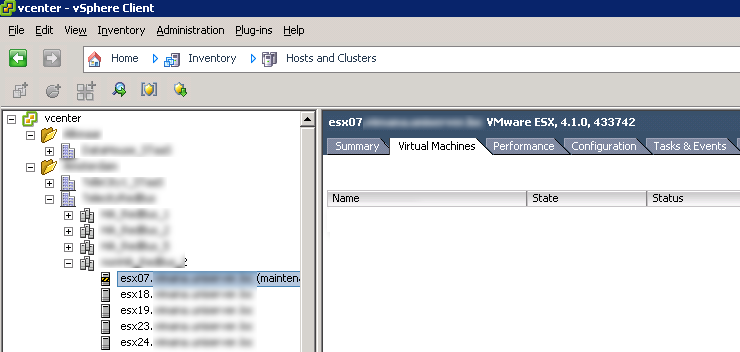
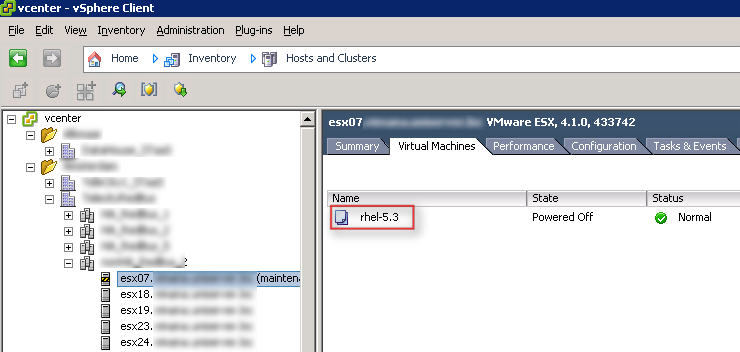
Normally when you put a host into Maintenance mode the templates will stay on the host instead of being migrate to a different host. This can be very annoying if you are performing maintenance on the vSphere host and a colleague needs to deploy a VM from the template. I am running vSphere 4.1 update 1. I don’t know if this is still the case with vSphere 5. The host in Maintenance mode will look like this:

image

So to fix this annoying “issue” I have created a PowerCLI function to place the vSphere host into maintenance mode and if there are Templates registered on the vSphere host, the Templates will be moved to another host in the Cluster.

Function Enter-MaintenanceMode{
<#
.SYNOPSIS   Enter Maintenance mode 
.DESCRIPTION   The function starts the Enter Maintenance task and also migrates the Templates to another host.
.NOTES   Author:  Arne Fokkema
.PARAMETER vmHost
   One vmHosts.
.EXAMPLE
   PS> Enter-MaintenanceMode<vmHost Name>
.EXAMPLE
  PS> Get-VMHost <vmHost Name> | Enter-MaintenanceMode
#>

[CmdletBinding()]
param(
    [parameter(ValueFromPipeline = $true,
    position = 0,
    Mandatory = $true,
    HelpMessage = "Enter the vmHost to start the Enter Maintenance mode task")]
    $vmHost
)    

    $templates = Get-VMHost $vmHost | Get-Template
    if($templates -eq $null){
        $tplMigrate = $false
    }
    else{
        $tplMigrate = $true
    }
    
    $targetVMHost = Get-VMHost -Location (Get-Cluster -VMHost (Get-VMhost $vmHost)).Name | Where {$_.Name -ne $vmHost} | Sort Name | Select -First 1
    if($tplMigrate -eq $true){
        foreach($tpl in $templates){
            Write-Host "Converting template $($tpl.Name) to VM" -ForegroundColor Yellow
            $vm = Set-Template -Template (Get-Template $tpl) -ToVM 
            
            Write-Host "Moving template $($tpl.Name) to vmHost: $($targetVMHost)" -ForegroundColor Yellow
            Move-VM -VM $vm -Destination (Get-VMHost $targetVMHost) -Confirm:$false | Out-Null
            
            Write-Host "Converting template $($tpl.Name) back to template" -ForegroundColor Yellow
            ($vm | Get-View).MarkAsTemplate() | Out-Null    
        }    
    }
    Write-Host "Enter Maintenance mode $($vmHost)" -ForegroundColor Yellow
    Set-VMHost $vmHost -State Maintenance | Out-Null
}

You can run the script like this:

Enter-MaintenanceMode esx07

Or from the pipeline:

Get-VMHost esx07 | Enter-MaintenanceMode

The output will be the same:

image

And the host is completely empty and ready for maintenance:

image

Troubleshoot TCP connection issues from the ESX Service Console


If you need to troubleshoot TCP connection issues from your ESX host. You will notice that Telnet isn’t available on your ESX host. But VMware posted a workaround in KB1010747. The reason why VMware did not include the Telnet package is simple:

The TELNET package does not ship with the ESX service console. While the TELNET daemon is clearly a security risk, the TELNET client may be a useful tool in diagnosing TCP session connectivity between the ESX Service Console and TCP ports on a foreign host.

The workaround is a Python script. You can copy the following script to your ESX host and place it in /tmp directory.

#!/usr/bin/python
# TCP connection "tester" -
# provide the hostname/IP address followed by port number (if no port
# is specified, 23 is assumed ;)
# program will connect to the port and read till either it receives a
# newline or 5 seconds expire
# be sure to chmod 755
import sys
import telnetlib
import socket

PORT = ""
argc = len(sys.argv)

if argc == 3 :
    PORT = sys.argv[2]
elif argc < 2 or argc > 3:
    print "usage %s host <port> \n" % sys.argv[0]
    sys.exit()

HOST = sys.argv[1]

try:
    tn = telnetlib.Telnet(HOST,PORT)
except socket.error, (errno, strerror):
    print " SockerError( %s ) %s\n" %  (errno, strerror)
    sys.exit()

print tn.read_until("\n ",5)
print "connection succeeded\n"
tn.close()
sys.exit()

If you want to test if a particular TCP port is reachable from your ESX host. You can use the script like this:

[root@esx01 ~]# ./testtcp vc01.ict-freak.loc 443

connection succeeded

[root@esx01 ~]#

In case the TCP port is not reachable from your ESX host. The script will just hang on your command and will eventually time out:

[root@esx01 ~]# ./testtcp vc01.ict-freak.loc 443
SockerError( 110 ) Connection timed out

You can also cancel the script by pressing CTRL + C

I didn’t test the script from ESXi. If you did, please leave a comment.

Source: KB1010747

Disconnect ISO files from Templates with PowerCLI


Just a quick post about how to disconnect ISO files from templates with PowerCLI.  With the following script you can set the CD Drive to No Media. So the ISO files will be disconnected from the Template VMs.

$templates = Get-Template 
foreach($tpl in $templates){
    $vm = Set-Template -Template (Get-Template $tpl) -ToVM 
    Get-CDDrive -VM $vm | Set-CDDrive -NoMedia -Confirm:$false | Out-Null
    ($vm | Get-View).MarkAsTemplate() | Out-Null
}

First the script will fill the templates variable with all the templates available. The next step is to convert the Template back to a VM. When the template is converted to a VM the Get-CDDrive cmdlet is used to set the CD Drive to No Media. When the CD Drive is configured the VM will be converted back to a template. In stead of nine mouse clicks per template you can lean back and drink your cup of coffee or thee and see the magic powered by PowerCLI.

How to copy ISO files between datastores via PowerCLI


We decided to replace our current central ISO datastore to a new one on different storage. You can use the CP commend on the Service Console, if you’re still running ESX classic. But I wanted to investigate if there was a way to do this with PowerCLI. Well there is cmdlet for that called Copy-DatastoreItem. In the PowerCLI help you will find something like this:

Copy-DatastoreItem

Synopsis Copies items between datastores and between a datastore and a local file system provider.

Syntax Copy-DatastoreItem [-Item] [[-Destination]] [-Force] [-PassThru] [-Recurse] [-WhatIf] [-Confirm]

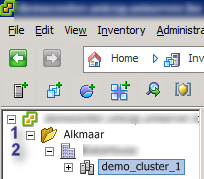
But how do you find the datastore where you want to copy files from?  Well you need to keep in mind the following two objects. The Folder, if you created one (1) and the Datacenter where the Datastore belongs to (2):

image

Now that you know the path to the datastore containing the files you want to copy. You can start PowerCLI and connect to your vCenter server. Before you continue, you need to create a temp directory to temporarily save the ISO files in. In my case this is E:\iso. The one-liner will look like this:

Copy-DatastoreItem vmstore:\Alkmaar\DataCenter\template-01\iso\* E:\iso

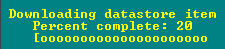
And now we wait until the files are copied to the temp directory:

image

The next step is to copy the files from the temp directory to the new datastore.

Copy-DatastoreItem E:\iso\* vmstore:\DataCenter\template-01\iso\

And we wait again:

image

How to return HP Serial Number via iLO and Powershell


Robert van den Nieuwendijk created the basis of this script and shared it on the VMware Communities. The problem I had with the original script was the default SSL certificate which HP uses on the iLO adapters. This resulted in an error and the script failed to return the XML file. So I started a search query on Google and found a post by Paul Brice who had the same problem while getting information via XML on an Iron Port setup. I tried his code to open the iLO XML information and it worked like a charm.

So I updated the script from Robert and added the information from Paul to it. The last thing I changed was the $url and added a RegEx to return the digits from the ESX hostname. For example esx72, the RegEx will return the 72.

Get-VMHost | Where-Object {$_.Manufacturer -eq "HP"} | `
Sort-Object -Property Name | ForEach-Object {
    $VMHost = $_
    $netAssembly = [Reflection.Assembly]::GetAssembly([System.Net.Configuration.SettingsSection])
    IF($netAssembly) {
        $bindingFlags = [Reflection.BindingFlags] "Static,GetProperty,NonPublic"
        $settingsType = $netAssembly.GetType("System.Net.Configuration.SettingsSectionInternal")
        $instance = $settingsType.InvokeMember("Section", $bindingFlags, $null, $null, @())
        
        if($instance) {
            $bindingFlags = "NonPublic","Instance"
            $useUnsafeHeaderParsingField = $settingsType.GetField("useUnsafeHeaderParsing", $bindingFlags)

            if($useUnsafeHeaderParsingField) {
                $useUnsafeHeaderParsingField.SetValue($instance, $true)
            }
        }
    }

    [int]$ip = (([regex]'\d+').matches($vmhost.Name) | select Value).Value

    [System.Net.ServicePointManager]::ServerCertificateValidationCallback = {$true}
    $url = "https://192.168.1.$ip/xmldata?item=All"
    $xml = New-Object System.Xml.XmlDocument
    $xml.Load("$url")
        New-Object PSObject -Property  @{
            "Name" = $VMHost.Name
            "Serial Number" = $xml.RIMP.HSI.SBSN
            "ILO Serial Number" = $xml.RIMP.MP.SN
            "ILO Type" = $xml.RIMP.MP.PN
            "ILO Firmware" = $xml.RIMP.MP.FWRI    
          }
} | Export-Csv -NoTypeInformation -UseCulture -Path C:\EsxSerialNumbers.csv 

The output of the script will be exported to a CSV file.

VMware Open Virtualization Format Tool


Download the VMware Open Virtualization Format Tool, formally known as OVF tool here. The documentation can be found here. More info can be fount on the Open Virtualization Format Tool Community.

The OVFTool works quite easy. Just open the VMware OVF Tool directory in a command prompt and run the following command:

ovftool.exe <path to vmx> <path to ovf>

The VM will be converted to OVF:

image

Continue reading “VMware Open Virtualization Format Tool”

Veeam: Instant Recovery stops with status Dismounting…


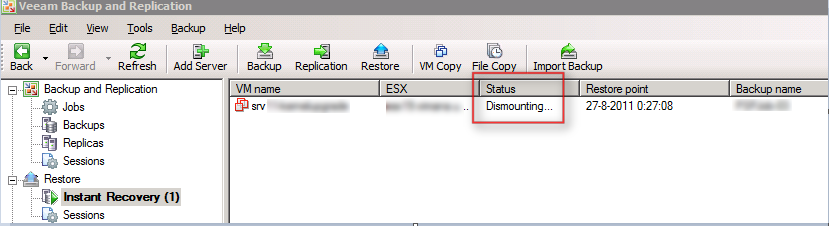
Today I was investigating an issue with Veeam Backup & Replication Instant Recovery. One of the sessions stopped with the status Dismounting…

image

in the log of this sessions it stops on Removing VM from inventory.

image

The VM was removed from vCenter so why the jobs hangs, I don’t know. So the next thing was to stop and start the Veeam Backup Service. This didn’t help either. So I tried the a System reboot but unfortunately this didn’t work either. So I started to search the Veeam Forums and found a post of someone with the same error. After reading his post I contacted Veeam support and waited for a fix?

First off all before you continue, always contact Veeam support before trying the following solution.

Continue reading “Veeam: Instant Recovery stops with status Dismounting…”

Veeam Backup Academy Certified


Veeam launched the http://backupacademy.com/ website:

Backup Academy is an educational project designed to provide the necessary knowledge you need to become a VM Backup Expert.
You can:

  • – Watch videos to expand your backup knowledge and skills
  • – Pass the Backup Academy Exam
  • – Receive the Backup Academy Certificate

You can also follow the Backup Acedemy on twitter via http://twitter.com/BckpAcademy.

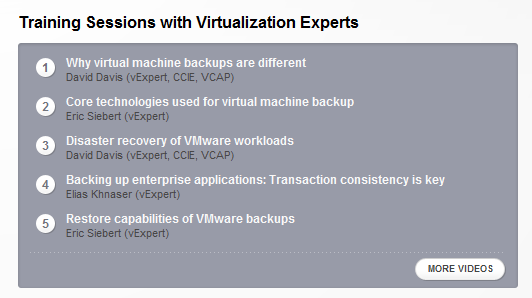
On the Backup Acedemy site you can watch some sessions presented by some of the best guys in the business:

image

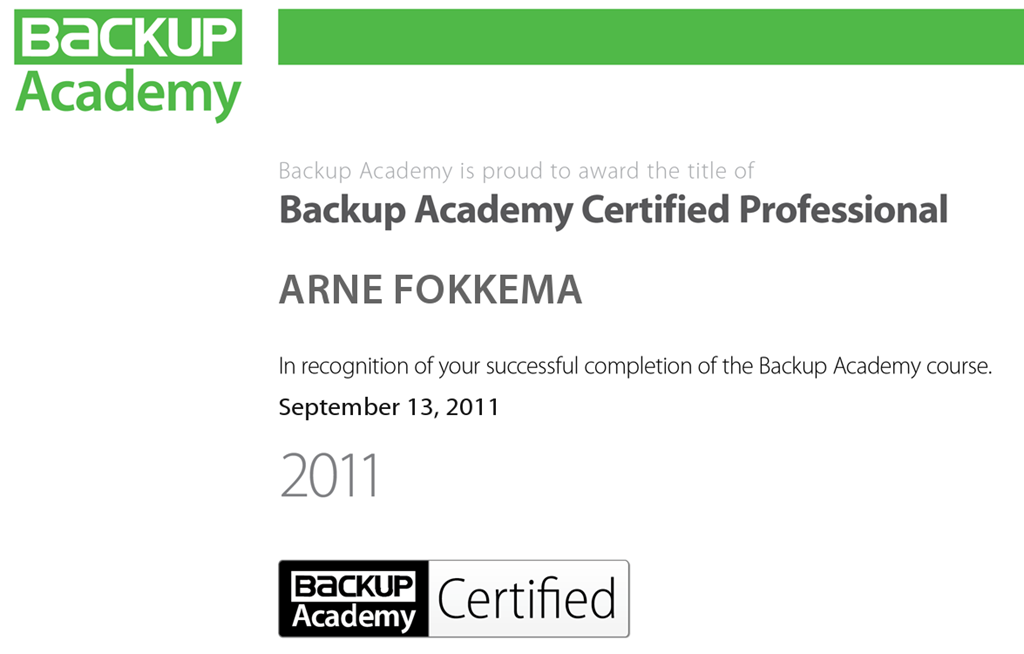
And when you think you’re ready to take the exam ,you can take the exam. You have to take 35 questions and I guess the passing score is 75%. So I took the exam during my lunch and 12 minutes later I passed the Exam Smile

image

I think Veeam did a great job by putting this website together with good information and sessions. When you’re working with Veeam Backup and Replication please take a look at http://backupacademy.com/