VMware: USB-Harddisk within the Service Console


In deze post lees je hoe je een USB-Harddisk kun aansluiten en gebruiken binnen het VMware ESX Service Console. Binnen het Service Console kun je geen gebruik maken van NTFS partities. Gelukkig kwam ik deze oplossing tegen op de blog van Mike Laverick (http://www.rtfm-ed.co.uk/)

Firstly, NTFS drives don’t appear to be mountable at Service Console. Despite the fact that normally Redhat Linux has a R/O driver for NTFS no matter what I did I couldn’t get the Service Console to recognise the partition.

1. Delete any partitions from the removable drive using Disk Management in Windows
2. Right-click the disk and select “New Partition” and follow these steps, clicking “Next” to get move on at each stage.
3. Select Primary Partition
4. Enter the maximum size for the Partition Size
6. Choose assign a drive letter. In my case I used F:
7. Select “Do not Format this partition
8. There will be a dialog box, summarising all the previous stuff.
9. Click Finish

Rather using M$ format command or tools which limit the format to 32GB, I found a format tool on the internet that allow you to break through the 32GB barrier. It’s called fat32format.exe and it can be downloaded from here:

http://www.ridgecrop.demon.co.uk/index.htm?fat32format.htm

The syntax of the fat32format command is very simple – as its the same as the standard format command namely:

fat32format

Mounting the drive at the console is very easy. Login to the Service Console as root and make a mounting point with something like mkdir /mnt/usbdisk. Plug-in the drive and read the info on the screen to see the device name for the drive such as /dev/sdk. Then mount it to the usbdisk with mount /dev/sdk1 /usbdisk.

Thanks Mike for digging this out.

Bron: http://www.rtfm-ed.co.uk/

EventID: 50 MrxSMB


Update 7 sept 2007: dit is helaas niet de oplossing voor onze omgeving.

Ik kwam deze KB tegen op de Microsoft site: KB325487


Het kan voorkomen dat je de onderstaande event melding krijgt. Ik kreeg deze net zoals mijn collega ICT-Freak Jimmy op de Citrix / Terminal Servers.

eventid50mrxsmb

Volgens deze website http://www.myitforum.com/ is de oplossing eenvoudig.

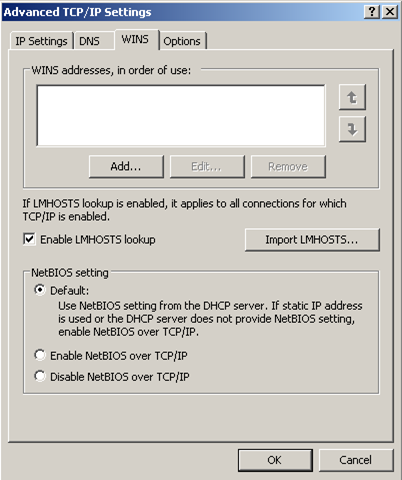
Standaard staat de WINS instelling zoals het onderstaande plaatje

defaultnetbiossettings

Als je dit aanpast zoals in het onderstaande plaatje, zou de melding niet meer mogen voorkomen.

mrxsmb_netbiossettings

bron: http://www.myitforum.com/

Tool: VI3 Snaphunter


De mannen van http://www.xtravirt.com/ hebben weer een leuke tool afgeleverd genaamd VI3 Snaphunter.

SnapHunter is an ESX3 Service Console utility which can report back on the Snaphot status of VM’s from multiple ESX Servers.  Its features include:

  • identify VM’s which contain snapshots
  • show size, date and name of snapshot
  • optionally commit snapshots
  • email reporting and scheduling

Installation instructions

  1. Upload snap_hunter.tar.gz to your ESX server using FastSCP/WinSCP or equivalent
  2. Extract snap_hunter.tar.gz by running the following command in the directory containing snap_hunter.tar.gz: tar zxvf snap_hunter.tar.gz.  This will create a directory called snap_hunter under the current directory.  Please read the README in this directory.
  3. cd snap_hunter
  4. Run the installation script with the following command ./install.pl

SnapHunter is now installed on your ESX host.


Je kunt het hier downloaden: http://www.xtravirt.com/

Registry: Java Environment for Presentation Server 4.5


Om er voor te zorgen dat je Citrix Presentation Server 4.5 kunt installeren en dan gaat het met name om de Management Console (PSC voormalig CMC). Dien je Java 1.5.0.09 te gebruiken. De laatste versie van Java is echter 1.6.0.02 dus krijg je een probleem.

Dit kun je oplossen, door de volgende registry key te importeren.

FoolPSC.reg

Windows Registry Editor Version 5.00

[HKEY_LOCAL_MACHINE\SOFTWARE\JavaSoft\Java Runtime Environment\1.5.0_09]
“JavaHome”=”C:\\Program Files\\Java\\jre1.6.0_02”
“MicroVersion”=”2”
“RuntimeLib”=”C:\\Program Files\\Java\\jre1.6.0_02\\bin\\client\\jvm.dll”

Je kunt ook de onderstaande sites bekijken, daar vindt je een script om dit probleem op te lossen.

http://blog.stealthpuppy.com/unattended/

http://support.citrix.com/forums/

How To: Setup and Configure SQL 2005 (Express)


Het volgende artikel http://technet.microsoft.com/ legt uit hoe je de setup door moet lopen. Dit spreekt echter voor zich.

Het KB artikel KB914277 legt uit hoe je remote connections in kunt schakelen.

Om even verder op KB914277 in te gaan, laat ik even een aantal printscreens zien. Tevens laat ik gelijk even zien hoe je een database aanmaakt en de daarbij behorende user toevoegd.

Continue reading “How To: Setup and Configure SQL 2005 (Express)”

How To: Unattended Windows installation DVD


Mijn collega ICT Freak Jimmy had een unattended DVD gemaakt voor Windows XP SP2 met daarop diverse software wat automatisch geïnstalleerd word. Dat laatste deed hij via batch script. Ik wil dit eigenlijk wat mooier doen en kwam uit op het RunOnceEx principe. Meer informatie hier over vindt je hier http://unattended.msfn.org/

In deze how to laat ik zien hoe je een unattended DVD maakt die automatisch software installeerd, Registry keys aanpast en vervolgens alles opschoont.

Zodra je klaar bent ziet het er als volgt uit

unattendediso1

Deze how to is geïnspireerd door de website http://unattended.msfn.org/.

Continue reading “How To: Unattended Windows installation DVD”