How to: Remove Windows Security Warning when starting *.LNK


Als je een programma wilt starten vanaf een share dan kan het zijn dat je onderstaande melding krijgt:

openfilewarning.gif

Mijn collega “ICT-Freak” Jimmy heeft hier een mooie oplossing voor.

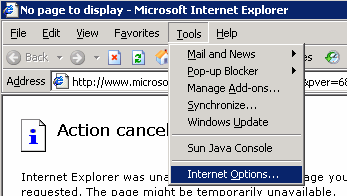
Start Internet Explorer, Tools, Internet Options

openfilewarning1.gif

Klik op Custom Level

openfilewarning2.gif

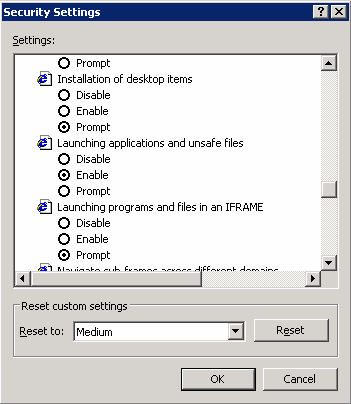
Scroll naar beneden totdat je bij Launching applications and unsafe files

Klik dan op ENABLE

openfilewarning3.gif

Dan op OK

Maar je kan ook de volgende Registry key gebruiken..

Is een Current User Key:

Windows Registry Editor Version 5.00

[HKEY_CURRENT_USER\Software\Microsoft\Windows\CurrentVersion\Internet Settings\Zones\3]
“1806”=dword:00000000

Als je de tekst tussen de balken kopieert en plakt in een Notepad en dan opslaat als een *.reg bestand dan kan je het direct gebruiken,
Onthou het is een User setting dus de gebruiker moet eerst uitloggen en dan weer inloggen voordat het effect heeft.

Hou rekening mee dat, mocht er een Group policy hier van actief zijn… die is dan van kracht en niet deze registry setting.

Patch 1 for VirtualCenter 2


quote van de VMware website:

Resolved Issues:
VirtualCenter 2.0.1 Patch 1 (Build 33643) resolves several issues and provides these enhancements:
Windows-based VirtualCenter clients and VirtualCenter Server can now perform proper SSL server-certificate verification when establishing connections.

Note that installing the updated software does not, by default, enable the feature.

For information about how to enable this new optional capability, see Knowledge Base (KB) article 4646606,” Enabling Server-Certificate Verification for Virtual Infrastructure Clients.”
Journal-file handling during rollback operations has been improved to prevent rare, erroneous deletion of VMs. If a VirtualCenter agent crashed at the end of a VM transfer, the successful completion of the transfer was not able to be recorded. A subsequent recovery step thus identified the VM on the destination host as a corrupted partial copy, and deleted it. This logic error has been corrected.

Norwegian locale name support in the English version of VirtualCenter 2.0.1 has been improved. With this update, the work-around for the English version of the 2.0.1 (described in KB article 9727453 VirtualCenter 2.0.1 Issues with Certain Norwegian Locales “) is no longer required. The CPU idle performance counter now displays with the correct label. The CPU idle performance counter had been erroneously displaying as the CPU wait perf counter. Japanese language handling for CD-ROM and other device mountpoints on virtual machines has been improved. In addition, some Japanese and German localization issues for VI (Virtual Infrastructure) clients have been resolved. Various other display improvements, including the elimination of garbled text in Event tab for Japanese localized version of VirtualCenter user interface.

Download hier de patch: www.vmware.com

How To: DCPromo Unattended


Voor het unattended installeren van Active Directory dien je een Answerfile.txt aan te maken.

De Answerfile dient er ongeveer zo uit te zien:
[DCINSTALL]
ReplicaOrNewDomain=Domain
TreeOrChild=Tree
CreateOrJoin=Create
NewDomainDNSName=ICTFreak.nl
DNSOnNetwork=yes
DomainNetbiosName=ICTFreak
AutoConfigDNS=yes
SiteName=[active directory site name (optional)];
AllowAnonymousAccess=no
DatabasePath=%systemroot%\ntds
LogPath=%systemroot%\ntds
SYSVOLPath=%systemroot%\sysvol
SafeModeAdminPassword=”admin defined offline admin account password”
CriticalReplicationOnly=No
RebootOnSuccess=yes

De bovenstaande answerfile is voor een nieuwe DC in een nieuw forest. Als je een tweede domain controller wilt installeren dien je de onderstaande answerfile te gebruiken.

Als je een tweede DC wilt installeren dien je onderstaande Answerfile.txt aan te maken:

[DCINSTALL]
UserName=Administrator
Password=”admin defined admin account password”
UserDomain=ICTFreak
DatabasePath=%systemroot%\ntds
LogPath=%systemroot%\ntds
SYSVOLPath=%systemroot%\sysvol
SafeModeAdminPassword=”admin defined offline admin account password”
CriticalReplicationOnly=no
ReplicaOrNewDomain=Replica
ReplicaDomainDNSName=ICTFreak.nl
ReplicationSourceDC=servernamedc.ICTFreak.nl
RebootOnSuccess=yes

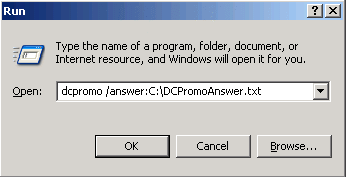
De setup start je als volgt:

dcpromounattend.gif

dcpromounattend1.gif

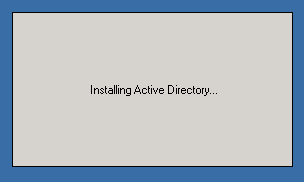
De Active Directory wordt geïnstalleerd.

dcpromounattend2.gif

En zo ziet het eruit nadat de automatische reboot heeft plaatsgevonden

dcpromounattend3.gif

Meer informatie vindt je in KB223757

Internet Explorer 7 ADM Files


When i was looking for ADM files for the brand new browser from Microsoft. I didn’t get any resources from the Microsoft website. So i had to look for myself and find the new ADM files. I was able to find the new files within the folder C:\Windows\Inf

The new files are called:

  • inetcorp.adm
  • inetres.adm
  • inetset.adm

i created a zip with the ADM files which you can download here: IE7ADM.zip

Pete attended me on the following link www.microsoft.com.
Thanks

Silent upgrade of VMware-Tools


Toen ik vandaag een VM via de VMWare Converter had geïmporteerd op mijn ESX3 server, was een de optie “Install VMware-Tools” vergeten aan te zetten. Dit houd in dat de VMware tools niet bijgwerkt worden.

Ik opende mijn VM en merkte dat deze slecht performde doordat de VMware-Tools niet gestart waren.

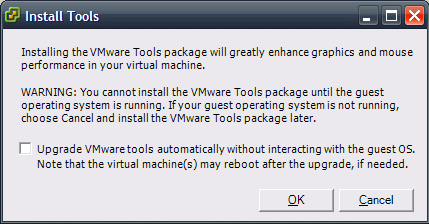
Ik gaf de optie “Install VMware-Tools” mee aan de VM en toen kreeg ik onderstaande scherm:

vmwaretoolssilentinstall.gif

Dit is een nieuwe feature in ESX3.0.1 die ik voor het eerst werkende zag.

Na een geschedulde reboot van de VM performde hij weer goed.