Citrix: SMA Service and the My Knowledge Feature


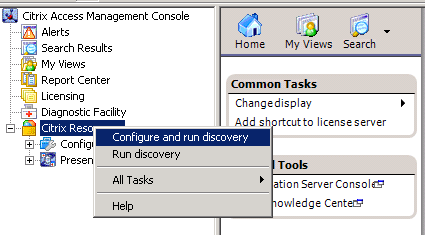
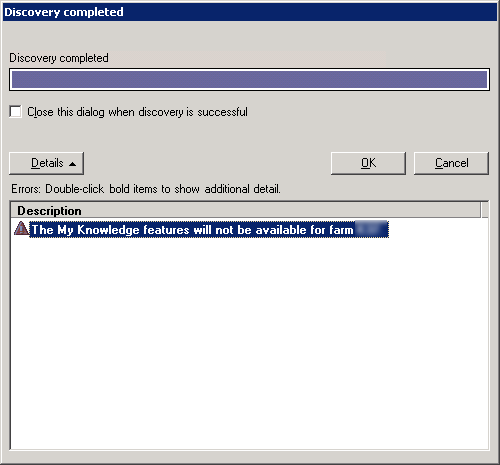
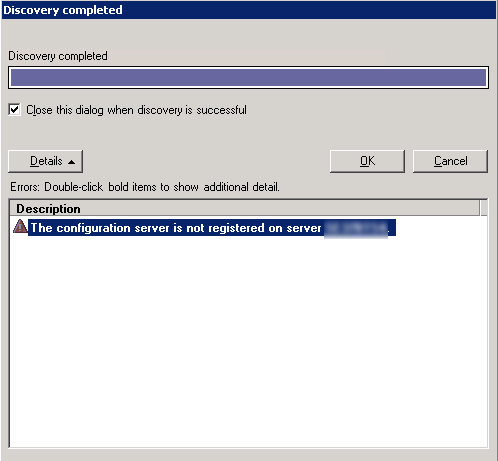
Toen ik de Access Management Console van Citrix opende kreeg ik na de Discovery de onderstaande foutmelding.
MyKnowledge

Dit komt omdat de Citrix SMA Service niet gestart was. Toen ik deze wilde starten kwam er weer een foutmelding:

Could not start the Citrix SMA Service service on Local Computer. Error 1053: The service did not respond to the start or control request in a timely fashion.

SMA_Service

Ik heb hier nog geen sluitende oplossing voor gevonden maar ik heb wel een workarround.

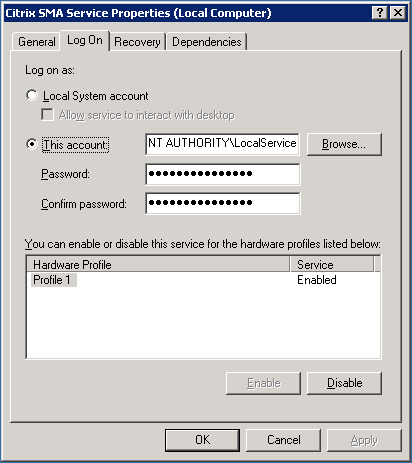
Standaard word de SMA Service gestart met het account: NT AUTHORITY\LocalService.
Citrix_SMA_Service

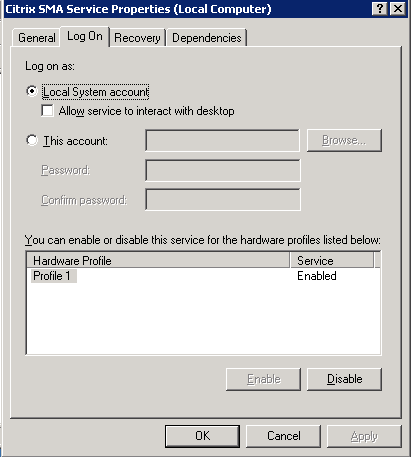
Als je het account aanpast naar het Local System account, dan start de SMA Service weer gewoon op.
Citrix_SMA_Service_1

Als éé’n van jullie deze error kent en de oplossing hier voor weet, hoor ik dat natuurlijk graag 😉

Citrix: Understanding the Access Suite Console 4.0


Citrix heeft een PDF geplubliceerd waarin de Access Suite Console nader word beschreven.

The Access Suite Console for Citrix Access Suite 4.0 is composed of snap-ins
and extensions for the Microsoft Management Console (MMC). This version of
the Access Suite Console can be used not only for Presentation Server, but also
for the License Server, Password Manager, Access Gateway Enterprise, and
Web Interface. Each suite product contains an .msi file that when installed
provides the appropriate driver extensions that are needed to snap in to the MMC
and manage the product. There is no separate login to the Access Suite
Console. The user account logged on locally is passed through with its delegated
or full Citrix Administrative rights.

De PDF kun je hier downloaden: CTX107395

Citrix: Client Drive Mappings and WebInterface


Mocht je via de webinterface werken dan kan het zijn dat je de Client Device Mappings uit wilt schakelen.

Dit kun je doen door de optie CDMAllowed=Off toe te voegen in de Default.ica. CDM staat voor Client Device Mappings. Het bestand default.ica kun je vinden in C:\Inetpub\wwwroot\Citrix\AccessPlatform\conf\.

[Application]
Launcher=WI
TransportDriver=TCP/IP
DoNotUseDefaultCSL=On
BrowserProtocol=HTTPonTCP
LocHttpBrowserAddress=!
WinStationDriver=ICA 3.0
ProxyTimeout=30000
AutologonAllowed=ON
CDMAllowed=Off

Mocht je het nu anders willen doen, dus bepaalde drives wel laten mappen maar bijvoorbeeld de C:\ en de D:\ van de client niet. Dan voeg je de volgende regels toe aan de Default.ica

[Application]
Launcher=WI
TransportDriver=TCP/IP
DoNotUseDefaultCSL=On
BrowserProtocol=HTTPonTCP
LocHttpBrowserAddress=!
WinStationDriver=ICA 3.0
ProxyTimeout=30000
AutologonAllowed=ON

CDMAllowed=On
DisableDrives=C,D

Nogmaals de bovenstaande configuratie zorgt er dus voor dat alle client drives worden gemapped, behalve de C: en de D: schijf.

Zie CTX107102 voor meer informatie.

Citrix: Discovery error "errors occurred when using <servername> in the discovery process"


Zoals altijd, een plaatje zegt meer dan duizend woorden:

In het artikel CTX112853 staat het antwoord vermeld. Deze foutmelding treed op wanneer network COM+ access niet is geïnstalleerd op de Citrix/Terminal Server. Dit is meestal het geval wanneer er geen IIS wordt geïnstalleerd op de Citrix/Terminal Server.

Dit kun je op drie manieren voor elkaar krijgen:

  1. Installeer network COM+ access  via Add/Remove Software – Windows Components – Application Server (vink deze niet aan maar highlight) Enable network COM+ access 
  2. Je kunt dit proces ook automatiseren. Zorg ervoor dat de I386 map van de Windows CD op een lokale drive staat bijvoorbeeld C:\I386. Vervolgens pas je de onderstaande tekst aan, sla je deze op als sourcepath.reg en importeer je deze

    Windows Registry Editor Version 5.00

  3. [HKEY_LOCAL_MACHINE\SOFTWARE\Microsoft\Windows\CurrentVersion\Setup]
    “SourcePath”=”C:\\”
    “ServicePackSourcePath”=”C:\\”
    Let op! zet in de Pathnaam geen i386 deze vind de setup vanzelf.

    Nadat je de bovenstaande actie hebt uitgevoerd maken het het bestand Complus.inf.

    in dit bestand komt de volgende inhoud te staan:
    [Components]
    complusnetwork = ON

    Complus.inf sla je op een schijf waar je makkelijk bij kunt.

    De laatste stap is het aanmaken van een batchfile genaamd Complus.cmd

    in dit bestand komt de volgende inhoud te staan:
    “%SystemRoot%\system32\sysocmgr.exe” /i:”%SystemRoot%\inf\sysoc.inf” /u:”driveletter:\Complus.inf”

    Sla het batchbestand op en voer deze uit. Het onderstaande scherm verschijnt heel kort en nadat deze is verdwenen is de network COM+ access geïnstalleerd.

    complus

  4. Als laatste kun je dit ook meenemen in je WINNT.SIF. Dit doe je als volgt:

    Zoek de [Components] op in je WINNT.SIF en voeg de volgende regel toe:
    complusnetwork = ON

    Nu word network COM+ access automatisch geïnstalleerd tijdens de Windows Setup.

Citrix: ICA Client 10.150


newcitrixlogo

Voordat je deze update gaat installeren, lees dan eerst even de onderstaande quote van Michael Roth:

After installing this version (10.150) of the client, you can no longer use Citrix Streaming Clients Package.msi to install the Streaming Client because the package contains an older version of Program Neighborhood Agent. Instead, use Citrix Streaming Client.msi.

Also, the version of the Citrix Streaming Client that shipped as Citrix Streaming Clients Package.msi is not compatible with Version 10.150 of the Presentation Server Client because it contains an older version of Program Neighborhood Agent. If you installed the Streaming Client using Citrix Streaming Clients Package.msi and want to upgrade to Version 10.150 of the Presentation Server Client, you must complete the following steps in order:

• Uninstall Citrix Streaming Clients Package.msi to uninstall the Streaming Client
• Install ica32pkg.msi to install Version 10.150 of the Presentation Server Client
• Install Citrix Streaming Client.msi to install the Streaming Client

Finally, know that, after installing this version of the client, you can no longer downgrade to an earlier version of the client.

Voor meer informatie zie: CTX115453 

De Admin Guide vind je hier: CTX112190

De download vind je hier: http://www.citrix.com


Bron: http://www.thincomputing.net/comment.php?comment.news.3657

Movie: CPS Troubleshooting Tools


Ruben Spruijt van PQR heeft het een filpje over de verschillende troubleshooting tools van Citrix online gezet.

Het volgende word er in behandeld.

Topics:

  • Why use Troubleshooting Utilties?
  • How do I know when I use them?

Troubleshooting scenarios:

  • Main Troubleshooting Utilities
  • Case Studies
  • Additional Resources

The total presentation has 55 slides, with useful information for every CPS Administrator.

De presentatie en de video kun je hier downloaden: http://www.virtuall.nl/knowledge/CSEIT2007CPSTroubleshootingTools.zip

Voor het afspelen van het flimpje, heb je, de volgende codec nodig: https://www.gotomeeting.com/codec


Bron: http://www.brianmadden.com/blog/RubenSpruijt/Presentation-and-Video-about-troubleshooting-Tools-for-a-Citrix-Presentation-Server-Environment

Citrix: Configure Version 10.x of the Presentation Server Client Using Group Policies


Een quote uit document CTX112957

To configure version 10.x of the Presentation Server Client for Windows using Windows Group Policies, Citrix has created a Group Policy template called icaclient.adm with 23 Citrix-specific rules used to lock down the Presentation Server Client.

These configurations are used to modify the behavior of the Program Neighborhood Agent, Program Neighborhood, and the Web client.

Use this method for client preconfiguration in lieu of modifying the .ini files on the Presentation Server Client.

Procedure

  1. The icaclient.adm template is attached to this article. To use the template, extract the .zip file and save the .adm file locally.
  2. Import the template into the Group Policy Object Editor using Active Directory Users and Computers or using the Local Group Policy snap-in.
  3. Configure the Group Policy object (GPO) rules.

Zodra je de ADM file hebt toegevoegd, kun je de verschillende zaken configureren.

citrixclientadm

Citrix: cutildll.dll is missing


Tijdens de unattended setup van Citrix Presentation Server 4.5 en de daarbij behorende consoles kreeg ik de melding dat de cutildll.dll niet meer aanwezig was. Door deze via script of handmatig te kopieren werkte het unattended script weer.

Het kopieer commando gaat als volgt:

Copy "C:\Program Files\Citrix\System32\cutildll.dll" "C:\Windows\System32\cutildll.dll" /Y

Hieronder vind je een quote uit artikel het citrix artike CTX102501:

Resolution

If cutildll.dll is found to be missing from %systemroot%\system32, copy the cutildll.dll that corresponds to the version of MetaFrame XP currently installed to the system32 directory.