VI-Toolkit: Start VM’s within a Resource Pool script.


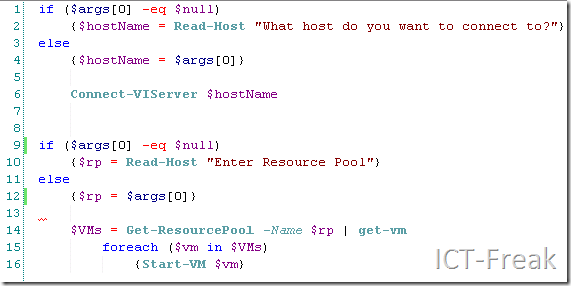
Ik ben sinds kort bezig met het bestuderen van Powershell en dan vooral met de VI-Toolkit. In mijn lab omgeving thuis maak ik bepaalde omgevingen binnen een resource pool. Ik heb bijvoorbeeld een Server 2003 lab waarin een klein Windows 2003 domain draait. Omdat ik nogal wat verschillende labs heb, maak ik voor elk lab een aparte Recource Pool aan. Om het starten van zo’n lab te versimpelen heb ik het onderstaande script gemaakt.
image

In het eerste blok van het script wordt er verbinding gemaakt met de VC Server. Via de cmd-let

Connect-VIServer de variable $hostname word gevuld d.m.v. een vraag. Dit geld ook voor de variable $rp.

Nadat de variabelen zijn gevuld en er verbinding is gemaakt met de VC Server wordt het laatste blok uitgevoerd. 


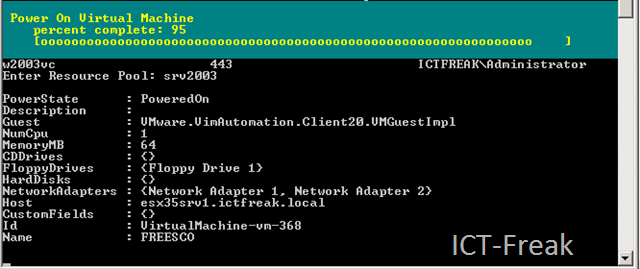
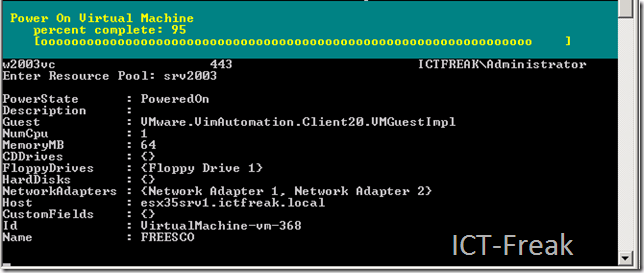
Als je dit script uitvoert vraagt hij om de volgende input:

What host do you want to connect to?: w2003vc (voer hier de naam van je virtualcenter server in).

Enter Resource Pool: srv2003 (voer hier de naam van de resource pool in).

Vervolgens worden alle VM’s die in de resource pool srv2003 zitten opgestart.
image

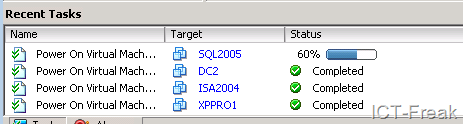
In VirtualCenter zie je ook het e.e.a. starten:

image

Om dit script te kunnen gebruiken als Shutdown script verander je de volgende regel:

{Start-VM | $vm} in {Shutdown-VMGuest | $vm} (Deze optie werkt alleen als de VMware Tools actief zijn. Je kunt ook Stop-VM gebruiken om de VM uit te zetten).
VMware: Set Soft Power Off The Easy Way


Normaal moet je uren lang klikken om de Power Controls van al je VMs aan te passen. Dit kun je ook via Powershell doen. Hugo Peeters heeft daar een blogpost over gemaakt http://www.peetersonline.nl/index.php/vmware/set-softpoweroff/. Hoe je dit script kunt gebruiken lees je in deze post.


Download Set-SoftPowerOff en sla het bijvoorbeeld op als set-softPoweroff.ps1

Start de VI Toolkit

en run het script . “D:\scripts\set-softPoweroff.ps1” Nu wordt de functie Set-Poweroff in het geheugen geladen en kunnen we het gebruiken.

Maak nu in de VI Toolkit verbinding met je VC server

Connect-VIServer “vcserver”

De volgende stap is de VMs laden

$MyVMs = Get-VM

Nu kun je in een keer alle VMs aanpassen met het volgende commando:

Set-SoftPowerOff $MyVMs

En nu even controleren of de actie is gelukt. Open de properties van de VM en ga naar de tabblad Options.

Zoals je ziet  is de shutdown optie aangepast naar Shut Down Guest:

image

Microsoft: Set Google as default search provider in Internet Explorer 7


Dit kun je doen door het onderstaande registry bestand te importeren.

Windows Registry Editor Version 5.00

[HKEY_CURRENT_USER\Software\Microsoft\Internet Explorer\SearchScopes]
“DefaultScope”=”{06652DC2-D1BD-4BD1-BACA-EC681D3E6E33}”
“Version”=dword:00000001

[HKEY_CURRENT_USER\Software\Microsoft\Internet Explorer\SearchScopes\{06652DC2-D1BD-4BD1-BACA-EC681D3E6E33}]
“DisplayName”=”Google”
“URL”=”
http://www.google.com/search?hl=en&q={searchTerms}&meta=”

[HKEY_CURRENT_USER\Software\Microsoft\Internet Explorer\SearchURL]
@=
http://www.google.com/keyword/%s

Je kunt een ook een custom ADM maken om dit via een GPO door te voeren. Hoe dit werkt lees je in KB918238

Tool: Windows PowerShell Help Tool


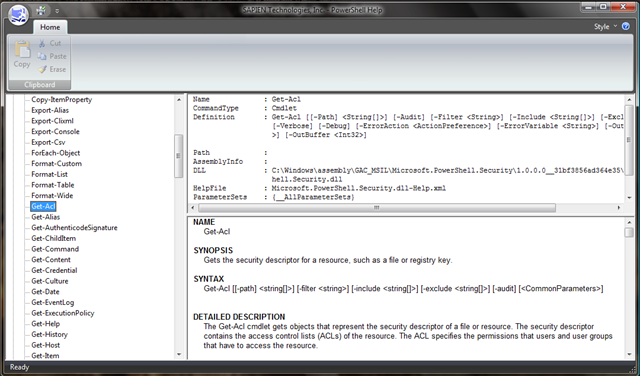
Deze tool bladert via een grafische interface door de powershell help. De powershell help kun je ook in de shell opvragen via help. Maar dit is overzichtelijker.

Displays detailed help for all PowerShell cmdlets – a convenient, on-screen reference while working in PowerShell, or when developing scripts. Note that PrimalScript 4.1 Professional, Enterprise, and Universal editions display this information in the new “Help” tab right within the product.


image

Je kunt de tool hier downloaden: http://www.scriptinganswers.com/Tools.asp

Microsoft: Firewall client 2004 Settings


image

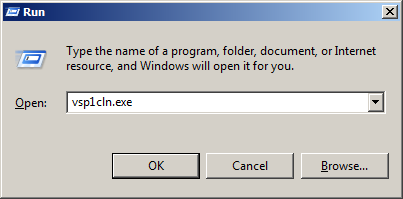
De volgende client bestanden zijn erg handig om te weten in een Firewall client 2004 setup.

Common.ini

[Common]
ServerName=ISA_1 (Proxyserver)
Disable=0 (0 = visible 1 = invisible)
Autodetection=0 (0 = disabled 1 = enabled)


Application.ini

[FW_Client_App]
Disable=0
NameResolution=R
LocalBindTcpPorts=7777
LocalBindUdpPorts=7000-7022, 7100-7170
RemoteBindTcpPorts=30
RemoteBindUdpPorts=3000-3050
ServerBindTcpPorts=100-300
ProxyBindIp=80:110.52.144.103, 82:110.51.0.0
Persistent=1
ForceCredentials=1
NameResolutionForLocalHost=L


LocalLAT.txt

ip-address from a local subnet:
10.10.0.0       10.10.255.255

De Common.ini gebruik je voor het configureren van de Firewall client. De Application.ini kun je gebruiken voor het lokaal configureren van bepaalde porten en andere settings. De LocalLAT.txt is handig om indien noodzakelijk een bepaald subnet niet naar de ISA server te sturen maar direct te benaderen. Deze optie heb ik gebruikt om de ISeries Access client (AS/400 client)  aan te praat te krijgen.

De volgende quote komt uit de technet libary van ISA 2004

These files can be created at the operating system level for all users logged on to the computer and may be created for each specific user on the computer. The per-user settings override the general configuration settings. These files are created in different locations, depending on the operating system. For example, on computers running Microsoft Windows® XP, the files are copied to two folders:

\Documents and Settings\All Users\Application Data\Microsoft\Firewall Client 2004

\Documents and Settings\user_name\Local Settings\Application Data\Microsoft\Firewall Client 2004


Meer informatie vind je hier:

http://www.microsoft.com/technet/isa/2004/help/FW_C_AdvFWSample.mspx?mfr=true

Microsoft: Server 2008 Server Manager to support WSUS 3.0 SP1


An update for Windows Server 2008 Server Manager (KB940518) has been released to integrate Windows Server Update Services 3.0 Service Pack 1 (WSUS 3.0 SP1). This update to Server Manager enables full integration of WSUS 3.0 SP1 into Server Manager, allowing installation, configuration, and management of WSUS 3.0 SP1 using the Server Manager console and wizards.

image

How to determine whether the service pack is installed

Look for Update for Windows (KB940518) in the View installed updates item or in the Programs and Features item in Control Panel. If Update for Windows (KB940518) does not appear, the update is not installed.


Installation instructions

To avoid restarting the computer, verify that the Initial Configuration Tasks, Server Manager, and the Servermanagercmd.exe process are not running during the installation process. You must also log on to the computer as an administrator to install this update.


1. On a computer that is running Windows Server 2008, download the update package from the Microsoft Web site that is listed in the “Update information” section.

2. Double-click the download package to start the Setup wizard. Follow the instructions in the wizard to complete the installation.

3. Use one of the following methods to open Server Manager:

• Click Start, right-click Computer, and then click Manage.

• Click Start, point to Administrative Tools, and then click Server Manager.

• Click the Quick Launch bar, and then click Server Manager.

Note If WSUS 3.0 SP1 is already installed on your computer, you do not have to complete the remaining steps.

4. On the Server Manager home page, click Add Roles in the Roles Summary section.

5. On the Select Roles page of the Add Roles Wizard, click to select Windows Server Update   Services from the list of available roles.

6. Follow the instructions in the Add Roles Wizard to complete installation.

More information and download locations can be found here: http://support.microsoft.com/kb/940518

Bron: http://windows2008security.com/windows-server-security/update-for-windows-server-2008-server-manager-to-support-windows/

Microsoft: Empty Device Manager In Windows XP


After upgrading to servicepack 3 in Windows XP you might get the following symptoms:

After you install Windows XP Service Pack 3 (SP3), Device Manager may not show any devices and Network Connections may not show any network connections.

This problem may occur when an antivirus application is running during the installation of Windows XP SP3.

Microsoft has created a small utility you can download here: http://www.microsoft.com/

More information about this problem can be found in KB953979

Excellent (VI) Powershell Scripts


Hugo Peeters van http://www.peetersonline.nl heeft denk ik een van de beste blogs over VMware en Powershell.

Hier een paar voorbeelden van een aantal van zijn scripts:

Voor meer scripts en zeer nuttige powershell informatie verwijs ik naar zijn blog: http://www.peetersonline.nl

Hugo, ga gerust zo door 😉

VMware: esx-configure Powershell script


As part of a larger project I’ve been working on a set of scripts which configure a freshly-installed ESX (or ESXi) system into Virtual Center (after first attempting to remove previous VC state and clean state from the host). Currently they follow a typical post-boot configuration pattern:

  1. Set ESX password
  2. Add to Virtual Center cluster
  3. Configure Virtual Switches
  4. Configure Port Groups
  5. Add NFS partitions
  6. Add iSCSI partitions
  7. Configure NTP
  8. Configure VMotion

Before trying, modify esx-master.ps1 and esx-profile.ps1 to local conditions (or your password will be set to “CHANGEME”).
Command: esx-autoconfigure.ps1 “hostname|ip-address”


check out zijn post op http://communities.vmware.com/thread/161304


Bron: http://www.yellow-bricks.com/2008/09/02/esx-vs-esxi/