Found New Hardware Wizard Loop


image

After upgrading one of my VM’s to vSphere (Hardware / VMware Tools). I get the following wizard over and over again.

image

After a search on google I found out that there are two topics on the VMware communities:

I found the following “Solution”:

I have this problem too. If you check Device Manager, you’ll probably see what I see – 32 PCI-to-PCI bridges! Sadly, there’s apparently no way to prevent Windows from showing the New Hardware Wizard if the already-installed driver is unsigned (which the Fusion beta drivers are). So just go through it 32 times.

It’s true, after installing over and over again, the wizard stops popping up :-D. The weird thing is that this “bug” only appears on one of my VM’s. So I hope it will never popup again.

Using Perfmon for accurate, ESX Performance Counters


image

Scott Drummonds created the following post:

My colleague in product management, Praveen Kannan, has been working to extend Perfmon to show some ESX performance counters. This capability is automatically installed with VMware Tools on vSphere 4. But Praveen and I have made a stand-alone version available to those of you that are still on VI3. Download it here to give it a try.
To install, place the file in an appropriately-named directory on any Windows VM on VI3. Double-click the executable, which will self-extract the files into the same directory. Run "install.bat" and you’re done.
Once you bring up Perfmon you’ll see two new performance objects on your computer: "VM Memory" and "VM Processor". These objects contain counters exposed by ESX that accurately reflect the VM’s memory and CPU usage. Here’s Perfmon on my test VM after I’ve installed the tool.

click here for more info.

PowerCLI: Inventory VM Hardware version


image

With the release of vSphere we also got a new Hardware version of the VM. I created a PowerCLI script to inventory the VM’s, which are not upgraded yet.

Get-VM |% {Get-View $_.ID} |`

% {
$vmVersion = $_.Config.Version
$vmName = $_.Name

    if ($vmVersion -eq "vmx-04"){
        Write-Host $vmName "uses hardware version 4" 
    }
}

Disconnect-VIServer -Confirm:$false


The output will look like this:

image

PowerCLI: Export VM Memory Limits to csv


image

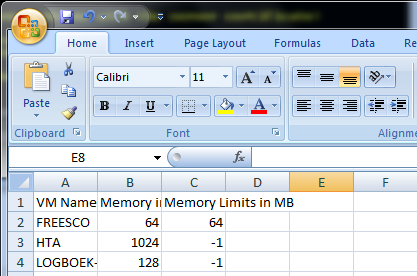
I wanted to see how the memory limits are configured in my VI3 environment. You can do this via the VIC, but you can also do it via a PowerCLI script and export it to a csv file.

Copy the script and run it. The script will ask you to enter the vCenter server and a path to save the csv file (like c:\temp\memlimits.csv).

$vCenter = Read-Host "Enter vCenter Server"
$csvFile = Read-Host "Enter csv file"

Connect-VIServer $vCenter

Get-VM | sort name | % { $vm = $_ | Get-View ; $vm | select `
    @{ Name = "VM Name"; Expression ={ $vm.Name }},`
    @{ Name = "Memory in MB"; Expression ={ $vm.Config.Hardware.MemoryMB }},`
    @{ Name = "Memory Limits in MB"; Expression ={ $vm.Config.MemoryAllocation.Limit }}`
    } | Export-Csv -NoTypeInformation $csvFile

Invoke-Item $csvFile

Disconnect-VIServer -Confirm:$false

The output will look like this:

image

Extend a Windows 2008 boot partition


image

If you want to extend a boot partition on Windows 2003 you need to use 3rd party applications to achieve your goal. I have blogged about these tools. You can find the posts here:

In Windows Server 2008, this process is a lot easier and will costs you maybe 5 minutes of your time.

Open the Virtual Machine properties, select your VMDK and change the value:

image

Wait till the task is ready:

image

Open the Server Manager, go to Storage and Rescan the disks

Screenshot - 6_11_2009 , 9_44_36 AM_reg001

Right click on the volume and click on Extend Volume.

image

Follow the wizard:

image

After a couple of seconds and a refresh in the Windows Explorer, the partition will have it’s new size.

image

More info can be found here: http://bit.ly/sOnFS

Enable HA on a mixed ESX Cluster


image

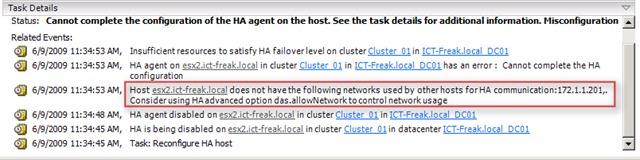
I have a mixed ESX cluster at home. One box is running ESX 3.5 the other box is running ESX 4.0. When I tried to enable HA on this cluster I got the following error:

image

The ESX 3.5 host has a second Service Console port on the Storage (iSCSI) lan. The ESX 4.0 host doesn’t need this so this is why the ESX 4.0 host got this error.

To solve this issue I created a second Service Console Port on my ESX4.0 server.

image

Now I was able to enable HA on Cluster.

PowerCLI: Set VM Startup Policy


image

Update: I added a little script block which enables the Startup Policy on the ESX Host.

If you want to change the VM Startup Order under Configuration – Virtual Machine Startup/Shutdown by hand will costs you a lot of time. So I wanted to see if I was able to script these settings with PowerCLI.

You can check the Startup Order via:  Get-VMHost |Get-VMStartPolicy |Sort StartOrder

And this is how you can see if the Startup Policy is enabled: Get-VMHostStartPolicy              -VMHost ( Get-VMHost )

image

First, I created a CSV file:

VMName,StartupOrder

DC01,1

MC01,2

VC01,3

MAIL01,4

XPMC01,5


In this CSV file, I have entered my VM’s and the startup order value. I have tested it with multiple servers and it’s possible to enter two VM’s with the same StartupOrder value if the VM’s are placed on different ESX Hosts.

The following script imports the CSV file and loops through all the items and configures the VM Startup Policy:

$vCenter = Read-Host "Enter the vCenter server name"

Connect-VIServer $vCenter

$hosts = Get-VMHostStartPolicy -VMHost (Get-VMHost)
$vms = "c:\scripts\ps\vmsStartup.csv"
$csv = Import-CSV $vms

foreach($item in $csv){
    $vm = $item.VMName
    $order = $item.StartupOrder

    $vmStartup = Get-VMStartPolicy -VM $vm
    Set-VMStartPolicy -StartPolicy $vmStartup `
        -StartAction PowerOn -StartOrder $order 

}

foreach($esx in $hosts){
    Set-VMHostStartPolicy -VMHostStartPolicy $esx -Enabled:$true
    }

Disconnect-VIServer -Confirm:$false


I created a short movie about the script in action:

PowerCLI: Get ESX version info


image

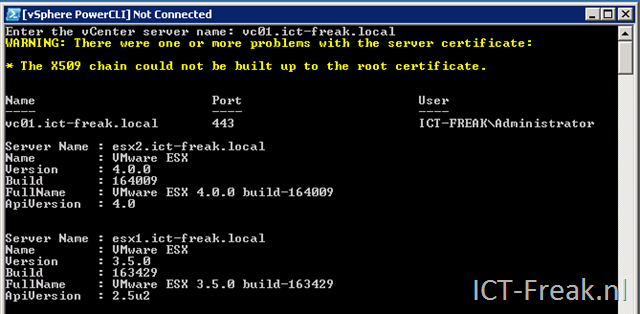
If you want a quick overview of your ESX servers, you can run the following script:

$vCenter = Read-Host "Enter the vCenter server name"

Connect-VIServer $vCenter

$vmhosts = get-vmhost * 
$vmhosts | Sort Name -Descending | % { $server = $_ |get-view; `
    $server.Config.Product | select `
    @{ Name = "Server Name"; Expression ={ $server.Name }}, `
    Name, Version, Build, FullName, ApiVersion }

Disconnect-VIServer -Confirm:$false
 

The output looks like this:

image

Add an ESX 3.x host to your vSphere Cluster


image

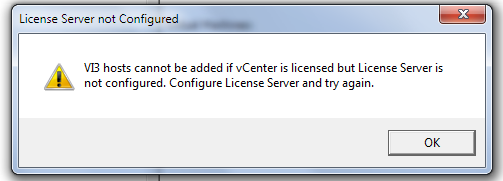
If you add an ESX 3.5 host to your vSphere Cluster,there is a change you’ll get this warning:

image

The solution is simple, you need the “old” license server running in your network. So download the “old” license server from http://vmware.com/download/vi/drivers_tools.html

image

Install the License Server for ESX 3.5 on different server than your vCenter box. I tried installing it on the same box, but it ended with a failed startup of the License server services. The installation is straight forward (read next, next, add license file, next and finish).

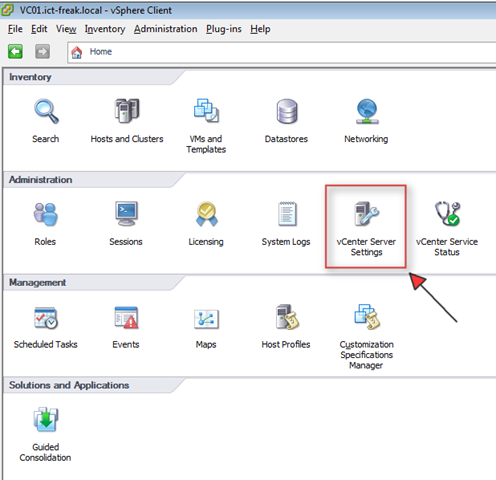
After the installation open the vCenter Service Settings option.

 image

And enter the address of your license server and press ok.

image 

Now it’s possible to add the ESX 3.5 host to your cluster.

WSUS DB and large memory consumption


image 

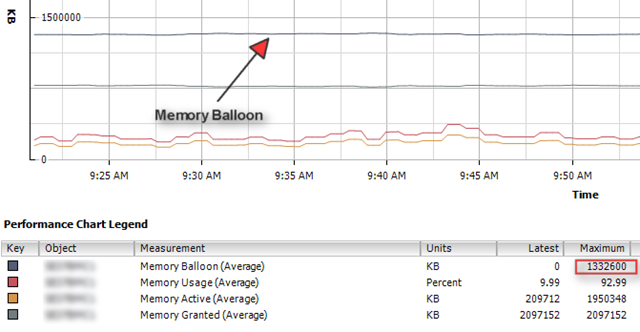
One of my VM’s is running WSUS 3.0 SP1 on the Windows Internal Database. This VM had a really high Memory Balloon value in vCenter server.

image

To verify the value above, I started a ssh session to the ESX Host and run the esxtop command. When esxtop is loaded, you can see the ballooning values if you press: v m f i

image

For more information about ballooning see Arnim his article here: http://www.van-lieshout.com 

So how can you solve the memory lurking of this VM. Well after looking around in the taskmanager, I found out that the sqlsrv.exe process was eating the memory. So after some searching on Google I found the following solution:

Open the command line (start – run –cmd) on the server with the sql 2005 express database. Go to: C:\Program Files\Microsoft SQL Server\90\Tools\Binn. Now run the following commands to limit the max memory to 256 MB:

osql -E -S <server name>\MICROSOFT##SSEE
1> sp_configure ‘show advanced options’, 1;
2> reconfigure;
3> go
Configuration option ‘show advanced options’ changed from 0 to 1. Run the RECONFIGURE statement to install.
1> sp_configure ‘max server memory’, 512;
2> reconfigure;
3> go
Configuration option ‘max server memory (MB)’ changed from 2147483647 to 512. Run the RECONFIGURE statement to install.
1> exit

Or via SQLCMD.EXE:

SQLCMD.EXE –E -S \MICROSOFT##SSEE
1> sp_configure ’show advanced options’, 1;
2> reconfigure;
3> go
Configuration option ’show advanced options’ changed from 0 to 1. Run the RECONFIGURE statement to install.
1> sp_configure ‘max server memory’, 512;
2> reconfigure;
3> go
Configuration option ‘max server memory (MB)’ changed from 2147483647 to 512. Run the RECONFIGURE statement to install.
1> exit

Sources: