VMware: ESX3i for free


virtualization.info has learned some additional details about the move:

  • VI 3.5 and ESX 3i will continue to share a the large majority of the code base (so there will be an ESX 3i Update 2). There will be no delays on the release of both products.
  • ESX 3i will continue to have the same features that has today, without additional limitations
  • ESX 3i will continue to have the same APIs, allowing anybody to develop free or commercial alternatives to VirtualCenter (despite some features like VMotion cannot be replicated because of the VMware SDK limitations).
  • VMware will not require the purchase of any software & support subscription to access the product. Customer will be able to get the code without any restriction.
  • The customers that purchased the current version of ESX 3i directly from the VMware online store will be eligible for a rebate.
  • The ESX version that includes the Console Operating System (COS) will not be faded out (at least in the short timeframe). Most VMware customers are currently using that version and the company will support them for a long time.
  • VMware Server will not be faded out (as many could suppose). The company still sees the product as a valuable proposition for a different kind of audience.


Lees de rest van het artikel hier: http://www.virtualization.info

VMware: Citrix on VMware Recommendations


Sven Huisman heeft weer een goede post geplaastst op zijn weblog.

Verron Martina from VMware dropped me an e-mail with a lot of recommendations for running Citrix in a VI3.x environment. These recommendations come from other system engineers from VMware working in the field. Thanks Verron, for sharing this.

Technical Recommendations:

  • I used the ballooning driver. Some Citrix forums will tell you not to use it but for us the ballooning driver made a complete difference.
  • Start by using only one vCPU per VM and if possible use affinity to make sure that the VM is not running on the same core as the console or another VM.
  • The sweet spot we found was to assign only 2GB to the VM and something between 30 and 40 users per VM.
  • Our target was not to beat a physical CPS server with a single VM but get more aggregated users using 2 or 3 VMs (depending on the number of cores available) with no more than 40 users per VM. Do not over commit the cores as that will lose advantage.
  • The final target for us was to demonstrate that the VMs running simultaneously on the same physical server can get a higher number of users (between 70 and 90% more) than a normal CPS installed on the same HW while user experience (keyboard-screen response times, login times, app launch times, etc) are very similar.
  • Some times we have to be patient and wait a few minutes for the VM to get steady, then the magic shows up and the VMs will surpass the physical server regarding load tolerance.
  • Regarding login times, the VM can show longer times; however, once the user is in, the VMs will look fast. Check than DNS servers are not getting messy as this is commonly the problem with long login times.
  • Make sure that the network interfaces are using fixed speed when connecting to the network, do not leave auto negotiated speeds. The best is to use 1000 mbps FULL DUPLEX. :-s
  • Use one virtual disk for Windows and CPS and a different virtual disk for Windows paging of the same VM.
  • When installing VMware tools use a custom installation and remove the shared folder feature. This is very important as Citrix seems not to like that and it is a useless feature on ESX as it’s meant for Workstation.

  • Follow VMware’s best practices for performance tuning on ESX (http://www.vmware.com/pdf/vi_performance_tuning.pdf)
  • Build your template Citrix virtual machine from scratch (don’t convert an existing physical server).
  • Use a single virtual CPU for the template vm
  • This will allow the Windows operating system in the guest to use a uni-processor HAL, as opposed to a SMP HAL, streamlining the guest operating system.
  • Configure the template vm for 2-4 GB RAM..
  • Configure separate virtual disks (VMDK files) for the operating system and the pagefile.
  • Ensure you align the NTFS partition in the VMDK prior to the Windows installation in the guest (at Netapp – http://media.netapp.com/documents/tr-3593.pdf;  at VMware – http://www.vmware.com/vmtn/resources/608).
  • Use a 64-bit Windows installation. :-s
  • Have an understanding of what an ‘acceptable’ threshold of users will be… Some customers see an increase in the number of users per Citrix instance when virtualized, some see fewer.  You should go into it with the expectation that you may get fewer users, as well as what you would like to see (ie 80% of physical or better?  70%?).


Bear in mind that even if you get fewer users per vm than in a physical environment, there are many other benefits to using virtualized Citrix servers:

Deployment:

  • One of the things many Citrix shops struggle with is their deployment process – how do we maintain an up-to-date image for the farm that incorporates the required applications and accommodates the hardware in question… rolling out Windows, including updates and patches, and the Citrix software (though this could be handled by Citrix Installation Manager).  Either way, you are maintaining server images somewhere  either through the use of a complicated installation script, or through imaging software such as Ghost.
  • Deploying a virtual machine through the use of templates is far quicker and more efficient than any other physical imaging process you might have used.  VMs can be deployed in a matter of minutes using templates.  The templates themselves can be created from existing virtual machines, and can be copied and used with VMware snapshots or SAN/NAS snapshots, giving you the ability to easily maintain a library of templates for different types of operating systems, applications, etc.

Disaster recovery:

  • Setting up a Citrix farm to failover to another site requires a large investment in hardware, and man-hours to configure the remote site to handle all the applications necessary.  Furthermore, the hardware in the remote site has to be of the same type as the primary, or your deployment strategy has to take hardware differences into account.
  • Using virtual machines, all you need to do to enable a DR site is have a copy of the required virtual machines in the remote location – hence you only need to set up the farm once, and maintain a copy of it in the remote location.  Spinning up your DR or business continuity site is a matter of ‘powering up’ the virtual machines.  VMware Site Recovery Manager may even help automate that process.

Stability:

  • Since the citrix system is accessed by users like a PC on a regular basis, a Citrix server is more prone to failure than a regular server (though, with proper maintenance, hopefully less prone than a desktop).  Server outages mean lost productivity for your users, and a significant effort in troubleshooting the problem, since Terminal Services is a good deal more complicated than a regular server.
  • To properly design for the outages we know we will have, you have to have extra capacity in the farm to handle the overflow users when one of the servers is down.  This is true for both planned and unplanned downtime.
  • VMware ESX has been recognized in the industry as one of the most stable platforms to be introduced… ever.  This means fewer outages due to host failures.  Also, since we standardize and virtualize the hardware of the guest operating systems, this holds true across different hosts, enabling your virtual machines to run across hosts from different manufacturers and chipsets.
  • See http://redmondmag.com/features/article.asp?EditorialsID=2400

Application Deployment:

  • Many Citrix shops do a good deal of work maintaining multiple images – deploying applications in ‘stovepipe’ configurations…  that is to say, multiple small groups of Citrix servers, each dedicated to a specific set of applications.  Frequently, this is due to largely due to application incompatibility.  However, it results in the Citrix admin being required to maintain several different images for the Citrix farm.
  • Even if the shop has standardized on a single Citrix image, they will not be using the company’s standard application deployment methodology…  Terminal Services is too funky with regards to application deployment, and requires much handholding.  Most Citrix shops has compeletely separate processes for packaging applications for a PC versus a Citrix server.
  • VMware ThinApp (http://www.thinstall.com) can be used to image your applications separately from the Citrix image… In fact, an application that has been packaged with ThinApp on Windows 2003 will work on Terminal Services, Citrix, Windows XP, and Vista, eliminating the need to package that application for the different platforms.  Furthermore, ThinApp includes a ‘sandbox’ to prevent applications from conflicting with each other.  You simply place the packaged application on a file share on the network, accessible to the Citrix servers (or PCs, or both), and you are done.  Your users simply execute the application from the shared directory, and they are off and running.  This results in a win-win for the customer – the ability to package an application once, and use it for either a PC environment or a Citrix environment.

Bron: http://virtualfuture.info/2008/07/citrix-on-vi3x-recommendations/

Building a OVF Repository with IIS 7.0


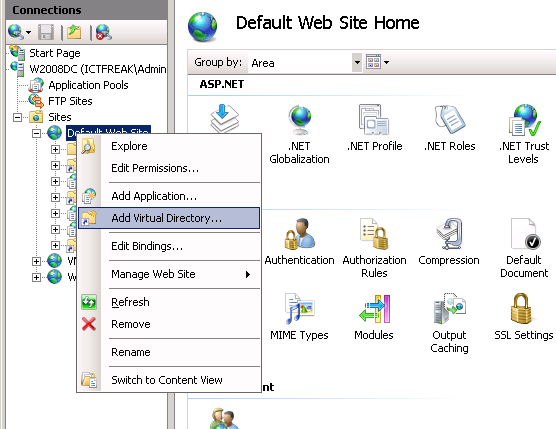
open de IIS management Console via Start – Run – inetmgr daarna voeg je een nieuwe Virtual Directory toe.

OVF_IIS7_1

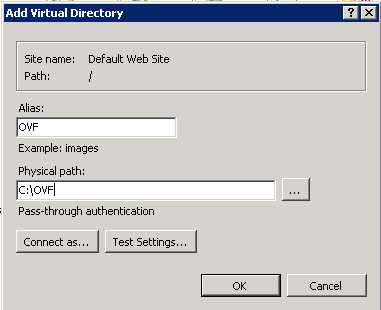
In mijn geval heb ik deze OVF genoemd en geeft het pad op naar de directory.

OVF_IIS7_2

Daarna moet je Directory Browsing inschakelen, anders gaat het helaas niet werken.

OVF_IIS7_3

Je kunt nog wat logging inschakelen.

OVF_IIS7_4

Als laatste moeten er nog een drietal MIME types worden toegevoegd:

  • .mf application/vmware
  • .ovf application/vmware
  • .vmdk application/vmware

OVF_IIS7_5

Vanaf nu kun je via de import wizard van VMware Workstation 6.5 beta 2 en VI 3.5 de appliances direct importeren d.m.v. een url die naar je OVF repository. Bijvoorbeeld http://iisserver/ovf/appliance.ovf

VMware: VMware Workstation 6.5 beta 2 Bin Hack


JHMJONG heeft de nieuwe bin hack op het vmug forum geplaatst.

Standaard wordt er een logfile bijgehouden voor de Beta versie waardoor het systeem traag wordt (CPU). In de directorie c:\program files\vmware\vmware workstation staat het vmwareproces onder de naam vmware-vmx-debug.exe.
-Rename deze file
-Copieer vmwware-vmx.exe naar vmware-vmx-debug.exe.

Jan bedankt voor het uitzoeken!


Bron: http://vmug.nl

VMware: Create an OVF appliance with Workstation 6 beta 2


In deze post laat ik zien hoe je een virtual appliance kunt aanmaken via de conversion wizard binnen Workstation 6.5 beta 2

Start de wizard op en selecteer de VM die je wilt omzetten. In “Step 2: Destination” kies je voor de optie Virtual Appliance (VA).
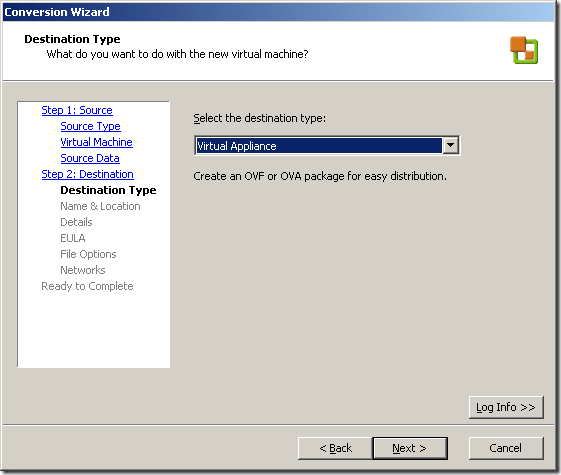
WS65_Create_OVF_1

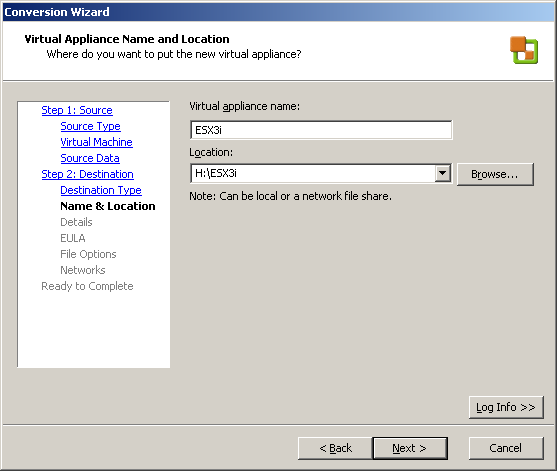
Geef een naam op en de plaats waar je de VA wilt plaatsen

WS65_Create_OVF_2

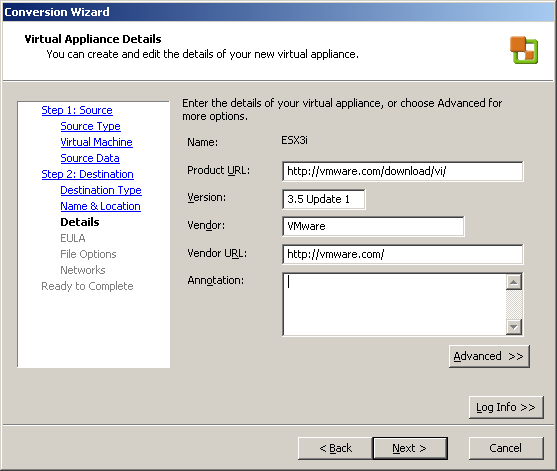
In het volgende scherm kun je wat extra informatie meegeven.
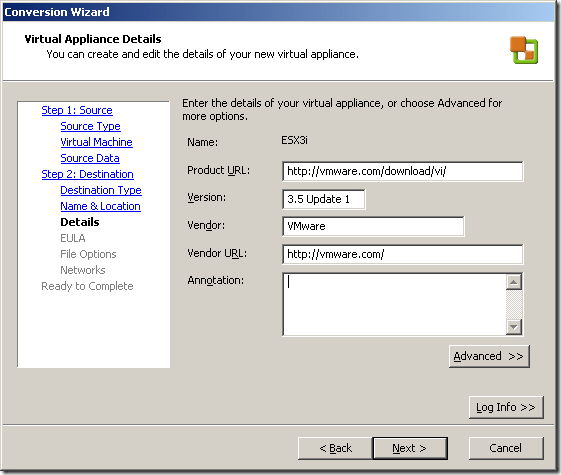
WS65_Create_OVF_3

En als je dat wilt kun je een license file toevoegen. Ik heb als test even een txt file toegevoegd.
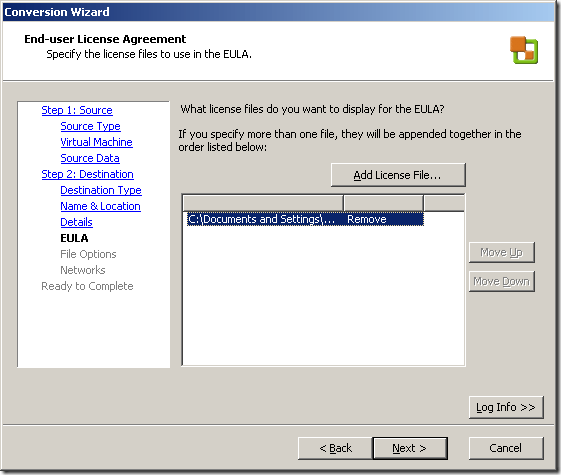
WS65_Create_OVF_4

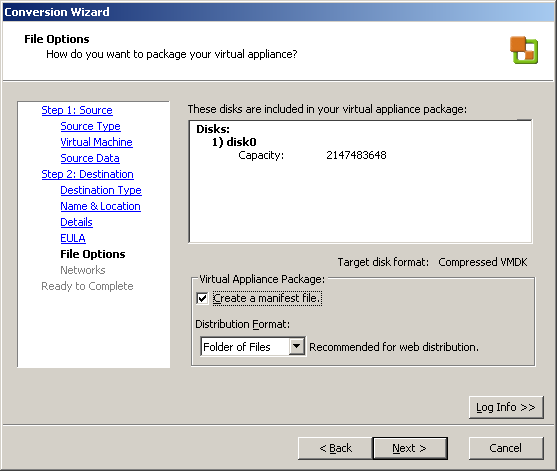
In het volgende scherm kun je nog een keuze maken wat betreft het Distribution Format.
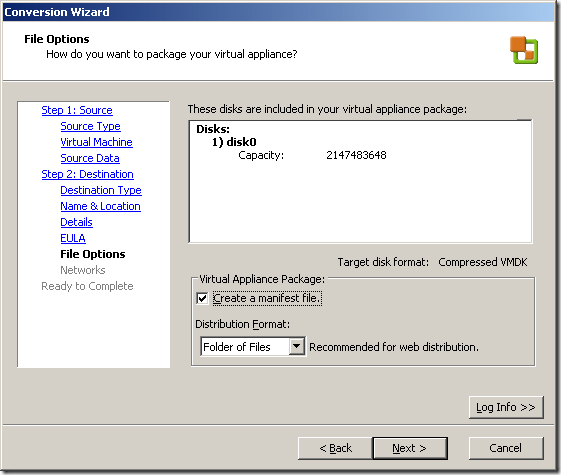
WS65_Create_OVF_5

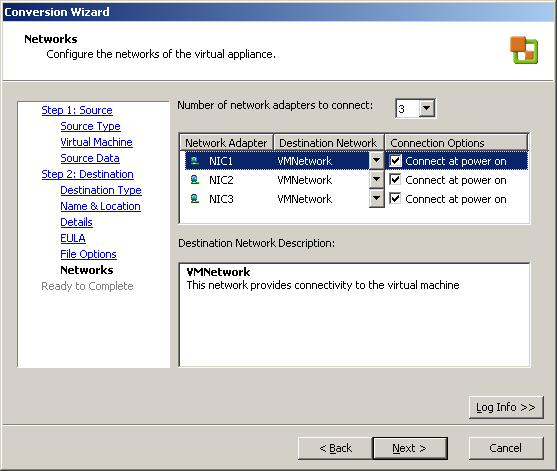
Als laatste kun je de VNics configureren.
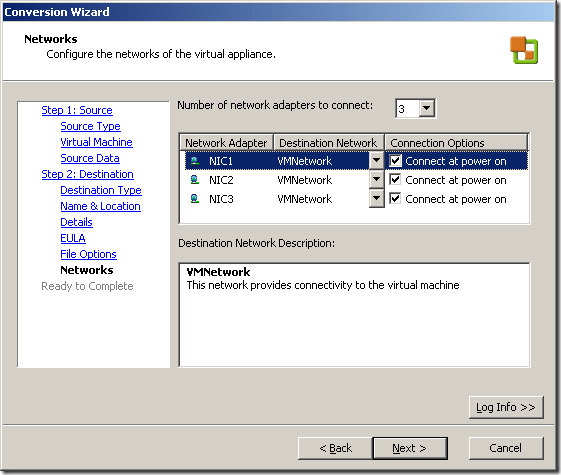
WS65_Create_OVF_6

En als laatste vind je een overzicht van alle settings.
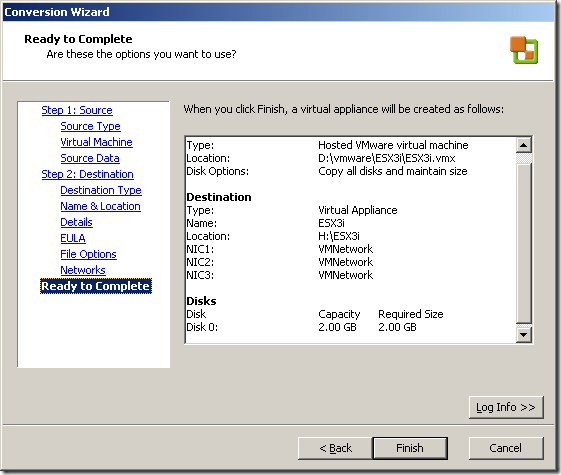
WS65_Create_OVF_7

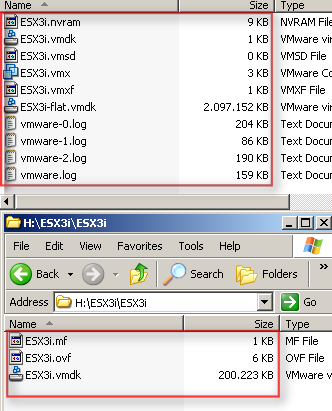
in het onderstaande plaatje zie je het verschil in grootte. De VM heeft een VMDK van 2GB de VA heeft een VMDK van 200MB. Zo kun je de master “template” VM’s in een klein formaat wegschrijven.
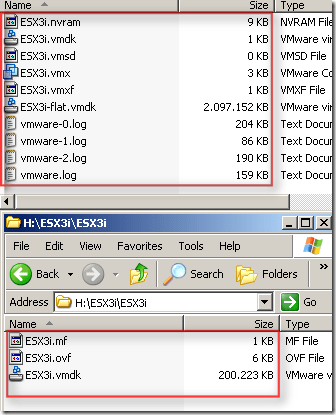
WS65_Create_OVF_8

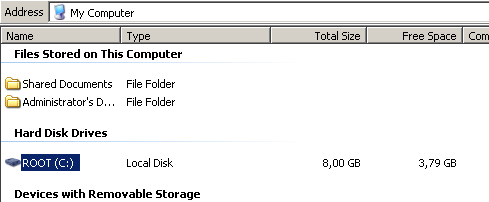
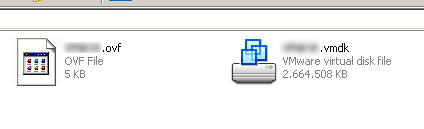
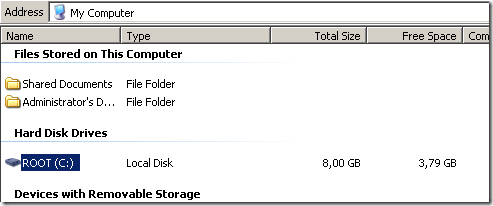
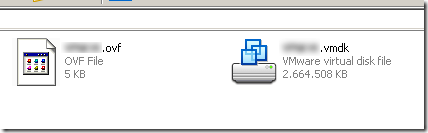
Als test heb ik ook nog een Windows XP VM omgezet naar OVF. Deze VM heeft een VMDK van 8GB.

Binnen Windows ziet het er als volgt uit:
image

Na de conversie ziet het er als volgt uit:
image

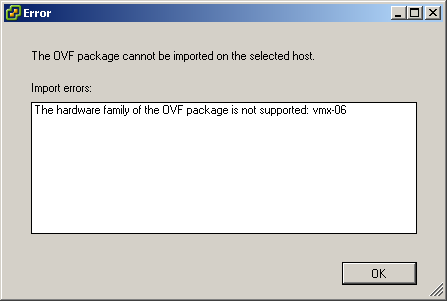
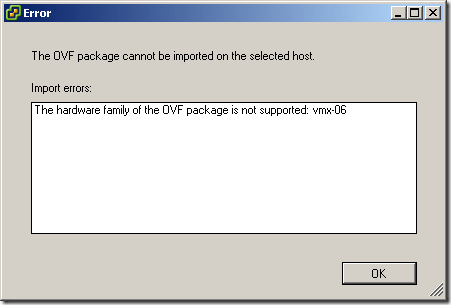
Er is echter een nadeel. Als de VM en de daarna gemaakt OVF’s is aangemaakt met WS 6.5. Kun je niet gebruiken in VI 3.5. Zie de onderstaande foutmelding:
image

Dit kun je oplossen door de volgende post na te lopen. Het komt er op neer dat de hardware version te hoog is van de VM. Als je deze downgrade naar version 5 werkt het wel.

VMware: Workstation 6.5 importing a OVF virtual Appliance


In de beta 2 van VMware Workstation 6.5 zit er een nieuwe import optie in de Converion Wizard. Het gaat hier om het importeren van een OVF vm. Voorheen moest je knoeien met een Java applicatie (zie deze post).

WS65_OVF

Kies voor de optie Virtual Appliance.

WS65_OVF_1

Daarna open je het OVF bestand van je harddisk of via een URL.

WS65_OVF_2

In het volgende scherm zie je wat details van de appliance.

WS65_OVF_3

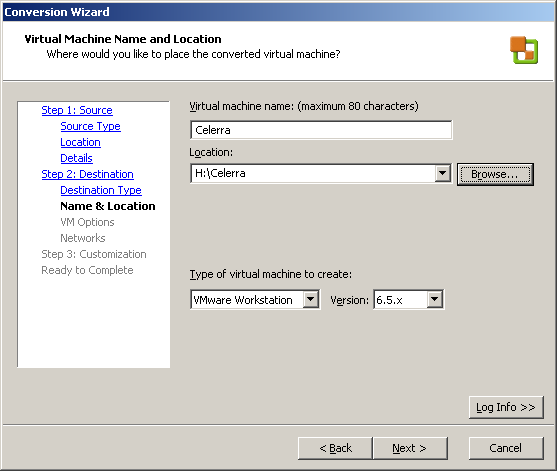
Geef de VM een naam en de locatie waar deze moet komen te staan. Verder kun je in dit scherm de virtual Machine version opgeven.

WS65_OVF_4

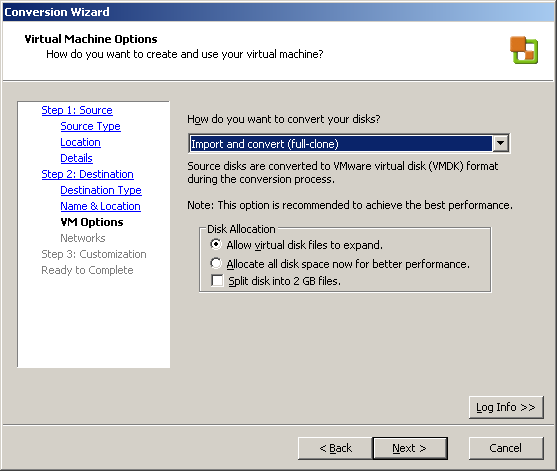
Maak een keuze voor de conversie

WS65_OVF_5

De opdracht wordt uitgevoerd.

WS65_OVF_6