VMware: Portability between VMware Workstation and VMware Server


Om VM’s die gemaakt zijn in Workstation 6 of hoger te kunnen gebruiken in VMware Server. Moet je de de Hardware version aanpassen.

Dit gaat als volgt. Open de VM in Workstation (versie 6 of hoger) en klik rechts op het tabblad. Daarna klik je op ‘Upgrade or Change Version…’
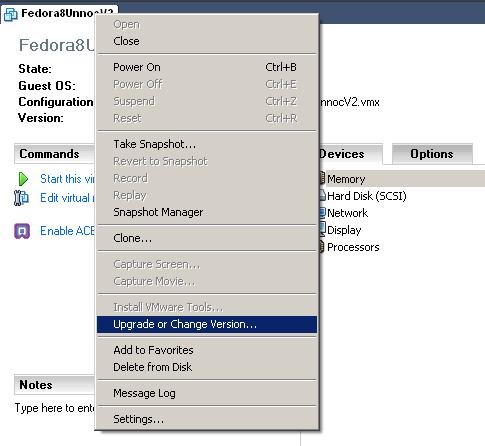
Change_VM_Hardware_Version

Zoals je ziet is deze VM gemaakt voor Workstaion 6. VMware Server (1.0x) kan hier niet mee overweg.

Change_VM_Hardware_Version_2

Pas deze aan naar ‘Workstation 5’.

Change_VM_Hardware_Version_3

Daarna kun je uit de volgende opties kiezen. Ik pas de huidige VM aan.
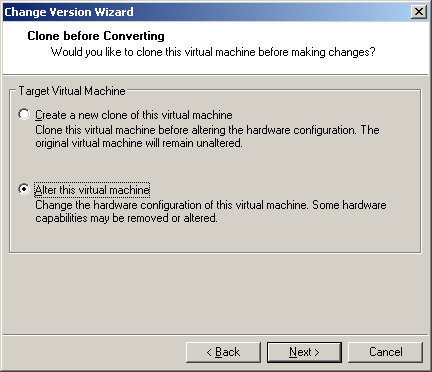
Change_VM_Hardware_Version_4

Change_VM_Hardware_Version_5

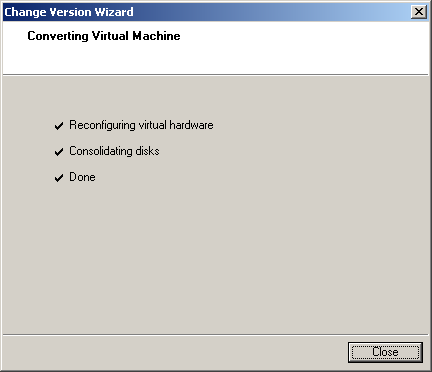
De conversie wordt uitgevoerd.

Change_VM_Hardware_Version_6

Nu kun je de VM kopieren naar VMware Server en opstarten.

VMware: The DB user entered does not have the required permissions


Bij het vers installeren van VirtualCenter 2.5 kreeg ik bij het configureren de volgende foutmelding:

image

Dit kwam omdat ik bij de gebruiker in SQL 2000 geen ‘Server Roles’ had toegevoegd. De volgende Roles heb je nodig voor een succesvolle installatie:

  • System Administrators
  • Server Administrators
  • Database Creators (ik weet niet zeker of deze erbij moet, dit heb ik voor de zekerheid gedaan).

sql_rechten

Meer informatie over het installeren / upgraden van je VC Database vind je hier:

VM ID: 1003346

VM ID: 1003610

VMware: Installing ESX3i in Workstation 6.5 beta build 91182


Na Eric zijn post over het installeren van ESX3.5 update 1 binnen VMware Workstation 6.5 beta. Wilde ik het ook weer eens proberen.

Als eerste maak je een VM aan in Workstation :

  • Als Guest operating system heb ik gekozen voor Red Hat Enterprise Linux 3
  • Mijn VMDK is 2GB en hangt aan de standaard LSI adapter
  • 1GB geheugen
  • CD-Rom drive
  • Single vCPU
  • 3x Intel 1000 nics (verderop lees je hoe je dit configureerd).


Nadat de VM is aangemaakt open je het vmx bestand en voeg de onderstaande parameters toe:

ethernet0.present = “TRUE”
ethernet0.wakeOnPcktRcv = “FALSE”
ethernet0.virtualDev = “e1000”
ethernet1.present = “TRUE”
ethernet1.wakeOnPcktRcv = “FALSE”
ethernet1.virtualDev = “e1000”
ethernet2.present = “TRUE”
ethernet2.wakeOnPcktRcv = “FALSE”
ethernet2.virtualDev = “e1000”

monitor.virtual_exec = “hardware”
monitor_control.restrict_backdoor = “true”


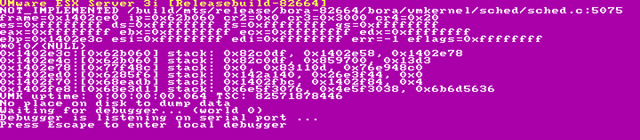
Ik wilde vervolgens ESX3i installeren en dat ging niet helemaal goed zoals je ziet:

image

Dit kwam omdat ik geen netwerkverbinding had op mijn host op het moment van installeren.

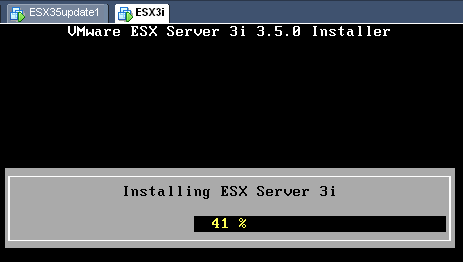
Nadat ik weer netwerkverbinding had met mijn host, kon ik ESX3i gewoon installeren.

image

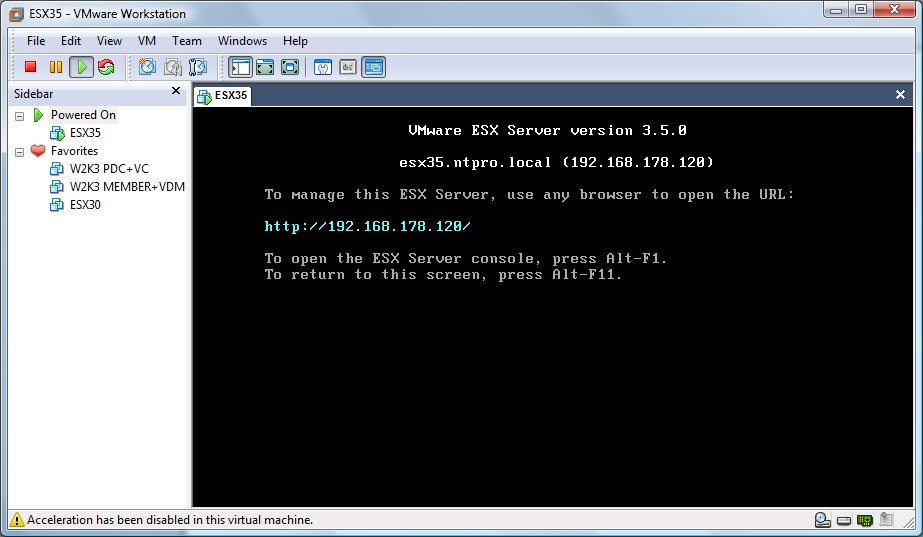
VMware: ESX 3.5 running on Workstation 6.5 Build 91182


Wat het belangrijkste nieuws is, lees je inde volgende quote:

I contacted Keith Adams, he’s one of the WS 6.5 engineers and asked him he could confirm that we can use ESX 3.5 in the lasts build of VMware Workstation 6.5 and he confirmed :

Indeed, we’ve changed the nomenclature around. It’s now:
monitor.virtual_exec=”hardware”|”software”|”auto”
(Note: monitor, not monitor_control.)

For all guest os types:
hardware = VT on Intel, SVM on AMD
software = BT for all 32-bit guests, and on BT-capable 64-bit AMD hardware for 64-bit guests as well
auto     = Let us guess what to do (the default).

Lees de rest van zijn post hier.

Thanks Eric!

Tool: VMNetBac


Ik kwam bij toeval deze tool tegen. Met deze tool kun je het volgende doen:

VMNetBac is a handy little utility which allows you to backup and restore the network configuration of your VM’s.  Designed for Windows 2000, 2003 and XP VM’s it can be useful as a quick recovery tool when performing intrusive or mass upgrade type tasks where there may be a risk of losing network configurations.

Usage:

Run the attached script in the zip file. A file in the root of the C drive is created, called IPINFO.VBS. This file contains the network adaptor information (IP address, Subnet, Gateway, DNS Servers, WINS Addresses);

If for any reason you lose your network configuration, either by VM hardware upgrade moving from ESX2 to VI3, general migration or ‘just-one-of-those-things’ type events then simply run the IPINFO.VBS file and the network configuration will be restored, including IP Address, Subnet Mask, Gateway, DNS and WINS addresses. The Hardware Acceleration for the SVGA adaptor is also reset to full in case the VM lost its configuration through a VMware Tools operation.

Restrictions:

– Only works with one VMware NIC

– Only support up to 2 WINS and 2 DNS Server addresses


De tool kun je hier downloaden: http://www.xtravirt.com

VMware: VirtualCenter Database Performance for Microsoft SQL Server 2005


VMware® VirtualCenter uses a database to store metadata on the state of a VMware Infrastructure
environment. Performance statistics and their associated stored procedure operations constitute the largest
and the most resource‐intensive component of the VirtualCenter database. Hence the performance of your
VirtualCenter database depends upon the frequency at which you collect performance statistics and the level
of detail of the statistics you store. VirtualCenter 2.5 features a number of enhancements that are aimed at
greatly improving the performance and scalability of the performance statistics operations in the
VirtualCenter database. The purpose of this study is to present the performance results of tests we conducted
to validate these performance enhancements and to provide best practices information for configuring a
VirtualCenter database. The study also provides information for sizing the server you use to host the
VirtualCenter database based on these performance results. Although the new features in VirtualCenter 2.5
benefit users with any of the supported databases, the examples and performance data presented in this study
are specific to Microsoft SQL Server and the paper assumes that you have a working knowledge of SQL Server.

This study covers the following topics:

  • “VirtualCenter 2.5 Database Overview” on page 2

  • “Performance Statistics Collection in VirtualCenter” on page 2

  • “Performance Statistics Database Operations and Their Effects on Performance” on page 3

  • “Performance Enhancement in VirtualCenter 2.5” on page 3

  • “Performance Tests” on page 4

  • “Performance Results” on page 5

  • “Sizing the VirtualCenter Database Server” on page 7

  • “Performance Best Practices” on page 8

  • “References” on page 9

  • “Appendix A: Configuring Performance Statistics Levels and Rollups with VirtualCenter” on page 10

  • “Appendix B: Configuring Memory Size for SQL Server” on page 11

  • “Appendix C: Monitoring

  • Je kunt de whitepaper hier downloaden: http://www.vmware.com/files/pdf/vc_database_performance.pdf

    Event: VMUG meeting at NetAPP


    Netapp_Logo

    Tijdens het VMUG Event 2007 afgelopen December is aangekondigd dat er gedurende 2008 een aantal kleinere sessies georganiseerd gaan worden. Inmiddels is het zover. De VMUG heeft NetApp bereid gevonden deze bijeenkomst te sponsoren en te organiseren. Jullie zijn op donderdag 5 juni uitgenodigd op de lokatie van NetApp op Schiphol. De meeting begint rond 16:00 en zal eindigen om 19:00.

    Let op: Om bij deze meeting aanwezig te zijn moet je je inschrijven!

    Klik hier voor meer informatie


    Ik ben erbij, dus tot dan 😉