Tool: Screenshot captor


Screenshot Captor is a program for taking screenshots on your computer. It’s different from other screenshot utilis in several notable ways:

  • Optimized for taking lots of screenshots with minimal intervention.
  • Smart autonaming of files, and ability to embed textual comments in files.
  • Good multi-monitor support.
  • Highly configurable to make it work the way you want it to; stays out of your way in the system tray.
  • Lots of capture modes: Multimon (multiple monitors), Desktop, Active Window, Region, Windows Object. Each mode has a hotkey for quick access.
  • Unique Cool Effects, including automatic active window enhancement (see pictures below).
  • Unsurpassed support for 3rd party user configurable tools, including file browsers and image editors; extend the program to do whatever you need by interfacing it with other programs.
  • Slimline sidebar file browser provides full shell operations.
  • Optional automatic image file versioning.
  • Seamless integration with Unicode Image Maker tool.
  • – Automatically finds boundaries of non-rectangular/themed windows.
  • – Autoscroll capture for windows too big for screen.
  • – Deluxe thumbnail maker.
  • – Quick PostCapture PopUp Dialog.
  • – Quick Screenshot Emailer Menu.

Download de tool hier: http://www.donationcoder.com/


Bron: http://4sysops.com/

VMware: Scripted installations


Ik ben de laatste tijd nogal bezig met het maken van een scripted installation voor VI3 (ESX 3.0.1). Ik maak hiervoor gebruik van UDA 1.4 welke je hier kunt downloaden: mirror 1: chaz6.com mirror 2: itservices.ne-worcs.ac.uk

Op de website van rtfm education vindt je meer informatie over uda: http://www.rtfm-ed.co.uk/.

Op http://www.vmware.com/community/ is nu een topic aan de gang over scripted installations. Hier vindt je vele handige scripts en add-ons voor je kickstart template.

happy scripting 😉

Windows / Citrix: Damaged Quick Launch Bar


Ik kreeg een melding dat er bij sommige gebruikers de Quick Launch bar verdwenen was. Nadat ik het register aan het doorpluizen was kwam ik de Volatile Environment tegen. Omdat ik op een Terminal / Citrix server bezig was moest ik in de HKEY_USERS node in het register kijken. Als e deze opent zie je alleen maar SSID strings. Deze kun je omzetten naar naam met de volgende tool: SidToName.exe deze tool kun je hier downloaden: http://www.joeware.net/.

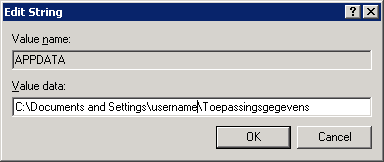
Nadat ik de juiste user gevonden had zocht ik de Volatile Environment op. Daar zag ik tot mijn verbazing dat de APPDATA waarde was aangepast naar:
volatileenvironment1.gif

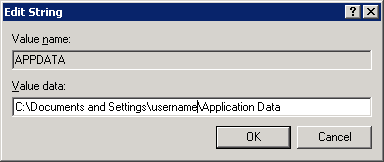
Dit moet zijn:

volatileenvironment2.gif

Ik ben er nog niet achter wat dit veroorzaakt heeft. Om dit probleem snel op te lossen heb ik het terminal services profile van de desbetreffende gebruiker verwijderd.

Meer info over de Volatile Environment vindt je hier: KB824898

Tool: VCplus


Richard Garsthagen heeft weer een fantastische tool gemaakt (waar haalt hij de tijd vandaan) genaamd VCPlus. Hieronder vindt je een overzicht van de features:

# Displays disk usage of each Virtual Disk (seen from within the VM)
# Shows if a Virtual Machine has a snaphot
# If a Virtual Machine has a snapshot, it show the total size of the snapshot disk files
# Allows you to sync the DNS name of the VM to the Display Name of the Virtual Machine

De volgende features komen er in de toekomst nog bij:

warning field that will tell you if a VM is running out of disk space or is a snapshot file is getting too big. These warnings will also be able to be emailed to you.

De tool in actie:
vcplus.gif

Download de tool hier: VCplus.zip


Bron: http://www.ntpro.nl/blog

How to: Disable the GoogleToolbarNotifier


Info over de GoogleToolbarNotifier vindt je hier: http://www.bleepingcomputer.com/

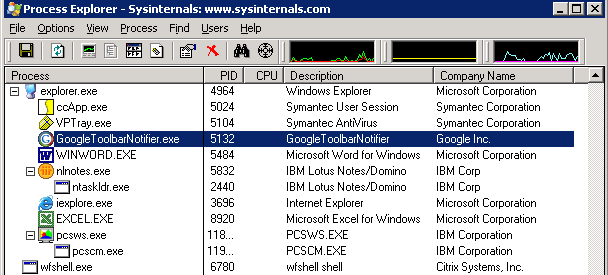
De GoogleToolbarNotifier wordt in elke sessie gestart via de HKCU- Run key. Zoals je ziet in in Process Explorer van Sysinternals:

googletoolbarnotifier.gif

Via de volgende kix code kun je de runkey laten verwijderen en start de GoogleToolbarNotifier niet meer op.

;* Disable GoogleUpdater
DelValue(“HKEY_CURRENT_USER\Software\Microsoft\Windows\CurrentVersion\Run”, “swg”)
If @error = 0 $LogItem = Log(“De GoogleToolbarUpdater is uitgeschakeld.”,$LogFile) EndIf

Script: VMware ESX3 Patch downloader


Introduction
————
Instead of downloading ESX 3 patches individually this application automatically batch downloads patches for you and can be used repeatedly to maintain your local patch repository.

This utility is designed for Windows XP, Vista and Server 2003 but may work on other Windows Operating Systems.

No support is provided for the utility but we will endeavour to reply to email requests for assistance.

Instructions
————

1. Unzip all the zip file contents in to a folder on your PC

2. Open an internet browser and navigate to http://www.vmware.com/download/vi/vi3_patches.html#c4310

3. Select the patches you want to download by selecting the text and copying it to your clipboard, eg: Ctrl + C. You can select all the patches if you want, or just some of them. You don’t need to be particular about the tidying up any uneeded text as the application filters the patch names to correctly identify them.

4. Once you have made you selection, paste the selection in to the textfile.txt file which is already included.

Note: the textfile provided is current to 12 April 2007 for all VMware ESX 3.0.1 patches and will work correctly as it is.

5. Save the file, and then double-click the VIPatchDownloader-v100.vbs file to start downloading your patches (ensure you have an internet connection before you start). You will be prompted where you wish to place the patches and the application will create a new folder called ‘VIPatches’. Make sure you have sufficient rights to create files in the destination location that you choose. A progress window will appear but it may take a few moments to initialise after you’ve selected the destination so please be patient. Patches are downloaded sequentially.

Note: closing the progress window part way through patch downloading will not stop the application. It will continue to complete the selected downloads unless you end the wscript.exe process through Windows Task Manager and close any open download screens.

6. Once the downloads are complete the progress window will advise and then close after 5 seconds.

HTTP Proxy
———-
To use wget through a proxy you must first create an environment variable. Type the following at the Windows command prompt:

set http_proxy=http://proxy.example.com:8080

Replace proxy.example.com with your actual proxy server and replace 8080 with your actual proxy server port.

Download het script hier: http://www.xtravirt.com/

Hier zie je het script in actie:

esxpatchdownloadscript.gif

VMware: Redo files (Snapshots) and Active Directory


Om even een punt aan te wakkeren met betrekking tot de discussie over het virtualizeren van een Domain Controller (vanaf nu DC red.) de volgende post. Redo files / Snapshots en DC’s. Toevallig had ik gisteren de nare ervaring van een redo file die afgelopen vrijdag gecommit werd met oude data. Je raad het al de desbetreffende DC was corrupt.

Even de voorgeschiedenis over hoe dit ontstaan is.

VMBK zoals het hoort

VMBK.pl word gestart. Deze maakt een redo file aan zodat er een hot backup plaats kan vinden.

vmbkredo.gif

Nadat de backup klaar is, wordt de redo file gecommit en worden alle wijzigingen die op het moment dat de redo file actief is, samengevoegd met de data op de vmdk. De data uit de redo file krijgt voorang op de data die al op de vmdk staat.

vmbkredo1.gif

Redo file als het mis gaat

In mijn geval was de vmbk.pl job blijven hangen. Door gebrek aan tijd kon ik de log files niet nakijken en kwam ik er pas afgelopen vrijdag achter. Nadat ik de ESX server (2.5.4 patch 4) opnieuw opgestart had ging de back-up job gewoon weer aan de slag die nacht. Maar wat er volgens mij gebeurd is nadat de backup klaar was, heeft vmbk de redo file gecommit die al meer dan week oud was. Balen want het was mijn eerste DC welke alle FSMO roles had etc.

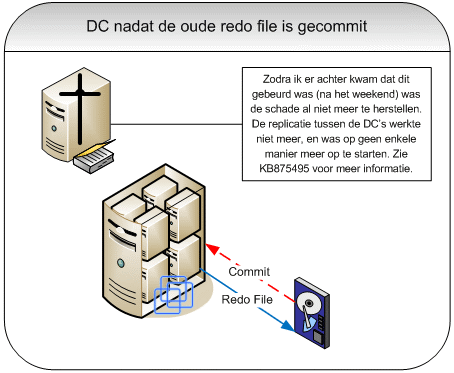
Zoals je in het volgende plaatje ziet wordt de oude redo file gecommit.

vmbkredo2.gif

En het gevolg is dat de DC corrupt raakt.

vmbkredo3.gif

EventID’s op de DC

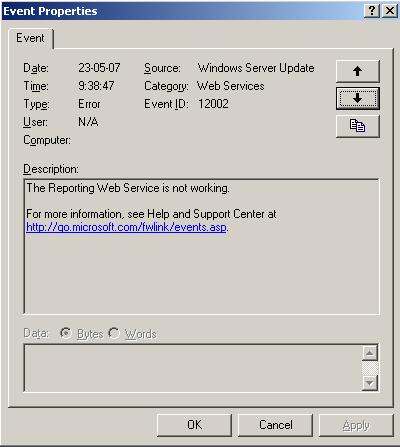
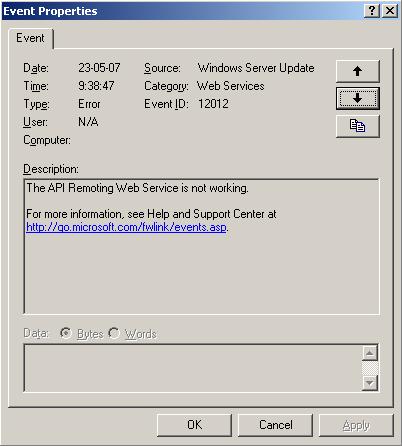
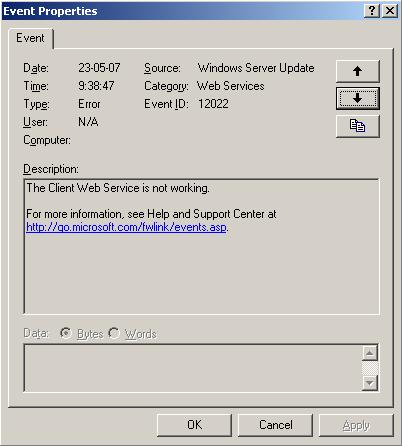
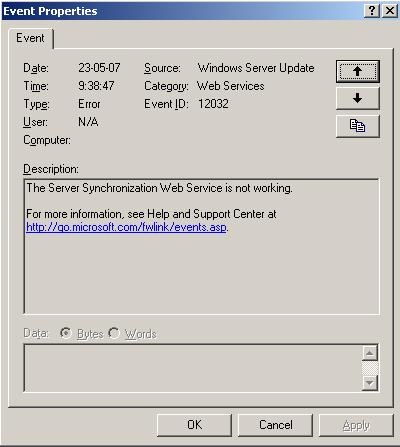
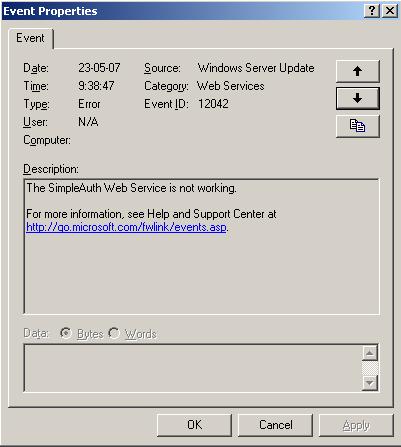
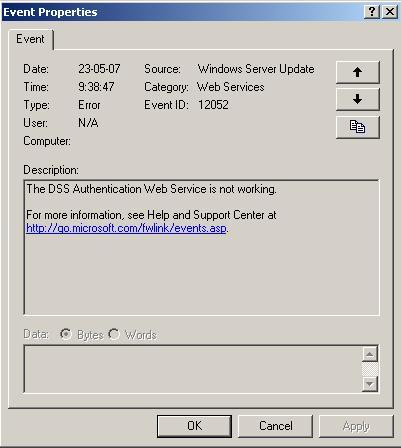
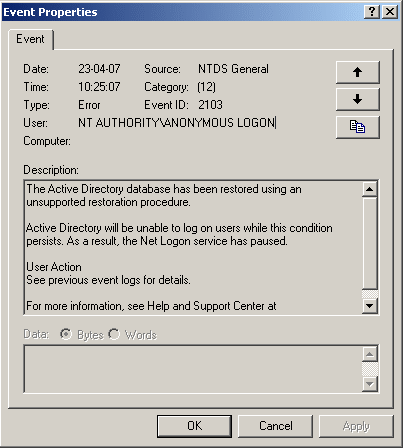
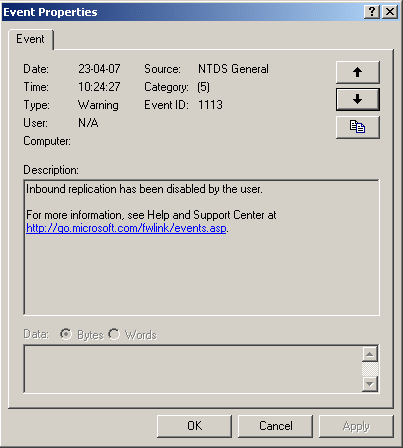
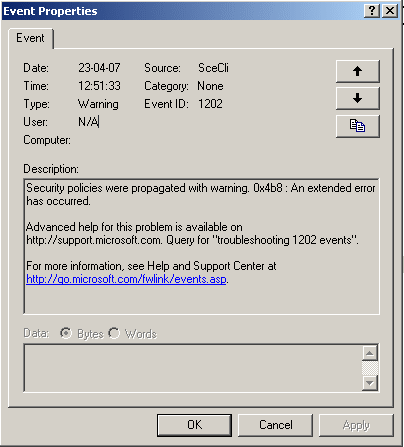
Hier vindt je een overzicht van alle evenID’s die optraden nadat de DC corrupt raakte.

dcaftercommit.gif

dcaftercommit1.gif

dcaftercommit2.gif

dcaftercommit3.gif

dcaftercommit4.gif

Hoe deze ellende weer herstellen

Volgens KB875495 is de enige oplossing na zo’n voorval als deze het “demoten” van de DC en het daarna weer opnieuw aanmaken van de AD.

FSMO roles verplaatsen

Voordat je dit gaat doen dien je de FSMO roles te verplaatsen (informatie over FSMO roles vindt je hier: http://www.petri.co.il/ en hier: KB197132). In KB324801 lees je hoe je na kunt gaan welke FSMO roles er actief zijn op de DC die verwijderd moet worden. Nadat je bent nagegaan welke FSMO roles er actief zijn dien je deze te verplaatsen. Hier http://www.windowsdevcenter.com/ vindt je meer informatie over het plaatsen van FSMO roles.

Het kan zijn dat de DC dermate beschadigd is, dat het verplaatsen niet meer mogelijk is. In dit geval moet je de FSMO roles “seizen”. Meer informatie over hoe dit in zijn werk gaat lees je hier: http://www.petri.co.il en KB255504.

DC demoten

Nadat je de FSMO roles hebt overgezet kun je de DC demoten. Dit kun je doen via start | Run | dcpromo {enter}.

In mijn geval lukt dit niet en moest ik het volgende commando gebruiken: start | Run | dcpromo /forceremoval {enter}. meer informatie over deze actie lees je in KB332199.

Mocht je gebruik moeten maken van de /forceremoval dan dien je nadat de DC gedemote is ook de oude data van de DC uit de werkende AD te halen. Hoe dit in zijn werk gaat kun je hier lezen: http://www.petri.co.il/

AD weer installeren

Nadat de AD geschoond is en de DC welke kapot was weer een stand alone server is, moet deze weer geconfigureerd worden als DC. Dit heb ik als volgt gedaan. De DC heb ik lid gemaakt van het domain. Daarna heb ik dcpromo (start | Run | dcpromo {enter}.) uitgevoerd en geconfigureerd als additionele domain controller.

Na dit alles kwam de replicatie weer op gang en werkte alles weer naar behoren.