How to: Stop Lotus Domino from the commandline


Voor het stoppen van de Lotus Domino server op het Windows platform bestaat geen standaard procedure. Dit kun je oplossen door de onderstaande commando’s direct te schedulen via de task schedular of je kunt deze commando’s verwerken in een batch script en deze schedulen in de task schedular.

netsvc /stop \\servernaam “Lotus Domino Server (LotusDominoData)”

netsvc /start \\servernaam “Lotus Domino Server (LotusDominoData)”

Meer informatie vindt je in KB166819.

De benodigde tools kun je hier downloaden.
sc.zip
netsvc.zip

How to install Cacti on Ubuntu Server 6.06 and Monitor a ESX 2.5.x Server


ubuntu_logo.gif

Ik ga er vanuit dat je een kale Ubuntu 6.06 Server installatie hebt afgerond. Vervolgens moet je de /etc/apt/sources.list aanpassen zodat alle soureces op enabled staan.

Met de onderstaande commando’s installeer je Cacti met de bijbehorende tools MRTG, NetSNMP, Apache2 en Mysql.

sudo apt-get update

sudo apt-get install mysql-server

sudo apt-get install cacti

Leave the question “Password of your database’s administrative user:” blank and hit “Forward”.

Leave the question “MySQL application password for Cacti” blank and hit “Forward”.
Note: The system will create a random password for you, so you don’t need to enter one

On the “Webserver type” question, select “Apache2” and then click “Forward”

Setup Cacti

Visit the website of your Cacti server, should be similar to “[WWW] http://server.ip.address/cacti/”
This should automatically initiate the “Cacti Installation Guide” in your web-browser

Click “Next”, “Next”, and “Finish” to complete this guide

Login to Cacti with the default username and password of “admin” and “admin”

You will be forced to change the “admin” password to something new

Cacti is now successfully installed!

Bron: https://help.ubuntu.com

Een Cacti overview:
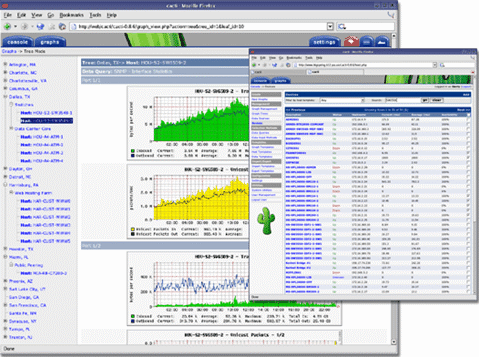
cacti_overview.gif

Nu dient de ESX server te worden geconfigureerd.

Log in op het Service Console en voer het onderstaande commando uit:

snmpsetup.sh default

This script sets up a new snmpd.conf file which allows you to see VMware ESX Server MIB items.

Stopping agents.Stopping snmpd: [FAILED]
Stopping vmware-snmpd: [FAILED]
Checking for main agent.Setting up basic config file.
Do you want to enable SNMP traps for virtual machine events? (y/n) y
Default trapsink is localhost.
You can modify /etc/snmp/snmpd.conf to set up a different trap destination.
Setup finished.Restarting agents.Starting snmpd: [ OK ]
Waiting for master agent to start.
Starting vmware-snmpd as subagent:

You could then enable the Master SNMP Agent for required run-levels with
chkconfig snmpd on

Then enable the VMware SNMP SubAgent for required run-levels with
chkconfig vmware-snmpd on

Then we can start both SNMP daemons with
service snmpd start
service vmware-snmpd start

/etc/snmp/snmp.conf

This is the configuration file for the Master SNMP Agent.
The following is the default contents of this file after ESX has been installed.

syscontact root@localhost (edit /etc/snmp/snmpd.conf)
syslocation room1 (edit /etc/snmp/snmpd.conf)
rocommunity
publictrapcommunity
publictrapsink localhost

Bron: http://www.b2v.co.uk

De laatste stap is het toevoegen van de VMwareESX graph templates en scripts.

Deze kun je hier downloaden: cacti forums en vmware_esx_cacti_0.8.6d-050522.zip

De resource scripts plaats je in de directory /usr/share/cacti/resource/script_queries
De Graph templates plaats je in de directory /usr/share/cacti/site/scripts

How to uninstall and reïnstall Symantec Antivirus


logo_symantec.gif

Op de zaak was ik genoodzaakt om Symantec Antivirus 10.0.1000 te deïnstalleren. Dit was nodig omdat de upgrade naar versie 10.5.5000 niet wilde lukken. Vervolgens wilde ik de software deïnstalleren via Add/Remove programs lukte dit ook niet.

Na wat zoeken op de Symantec site kwam ik de volgende tools tegen:

SCSCleanWipe.zip
Norton_Removal_Tool.exe

Een van deze tools heb je nodig om Symantec software te deïnstalleren.In mijn geval was SCSCleanWipe.zip de tool die ik nodig had.

scscleanwipe.gif

Nadat SCSCleanWipe.bat succesvol is uitgevoerd. Moest ik de PC opnieuw opstarten. Vervolgens op C:\Program Files\ de mappen Symantec en Symantec Antivirus verwijderen. Nu is de software helemaal verwijderd.

Vervolgens wilde ik de installatie van Symantec Antivirus 10.1.5.5000 gaan starten dit ging helaas gepaart met de onderstaande foutmelding:

error1704_symantec.gif

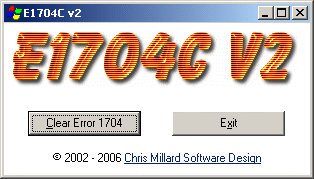
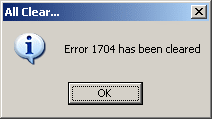
Deze foutmelding kun je oplossen door de volgende tool te downloaden en uit te voeren.
E1704C.zip

error1704cleaner1.gif

error1704cleaner2.gif

De onderstaande foutmelding kan ook nog voorkomen. Deze foutmelding is op te lossen door opnieuw op te starten.

error1321.gif

Error 2203


Toen ik vandaag de VMware-tools wilde installeren in een nieuw geïnstalleerde virtualmachine, liep ik tegen de onderstaande error aan:

Deze melding wordt veroorzaakt doordat er een variable in het sytsteem staat genaamd %Temp%

Als deze variable verwijst naar een directory die niet bestaad krijg je de bovenstaande error.

Deze map dient te worden aangemaakt met daarbij de volgende rechten:

System – Full Control
CREATOR OWNER – x

De oplossing vond ik in het volgende KB artikel:

KB296056

Screen Resolution 1440×900 with Intel 815 Video Adapter


Bij het bedrijf waar ik werkzaam ben, maken we gebruik van Intel 815 chipsets met een onboard videokaart. Deze onboard videokaart met de standaard Windows driver ondersteund helaas niet de resolutie 1440×900.

Ik kwam op de intel site de volgende driver tegen IEGD_5_1_Windows.zip. Dit is de embedded driver van intel en wordt gebruikt voor het ontwikellen van drivers. De driver word dus niet officieel ondersteund. Het installeren van deze driver was echter wel de oplossing voor het probleem met de resolutie.

Wat je moet doen om dit alles goed te installeren is het volgende:

  1. De deïnstalleer alle Video en Monitor drivers
  2. Installeer de IEGD_5_1_Windows.zip
  3. Herstart de PC
  4. Stel de goede resolutie in

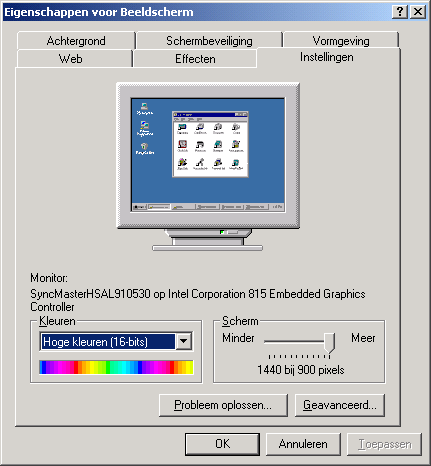
Zoals je in het onderstaande scherm kan zien is het probleem opgelost.

beeldschermeigenschappen.gif