An important vSphere 4 storage bug is solved in patch ESX400-200912401-BG


image

Chad Sakac over at http://virtualgeek.typepad.com already blogged about the APD bug in December last year. You can find his post here. 

Just a short quote from Chad his post about the symptoms of this APD bug:

Recently saw a little uptick (still a small number) in customers running into a specific issue – and I wanted to share the symptom and resolution.   Common behavior:

  1. They want to remove a LUN from a vSphere 4 cluster
  2. They move or Storage vMotion the VMs off the datastore who is being removed (otherwise, the VMs would hard crash if you just yank out the datastore)
  3. After removing the LUN, VMs on OTHER datastores would become unavailable (not crashing, but becoming periodically unavailable on the network)
  4. the ESX logs would show a series of errors starting with “NMP”

Examples of the error messages include:

    “NMP: nmp_DeviceAttemptFailover: Retry world failover device "naa._______________" – failed to issue command due to Not found (APD)”

    “NMP: nmp_DeviceUpdatePathStates: Activated path "NULL" for NMP device "naa.__________________".

What a weird one…   I also found that this was affecting multiple storage vendors (suggesting an ESX-side issue).  You can see the VMTN thread on this here.


We found out about this issue during a big storage project. We where creating a lot of new LUNs and where removing a lot of the old LUNs. If you remove a LUN on a way not mentioned in Chad his post:

This workaround falls under “operational excellence”.   The sequence of operations here is important – the issue only occurs if the LUN is removed while the datastore and disk device are expected by the ESX host.   The correct sequence for removing a LUN backing a datastore.

  1. In the vSphere client, vacate the VMs from the datastore being removed (migrate or Storage vMotion)
  2. In the vSphere client, remove the Datastore
  3. In the vSphere client, remove the storage device
  4. Only then, in your array management tool remove the LUN from the host.
  5. In the vSphere client, rescan the bus.

So when we used the workaround described above, everything went fine. But at my current employer, we use a large LeftHand iSCSI SAN.  One of the great things of Lefthand SAN is the ability to move LUNs between different clusters. With the APD bug, we couldn’t use this option anymore.

When we discovered this APD bug we contacted VMware Support. After a couple of weeks we received an e-mail with the following fix.

I can now confirm that the APD (All paths dead) issue has been resolved by a patch released as part of P03.

To install this patch, please upgrade your hosts to vSphere Update 1 and use Update Manager to install the latest patches.

Please ensure that ESX400-200912401-BG is installed as this resolves the APD problem

We upgraded one of our clusters to Update 1 and installed the latest patches including the ESX400-200912401-BG patch. After installing the patch, we did some tests and I can confirm that the APD bug is history!!

To reproduce this issue I created two iSCSI LUNs on the EMC VSA. Instead of removing the LUNs I disconnected the iSCSI network to simulate this. So before I disconnected the iSCSI network, all LUNs are working just fine:

image

After I disconnected the iSCSI network and waited a while, all the paths to the EMC LUNs are dead and they are colored red:
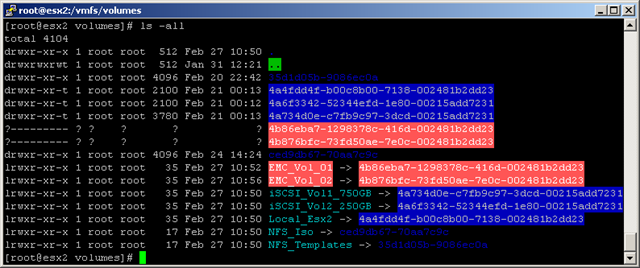
image

This is just normal behavior but before installing the ESX400-200912401-BG patch, the ESX host will stall for 30 till 60 seconds. This means that all the VMs running on a host of which a LUN was disconnected will stall, even though the VM is on a different datastore!! I am happy that VMware has solved this APD bug.


If you want to make sure if you already installed the APD patch, you can easily verify this with the vCenter Update Manager.

Go to the tab Update Manager and open the Admin View. Add a new baseline. Select the Host Patch option:
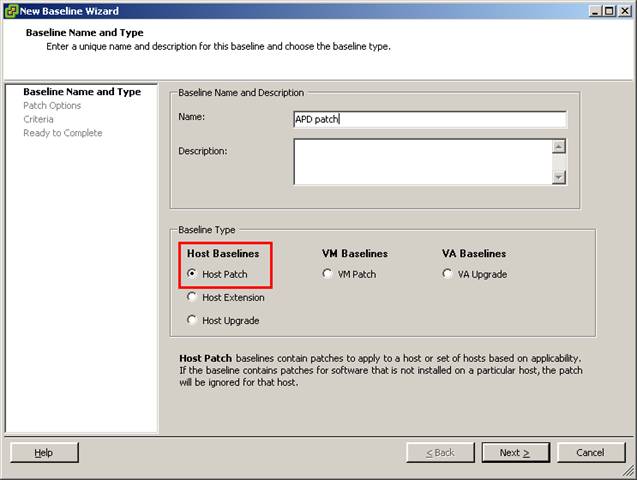
image

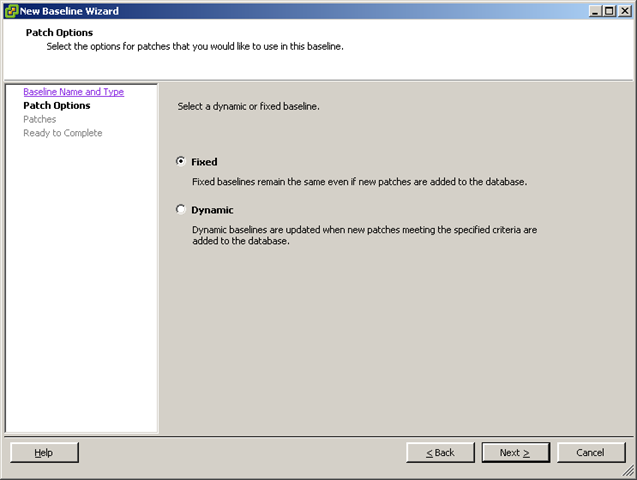
In the next screen select Fixed:

image 

Now we are going to create a filter. Enter the name of the patch:
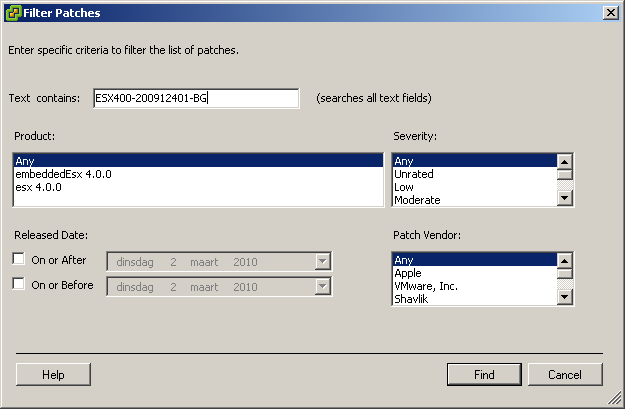
image

Select the ESX400-200912401-BG patch:
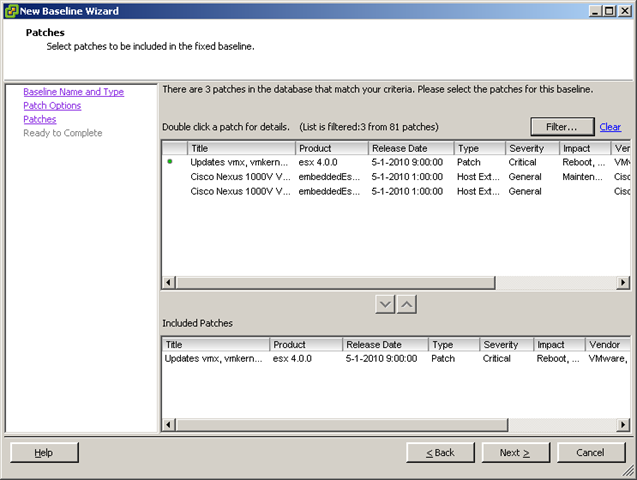
image

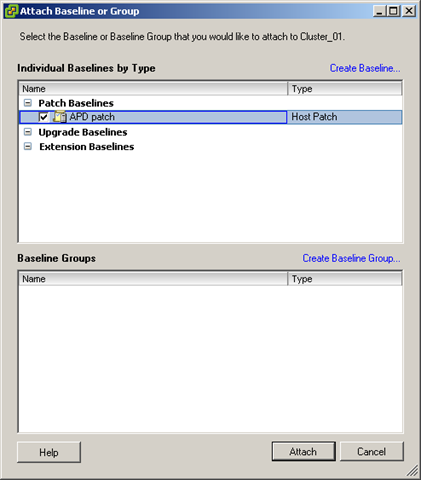
When the new baseline is ready, return to the Compliance view and attach the new baseline:
image

The final step is to perform a scan on your Datacenter, Cluster or ESX Host. Now wait and see if the patch is already installed or not.


More info about the patch can be found here:

For the readers who cannot upgrade to vSphere Update 1 and the latest patches, you can find some workarounds here:

PowerCLI: Return Datastore name by Canonical name


When you are troubleshooting an ESX host, you can see a lot off warnings in the VMKERNEL log:

Jan 29 16:15:34 esx02.ict-freak.local vmkernel: 9:23:45:33.917 cpu1:4210)WARNING: NMP: nmp_DeviceAttemptFailover:
Retry world failover device “t10.9454450000000000000000001000000056900000D0000000” – issuing command 0x4100041f0c00

But which datastore belongs to the Canonical name mentioned in the VMKERNEL log??

The following script will return the Datastore name. Thanks @Lucd22 for the help!!

$esxhost = "esx1.ict-freak.local"
$id = "t10.9454450000000000000000001000000056900000D0000000"

foreach($ds in (Get-VMHost $esxhost | `
    Get-Datastore | where{$_.Type -eq "vmfs"} | Get-View)){

    $ds.Info.Vmfs.Extent | %{
         if($_.DiskName -eq $id){
            Write-Host $ds.Info.Name $_.DiskName
        }
    }
}

The output will look like this:

image

Ok, this is a nice script to have in you toolbox, but I hear you think,  how do I add it to the VESI?.

First you need to create a new folder, if you don’t use any other Powerpack.

image

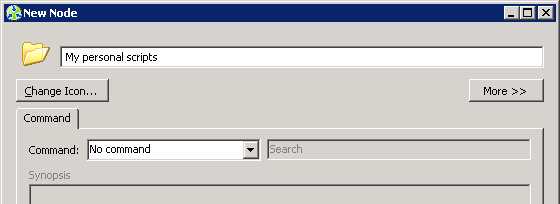
Give the folder a name. I used the name Personal scripts:

image

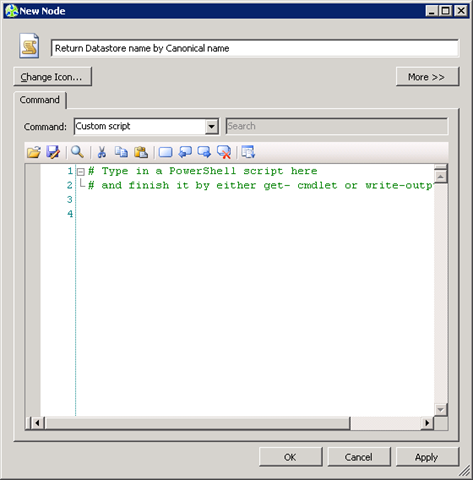
The next step is to add a new script node:

image

The last step is to paste the following code into the new created script node:

if ($global:defaultviservers) {
    $id = Read-Host "Enter the Canonical Name (naa.xxxxxxxxxxxxxxxxxxxxxxxxxxxxxxx)"
    foreach($esx in (Get-VMHost)){
        foreach($ds in (Get-VMHost $esx | Get-Datastore | ` 
        where{$_.Type -eq "vmfs"} | Get-View)){
            $Details = "" |Select-Object DataStore
                $ds.Info.Vmfs.Extent | %{
                 if($_.DiskName -eq $id){
                    $Details.DataStore = $ds.Info.Name
                }
               }
        }
        $Details.PSTypeNames.Clear()
        $Details
    }
}
Else {
    [System.Windows.Forms.MessageBox]::Show('You must connect to one or more hosts before you can use this node. Please click on the ''Managed Hosts'' node of the VMware PowerPack, connect to one or more of the servers you have configured there, and then try again.','Connection not established',[System.Windows.Forms.MessageBoxButtons]::OK,[System.Windows.Forms.MessageBoxIcon]::Information) | Out-Null
}

If you want to run this script, you have to connect to vCenter first. Open VMware – Managed Hosts:

image

Click on Add managed host… to add a server:

image

To connect to the new added vCenter server, press the connect under actions. To run the script click on the new create script node and enter a Canonical Name.

image

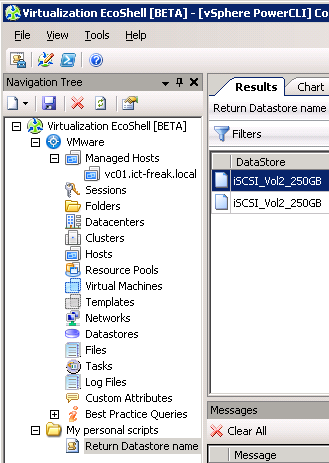
And the script will return the Datastore name:

image

Now you are able to convert the Canonical name to the Datastore Name.

VMware Tools: Uninstall failed. Please correct the failure


image

Today a ran into an issue with the VMware Tools installer on Linux:

image

The solution was simple this time. Just remove the locations file from from /etc/vmware-tools. You can do this by running the following command:

rm –f /etc/vmware-tools/locations

Now you are able to run the VMware Tool installer again. If you are installing the VMware Tools on it default locations, you can add the –default parameter to the ./vmware-install.pl command to install the VMware Tools on it’s default location.

Source: KB1013159

PowerCLI: Move-Template


image

Storage vMotion is a great feature to Move your VMs to other datastores. But what if you want to move your Templates?
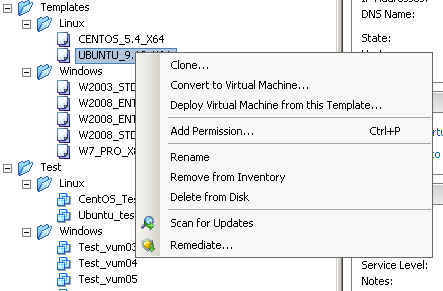
In the current version of vSphere there is no option within the Client:

image

So I created a PowerCLI function just to migrate the templates to another datastore.

function Move-Template{
    param( [string] $template, [string] $esx, [string] $datastore)

    if($template -eq ""){Write-Host "Enter a Template name"}
    if($esx -eq ""){Write-Host "Enter an ESX hostname"}
    if($esx -ne "" -and $datastore -eq ""){$vmotion = $true}
    if($datastore -ne ""){$svmotion = $true}

    Write-Host "Converting $template to VM"
    $vm = Set-Template -Template (Get-Template $template) -ToVM 

    if($svmotion){
        Write-Host "Migrate $template to $esx and $datastore"
        Move-VM -VM (Get-VM $vm) -Destination (Get-VMHost $esx) `
        -Datastore (Get-Datastore $datastore) -Confirm:$false
        (Get-VM $vm | Get-View).MarkAsTemplate() | Out-Null
    }        

    if($vmotion){
        Write-Host "Migrate $template to $esx"
        Move-VM -VM $vm -Destination (Get-VMHost $esx) -Confirm:$false
        ($vm | Get-View).MarkAsTemplate() | Out-Null
    }
}

The function above can be used to move a single template via

Move-Template <template> <esxhost> <datastore>

But what if you want to move only your Linux Templates or Windows Templates or even all the Templates at once.  For these options, I created two extra functions.

First I created a function to get al the Linux templates:

function Get-LinuxTemplates{
    $lnxtpl = Get-Template | Get-View | `
    where {$_.Guest.GuestFamily -eq 'linuxGuest'} | `
    Get-VIObjectByVIView
    return $lnxtpl
}

image

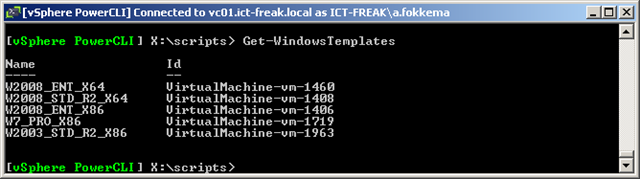
And if you want, you can also get al the Windows templates:

function Get-WindowsTemplates{
    $wintpl = Get-Template | Get-View | `
    where {$_.Guest.GuestFamily -eq 'windowsGuest'} | `
    Get-VIObjectByVIView
    return $wintpl
}

image

Now we can get all the different templates, we are able to move the templates to another host or datastore.

This is how you move all the templates to a new host and datastore:

$templates = Get-Template
foreach($tpl in $templates){
    Move-Template $tpl <esxhost> <datastore>
}

image

If you want to move all the Linux templates, you run the following commands:

$templates = Get-LinuxTemplates
foreach($tpl in $templates){
    Move-Template $tpl <esxhost> <datastore>
}

And finally, you can move all windows templates by running these commands:

$templates = Get-WindowsTemplates
foreach($tpl in $templates){
    Move-Template $tpl <esxhost> <datastore>
}

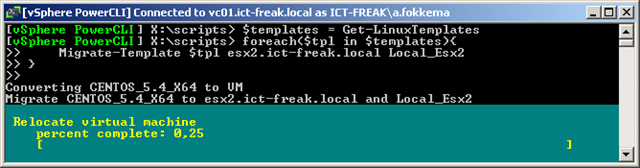
But how does it look when you run the function. I will do an example with the get-linuxtemplates function.

image

I am going to use this functions in another script and will transform it to a ready to use script for the EcoShell.

Update Linux VMs with PowerCLI thanks to Invoke-VMScript


image 
I created a new PowerCLI function to update the Linux Guest OS via PowerCLI. Be sure you use the check-vmware-tools script posted before: https://ict-freak.nl/2009/12/21/bash-script-auto-configure-vmware-tools-at-boot-time/

The function below will check if the VM is running Linux, if the VMware Tools are up to date and running, and last but not least it will determine the linux distribution so it will run the correct update command:

Function Update-LinuxVM{
 param($virtualmachine)
 $vm = Get-VM $virtualmachine
 $os = (Get-VM $vm | Get-View).Summary.Config.GuestFullName
 $toolsStatus = (Get-VM $vm | Get-View).Guest.ToolsStatus
 if($vm.powerstate -eq "PoweredOn"){
    if($toolsStatus -eq "toolsOk"){
        # Determining Linux Distro
        if($os -match 'Red Hat Enterprise Linux'){
            Write-Host "RedHat or CentOS installation found" -fore Yellow 
            $update = "yum clean all && yum update -y"
        }
        elseif($os -match 'Debian GNU'){
            Write-Host "Debian installation found" 
            $update = "apt-get update && apt-get upgrade -y"
        }    
        else{Write-Host "No update possible" -fore Red}
        
        # ifconfig
        if($ifconfig -ne ""){
        Write-Host "Configuring IP settings $ifconfig" -fore Yellow
        $vm | Invoke-VMScript -HostCredential $hc -GuestCredential $gc $ifconfig
        }

        # route
        if($route -ne ""){
        Write-Host "Setting default gateway route $route" -fore Yellow
        $vm | Invoke-VMScript -HostCredential $hc -GuestCredential $gc $route
        }
        
        # Update command
        Write-Host "Running $update command" -fore Yellow
        $vm | Invoke-VMScript -HostCredential $hc -GuestCredential $gc $update
        }
        else{Write-Host $vm "VMware Tools are out off date or not running" -fore Red }
    }
 else{Write-Host $vm "is not running" -fore Red }
}

You can use this function with the following parameters:

$hc = Get-Credential
$gc = Get-Credential
$ifconfig = ""
$route = ""

$hc will save the Host Credentials. These are the credentials you need to authenticate with the ESX Host

$gc will save the Guest Credentials. These are the credentials you need to authenticate with the Linux Guest OS.

$ifconfig can be used to set a temporary ip address. Example: ifconfig eth0 192.168.123.166 netmask 255.255.255.0

$route can be used to set a temporary gateway address: route add default gw 192.168.123.254

The following command will start the script:

Update-LinuxVM <vmname>

The Function in action:

image

PowerCLI: Document the ESX Hostname of the vCenter VM


image

I was reading Duncan Epping his post: http://www.yellow-bricks.com/2009/10/09/best-practices-running-vcenter-virtual-vsphere/ about Running vCenter virtual. The most of the steps described, you only have to do once but step 5 needs to be documented once in a while

5. Write a procedure to boot the vCenter / AD / DNS / SQL manually in case of a complete power outage occurs.

Nobody likes to document this thing so we will let PowerCLI do this job for us.

First you need to now the VMs. In most cases this will be your Domain Controller, Database Server and of course the vCenter VM.

$vms =  Get-VM "DC01", "DB01", "VC01" | Sort Name
$vms | Select Name, @{N="Cluster";E={Get-Cluster -VM $_}}, `
@{N="VMHost";E={Get-VMHost -VM $_}} 

The one-liner above will return the VM name, Cluster Name and ESX Host name:

 image

Now you are able to document where your VMs are. But you still need to put this information somewhere. So I created a simple script which will export the information displayed above to a CSV file. The script will also remove files older than 7 days.

You can change the variable if you want.

$now = Get-Date
$days = "7"
$targetFolder = "C:\vCenter"

if (Test-Path $targetFolder)
{
    Write-Host $targetFolder "Already exists"
}
else
{
    New-Item $targetFolder -type directory
    Write-Host $targetFolder "Created"
}

$lastWrite = $now.AddDays(-$days)
$files = get-childitem $targetFolder -include *.csv -recurse `
    | Where {$_.LastWriteTime -le "$lastWrite"} 

if (($files | Measure-Object).count -gt 0){
foreach ($file in $files)
{write-host "Deleting File $File" -foregroundcolor "Red"; `
    Remove-Item $file | out-null}
}

$filename = "C:\vCenter\" + (Get-Date -format  'yyyy-MM-dd hh-mm-ss') + '.csv'
$vms =  Get-VM "DC01", "DB01", "VC01" | Sort Name 
$vms | Select Name, @{N="Cluster";E={Get-Cluster -VM $_}}, `
@{N="VMHost";E={Get-VMHost -VM $_}} | `
Export-Csv -NoTypeInformation $filename

The script will generate a CSV file:

image

The CSV file will look like this:

"Name","Cluster","VMHost"

"DB01","Cluster_01","esx1.ict-freak.local"

"DC01","Cluster_01","esx1.ict-freak.local"

"VC01","Cluster_01","esx1.ict-freak.local"

You can schedule this script on a VM that runs on another cluster or maybe better, schedule the script on a physical box. If you want to know how to schedule a Powershell/CLI script, go check out this post from Alan Renouf: http://www.virtu-al.net/2009/07/10/running-a-powercli-scheduled-task/

Now you are able to track the most important VMs in your environment.

PowerCLI: Search VM via IP or MAC Address


image image

In this post you’ll find two scripts that will help you find a VM via an IP or MAC address. I found the MAC address script on the vmtn communities and it was written by Luc Dekens (@LucD22):

http://communities.vmware.com/message/1068045#1068045


IP Address:


The following script will return the VM name after a short search. The only thing you need to enter is the ip address:

$tgtIP = "192.168.123.1"
$vms = Get-VM
foreach($vm in $vms){
  
  $vmIP = $vm.Guest.IPAddress
  foreach($ip in $vmIP){
    if($ip -eq $tgtIP) {
      Write-Host "Found the VM!" 
      $vm.Name 
    }
  }
}

When you add the script to the Virtualizaion Eco Shell, you will have to change the $tgtIP line:

$tgtIP = Read-Host "enter IP address"

When you run the script from the Eco Shell, you’ll have to enter an ip address:

image

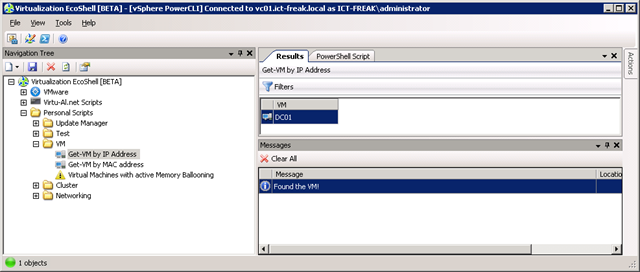
After a couple of seconds (if you have a large environment it will take a while 😉 ) The script will return the VM name:

image


MAC Address


The following script start a search based on the MAC address of the VM.

$tgtMAC = ""
$vms = Get-VM
foreach($vm in $vms){
  
  $vmMAC = $vm | Get-NetworkAdapter | select MacAddress
  foreach($mac in $vmMAC){
    if($mac.MacAddress -eq $tgtMAC) {
      Write-Host "Found the VM!" 
      $vm.Name 
    }
  }
}

You can also add the script to the Eco Shell. Just change the $tgtMAC line to:

$tgtMAC = Read-Host "enter MAC address"

Bash Script: Auto Configure vmware-tools at Boot time


This post is originally posted on my colleague Michel aka ‘HighKing’ blog: http://highking.nl/website/auto-config_vmware-tools

When you install a new kernel on a RHEL/CentOS VM, you need to reconfigure the vmware-tools using the ‘vmware-config-tools.pl’ script. I have created a simple script that does this automatically, so you don’t have to be there when the kernel is updated (handy for automatically updating machines).

Place this in a script called ‘check-vmware-tools’ in /etc/init.d:

#!/bin/bash
#
# check-vmware-tools
#
# chkconfig:   - 00 99
# description: Check whether or not the vmware-tools are installed at boot time.
# processname: check-vmware-tools
#

loadvmxnet() {
  if [ "`uname -i`" != "x86_64" ]; then 
        echo -n "Reloading vmxnet driver... "
        /sbin/rmmod pcnet32
        /sbin/rmmod vmxnet
        /sbin/depmod -a
        /sbin/modprobe vmxnet
        echo "done"
  fi
}

case $1 in
  start)
    echo -n $"Checking VMware-tools: "
   if [ ! -e /lib/modules/`/bin/uname -r`/misc/vmci.ko ]; then
      echo "Not available, running vmware-config-tools..."
      /usr/bin/vmware-config-tools.pl --default && loadvmxnet
   else
     echo "OK"
   fi
  ;;
  *)
    echo "Usage: $0 start"
    exit 1
  ;;
esac


Make it writeable with:

chmod +x /etc/init.d/check-vmware-tools


Next is to make it known by chkconfig with:

chkconfig --add check-vmware-tools


Now we have done that, we can simply enable it with:

chkconfig check-vmware-tools on

On the next boot, this script checks whether or not the vmware-tools are configured for the running kernel (by checking if vmmemctl.ko is in place). If not, it runs ‘vmware-config-tools.pl and reboots after that.

You can download the file here: check-vmware-tools

Source: http://highking.nl/website/auto-config_vmware-tools