Extend a Windows 2008 boot partition


image

If you want to extend a boot partition on Windows 2003 you need to use 3rd party applications to achieve your goal. I have blogged about these tools. You can find the posts here:

In Windows Server 2008, this process is a lot easier and will costs you maybe 5 minutes of your time.

Open the Virtual Machine properties, select your VMDK and change the value:

image

Wait till the task is ready:

image

Open the Server Manager, go to Storage and Rescan the disks

Screenshot - 6_11_2009 , 9_44_36 AM_reg001

Right click on the volume and click on Extend Volume.

image

Follow the wizard:

image

After a couple of seconds and a refresh in the Windows Explorer, the partition will have it’s new size.

image

More info can be found here: http://bit.ly/sOnFS

Enable HA on a mixed ESX Cluster


image

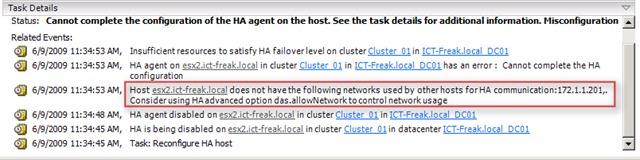
I have a mixed ESX cluster at home. One box is running ESX 3.5 the other box is running ESX 4.0. When I tried to enable HA on this cluster I got the following error:

image

The ESX 3.5 host has a second Service Console port on the Storage (iSCSI) lan. The ESX 4.0 host doesn’t need this so this is why the ESX 4.0 host got this error.

To solve this issue I created a second Service Console Port on my ESX4.0 server.

image

Now I was able to enable HA on Cluster.

PowerCLI: Set VM Startup Policy


image

Update: I added a little script block which enables the Startup Policy on the ESX Host.

If you want to change the VM Startup Order under Configuration – Virtual Machine Startup/Shutdown by hand will costs you a lot of time. So I wanted to see if I was able to script these settings with PowerCLI.

You can check the Startup Order via:  Get-VMHost |Get-VMStartPolicy |Sort StartOrder

And this is how you can see if the Startup Policy is enabled: Get-VMHostStartPolicy              -VMHost ( Get-VMHost )

image

First, I created a CSV file:

VMName,StartupOrder

DC01,1

MC01,2

VC01,3

MAIL01,4

XPMC01,5


In this CSV file, I have entered my VM’s and the startup order value. I have tested it with multiple servers and it’s possible to enter two VM’s with the same StartupOrder value if the VM’s are placed on different ESX Hosts.

The following script imports the CSV file and loops through all the items and configures the VM Startup Policy:

$vCenter = Read-Host "Enter the vCenter server name"

Connect-VIServer $vCenter

$hosts = Get-VMHostStartPolicy -VMHost (Get-VMHost)
$vms = "c:\scripts\ps\vmsStartup.csv"
$csv = Import-CSV $vms

foreach($item in $csv){
    $vm = $item.VMName
    $order = $item.StartupOrder

    $vmStartup = Get-VMStartPolicy -VM $vm
    Set-VMStartPolicy -StartPolicy $vmStartup `
        -StartAction PowerOn -StartOrder $order 

}

foreach($esx in $hosts){
    Set-VMHostStartPolicy -VMHostStartPolicy $esx -Enabled:$true
    }

Disconnect-VIServer -Confirm:$false


I created a short movie about the script in action:

PowerCLI: Get ESX version info


image

If you want a quick overview of your ESX servers, you can run the following script:

$vCenter = Read-Host "Enter the vCenter server name"

Connect-VIServer $vCenter

$vmhosts = get-vmhost * 
$vmhosts | Sort Name -Descending | % { $server = $_ |get-view; `
    $server.Config.Product | select `
    @{ Name = "Server Name"; Expression ={ $server.Name }}, `
    Name, Version, Build, FullName, ApiVersion }

Disconnect-VIServer -Confirm:$false
 

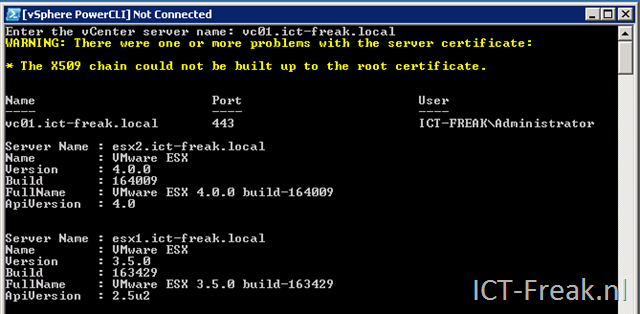
The output looks like this:

image

Add an ESX 3.x host to your vSphere Cluster


image

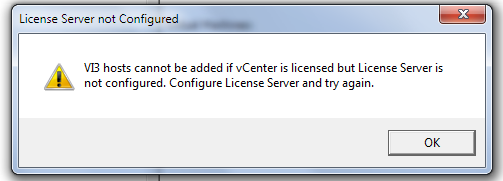
If you add an ESX 3.5 host to your vSphere Cluster,there is a change you’ll get this warning:

image

The solution is simple, you need the “old” license server running in your network. So download the “old” license server from http://vmware.com/download/vi/drivers_tools.html

image

Install the License Server for ESX 3.5 on different server than your vCenter box. I tried installing it on the same box, but it ended with a failed startup of the License server services. The installation is straight forward (read next, next, add license file, next and finish).

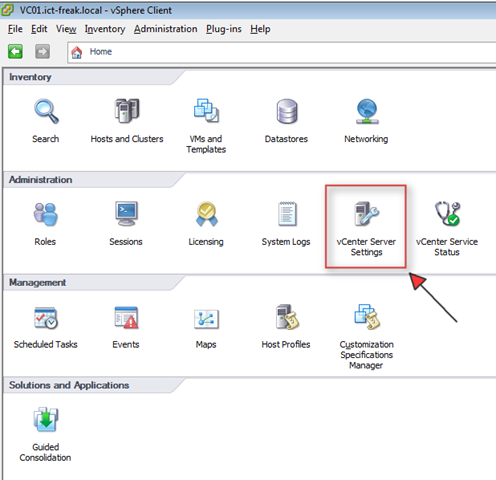
After the installation open the vCenter Service Settings option.

 image

And enter the address of your license server and press ok.

image 

Now it’s possible to add the ESX 3.5 host to your cluster.

Veeam Backup 3.1 and File Level Restore


image

After the installation of Veeam Backup 3.1 a  new icon will be installed on your desktop. The icon is called Veeam File Level Restore.

image

So what does the Veeam File Level Restore do? I got this from the help file:

The Veeam File Level Restore wizard is intended for performing restore of VM guest files and folders from image-level backups created with Veeam Backup 3.1.

At restoring VM guest files, Veeam Agents are deployed on the target localhost/Linux-based server and the source host — a local machine running Windows OS.  To mount the VM file system, the Veeam File Level Restore wizard uses the virtual appliance image that copied to your computer at the installation process. Once the restore job is completed, the virtual machine file system is displayed in the file browser window. You can copy necessary files and folders to your local machine drive or save them anywhere within the network.

To install the Veeam File Level Restore wizard, run the setup file from the downloaded archive and follow the installation wizard steps.

Tip:
To parse the VM disks content, the Veeam File Level Restore wizard uses VMware player that is launched as soon as you start restoring files from a VM. Please make sure that VMware Player is installed on your computer – otherwise the wizard will not be able to perform file-level restore operation.

De following file systems are supported by the File Level Restore Plugin:

image

You can download the VMware Player here: http://www.vmware.com/download/player/

In the rest of this post you will see the screenshots of the new File Level Restore wizard.

Continue reading “Veeam Backup 3.1 and File Level Restore”

WSUS DB and large memory consumption


image 

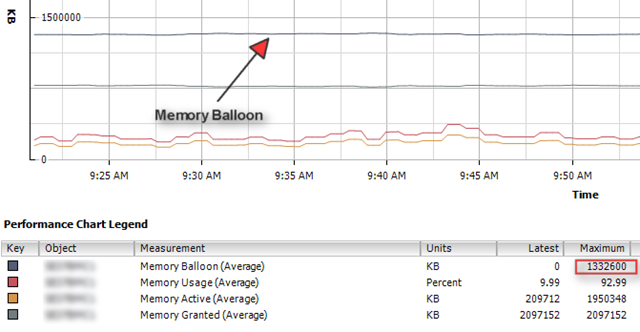
One of my VM’s is running WSUS 3.0 SP1 on the Windows Internal Database. This VM had a really high Memory Balloon value in vCenter server.

image

To verify the value above, I started a ssh session to the ESX Host and run the esxtop command. When esxtop is loaded, you can see the ballooning values if you press: v m f i

image

For more information about ballooning see Arnim his article here: http://www.van-lieshout.com 

So how can you solve the memory lurking of this VM. Well after looking around in the taskmanager, I found out that the sqlsrv.exe process was eating the memory. So after some searching on Google I found the following solution:

Open the command line (start – run –cmd) on the server with the sql 2005 express database. Go to: C:\Program Files\Microsoft SQL Server\90\Tools\Binn. Now run the following commands to limit the max memory to 256 MB:

osql -E -S <server name>\MICROSOFT##SSEE
1> sp_configure ‘show advanced options’, 1;
2> reconfigure;
3> go
Configuration option ‘show advanced options’ changed from 0 to 1. Run the RECONFIGURE statement to install.
1> sp_configure ‘max server memory’, 512;
2> reconfigure;
3> go
Configuration option ‘max server memory (MB)’ changed from 2147483647 to 512. Run the RECONFIGURE statement to install.
1> exit

Or via SQLCMD.EXE:

SQLCMD.EXE –E -S \MICROSOFT##SSEE
1> sp_configure ’show advanced options’, 1;
2> reconfigure;
3> go
Configuration option ’show advanced options’ changed from 0 to 1. Run the RECONFIGURE statement to install.
1> sp_configure ‘max server memory’, 512;
2> reconfigure;
3> go
Configuration option ‘max server memory (MB)’ changed from 2147483647 to 512. Run the RECONFIGURE statement to install.
1> exit

Sources:

StarWind – Free iSCSI Target


image

You can download the free software (after registration) here:  http://www.starwindsoftware.com/free

StarWind Free is an iSCSI Target that converts any Windows server into a SAN in less than 10 minutes.  This is a fully functional product at no cost. 

• Large 2 TB storage capacity
• Unlimited number of connections
• Virtualization environment support for VMware, Hyper-V, XenServer, Virtual Iron
• Enhances VMware environments by enabling VMotion, VMware HA, DRS and VCB
• Supports Windows server clustering for any application including SQL Server, Exchange, SharePoint

In this post I will show you how easy it is to configure the StarWind – Free  software.

Continue reading “StarWind – Free iSCSI Target”

Powershell script to ping servers


image
I created the following script to check some VM’s at home. This script pings all the servers from the CSV file. If a ping has failed, the script will send an e-mail with the servername and ip-address.

If you want to use this script, you have to change/create the following items:

  • Create a CSV file with your servers and ip-addresses
  • Enter your SMTP Server and e-mail address in the powershell script
  • Schedule the powershell script


The CSV file will contain the following information:

ServerName,IpAddress
SERVER1,10.185.1.1
SERVER2,10.185.1.2


The Powershell script:

$servers = "D:\scripts\ps\servers.csv"
$csv = Import-CSV $servers 
$smtpServer = ""

foreach($item in $csv){
    $server = $item.ServerName
    $ip = $item.IpAddress

    $ping = new-object System.Net.NetworkInformation.Ping
    $rslt = $ping.send($ip)
        if ($rslt.status.tostring() –eq "Success") {
            write-host ping worked on $server with $ip -ForegroundColor Green}
        else {
            write-host ping failed on $server with $ip -ForegroundColor Red
        
            # Send E-Mail
            $msg = new-object Net.Mail.MailMessage
            $smtp = new-object Net.Mail.SmtpClient($smtpServer)
    
            $msg.From = "@"
            $msg.To.Add("@")
            $msg.Subject = "Warning: ping failed on $server"
            $msg.Body = "The server $server with ip adres $ip does not reply!"
                
            $smtp.Send($msg)
            }
}
$ping = $null

The source of the ping script: http://theessentialexchange.com/blogs/michael/archive/2007/11/13/checking-server-availability-in-powershell.aspx