Cool Tool: Pocket KillBox


image

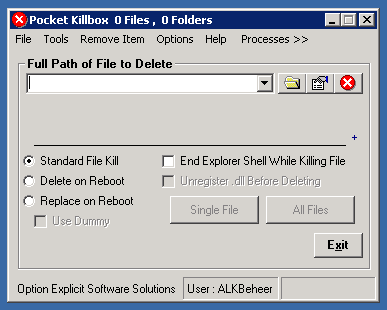
Ever had a file you could not delete? Look no further, KillBox will remove this file for you.

KillBox is a tool to delete in-use files, if the file is running, KillBox will attempt to end the process (close the running file) and delete it.

You can use this website to download and gain help with KillBox. Use the download link on the left of the page to download the program. You can also gain help at our forums by clicking the forums link on the left. You should visit our help page to get answers to some of the more common questions.

Please Note: KillBox is provided as is and is to be used at your own risk.

image

You van download Killbox here: http://killbox.net/downloads/KillBox.exe

Citrix: XenApp 4.5 / 5 Hotfix Rollup pack 4


image

Citrix has released Hotfix Rollup pack 4 for XenApp 4.5 and XenApp 5.0. You can download your version here:

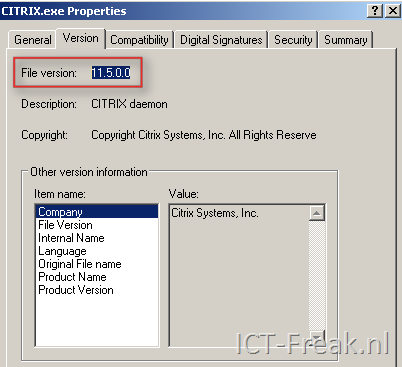
The version information of the License Server can be found in the version information of C:\Program Files\Citrix\Licensing\LS\CITRIX.exe

image

Read the CTX documents mentioned above,  so you’re ready to install this hotfix rollup pack. If you’re doing an unattended installation of the rollup pack, please be sure you use the /qb- switch. When you use the /qb switch, setup fails to complete.

Before You Install This Release (Prerequisites)

  • Your Citrix License Server must be at Version 11.6.1 to install this hotfix rollup pack. Using your MyCitrix credentials, download this update from the Citrix Web site. [#206510]

  • Before installing this hotfix rollup pack on servers licensed for Standard Edition, you must migrate those servers to Advanced Edition. Standard Edition was discontinued on Citrix Presentation Server 4.5; installing this hotfix rollup pack on servers licensed for Standard Edition might cause the following error message to appear:

    Citrix Presentation Server is unable to retrieve the product edition. Check to see if the Citrix Independent Management Architecture service is running without errors. Citrix Presentation Server cannot request licenses until it can obtain the product edition – no client devices can connect. If necessary, set the product edition in the Access Management Console. The product must be set to the same edition as your licenses.

    To migrate your servers to Advanced Edition, you must obtain an Advanced Edition license and then change the server edition in the Access Management Console from Standard to Advanced. For information about obtaining an Advanced Edition license, visit your My Citrix account or contact your reseller.

  • The Microsoft Visual C++ 2005 SP1 Redistributable Package (x86) must be installed on all servers before installing this hotfix rollup pack. This can be obtained from the Microsoft Visual C++ 2005 SP1 Redistributable Package download page, or visit the Microsoft Web site and search for Microsoft Visual C++ 2005 SP1 Redistributable Package (x86).

    Note: Even on 64-bit systems, you must install the x86 package. The x86 package is required and supported on 64-bit systems even if the x64 package is installed as well.

Powershell: Add User to a lot of Groups


image 

Update: Dimitry Sotnikov has posted a great article about the new cmdlets. You can read his post here.  After reading Dimitry’s post, I created a new script.

For some test purposes I created a new test user. This test user has to be a member off al my application groups in Active Directory. This job can easily  be done with Powershell and the Quest AD cmdlets.

 
$User = Read-Host ("Username")
Get-QADGroup -Name 'GG_APL_*' -NotContainsIndirectMember $User `
    | Add-QADGroupMember -Member $User


To verify the changes, you can run the following script:

$User = Read-Host ("Username")
Get-QADGroup $User | Select Name 

VMware ESX/ESXi: no sound through RDP


image

Martin over at http://www.emware.nl/ has posted an article about getting sound through a RDP connection:

Working on vmware is great, but it gets even better when you have some sounds.
A straight out the box install gives you a error on the sound card.

  • The audio Service is not running
  • No audio Devices are installed

It took me some to figure out this problem, but at the end … it was really simple.

Let’s make it work !

Read the rest of the article here: http://www.emware.nl/articles/no-sound-in-esx-esxi-through-rdp.html

Adobe Reader Runtime Error!


After installing Adobe Reader 9 on a test Citrix server. I received the following error:

image

This is why the error occurs:

The affected user has a redirected Application Data folder and as a result the network path containing the Application Data uses a UNC path that begins with \\. This UNC path causes Acrobat 9.0 or Adobe Reader 9.0 to incorrectly parse the Application Data path and give the error message.

The solution is easy:

Solution

Please update Acrobat and/or Reader to Adobe Acrobat 9.1 or Adobe Reader 9.1.

Adobe Reader

Get Adobe Reader 9.1 from the Adobe website at http://get.adobe.com/reader/.

More info can be found here: KB404597

RVTools: Version 2.5 Released


image

Rob de Veij has released a brand new version of RVTools.

These are the new features:

  • The installation file now understands how to upgrade without the need to uninstall the previous version first.

  • The documentation file is now also deployed to the program directory. You can start the Adobe reader from the RVtools “help” menu.

  • New fields on vInfo tab: Network #1 to Network #4

  • New fields on vDisk tab: Level, Shares, SCSI Controller, Unit id and vmdk path name. I’m now using the “config.hardware” information to fill this tab page. In the previous versions of the program I was using the guest information which have a strong dependency with the VMware tools.

  • New fields on vNetwork tab: Adapter type and Mac Address type. I’m now using the “config.hardware” information to fill this tab page. In the previous versions of the program I was using the guest information which have a strong dependency with the VMware tools.

  • New field on vHost tab: Number of VMs per core

  • New tab! vHealth. Displays health check messages. There are 8 possible “Health Check” messages:

    1. VM has a CDROM device connected!

    2. VM has a Floppy device connected!

    3. VM has an active snapshot!

    4. VMware tools are out of date, not running or not installed!

    5. On disk xx is yy% disk space available! The threshold value is zz%

    6. On datastore xx is yy% disk space available! The threshold value is zz%

    7. There are xx VMs active per core on this host. The threshold value is zz

    8. There are xx VMs active on this datastore. The threshold value is zz

  • You can set your “own” health check threshold values in the “Health Check Properties” form.

  • image

Grab you copy here: http://www.robware.net/

How To: Slipstream Office 2007 SP1


image

The slipstream process of Office 2007 is a simple two step process:

  1. Extract the SP1 file
  2. Copy the MSP files to your install share

Download Office 2007 SP1 here: http://www.microsoft.com/downloads/. Save the file on the root of your D:\ drive. Create a folder called D:\Office2007MSP\.

Extract the SP1 file with the following command:
D:\office2007sp1-kb936982-fullfile-en-us.exe /extract:D:\Office2007SP1MSP

image

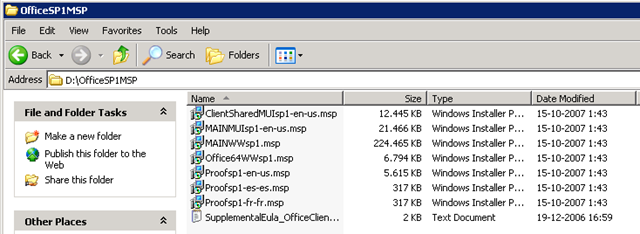
Open the folder D:\OfficeSP1MSP

image

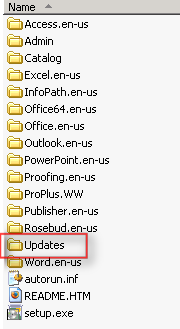
Copy all the *.msp files to the Updates folder on your install share.

image

If you run Setup.exe the setup wizard will install Office 2007 SP1.

Source: http://www.msfn.org/board/lofiversion/index.php/t109038.html

Debian: Samba with AD Authentication


image

This tutorial is a mix-up of other tutorials I found on the net. You’ll find the other sites in the source list at the bottom of this post.

Remember:

Just change ICT-FREAK.LOCAL to your own domain and Debian5srv1 to the name of your Debian server.

Step 1:  Update / Upgrade your Debain setup

apt-get update && apt-get upgrade

Step 2: Install the following packages:

apt-get install krb5-config krb5-user libkrb53 libpam-krb5
samba-common samba winbind smbclient

Step 3:  Create a backup of the krb5.conf file.

mv /etc/krb5.conf /etc/krb5.conf.org

edit the /etc/krb5.conf file with you favorite editor (nano or vi /etc/krb5.conf):

[logging]

default = FILE:/var/log/krb5.log
kdc = FILE:/var/log/krb5kdc.log
admin_server = FILE:/var/log/kadmin.log

[libdefaults]

default_realm = ICT-FREAK.LOCAL
dns_lookup_realm = false
dns_lookup_kdc = false
clock_skew = 300
ticket_lifetime = 24h
forwardable = yes

[realms]

ICT-FREAK.LOCAL = {
kdc = dc01.ICT-FREAK.LOCAL
admin_server = dc01.ICT-FREAK.LOCAL
default_domain = ICT-FREAK.LOCAL
}

Step 4: Check if you can Authenticate a user against the Active Directory

debian5srv1:~# kinit administrator
Password for administrator@ICT-FREAK.LOCAL:

Step 5: Create a backup of the krb5.conf file.

mv /etc/samba/smb.conf /etc/samba/smb.conf.org

edit the /etc/samba/smb.conf file with you favorite editor (nano or vi /etc/samba/smb.conf):

[global]

workgroup = ICT-FREAK
realm = ICT-FREAK.LOCAL
load printers = no
preferred master = no
local master = no
server string = fileserver
password server = <ip-address from your DC>
encrypt passwords = yes
security = ADS
netbios name = debian5srv1
client signing = Yes
dns proxy = No
wins server = <ip-address from your DC>
idmap uid = 10000-20000
idmap gid = 10000-20000
winbind separator = +
winbind enum users = Yes
winbind enum groups = Yes
winbind use default domain = Yes
auth methods = winbind

Step 6: Start Winbind and test the connection

/etc/init.d/winbind start

You can query the AD with the command wbinfo. The –u parameter returns all users. The –g parameter returns all groups.

debian5srv1:~# wbinfo -u
administrator
guest
support_388945a0
krbtgt

debian5srv1:~# wbinfo -g
BUILTIN+administrators
BUILTIN+users
helpservicesgroup
telnetclients
domain computers
domain controllers
schema admins
enterprise admins
cert publishers
domain admins
domain users
domain guests
group policy creator owners
ras and ias servers
dnsadmins
dnsupdateproxy
dhcp users
dhcp administrators
wins users

Step 7: Add the Debian box to the Windows domain

debian5srv1:~# kinit administrator
Password for administrator@ICT-FREAK.LOCAL

debian5srv1:~# net ads join -U administrator
Joined ‘debian5srv1’ to realm ‘ICT-FREAK.LOCAL’

Step 8: Now tell PAM that samba requires authentication and account from winbind. Add the following lines to /etc/pam.d/samba

auth required /lib/security/pam_winbind.so
account required /lib/security/pam_winbind.so

We also need to edit the /etc/nsswitch.conf file so it will look like this:

passwd: compat winbind
group: compat winbind
shadow: compat

Test the new settings with: getent passwd If everything is configured as it should be, you’ll see the AD users.

Step 9: Create a share. First we need to create a folder

mkdir –p /data/share

Change the permissions so the folder is writable

chmod 777 /data/share

Open the /etc/samba/smb.conf file and paste the following lines:

[Share]
comment = Test Share
read only = no
path = /data/share
valid users = @"ICT-FREAK+domain users"

Restart the Samba service via:

/etc/init.d/samba restart

Step 10: Test the new share. Go to your Windows box and browse to the Debian box via \\debian5srv1 

If everything is configured as it should be, you will see the following screen:

image


Sources:
http://www.simsonlai.org/samba-and-active-directory-authentication/
http://rubenleusink.com/debian-samba-filesharing-with-microsoft-active-directory-authentication-2008-10-07/

Update: Schedule a VI Toolkit script


image image

Luc Dekens, better known as LucD, posted a  comment on my previous post about scheduling a Powershell script with Scheduled Task in Windows. He pointed me to a fix for a know issue with the VI Toolkit 1.5. Rob Mokkink  has posted the following fix on the VMTN forums: http://communities.vmware.com<?xml version="1.0"?>

#FIX FOR TOOLKIT 1.5
$USER = $env:username
$APPPATH = "C:\Documents and Settings\" + $USER + "\Application Data"

#SET THE APPDATA ENVIRONMENT WHEN NEEDED
if ($env:appdata -eq $null -or $env:appdata -eq 0)
{
$env:appdata = $APPPATH
}


The following line(s) are no longer necessary to add in your script:

#FORCE TO LOAD VMWARE POWERSHELL PLUGIN

[Reflection.Assembly]::LoadWithPartialName(”vmware.vim”)

Thanks again Luc for sharing this solution.