VI-Toolkit: Enable PXE boot for all VM’s in a particular folder


The following script enables PXE boot for al the VM’s in a particular folder. After running this script, the VM’s are set to boot only from PXE, so all other options are disabled. The original part of the script is created by LucD and posted on de VMTN forums. See the source for more information.

enable-pxeboot-vm.ps1

$VC = Connect-VIServer (Read-Host "Enter vCenter server") 

$folder = (Read-Host "Enter folder name") 

$spec = New-Object VMware.Vim.VirtualMachineConfigSpec
$spec.extraConfig += New-Object VMware.Vim.OptionValue
$spec.extraConfig[0].key = "bios.bootDeviceClasses"
$spec.extraConfig[0].value = "allow:net"

    $vms = Get-Folder -Name $folder | Get-VM
        foreach ($vm in $vms){
            (get-view ($vm).ID).ReconfigVM_Task($spec)}

Disconnect-VIServer -Confirm:$False

The script in action:image

If you want to return to the default settings, you can run the next script:

disable-pxeboot-vm.ps1

$VC = Connect-VIServer (Read-Host "Enter vCenter server") 

$folder = (Read-Host "Enter folder name") 

$spec = New-Object VMware.Vim.VirtualMachineConfigSpec
$spec.extraConfig += New-Object VMware.Vim.OptionValue
$spec.extraConfig[0].key = "bios.bootDeviceClasses"
$spec.extraConfig[0].value = "allow:hd,cd,fd"

    $vms = Get-Folder -Name $folder | Get-VM
        foreach ($vm in $vms){
            (get-view ($vm).ID).ReconfigVM_Task($spec)}

Disconnect-VIServer -Confirm:$False

Source: LucD @ http://communities.vmware.com/thread/196651

Free E-Book: Effective Powershell


Keith Hill has released a free E-Book about Powershell.

Introduction
I am a big fan of the “Effective” series of programming books from Effective COM to Effective XML. Without trying to be too presumptuous, I wanted to capture some of the tidbits I have picked up over the last couple of years using Windows PowerShell interactively and writing production build and test scripts. These items were written for PowerShell 1.0. Where appropriate I have added PowerShell 2.0 Update sections to discuss how the item is affected by the upcoming 2.0 release. As a final note, a number of the PowerShell code snippets shown use functionality from the PowerShell Community Extensions which can be downloaded from http://www.codeplex.com/PowerShellCX.

Grab your copy here: http://keithhill.spaces.live.com/blog/

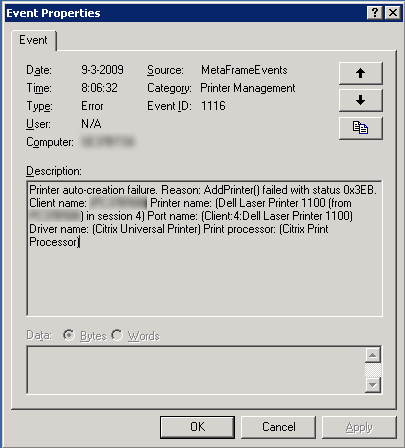
Citrix: Event ID 1116 – AddPrinter() failed


Since a couple of days, I got the following error in my event logs when a user wants to connect to a local printer at home.

image

Citrix released a couple of documents about this issue.

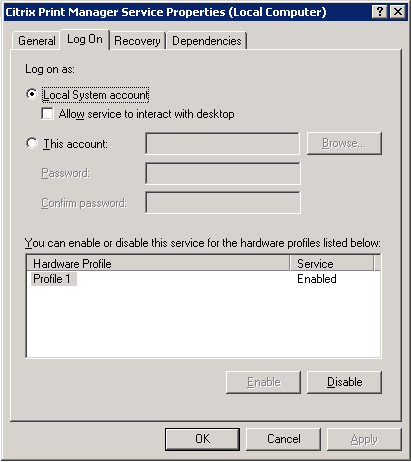
I have tried all the solutions described in the CTX documents, but the only solution, what works for me was changing the Log On account of the service to the Local system account.

image

After restarting the Citrix Print Manager Service, everything works fine again :-S

VMware: VM Disk space calculator


This post is a copy from Cody Bunch his blogpost. Cody thanks for sharing!!!:

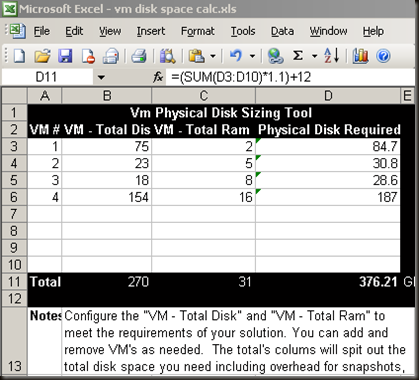
This is a tool that I created a while back to assist in sizing needed disk space in a deployment. Straight forward to use, the totals are calculated as follows: VMDK Size + Ram Size * 1.1 + 12Gb = Total Needed. While the VMDK may be obvious, the others are just as important. Ram Size is included, as ESX will create a swap file on the disk where the VM’s configuration resides (unless you specify otherwise) and needs to be included.  The * 1.1 is to add 10% to the overall solution, to allow for snapshots. This can likely be adjusted up or down depending on your specific requirements, but I’ve found that at least 10% works best.  The last number, 12GB. This one may seem like a mystery, and likely it is. This was originally included to allow for the ESX install on a local host, and some additional room for it’s related overhead.  If your VM’s are on SAN, this number can likely be left out, but… a little more overhead never hurt anyone.

image

Download link and source: http://professionalvmware.com/2008/12/08/virtual-machine-disk-sizing-tool/

Release: PowerGUI 1.7


The key new scenario which we wanted to support was creating custom PowerGUI-based consoles: branding them, locking them down, distributing to administrators (e.g. helpdesk), and then having automatically updated whenever you make changes to the central configuration.

The main pieces of this scenario were:

1. Lockdown mode: this allows you to disable and/or hide any functionality in the PowerGUI admin console. Simply open the file quest.powergui.Lockdown.xml in PowerGUI profile folder (%appdata%\Quest Software\PowerGUI). You can just replace all true with false (in that case users won’t even be able to click an action or change order of columns), or be more granular.

2. Central configuration update: Redirections.xml from PowerGUI profile folder lets you make PowerGUI pull its configuration and/or lockdown information from another location (e.g. file share). PowerGUI also checks for the configuration version, which lets you force the UI update whenever you change anything in your custom console.

3. Ability to change the welcome page to something more meaningful for your organization.

And then there are multiple smaller changes:

4. Multiline comments for PowerShell v2 (<# #>).

5. Icons in the grid and dynamic nodes.

6. Multiple bugfixes based on reports we got from our community forums. We’ll hopefully follow-up on all of them next week.

Download PowerGUI here: http://powergui.org/downloads.jspa

VMware: Performance Overview Chart could not be loaded


After installing the new Performance Overview plugin for vCenter 2.5u4. There might be a change that the following “error” appears when you start the plugin.

image

But, VMware did a great job and  published this workaround:

Workaround: If VirtualCenter is upgraded when the VMware Infrastructure Web Access Service is running, you need to reinstall the Virtual Infrastructure Web Access feature and re-install the Performance Overview plug-in:

  1. In the Add or Remove Programs utility, change the VMware VirtualCenter Server program.
  2. Modify the VirtualCenter Server installation, and remove the Virtual Infrastructure Web Access feature.
    image
  3. In the Add or Remove Programs utility, change the VMware VirtualCenter Server program.
  4. Modify the VirtualCenter Server installation, and install the Virtual Infrastructure Web Access feature on the local hard drive.
    image
  5. Re-install the Performance Overview plug-in:
    1. In the command window goto to the folder vpx/perfCharts, the location where the Performance Overview plug-in is available.
      If you are using the ZIP file, go to the bin\perfCharts folder.
    2. Run uninstall.bat <VirtualCenter_Username> <VirtualCenter_Password>
    3. Run install.bat <VirtualCenter_Username> <VirtualCenter_Password>
  6. Connect the VI Client to the VirtualCenter Server, and enable the Performance Overview plug-in:
  1. In the VirtualCenter Server, click Plugins > Manage Plugins.
  2. In the Installed tab of the Plugin Manager window, for com.vmware.vim.stats.report select Enabled.

Source: KB1008330

VMware: vExpert


vExpert_logo_q109

Today I received an email from John Troyer with the following message:

Congratulations! On behalf of VMware, we would like to thank you for all the work you’ve done giving back to the virtualization community and sharing your expertise with others. We are pleased to present you with the VMware vExpert Award for 2009. VMware is giving this award to individuals who have contributed significantly to the community of VMware users over the past year.

Thanks John and thank you guys for nominate me!

More information about the vExpert program can be found here:

VMware: Installing the new Performance Charts plugin


These are the steps, you need to do, before you can install the Performance Charts plugin. Step one is one of the most important steps. I forgot to copy the files and the install gave me a nice “Access Denied” error.

  1. Copy the VirtualCenter 2.5 Update 4 build to the VirtualCenter Server system.
  2. If you are upgrading to VirtualCenter 2.5 Update4, stop the VMware Infrastructure Web Access service before upgrading the VirtualCenter.
  3. Install or ugrade to VirtualCenter 2.5 Update 4 and start the VMware Infrastructure Web Access service.
  4. Dowload Java SE Development Kit 6u11, and install JDK 1.6.
  5. Configure the environment variables:
    1. Right-click My Computer and click Properties.
    2. In the Advanced tab, click Environment Variables.
    3. In the System variable list, select Path and click Edit.
    4. In Variable value, enter C:\Program Files\Java\jdk1.6.0_11\bin\
      If an older version of JRE is present, run the following command in the command window:
      set path=C:\Program Files\Java\jdk1.6.0_11\bin\;%path%
    5. In the System variable list, select JAVA_HOME and click Edit.
      If JAVA_HOME does not exist, click New and in the Variable name, enter JAVA_HOME.

    6. In Variable value, enter C:\Program Files\Java\jdk1.6.0_11\bin\

    7. Log out and log back in to the VirtualCenter Server.

To install the Performance Overview plug-in:

  1. In the command window of VirtualCenter Server system, go to the vpx/perfCharts folder, the location where the Performance Overview plug-in is available.
    If you are using the ZIP file, go to the bin\perfCharts folder.
  2. Run install.bat <VirtualCenter_Username> <VirtualCenter_Password>

Download and Install the plugin:

image

After the install activate the plugin via the installed tab.

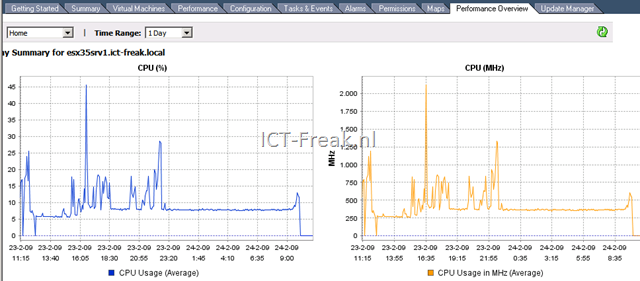
In the VI Client you’ll notice a new tab called Performance Overview. Here some screenshots from a host:image

image

image

And here is one screenshot from a VM:

image


Source: KB1008296

VMware: vCenter 2.5 u4 released


VMware just released vCenter server 2.5 u4 with the following improvements:

  • Guest Operating System Customization Improvements – VirtualCenter now supports customization of Windows Server 2008 guest operating systems.
  • Performance Overview Charts – VirtualCenter 2.5 Update 4 introduces the Performance Overview plug-in, which provides a single view of key performance metrics for CPU, memory, disk, and network without having to navigate through multiple charts. The aggregated charts show high-level summaries of resource distribution.
    To install the Performance Overview plug-in, see Installing the Performance Overview Plug-In in VirtualCenter 2.5 Update4 (KB 1008296)

You can find the release notes here: http://www.vmware.com/support/vi3/doc/vi3_vc25u4_rel_notes.html

The download: http://www.vmware.com/download/download.do?downloadGroup=VC250U4