VMware: VMware-mount


In deze post lees je hoe je via de bashshell en via de gui in Workstation een VMDK kunt mounten.

Before you begin to map a virtual disk, make sure that all virtual machines that use the disk are powered off. Also, take the following considerations into account:

Linux

Onder linux (Ubuntu) werkt het als volgt:

Maak eerst een directory aan, waar je de mount naar toe wilt verwijzen:

sudo mkdir /media/vmdk

Daarna kun je via het volgende commando de vmdk mounten:

sudo vmware-mount /path/to/vm.vmdk /media/vmdk

unmounten gaat als volgt:

sudo vmware-mount -d /media/vmdk/

Mocht het unmounten niet lukken dan kun je het forceren via het volgende commando:

sudo vmware-mount -x of -X

Windows

Start VMware Workstation.

File – Map or Disconnect Virtual Disks…

image

Daarna blader je naar de .vmdk die je wilt toevoegen en geef je de Drive letter aan.

image

nadat je op OK hebt klikt wordt de vmdk geopent.

image

Als je klaar bent kun je de vmdk ook weer unmounten via dezelfde wizard.
How To: Schedule a Powershell script with Scheduled Task


In deze post lees je hoe je een Powershell script kunt schedulen via Windows Scheduled Tasks.

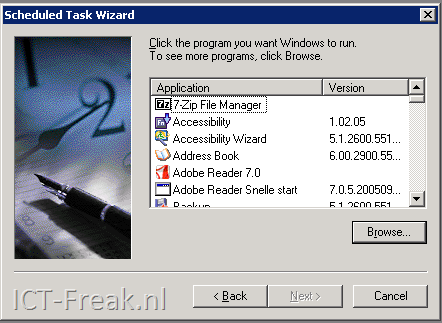
Start de Scheduled Task Wizard.

image

Klik op Browse… en voeg het onderstaande commando in:

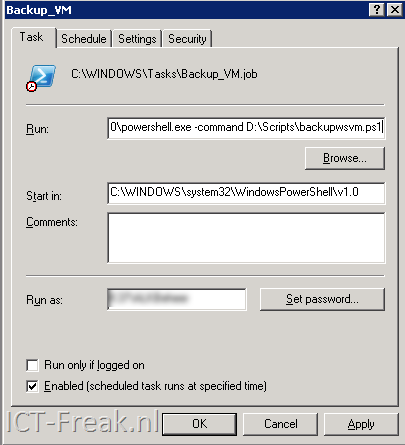
%SystemRoot%\system32\WindowsPowerShell\v1.0\powershell.exe

image

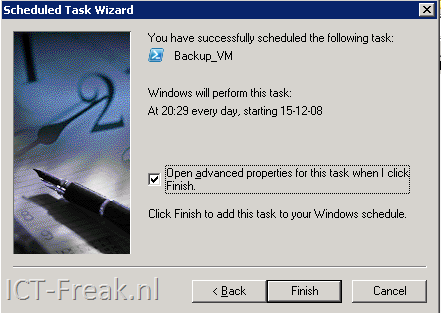
Nadat de wizard klaar is, vink je Open advanced properties for this task when I click Finish aan. Daarna voeg je het volgende toe aan het Run veld: -command D:\Scripts\backupwsvm.ps1

image

Vervolgens druk je op OK om de task op te slaan.

Mocht je een Powershell script scheduled die gebruik maakt van de VI Toolkit. Dan moet je de onderstaande code toevoegen aan je script.

#ADD VMWARE PSSNAPIN
Add-PSSnapin -Name “VMware.VimAutomation.Core”

#FORCE TO LOAD VMWARE POWERSHELL PLUGIN
[Reflection.Assembly]::LoadWithPartialName(“vmware.vim”)

VMware: Search the Hardware Compatibility Guide


Jeej, we hoeven niet meer in de pdf’s te zoeken. Sinds kort heeft VMware een zoekfunctie op de site geplaatst.

The new online compatibility guide provides a single point of access for all VMware hardware compatibility guides. The new search tool streamlines the HCL posting process and offers advanced search capabilities and the ability to save the guide(s) or search results in a .PDF or csv format.

The new hardware compatibility guide replaces the following legacy PDF-format HCLs:

    * VMware ESX 3.0.x and above version Systems Compatibility Guide
    * VMware ESX 3.0.x and above version SAN (storage) Compatibility Guide
    * VMware ESX 3.0.x and above version I/O Compatibility Guide
    * VMware View Client Compatibility Guide


De Compatibility guide vind je hier:

image

VMware: New product line names vCenter, View


Zoals de meeste mensen misschien al wisten is VMware bezig met het rebranden van haar producten. VirtualCenter en VDM zijn de eerste producten met een nieuwe naam:

VMware VirtualCenter  → VMware vCenter Server
The central management product for VMware Infrastructure
VMware Lifecycle Manager → VMware vCenter Lifecycle Manager
Workflow automation product for creation, deployment and decommissioning of virtual machines
VMware Converter → VMware vCenter Converter (for the version integrated into vCenter)
VMware vCenter Converter Standalone (for the separately downloadable version); comes in two flavors: Enterprise and Starter
Physical to virtual (P2V) conversion product
VMware Lab Manager → VMware vCenter Lab Manager
Automation product for application development environments
VMware Stage Manager → VMware vCenter Stage Manager
Automation product for application staging and deployment environments

VMware Update Manager → VMware vCenter Update Manager
Host and virtual machine patch management product integrated with vCenter Server
VMware Site Recovery Manager → VMware vCenter Site Recovery Manager
Disaster recovery orchestration product
VirtualCenter Foundation → vCenter Server Foundation
Node limited version of vCenter Server
VMFS → VMware vStorage VMFS
VMware’s cluster file system

VMware Virtual Desktop Infrastructure → VMware View
VMware’s integrated desktop virtualization solution that delivers enterprise-class control and manageability
Virtual Desktop Manager (VDM) → VMware View Manager
Enterprise class server which manages connections from end points to virtual desktops or hosted desktops while helping rapidly provision desktops

VMware Administrator Interface → VMware View Administrator
Administrator Interface for View Manager
VDM Agent → VMware View Manager Agent
Agent for View Manager to talk to the virtual desktop

VDM Web Access → VMware View Portal
Access to virtual desktops through web browser
VDM Client for Windows → VMware View Client for Windows
Client used to install on Win 32 PC or Win XP embedded thin client to connect to View Manager for virtual desktop access

VDM Client for Linux → VMware View Client for Linux
Client used to install on Linux thin clients to connect to View Manager for virtual desktop access

Bron: http://blogs.vmware.com/vmtn/2008/12/do-they-smell-a.html

Series: Hyper-v, not in my Datacenter part3


Gabrie heeft part3 gepost.

In part 3 of this series, I want to shed a light on the difference between the types of Migration in ESX and Hyper-V and the differences in storage between the both of them. Although I think most of the readers know the differences, I will start with a brief summary.

  • Hyper-V QuickMigration: When you want to move a running Virtual Machine from one host to another with as little downtime as possible, you can use QuickMigration. On host-A the VM will be suspended to disk, and then host-B will unsuspend the VM and run it.
  • Hyper-V & ESX Cold Migration: Moving a VM that is not running, to different host and/or different storage.
  • ESX VMotion: Moving of a running VM to a different host, without downtime.
  • ESX Storage VMotion: Moving the disks of a VM to different storage without downtime (VM doesn’t move).

Lees de rest hier: http://www.gabesvirtualworld.com/?p=107

Citrix: CPSUpdate script


Thomas Koetzing van http://www.thomaskoetzing.de heeft zijn CPSUpdate script voorzien van een update.

I have now extended the update script to automatically download ALL currently available Hotfixes/Rollups for the xenApp (Presentation Server) I have set. This is done with the Windows version of the unix command "wget". Wget also supports proxy settings and can be set in the script as well.

Right now xenApp 5.x is not supported because the is no fix available and I have to check what Citrix is doing there…This is the 1.8 release with the download option, so let me know of any bug etc.
Please leave your comment at the bottom of the article how to patch Presentation Server.

Download het script hier: CPSUpdate-v1.8.zip

EMC: Celerra Virtual Appliance and VI3


image

De virtualgeek is bezig met een howto serie over het configureren van de Celerra Virtual Appliance. Deze appliance kun je impoprteren binnen VMware Workstation of ESX server. Hoe dit in zijn werk gaat lees je in de volgende posts:

In de toekomst gaat EMC meer Virtual Appliances aanbieden van haar overige producten. Let wel op deze  appliances zijn alleen bedoeld voor test en studie doeleinden.

VMware heeft ook een document uitgegeven. De pdf kun je hier vinden: VMware_VI3_and_EMC_Celerra_IP.pdf

Series: Hyper-v, not in my Datacenter part2


Gabrie heeft Part 2 gepost van zijn serie Hyper-v, not in my Datacenter.

Guest OS

After you installed your hypervisor you want to virtualize your physical servers on it. When doing the research for my presentation I was very surprised to find some strange limitations in which guest are supported with Hyper-V. Can you believe that not all Windows Server versions are supported? Well neither could I.

The guest OS support of Hyper-V:

  • Windows 2000 Server is only supported with SP4 and 1 CPU.
  • Windows 2003 Server is only supported with SP2 and 1 or 2 CPUs.
  • Windows 2008 Server is supported with 1, 2 and 4 CPUs.
  • and there is Linux support for SUSE Linux Server 10 sp1 / sp2 with only 1 CPU.

This does look quite reasonable at first glance, because these are current versions. True, but when looking at the ESX environment I work in now, we would not be able to virtualize as many servers as we have running on ESX right now

Part 2 vind je hier: http://www.gabesvirtualworld.com/?p=104#more-104

Series: Hyper-v, not in my Datacenter part1


image

Gabrie van Zanten (www.gabesvirtualworld.com) is bezig met een serie over Hyper-V, not in my Datacenter.

I’ve written about Hyper-V and ESX is an objective view on how things are at the moment, but still it looks like the only thing I’m doing is Windows-bashing. I decided to dedicate a blog post to it, so everyone can find out for them self if my points are valid. The big question of my presentation is: “Which is better for my datacenter, Hyper-V or ESX?”.
I’m looking at both hypervisors to see which features they have that would make them suited for running in the datacenter discounting nice features that I would rarely use.  Here we go…….

Part 1 kun je hier vinden: http://www.gabesvirtualworld.com/?p=103#more-103.

Uit betrouwbare bron heb ik vernomen, dat morgen Part 2 gepost gaat worden. Dus hou www.gabesvirtualworld.com in de gaten.

VMware: Oh Dear I Lost My Descriptor


Nicolas de Wilde stuurde mij een mailtje met de volgende tip:

Occasionally ESX VMs crash in such a way that the descriptor file of a vmdk gets lost.
If you ever need to recreate a descriptor from scratch but still have the *-flat.vmdk this little tool may come handy.
Tool asks for a flat-file – like used by ESX 3 and Workstation. It ignores the CID and uses a bogus one. Output is named "newdescriptor.vmdk" – rename as needed. Doesn’t work for disks smaller than 1 Gb at the moment.

image

http://sanbarrow.com/moa23/files/oh_dear_I_lost_my_descriptor.zip


bron: http://communities.vmware.com/message/1107523#1107523