Microsoft: Set Google as default search provider in Internet Explorer 7


Dit kun je doen door het onderstaande registry bestand te importeren.

Windows Registry Editor Version 5.00

[HKEY_CURRENT_USER\Software\Microsoft\Internet Explorer\SearchScopes]
“DefaultScope”=”{06652DC2-D1BD-4BD1-BACA-EC681D3E6E33}”
“Version”=dword:00000001

[HKEY_CURRENT_USER\Software\Microsoft\Internet Explorer\SearchScopes\{06652DC2-D1BD-4BD1-BACA-EC681D3E6E33}]
“DisplayName”=”Google”
“URL”=”
http://www.google.com/search?hl=en&q={searchTerms}&meta=”

[HKEY_CURRENT_USER\Software\Microsoft\Internet Explorer\SearchURL]
@=
http://www.google.com/keyword/%s

Je kunt een ook een custom ADM maken om dit via een GPO door te voeren. Hoe dit werkt lees je in KB918238

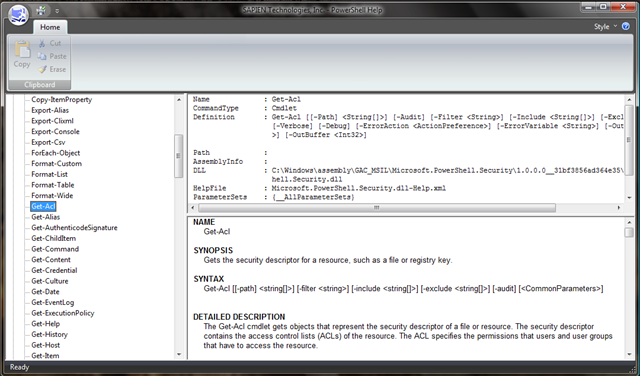
Tool: Windows PowerShell Help Tool


Deze tool bladert via een grafische interface door de powershell help. De powershell help kun je ook in de shell opvragen via help. Maar dit is overzichtelijker.

Displays detailed help for all PowerShell cmdlets – a convenient, on-screen reference while working in PowerShell, or when developing scripts. Note that PrimalScript 4.1 Professional, Enterprise, and Universal editions display this information in the new “Help” tab right within the product.


image

Je kunt de tool hier downloaden: http://www.scriptinganswers.com/Tools.asp

Microsoft: Firewall client 2004 Settings


image

De volgende client bestanden zijn erg handig om te weten in een Firewall client 2004 setup.

Common.ini

[Common]
ServerName=ISA_1 (Proxyserver)
Disable=0 (0 = visible 1 = invisible)
Autodetection=0 (0 = disabled 1 = enabled)


Application.ini

[FW_Client_App]
Disable=0
NameResolution=R
LocalBindTcpPorts=7777
LocalBindUdpPorts=7000-7022, 7100-7170
RemoteBindTcpPorts=30
RemoteBindUdpPorts=3000-3050
ServerBindTcpPorts=100-300
ProxyBindIp=80:110.52.144.103, 82:110.51.0.0
Persistent=1
ForceCredentials=1
NameResolutionForLocalHost=L


LocalLAT.txt

ip-address from a local subnet:
10.10.0.0       10.10.255.255

De Common.ini gebruik je voor het configureren van de Firewall client. De Application.ini kun je gebruiken voor het lokaal configureren van bepaalde porten en andere settings. De LocalLAT.txt is handig om indien noodzakelijk een bepaald subnet niet naar de ISA server te sturen maar direct te benaderen. Deze optie heb ik gebruikt om de ISeries Access client (AS/400 client)  aan te praat te krijgen.

De volgende quote komt uit de technet libary van ISA 2004

These files can be created at the operating system level for all users logged on to the computer and may be created for each specific user on the computer. The per-user settings override the general configuration settings. These files are created in different locations, depending on the operating system. For example, on computers running Microsoft Windows® XP, the files are copied to two folders:

\Documents and Settings\All Users\Application Data\Microsoft\Firewall Client 2004

\Documents and Settings\user_name\Local Settings\Application Data\Microsoft\Firewall Client 2004


Meer informatie vind je hier:

http://www.microsoft.com/technet/isa/2004/help/FW_C_AdvFWSample.mspx?mfr=true

Microsoft: Server 2008 Server Manager to support WSUS 3.0 SP1


An update for Windows Server 2008 Server Manager (KB940518) has been released to integrate Windows Server Update Services 3.0 Service Pack 1 (WSUS 3.0 SP1). This update to Server Manager enables full integration of WSUS 3.0 SP1 into Server Manager, allowing installation, configuration, and management of WSUS 3.0 SP1 using the Server Manager console and wizards.

image

How to determine whether the service pack is installed

Look for Update for Windows (KB940518) in the View installed updates item or in the Programs and Features item in Control Panel. If Update for Windows (KB940518) does not appear, the update is not installed.


Installation instructions

To avoid restarting the computer, verify that the Initial Configuration Tasks, Server Manager, and the Servermanagercmd.exe process are not running during the installation process. You must also log on to the computer as an administrator to install this update.


1. On a computer that is running Windows Server 2008, download the update package from the Microsoft Web site that is listed in the “Update information” section.

2. Double-click the download package to start the Setup wizard. Follow the instructions in the wizard to complete the installation.

3. Use one of the following methods to open Server Manager:

• Click Start, right-click Computer, and then click Manage.

• Click Start, point to Administrative Tools, and then click Server Manager.

• Click the Quick Launch bar, and then click Server Manager.

Note If WSUS 3.0 SP1 is already installed on your computer, you do not have to complete the remaining steps.

4. On the Server Manager home page, click Add Roles in the Roles Summary section.

5. On the Select Roles page of the Add Roles Wizard, click to select Windows Server Update   Services from the list of available roles.

6. Follow the instructions in the Add Roles Wizard to complete installation.

More information and download locations can be found here: http://support.microsoft.com/kb/940518

Bron: http://windows2008security.com/windows-server-security/update-for-windows-server-2008-server-manager-to-support-windows/

Microsoft: Empty Device Manager In Windows XP


After upgrading to servicepack 3 in Windows XP you might get the following symptoms:

After you install Windows XP Service Pack 3 (SP3), Device Manager may not show any devices and Network Connections may not show any network connections.

This problem may occur when an antivirus application is running during the installation of Windows XP SP3.

Microsoft has created a small utility you can download here: http://www.microsoft.com/

More information about this problem can be found in KB953979

Excellent (VI) Powershell Scripts


Hugo Peeters van http://www.peetersonline.nl heeft denk ik een van de beste blogs over VMware en Powershell.

Hier een paar voorbeelden van een aantal van zijn scripts:

Voor meer scripts en zeer nuttige powershell informatie verwijs ik naar zijn blog: http://www.peetersonline.nl

Hugo, ga gerust zo door 😉

VMware: VI Toolkit (for Windows) 1.0 Update 1


VMware heeft update 1 van de VI Toolkit vrijgegeven. Hieronder zie je een quote van de blogpost op vmware.com:

Some users had reported slowness when using the Get-VM cmdlet. The reason turned out to be an odd quirk in querying some types of network adapters, so many people weren’t affected at all. On the other hand, if you were affected, it was pretty annoying. To address this we’ve released Update 1 of our toolkit. If you’ve had trouble with Get-VM, download it things will go a lot smoother. One user reported that his queries went from more than 5 minutes to just over 10 seconds — a world of difference!

This is the only change we made to the toolkit, so don’t expect lots of new functionality when you download, you’ll have to wait a bit longer for that. If you haven’t had any trouble with 1.0 it’s perfectly fine to keep using it until the next release.


Download update 1 hier: http://vmware.com/go/powershell

Bron: http://blogs.vmware.com/vipowershell/2008/09/vi-toolkit-for.html

Citrix: XenApp 5 RTM!


Citrix XenApp 5 – the new name for Citrix Presentation Server – is the most complete application virtualization system that offers both client-side and server-side application virtualization for optimal application performance and flexible delivery options. XenApp brings world-class application delivery to the Microsoft Windows Server and Terminal Services platform with added flexibility, manageability, security and performance, making application delivery the premier choice in providing Windows applications to users.

Key benefits of adopting XenApp 5

  1. Reduce cost
    1. Reduce the cost of patching/updating applications with the new Inter-isolation communication feature of Application Virtualization
    2. Use the new Active Application Monitoring feature of EdgeSight to cut support costs by making it easy for IT to proactively detect and prevent potential performance issues even before they occur
    3. Be IPv6 compliant without rewriting applications
    4. Use the new Installation Manager for Windows Server 2008 to quickly distribute applications, service packs, software patches, and simple command-line script tasks to servers
  2. Improve Performance
    1. Dramatically improve application startup time for streamed applications
    2. Ensure fast and secure delivery of applications with HTTP(S) support for application streaming
    3. Improve Performance for Users and Apps with Preferential Load Balancing (PLB)
    4. Enhance XenApp resource monitoring with updated Resource Manager (based on EdgeSight technology)
  3. Enhance User Experience
    1. Use the completely redesigned Web Interface to enhance user productivity via the intuitive and compelling interface
    2. Streamline End User Experience with new icons
  4. Transition to Windows Server 2008
    1. Leverage the security and stability of Windows Server 2008 platform
    2. Enhance usability with Special Folder Redirection and ClearType font smoothing
    3. Enhance printing with XPS Universal Print Driver
    4. Enable smooth transition to Windows Server 2008 with mixed farm support


Download XenApp 5 vanaf hier: https://www.citrix.com/English/SS/downloads/details.asp?downloadId=1681205&productId=186 je hebt wel een MyCitrix.com account nodig!


Documents to download

  1. Installation Checklist for XenApp 5 for Windows Server® 2008
  2. Readme for XenApp 5 for Windows Server 2008
  3. Citrix XenApp Installation Guide
  4. Getting Started with XenApp
  5. Technical Guide for Upgrading or Migrating to Citrix XenApp 5
  6. Product Documentation link

Release: XenApp Plugin 11.000


These plugin support Windows XP, Vista, 2003, & 2008

Use the “XenApp Plugin for Hosted Apps” to access your hosted applications from your desktop or a web interface.

Use the “XenApp Web Plugin” to access your hosted applications from a web interface.

Use the “XenApp Plugin for Streamed Apps” to access applications streamed to your desktop. You must install the “XenApp Plugin for Hosted Apps” before you install the “XenApp Plugin for Streamed Apps”.

View the list of countries that may have export or import restrictions for products containing strong (128-bit or greater) encryption.


Download de Plugin hier: https://www.citrix.com/English/SS/downloads/details.asp?downloadId=1681207&productId=186#top

VKernel: SearchMyVM


image

Zoals de meeste Bloggers heb ik ook een e-mail gehad van VKernel met de aankondiging van hun nieuwe appliance SearchMyVM.

SearchMyVM instantly deploys exactly like each one of VKernel’s virtual appliances. With a “Google-like” search interface, you can find virtual machines, hosts, clusters, storage, resource pools, files, snapshots, VMware tools, applications and configuration information. Over 75 different types of attributes are fully indexed and available for you to search.

Please download the SearchMyVM Beta today and give it a try. I’m personally looking forward to your feedback.

In de rest van deze post lees je hoe je de appliance importeerd via de geweldige OVF standaard.

Log in op je VirtualCenter server. Ga naar File – Virtual Appliance – Import.

image

Voer in het volgende scherm de URL in van de OVF. Daarna loop je de wizard verder door.

image

Zodra je de wizard hebt doorgelopen word de OVF file ingelezen.

image

Nadat de import klaar is start je de VM op. Nu moet je alleen nog de NTP server configureren, de timezone goedzetten en het ip-adres wat van je DHCP server komt onthouden.

Open daarna je browser en voer het ip-adres van de appliance in.

De volgende stap is het toevoegen van je VirtualCenter Server of je ESX Server. Ik probeerde dit op naam (FQDN) te doen maar dat werkte nog niet goed. Toen ik het op ip-adres deed ging het prima.

image

Nadat de VC of ESX server is toegevoegd, word de inhoud ingelezen in de appliance.
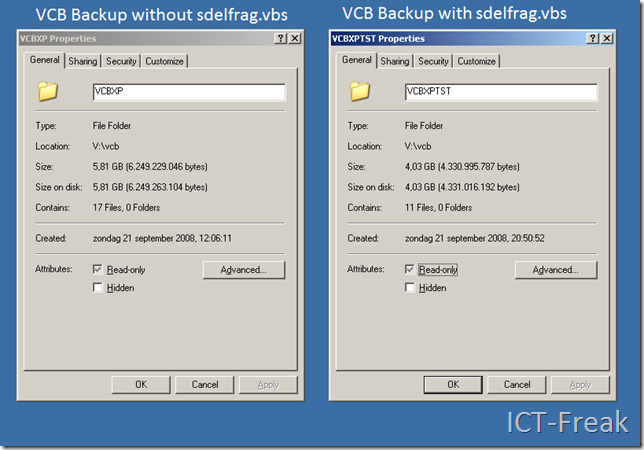
image

Zodra alle data is ingelezen kun je een query starten. Dit kun je doen via de Query builder:

image

Of je doet het als volgt: VM:<VMNaam>
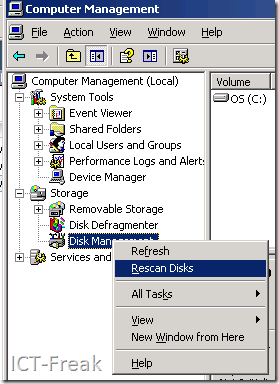
image

Ik denk dat deze appliance zeker wel nuttig kan zijn in een omgeving met honderden VM’s. Zo kun je d.m.v. een snelle query snel zien waar de VM staat.