Review: PHD Virtual Monitor


One of my blog sponsors PHD Virtual  asked me to do a short review of a new product called:

image

So what is PHD Virtual Monitor. Well, let’s start with  a quote from the PHD Virtual website:

Complete End-to-End Virtual & Physical Infrastructure Monitoring

Today, IT administrators are faced with a challenge when it comes to monitoring their virtual servers. Legacy technologies, architected decades ago, are difficult to deploy and expensive to maintain. Inexpensive or free technologies, though easier to deploy and use, lack enterprise functionality and scalability. Virtualization specific products only monitor the hypervisor, limiting their overall effectiveness. Effective virtual infrastructure monitoring requires a complete view across your entire infrastructure so you can not only monitor the virtualization hypervisor and host but also the VM’s, applications, physical servers and network devices that are critical components to ensuring application availability. A better solution is now here.

PHD Virtual Monitor is a comprehensive virtualization monitoring solution that gives you complete visibility across your entire virtual IT infrastructure at all levels including virtual, physical and application. Only with a complete view can you effectively ensure application availability.

PHD Virtual Monitor Delivers Unique Value

Comprehensive Virtual Monitoring

  • Hypervisor, VM’s, Apps & Physical Infrastructure
    Robust Yet Easy To Deploy and Use
  • Pre-configured monitoring watches and auto-discovery
  • Simple customization; no coding or scripting
    Intelligent Agent Technology
  • Agent and Agent-less monitoring
  • Extremely lightweight, small footprint
    XenCenter and vCenter Integration
  • Monitor directly from Citrix XenCenter and VMware vCenter consoles
    Cost Effective
  • Enterprise-class monitoring and scalability at a fraction of the cost

From the user guide I copied the key features list:

  • Complete & Robust Agent Based Physical & Virtual Server & Network Monitoring: PHDVM is a complete, comprehensive and extensible real-time monitoring tool for physical & virtual Windows servers and workstations, Linux/Unix servers and network devices providing detailed server/workstation monitoring including Services, Processes, Performance Counters, Event Logs, Files, Registry, CPU, Disks, Memory, and other resources; and detailed network device monitoring with SNMP & Syslog. Easy to use ‘Watch’ templates for creating monitoring rules by simply specifying the key criteria to be monitored and the alert actions to be taken.
  • “Agentless” Virtual Environment Monitoring: Monitor VMware and Citrix virtual environments via the individual virtual hosts or through vCenter and the XenServer Pool Master, respectively. Install a PHDVM Virtual Monitoring Collector on a Windows physical or virtual machine and collect and monitor the virtual inventory, basic Host and VM performance metrics.
  • “Agentless” Server/Workstation Monitoring: Monitor thousands of servers and workstations from one or more distributed Agents via “agentless” monitoring for interactive User Logon/Logoff status. Run a simple and complete User Logon/Logoff status report. Frustrated with trying to determine User Logon/Logoff activity from the Event Logs? Try PHDVM’s direct “agentless” server/workstation approach.
  • Consolidated Dashboard Status Display and Reporting: From a single central monitoring server, PHDVM scales to monitor over 2,000 local and remote physical and virtual servers/devices offering network managers a consolidated, dynamic status view on a single dashboard display. Users can access PHDVM anytime, from anywhere, using an Internet Explorer Web browser to view real-time monitoring data and dynamic dashboard displays, generate reports and perform administration tasks.
  • Extensible Monitoring Programming Platform: With the CustomWatch monitoring option, PHDVM provides a user the ability to extend and enhance monitoring with Windows scripting, and scheduled execution of any Windows executable including in-house developed or third party programs. Script very detailed monitors for Exchange Server, Active Directory, SQL Server, IIS, and other Windows server based systems. Various sample scripts are included with PHDVM.
  • Automated Remediation and Recovery Actions: PHDVM provides alert action options to have a designated Program run under a specified security context based on Username/Password credentials, with an optional Working Start Directory for the Program, and an option to Show Window for the Program’s Window GUI. The Program can be any Windows Batch, Script such as VBS & WMI, COM, and EXE.
  • Comprehensive LOG Monitoring and Management: PHDVM’s real-time EventLog and Syslog alert Monitoring and long term Archiving enable organizations to react quickly to issues and meet requirements for Sarbanes-Oxley issues, HIPAA and other IT compliance requirements for managing Event Logs and Syslogs.
  • Multi-Tenant Platform: PHDVM supports managing multiple-tenants. With optional security settings, view all tenants, or view a partitioned set of one or more tenants.
    — For MSPs, support multiple clients in a single, scalable central PHDVM Server, with optional separate security settings based on client login and limited to viewing only the clients’ servers, workstations, and devices and associated Watches on the various console displays.
    — For Medium-Enterprise Businesses, support multiple administrators and analysts, with optional security settings based on their Windows login and limited to viewing only their responsible servers, workstations, devices and associated Watches on the various console displays.

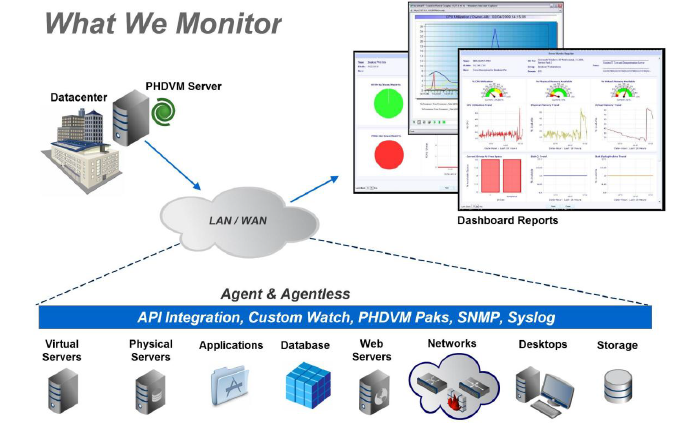
So what does PHD Virtual Monitor can monitor for you:
image

Okay enough of the marketing bla bla Knipogende emoticon Let’s start with the installation.

Continue reading “Review: PHD Virtual Monitor”

Error 25114. Setup failed to generate the JRE SSL keys


Today I was busy with a vCenter server upgrade to vCenter 4.1 update 2. Everything went fine except the vCenter Update manager installation. I received the following error:

image

The solution is pretty simple this time. Just be sure to stop the vCenter Update Manager service before starting the setup. Right after stopping the service, the installation was successful and I was happy again. In the VMware Communities you’ll find that this issue is also know for the upgrade of vCenter 5 to vCenter 5 update 1. See http://communities.vmware.com/ for more info. Now let’s patch some vSphere hosts with the help of PowerCLI: powercli-update-vmhost-function/

vCOPS 5: HTTP Status 404 –


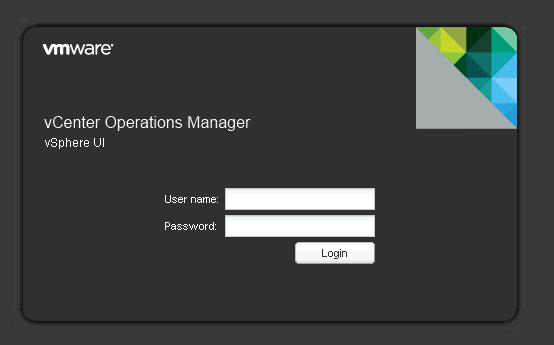
When I opend the vCOPs v5 page this morning a got the following error:

image

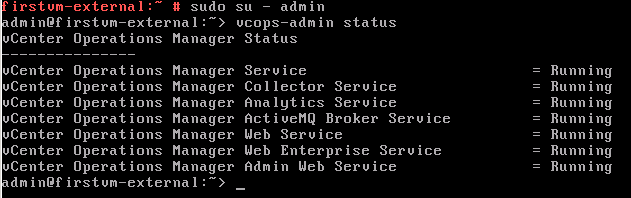
So I checked if the services where running at the time. You can do this with the vcops-admin status command:

image

The next thing to check is the free disk space with the df –h command:

image

The disk seems to be full. To fix this issue, You can follow the steps from KB2016645:

To add a new virtual disk to the virtual machine:

  1. Power off the vApp.
  2. In the vSphere Client, right-click the virtual machine and click Edit Settings.
  3. Add the additional virtual disk.
    Note: Ensure to consider the future growth while selecting the disk size.
  4. Power on the vApp. The virtual machine automatically configures the newly added disk at boot time.

When the VM starts the disk is added to the VM and the LVM logical group will be configured with the new disk:

image

And we’re back:

image

HP Lefthand CMC: An error occurred while reading the upgrade configuration file


If you’re using a custom download directory for the P4000/Lefthand upgrade and patch files. You probably noticed the same error as showed in the screenshot below:

image

The fix is very simple. Just go to help –> preferences –> upgrades and add a \ to the directory name field:

image

Now you’re able to upgrade your SAN nodes to the latest  versions:

image

So just a quick post to share this simple fix.

PowerCLI: Disable / Enable HA Host Monitoring


In the case you need to or your network team needs to do some network maintenance on the switches which VMware HA uses to communicate with the other hosts or where the das.isolationaddress (default gateway) is configured/ It’s smart to disable the Host Monitoring feature of VMware HA. You can do this easily by hand via edit cluster – VMware HA and uncheck the Enable Host Monitoring feature. See screenshot below:

image

But what if you have to disable Host Monitoring on multiple VMware HA cluster? Well, if you like PowerCLI, you can use the following script to disable or enable the HA Host Monitoring feature:

param(
    $vCenter,
    $option
)

if($vCenter -eq $null){
    Write-Host "Please enter the name of the vCenter Server" -ForegroundColor Yellow
    exit 
} 

switch($option){
    enabled {"The HA Host Monitoring feature will be enabled"}
    disabled {"The HA Host Monitoring feature will be disabled"}
    default {"the option value could not be determined."
    exit
    }
}

Connect-VIServer $vCenter

$clspec = New-Object VMware.Vim.ClusterConfigSpecEx
$clspec.dasConfig = New-Object VMware.Vim.ClusterDasConfigInfo
$clspec.dasConfig.hostMonitoring = $option

foreach($cluster in (Get-Cluster | sort Name)){
    $clview = Get-Cluster $cluster | Get-View
    $clview.ReconfigureComputeResource_Task($clspec, $true)
}

Disconnect-VIServer -Confirm:$false

Just save the script to change-HAHostMonitoring.ps1 and run it like this to disable the HA Host Monitoring feature:

Change-HAHostMonitoring vcenter.domain.loc disabled

If you want to enable Host Monitoring, just change disabled to enabled:

Change-HAHostMonitoring vcenter.domain.loc enabled

Note: Please test the script mentioned in this blog post in a lab or test environment before you use the script in a production environment.

NMP: nmpDeviceAttemptFailover: Retry world failover device


After restarting a vSphere 4.1 update 2 host there where a lot of warnings in the vmkernel log about NMP and failover messages:

Feb 29 16:03:19 esx vmkernel: 0:00:53:08.502 cpu1:4305)WARNING: NMP: nmpDeviceAttemptFailover: Retry world restore device "mpx.vmhba34:C0:T0:L0" - no more commands to retry
Feb 29 16:03:24 esx vmkernel: 0:00:53:13.498 cpu0:4096)VMNIX: VmkDev: 2860: abort succeeded.
Feb 29 16:03:24 esx vmkernel: 0:00:53:13.498 cpu0:4096)WARNING: NMP: nmp_IssueCommandToDevice: I/O could not be issued to device "mpx.vmhba34:C0:T0:L0" due to Not found
Feb 29 16:03:24 esx vmkernel: 0:00:53:13.498 cpu0:4096)WARNING: NMP: nmp_DeviceRetryCommand: Device "mpx.vmhba34:C0:T0:L0": awaiting fast path state update for failover with I/O blocked. No prior reservation exists on the device.
Feb 29 16:03:24 esx vmkernel: 0:00:53:13.498 cpu0:4096)WARNING: NMP: nmp_DeviceStartLoop: NMP Device "mpx.vmhba34:C0:T0:L0" is blocked. Not starting I/O from device.
Feb 29 16:03:25 esx vmkernel: 0:00:53:14.500 cpu1:4305)WARNING: NMP: nmpDeviceAttemptFailover: Retry world failover device "mpx.vmhba34:C0:T0:L0" - issuing command 0x41027fa7e340
Feb 29 16:03:25 esx vmkernel: 0:00:53:14.500 cpu1:4305)WARNING: NMP: nmpDeviceAttemptFailover: Retry world failover device "mpx.vmhba34:C0:T0:L0" - failed to issue command due to Not found (APD), try again...
Feb 29 16:03:25 esx vmkernel: 0:00:53:14.500 cpu1:4305)WARNING: NMP: nmpDeviceAttemptFailover: Logical device "mpx.vmhba34:C0:T0:L0": awaiting fast path state update...
Feb 29 16:03:34 esx vmkernel: 0:00:53:23.500 cpu0:4096)VMNIX: VmkDev: 2767: a/r=2 cmd=0x1e sn=4054 dsk=vml0:88:0 reqbuf=0000000000000000 (sg=0)
Feb 29 16:03:34 esx vmkernel: 0:00:53:23.500 cpu15:4127)ScsiDeviceIO: 1688: Command 0x1e to device "mpx.vmhba34:C0:T0:L0" failed H:0x5 D:0x0 P:0x0 Possible sense data: 0x0 0x0 0x0.
Feb 29 16:03:34 esx vmkernel: 0:00:53:23.500 cpu15:4127)WARNING: NMP: nmp_DeviceStartLoop: NMP Device "mpx.vmhba34:C0:T0:L0" is blocked. Not starting I/O from device.
Feb 29 16:03:34 esx vmkernel: 0:00:53:23.500 cpu0:4096)VMNIX: VmkDev: 2812: abort sn=4054, vmkret=0.

There’s only one thing weird about these warnings because the vmhba mentioned in the vmkernel log isn’t visible inside the vSphere client:

image

So to verify what kind of device the vmhba was I logged in on the vSphere host and ran the esxcfg-scsidevs –l command:

[root@esx ~]# esxcfg-scsidevs -l | grep vmhba34
mpx.vmhba34:C0:T0:L0
   Display Name: Local USB Direct-Access (mpx.vmhba34:C0:T0:L0)
   Devfs Path: /vmfs/devices/disks/mpx.vmhba34:C0:T0:L0

This particular vSphere host was a Dell R710 server with the Dell OMSA agent installed. After a quick search on http://kb.vmware.com I found the following KB article KB1013818 which describes the following cause:

Cause

This issue occurs if you have external USB devices and the iDRAC is set to mount these devices as virtual media.

The fix is quite simple. Just detach the iDRAC virtual CD drive or run the following commands to fix the “issue”:

# cd /opt/dell/srvadmin/sbin
# mv invcol invcol.bak
# srvadmin-services.sh restart

After restarting the services the VMkernel logs are clean again.

Source:  KB1013818

Powershell: Veeam B&R – Get total days before the license expires


So it’s time for a new post with some “traditional” Powershell so no snappins from VMware or Veeam. But first some background info. I am working for a Veeam ProPartner  with a Service Provider partner program. in this program Veeam only supplies “temporary licenses” so you have to deal with an expiration date of the license. This also applies to the Veeam NFR licenses for vExperts, VCP, MVP, etc. But how do you get notified when the license is about to expire? Well I don’t know if there is an option for that, maybe in the Enterprise Portal but as far as I know will it only display an error when the license key is expired.

I decided to dive under the hood and tried to find the places where Veeam B&R holds the license information. I couldn’t find the license info with the Veeam Powershell Toolkit. So the next step was to find the info inside the Veeam Backup Database but I couldn’t find it either inside the database. The last step was the right one. The license information is kept inside the Windows registry in the following key:

HKLM\SOFTWARE\VeeaM\Veeam Backup and Replication\license

But the info is saved in a REG_BINARY so it’s harder to extract. But lucky me Tim Dunn wrote a simple one-liner to extract this data. So I added this to my script:

$regBinary = (Get-Item 'HKLM:\SOFTWARE\VeeaM\Veeam Backup and Replication\license').GetValue('Lic1')
$veeamLicInfo = [string]::Join($null, ($regBinary | % { [char][int]$_; }))

The $regBinary variable gets the data from the registry key. The $veeamLicInfo variable converts the $regBinary into human readable lines of text. So now we extracted the license info, we only need write a RegEx to extract the info we need to create a notification e-mail. So take a look at the $pattern variable which will search for:
“EXPIRATION DATE=MM/DD/YYYY”

The $expirationDate variable will execute the RegEx and it saves the first match via [0]. After that the match will be splitted and the the value after the “=” character will be used as the expiration date.

So now we have the expiration date but how do we calculate the remaining days. Well that’s exactly what the code, that fills the $totalDaysLeft variable does.

So here you will find the complete script:

Warning: this script is only tested on Veeam Backup & Replication version 5. So I don’t know if the script will work on version 6 too.

Update: If you want to use the following script with Veeam Backup & Replication v6. You only have to change the $pattern variable to: $pattern = expiration date\=\d{1,2}\/\d{1,2}\/\d{1,4}

Update 2: It’s possible to read the version from the executable. So I created an updated version of the script that works with Veeam v5 and Veeam v6.x.

#http://blogs.msdn.com/b/timid/archive/2011/06/17/stupid-tricks-with-reg-binary-registry-data.aspx <- $regBinary trick
#http://stackoverflow.com/questions/622902/powershell-tips-tricks-for-developers <- regex

$returnStateOK = 0
$returnStateWarning = 1
$returnStateCritical = 2
$returnStateUnknown = 3

$veeamExe = Get-Item 'C:\Program Files\Veeam\Backup and Replication\Veeam.Backup.Manager.exe'
$regBinary = (Get-Item 'HKLM:\SOFTWARE\VeeaM\Veeam Backup and Replication\license').GetValue('Lic1')
$veeamLicInfo = [string]::Join($null, ($regBinary | % { [char][int]$_; }))

if($veeamExe.VersionInfo.ProductVersion -match "6"){
    $pattern = "Expiration date\=\d{1,2}\/\d{1,2}\/\d{1,4}"
}
else{
    $pattern = "EXPIRATION DATE\=\d{1,2}\/\d{1,2}\/\d{1,4}"
}

$expirationDate = [regex]::matches($VeeamLicInfo, $pattern)[0].Value.Split("=")[1]
$totalDaysLeft = ((Get-Date $expirationDate) - (get-date)).Totaldays.toString().split(",")[0]
$totalDaysLeft = [int]$totalDaysLeft

if($totalDaysLeft -gt "14"){
    Write-Host "The Veeam License will expire in $($totalDaysLeft) days"
    exit $returnStateOK 
}
elseif($totalDaysLeft -ge "7"){
    Write-Host "The Veeam License will expire in $($totalDaysLeft) days"
    exit $returnStateWarning 
}
elseif($totalDaysLeft -lt "7"){
    Write-Host "The Veeam License will expire in $($totalDaysLeft) days" 
    exit $returnStateCritical 
}
else{
    Write-Host "Something went wrong...."
    exit $returnStateUnknown 
}

You can change the parameters of the Send-MailMessage and schedule a task op your Veeam server to report the total times left before the license will expire.

Holiday Gift from Veeam


Today I received an e-mail with some great news. The holiday season is about to start so it’s time for the holiday gift from Veeam.

HOLIDAY GIFT FROM VEEAM: FREE VEEAM BACKUP & REPLICATION v6 LICENSES FOR YOUR LAB

Free NFR Licenses for Evaluation and Demonstration Use available to VMware vExperts, VMware Certified Professionals, VMware Certified Instructors, VMUG members, Microsoft Most Valuable Professionals, and Microsoft Certified Professionals

You can register here for the Hyper-V version and here for the VMware version of Veeam Backup & Replication,  to get your personal NFR license.

PowerCLI: Migrate templates during the Enter Maintenance Mode task


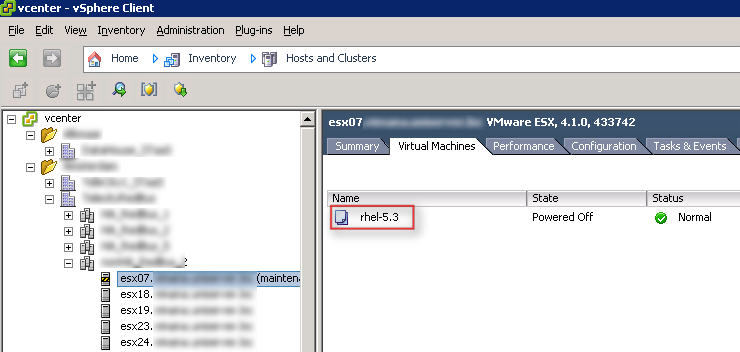
Normally when you put a host into Maintenance mode the templates will stay on the host instead of being migrate to a different host. This can be very annoying if you are performing maintenance on the vSphere host and a colleague needs to deploy a VM from the template. I am running vSphere 4.1 update 1. I don’t know if this is still the case with vSphere 5. The host in Maintenance mode will look like this:

image

So to fix this annoying “issue” I have created a PowerCLI function to place the vSphere host into maintenance mode and if there are Templates registered on the vSphere host, the Templates will be moved to another host in the Cluster.

Function Enter-MaintenanceMode{
<#
.SYNOPSIS   Enter Maintenance mode 
.DESCRIPTION   The function starts the Enter Maintenance task and also migrates the Templates to another host.
.NOTES   Author:  Arne Fokkema
.PARAMETER vmHost
   One vmHosts.
.EXAMPLE
   PS> Enter-MaintenanceMode<vmHost Name>
.EXAMPLE
  PS> Get-VMHost <vmHost Name> | Enter-MaintenanceMode
#>

[CmdletBinding()]
param(
    [parameter(ValueFromPipeline = $true,
    position = 0,
    Mandatory = $true,
    HelpMessage = "Enter the vmHost to start the Enter Maintenance mode task")]
    $vmHost
)    

    $templates = Get-VMHost $vmHost | Get-Template
    if($templates -eq $null){
        $tplMigrate = $false
    }
    else{
        $tplMigrate = $true
    }
    
    $targetVMHost = Get-VMHost -Location (Get-Cluster -VMHost (Get-VMhost $vmHost)).Name | Where {$_.Name -ne $vmHost} | Sort Name | Select -First 1
    if($tplMigrate -eq $true){
        foreach($tpl in $templates){
            Write-Host "Converting template $($tpl.Name) to VM" -ForegroundColor Yellow
            $vm = Set-Template -Template (Get-Template $tpl) -ToVM 
            
            Write-Host "Moving template $($tpl.Name) to vmHost: $($targetVMHost)" -ForegroundColor Yellow
            Move-VM -VM $vm -Destination (Get-VMHost $targetVMHost) -Confirm:$false | Out-Null
            
            Write-Host "Converting template $($tpl.Name) back to template" -ForegroundColor Yellow
            ($vm | Get-View).MarkAsTemplate() | Out-Null    
        }    
    }
    Write-Host "Enter Maintenance mode $($vmHost)" -ForegroundColor Yellow
    Set-VMHost $vmHost -State Maintenance | Out-Null
}

You can run the script like this:

Enter-MaintenanceMode esx07

Or from the pipeline:

Get-VMHost esx07 | Enter-MaintenanceMode

The output will be the same:

image

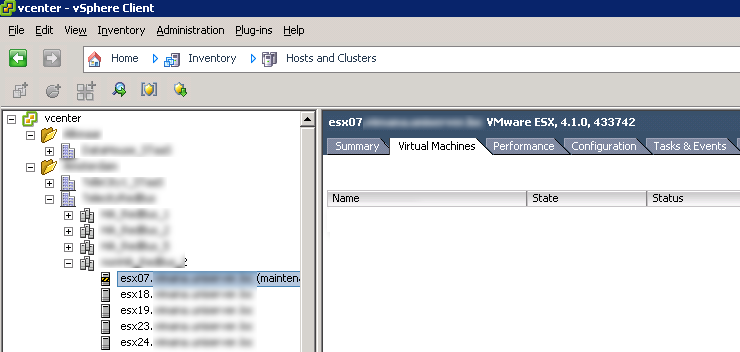
And the host is completely empty and ready for maintenance:

image

Troubleshoot TCP connection issues from the ESX Service Console


If you need to troubleshoot TCP connection issues from your ESX host. You will notice that Telnet isn’t available on your ESX host. But VMware posted a workaround in KB1010747. The reason why VMware did not include the Telnet package is simple:

The TELNET package does not ship with the ESX service console. While the TELNET daemon is clearly a security risk, the TELNET client may be a useful tool in diagnosing TCP session connectivity between the ESX Service Console and TCP ports on a foreign host.

The workaround is a Python script. You can copy the following script to your ESX host and place it in /tmp directory.

#!/usr/bin/python
# TCP connection "tester" -
# provide the hostname/IP address followed by port number (if no port
# is specified, 23 is assumed ;)
# program will connect to the port and read till either it receives a
# newline or 5 seconds expire
# be sure to chmod 755
import sys
import telnetlib
import socket

PORT = ""
argc = len(sys.argv)

if argc == 3 :
    PORT = sys.argv[2]
elif argc < 2 or argc > 3:
    print "usage %s host <port> \n" % sys.argv[0]
    sys.exit()

HOST = sys.argv[1]

try:
    tn = telnetlib.Telnet(HOST,PORT)
except socket.error, (errno, strerror):
    print " SockerError( %s ) %s\n" %  (errno, strerror)
    sys.exit()

print tn.read_until("\n ",5)
print "connection succeeded\n"
tn.close()
sys.exit()

If you want to test if a particular TCP port is reachable from your ESX host. You can use the script like this:

[root@esx01 ~]# ./testtcp vc01.ict-freak.loc 443

connection succeeded

[root@esx01 ~]#

In case the TCP port is not reachable from your ESX host. The script will just hang on your command and will eventually time out:

[root@esx01 ~]# ./testtcp vc01.ict-freak.loc 443
SockerError( 110 ) Connection timed out

You can also cancel the script by pressing CTRL + C

I didn’t test the script from ESXi. If you did, please leave a comment.

Source: KB1010747