PowerCLI: Two Virtual Switch and Portgroup one-liners


image

In this post you’ll find two Powershell one-liners to do some maintenance on Virtual Switches and PortGroups.

The first one-liner is inspired by Hany Michel his post: vMotion vs. VMotion .. Vote for your favorite! In this post he starts the debate about which name it should be. I voted for the “new” name vMotion. If you want to change the name of the VMotion portgroups to the “new” standard. You can do this by hand but why, we got PowerCLI 😉 The following one-liner will do the job:

Get-VMhost | % { Get-VirtualPortGroup -VMhost $_ -Name VMotion `
| Set-VirtualPortGroup -Name vMotion -Confirm:$false }

The vSwitches with the VMotion Protgroup name will be changed to vMotion:image


The next one-liner will change the number of ports on vSwitch0. The default setting on vSwitch0 is 24 ports.

image

With PowerCLI you can easily change this again with an one-liner. This one-liner will change the value to 120 ports:

Get-VMHost | % {Get-VirtualSwitch -VMHost $_ -Name vSwitch0 | `
where {$_.NumPorts -lt "128"}} | `
% { Set-VirtualSwitch -VirtualSwitch $_ -NumPorts "128" }

You’ll see the following output:

image

You need to reboot the ESX host to apply the new setting.

VMware: vSphere & PowerCLI Update 1 released


image image

Finally the vSphere Client is supported on Windows 7 & Windows Server 2008 R2:

Windows 7 and Windows 2008 R2 support — This release adds support for 32-bit and 64-bit versions of Windows 7 as well as 64-bit Windows 2008 R2 as guest operating system platforms. In addition, the vSphere Client is now supported and can be installed on a Windows 7 platform.


You can find the downloads and release notes here:


ESX 4.0 Update 1: http://downloads.vmware.com/d/details/esx40u1/ZHcqYmQlcGpiZGVqdA==

Release note: http://downloads.vmware.com/support/vsphere4/doc/vsp_esx40_u1_rel_notes.html


ESXi 4.0 Update 1: http://downloads.vmware.com/d/details/esxi40u1/ZHcqYmQlcGhiZGVqdA==

Release Notes: http://downloads.vmware.com/support/vsphere4/doc/vsp_esxi40_u1_rel_notes.html


vCenter 4.0 Update 1: http://downloads.vmware.com/d/details/vc40u1/ZHcqYmQlcCpiZGVqdA==

Release notes: http://downloads.vmware.com/support/vsphere4/doc/vsp_vc40_u1_rel_notes.html


vSphere PowerCLI 4.0 Update 1: http://downloads.vmware.com/d/details/sdkwin40u1/ZHcqYmQlcHRiZGVqdA

Release notes: http://www.vmware.com/support/developer/windowstoolkit/wintk40u1/windowstoolkit40U1-200911-releasenotes.html

vSphere: Storage vMotion Fails with a Timeout


image

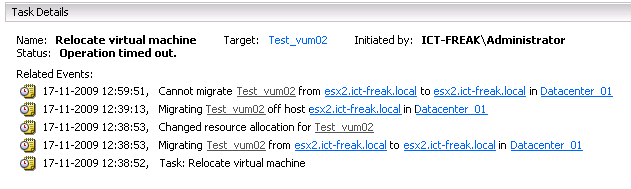
When I tried to Storage vMotion a VM to another LUN I got an “operation timed out error”:

image

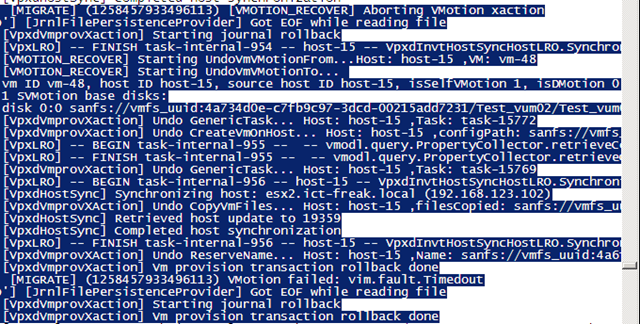
After analyzing the vpxd.log, I found the following lines:

image

The best part I found out, is that the VM was rolled back to it’s old location without losing data or getting corrupt.

This problem is documented in KB1010045. The following solution will resolve the timeout problem:

Increase the Storage VMotion fsr.maxSwitchoverSeconds setting in the virtual machine configuration file to a larger value.

The default is 100 seconds.

To modify fsr.maxSwitchoverSeconds:

  1. Right-click the virtual machine and click Edit Settings.
  2. Click the Options > Advanced > General.
  3. Click Configuration Parameters.
  4. From the Configuration Parameters window, click Add Row.
  5. For the Name field,  fsr.maxSwitchoverSeconds and for the Value field enter the new timeout value.
  6. Click OK twice to save.
  7. Restart the virtual machine for the changes to take effect.

You don’t want to change this by hand, so I created a PowerCLI script which will set the fsr.maxSwitchoverSeconds to 300 seconds for all your VM’s:

$vms = Get-View -ViewType VirtualMachine | where {-not $_.config.template}

    $vmConfigSpec = New-Object VMware.Vim.VirtualMachineConfigSpec
      
    $extra = New-Object VMware.Vim.optionvalue
    $extra.Key="fsr.maxSwitchoverSeconds"
    $extra.Value="300"

    $vmConfigSpec.extraconfig += $extra
    

foreach($vm in $vms){
    $vm.ReconfigVM($vmConfigSpec)
}

After changing the value to 300 seconds, I was able to Storage vMotion the VM.

PowerCLI: One-Liner to get VMs, Clusters, ESX Hosts and Datastores


image

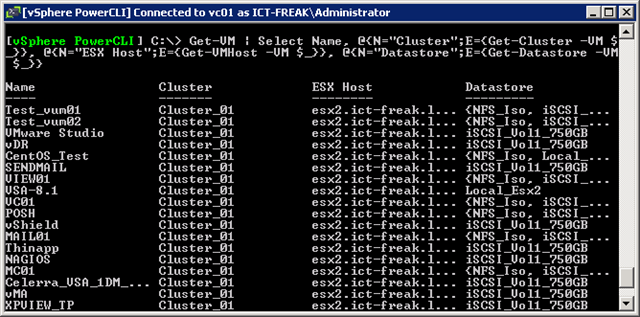
With the one-liner below, you’re able to create an overview of your VM’s, Clusters, ESX Hosts and Datastores.

Get-VM | Select Name, @{N="Cluster";E={Get-Cluster -VM $_}}, `
@{N="ESX Host";E={Get-VMHost -VM $_}}, `
@{N="Datastore";E={Get-Datastore -VM $_}} 

The following output will be generated:

image

If you add an extra line with the export-csv cmdlet, you can export the output to a CSV file.

Get-VM | Select Name, @{N="Cluster";E={Get-Cluster -VM $_}}, `
@{N="ESX Host";E={Get-VMHost -VM $_}}, `
@{N="Datastore";E={Get-Datastore -VM $_}} | `
Export-Csv -NoTypeInformation C:\Scripts\VM_CLuster_Host_Datastore.csv 

If you want, you can import the CSV file into Excel. Excel has some basic filtering options, so you’re able to filter on ESX Host, Cluster etc.

image

Project Onyx released – How to connect and use it


image image

Carter Shanklin just announced the release of Project Onyx. She his post here: http://blogs.vmware.com/vipowershell/2009/11/project-onyx-is-here.html

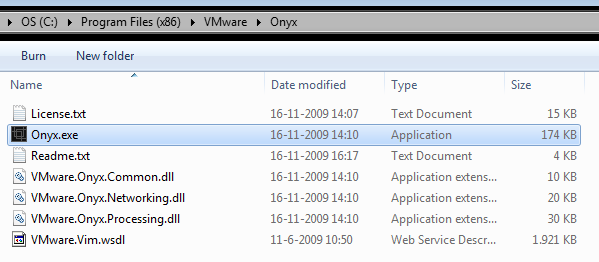
Download the zip file from here: http://bit.ly/vmwOnyx15 extract the zip file and start Onyx.exe. If you’re starting Onyx from your c: drive and you are running Windows Vista / , you’ve to run it with Administrator rights:

image

Accept the License Agreement to continue. The main screen opens. Click on connect and fill in the IP Address of you vCenter server:

image

When you’re connected to your vCenter server, Remember the second IP Address on top of the Onyx Screen:

image

Now open the vSphere Client and connect to the second IP Address with http:// on front of it:

image

You will see a warning message about the connection to server xxx.xxx.xxx.xxx is not secure. Click yes to continue.

The vSphere client opens and it will look and feel like we’re used to it. But here comes the great part. Click on the play button in Onyx:

image

Do the thing you wanted to do within the vCenter client and you will see that Onyx is generating some nice ready to use PowerCLI code:

image

To save the script, press the Save output to file button.

image

PowerCLI: Virtual Machine Disk (VMDK) info v2: Analyze data with Excel


image

In my previous post about this subject I created a script to view the information on the PowerCLI console. With the v2 script you are able to export the data to a CSV file.

$myCol = @()
$vms = get-view -ViewType VirtualMachine  | Where-Object `
{-not $_.config.template} 
foreach($vm in $vms){
    foreach($dev in $vm.config.hardware.Device){
    $MYInfo = "" | Select-Object VMName, DeviceLabel, `
    FileName, DiskMode, ThinProvisioned

       $MYInfo.VMName = $vm.Name

           if($dev.GetType().Name -eq "VirtualDisk"){
                   $MYInfo.DeviceLabel = $dev.DeviceInfo.Label
                $MYInfo.FileName = $dev.Backing.FileName
                $MYInfo.DiskMode = $dev.Backing.DiskMode
                if($dev.Backing.ThinProvisioned){
                $MYInfo.ThinProvisioned = "True"}
                else{$MYInfo.ThinProvisioned = "False"}

                $myCol += $MYInfo
               }
       }
}
$myCol | Export-CSV -NoTypeInformation "D:\scripts\vmdkinfo.csv"

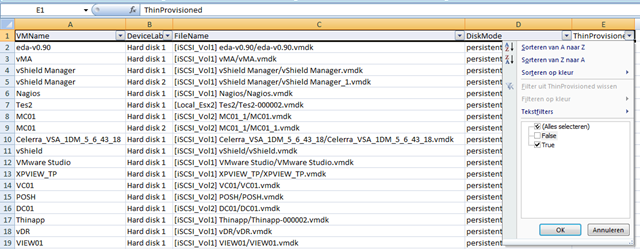
When the script is finished, you can import the CSV file into Excel.  After the import, we can analyze the data with just a simple filter. With a few clicks,  you’re able to view al the VM’s without Thin Provisioned disks.

image

Now we have a list with all the VM’s with Thin Provisioned disks:

image 

So with a small PowerCLI script and the help of Microsoft Excel, you’re able to generate a report with just the information you need. The best part is that it will only cost you couple of minutes of your time 🙂 .

PowerCLI: Virtual Machine Disk (VMDK) info


image

I was creating a small reporting script about the Virtual Machine disk. The things I wanted to report where the File Name (the location of the VMX file), the disk mode (Independent –> Persistent or nonPersistent) and if the disk is Thin Provisioned or not.  But then I thought why reinventing the wheel if Mr PowerCLI LucD has already created such a script. So I started a search on the VMware communities and found a post of @LucD22 which contains the Thin Provisioned “Check”. So I added the items I wanted to see and came to the following script:

get-view -ViewType VirtualMachine  | Where-Object `
{-not $_.config.template} | % {
Write-Host $_.Name -ForegroundColor Yellow
    foreach($dev in $_.config.hardware.Device){
        if($dev.GetType().Name -eq "VirtualDisk"){
            Write-Host "`t" $dev.DeviceInfo.Label = $dev.Backing.FileName
            Write-Host "`t" $dev.DeviceInfo.Label = $dev.Backing.DiskMode
            
            if($dev.Backing.ThinProvisioned){
            Write-Host "`t" $dev.DeviceInfo.Label = "Is Thin Provisioned" `
            -ForegroundColor Green}
            else{
            Write-Host "`t" $dev.DeviceInfo.Label = "Is NOT ThinProvisioned" `
            -ForegroundColor Red }
            } 
    }
}

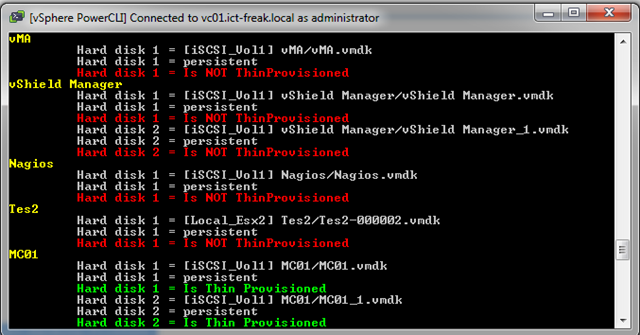
This is the output of the script:

image

PowerCLI: Set-dvSwitch


image

Last weekend I was playing around with the new dvSwitch feature in vSphere. So I created a dvSwitch and wanted to migrate my VM’s to it. Unfortunately this was not possible with the current version of PowerCLI. Normally you should be able to change the Network switch via:

Get-VM | Get-NetworkAdapter `
| Set-NetworkAdapter -NetworkName "traditional vswitch" -Confirm:$false

There must be a way to do this with PowerCLI but I didn’t know that way. So I asked Luc Dekens and the other PowerCLI guru’s for a solution. A couple of hours later Luc send me a script which was able to do exactly what I wanted to do.

The function / script can be found over here: http://poshcode.org/1373

You can start the function like this: Set-dvSwitch VirtualMachine dvSwitchPortgroup

image

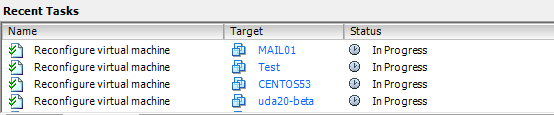
Just wait a couple of seconds till the Reconfigure virtual machine task is ready:

image

You can also run this function against all your VM’s via the following command:

$vms = Get-VM
foreach($vmName in $vms){
    Set-dvSwitch $vmName dvPG_production
}

Just wait a while and all your VM’s are migrated to the new dvSwitch:

image

If you want to start testing with the dvSwitch, keep an eye on http://lucd.info! @LucD22 is going to post an article about what you can do with PowerCLI and the dvSwitch.

PowerCLI: Check CPU/Memory Hot Add


image

In my previous post I created a couple of functions to enable or disable the Hot Add features.  To check these settings, you can run this one-liner:

Get-VM | Get-View | Select Name, `
@{N="CpuHotAddEnabled";E={$_.Config.CpuHotAddEnabled}}, `
@{N="CpuHotRemoveEnabled";E={$_.Config.CpuHotRemoveEnabled}}, `
@{N="MemoryHotAddEnabled";E={$_.Config.MemoryHotAddEnabled}}

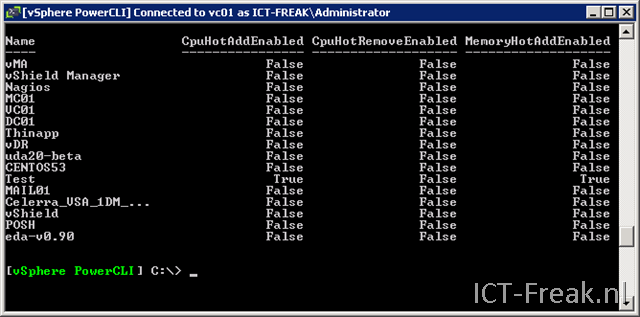
The following output will be generated:

image

PowerCLI: Enable/Disable the VM Hot Add features


image

Since the release of vSphere, you are able to Hot Add memory and vCPU. Quote from the VMware website:

Virtual Machine Hot Add Support— The new virtual hardware introduced in ESX/ESXi 4.0 supports hot plug for virtual devices and supports addition of virtual CPUs and memory to a virtual machine without powering off the virtual machine. See the Guest Operating System Installation Guide for the list of operating systems for which this functionality is supported.


So I wanted to see, if I was able to enable/disable this settings via PowerCLI and came up with a couple of functions.

The first function enables the Memory Hot Add feature:

Function Enable-MemHotAdd($vm){
    $vmview = Get-vm $vm | Get-View 
    $vmConfigSpec = New-Object VMware.Vim.VirtualMachineConfigSpec

    $extra = New-Object VMware.Vim.optionvalue
    $extra.Key="mem.hotadd"
    $extra.Value="true"
    $vmConfigSpec.extraconfig += $extra

    $vmview.ReconfigVM($vmConfigSpec)
}

You can run the function via the following command:

Enable-MemHotAdd vc01

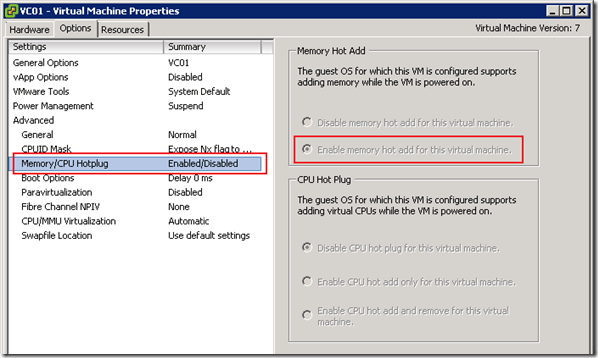
When you verify the settings in the vSphere Client, You’ll see that the Memory Hot Add feature is enabled.
image

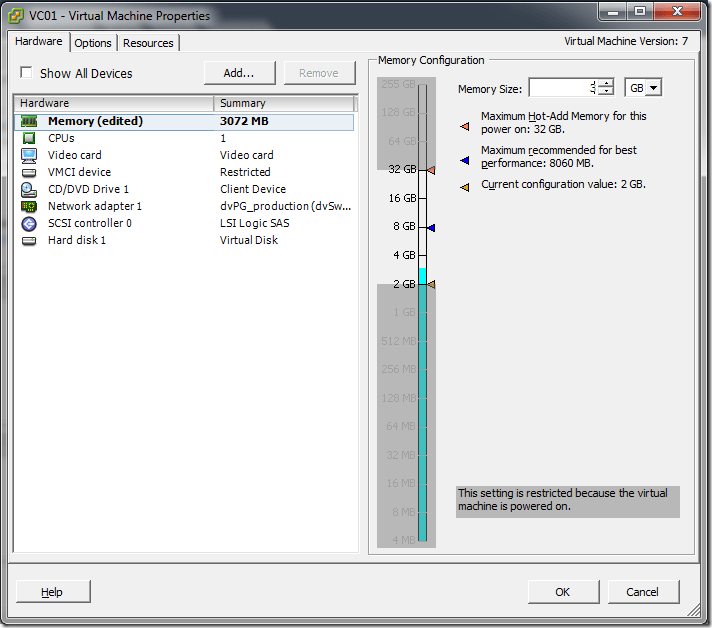
There is only one problem, the setting doesn’t work. You have to shutdown and start the VM, before you are able to hot add memory to the VM. When the VM is started again, I was able to Hot Add extra memory 🙂
image

To add extra memory via PowerCLI, You have to run the following command:

Get-VM -Name "vc01" | Set-VM -MemoryMB "3072"


You can use the next function to disable the setting:

Function Disable-MemHotAdd($vm){
    $vmview = Get-VM $vm | Get-View 
    $vmConfigSpec = New-Object VMware.Vim.VirtualMachineConfigSpec

    $extra = New-Object VMware.Vim.optionvalue
    $extra.Key="mem.hotadd"
    $extra.Value="false"
    $vmConfigSpec.extraconfig += $extra

    $vmview.ReconfigVM($vmConfigSpec)
}


I have also created two functions which you can use to enable or disable the hot add feature for vCPU’s:

Enable:

Function Enable-vCpuHotAdd($vm){
    $vmview = Get-vm $vm | Get-View 
    $vmConfigSpec = New-Object VMware.Vim.VirtualMachineConfigSpec

    $extra = New-Object VMware.Vim.optionvalue
    $extra.Key="vcpu.hotadd"
    $extra.Value="true"
    $vmConfigSpec.extraconfig += $extra

    $vmview.ReconfigVM($vmConfigSpec)
}

Disable:

Function Disable-vCpuHotAdd($vm){
    $vmview = Get-vm $vm | Get-View 
    $vmConfigSpec = New-Object VMware.Vim.VirtualMachineConfigSpec

    $extra = New-Object VMware.Vim.optionvalue
    $extra.Key="vcpu.hotadd"
    $extra.Value="false"
    $vmConfigSpec.extraconfig += $extra

    $vmview.ReconfigVM($vmConfigSpec)
}