Fixing the “validation error on field ‘bootRetryDelayMs” in VMware Cloud Director


When editing a virtual machine in vCloud Director — such as changing the disk layout or adding CPUs — you may encounter the following error:

Validation error on field ‘bootRetryDelay’: Value must be greater than or equal to 10000

This validation error can block updates, even for routine configuration changes.chine. This can be anything like changing the disk layout or adding CPU’s. You’re not alone.

This issue is documented by Broadcom (formerly VMware) in this Knowledge Base article. It occurs because VMware Cloud Director enforces a minimum value of 10,000 milliseconds (10 seconds) for the bootRetryDelay parameter, but some VMs might still be configured with a lower value.

Identify Affected VMs

Before making changes, you might want to generate a list of VMs that currently have a bootRetryDelay value lower than 10 seconds. Use this handy PowerCLI one-liner to find and display them:

Get-View -ViewType VirtualMachine -Property Name, Config.Version, Config.BootOptions.BootRetryDelay, Config.BootOptions.BootDelay, Config.CreateDate | 
    Where-Object { $_.Config.BootOptions.BootRetryDelay -lt 10 } | 
    Select-Object Name,
        @{N="Version";E={$_.Config.Version}}, 
        @{N="BootDelay";E={$_.Config.BootOptions.BootDelay}}, 
        @{N="BootRetryDelay";E={$_.Config.BootOptions.BootRetryDelay}}, 
        @{N="CreationDate";E={$_.Config.CreateDate}}

This information gives you a clear view of which VMs need to be updated and helps identify patterns — such as templates or VMX versions — that may need review.

  • Name: The name of the virtual machine.
  • Version: The VM hardware (VMX) version, useful for verifying compatibility with newer vSphere features.
  • BootDelay: The number of milliseconds the VM waits before booting. A value of 0 means no delay.
  • BootRetryDelay: The delay (in seconds) before retrying a failed boot. Values under 10 will trigger validation issues in VMware Cloud Director.
  • CreationDate: The date and time the VM was originally created (available in vSphere 6.7+).

The Fix: Set bootRetryDelay to 10 Seconds

To resolve this issue across your environment, you can use the following PowerCLI script to scan all VMs and set bootRetryDelay to the minimum accepted value (10 seconds) for any VM currently set below that.

# Get all VMs where BootRetryDelay is configured to less than 10 seconds
$VmsWithBootRetryDelayUnder10Seconds = Get-View -ViewType VirtualMachine -Property Name,Config.BootOptions.BootRetryDelay | Where-Object {
    $_.Config.BootOptions.BootRetryDelay -lt 10000
}

# Loop through each VM and update the BootRetryDelay
foreach ($vmView in $VmsWithBootRetryDelayUnder10Seconds) {
    Write-Host "Setting BootRetryDelay to 10 seconds for VM '$($vmView.Name)' ..."
    
    $spec = New-Object VMware.Vim.VirtualMachineConfigSpec
    $spec.BootOptions = New-Object VMware.Vim.VirtualMachineBootOptions
    $spec.BootOptions.BootRetryDelay = 10000

    $vmView.ReconfigVM_Task($spec) | Out-Null
}

Notes

  • This script only updates VMs with a bootRetryDelay lower than 10 seconds, avoiding unnecessary reconfiguration tasks.
  • It uses vSphere PowerCLI and the vSphere API directly via Get-View, which is efficient for bulk changes.
  • You’ll need appropriate permissions to reconfigure VMs.

Why This Matters

If you’re using VMware Cloud Director to manage your VM environment, having incorrect bootRetryDelay values may cause validation errors when modifying or migrating VMs, leading to failed workflows or blocked operations. Running this script as a preventive step ensures your environment complies with VMware Cloud Director’s requirements.

Release: PowerCLI 4.1.1


Just noticed the new release of PowerCLI 4.1.1 on twitter:

image

There are a lot of new features:

  • Added support for the ESX CLI functionality through the Get-EsxCli cmdlet.
  • Added support for ESX Top statistics through the Get-EsxTop cmdlet.
  • Enhanced Get-VirtualSwitch, Get-VirtualPortGroup, Get-VMHost, Get-VM, New-NetworkAdapter, Set-NetworkAdapter, and Get-VMHostNetworkAdapter to add support for distributed switches and distributed switch port groups.
  • Added support for SCSI controllers through the New-ScsiController, Get-ScsiController, and Set-ScsiController cmdlets, and the new Controller parameter of New-HardDisk and Set-HardDisk.
  • Added support for querying and modifying vCenter Server alarms through the Get-AlarmDefinition, Set-AlarmDefinition, Get-AlarmAction, New-AlarmAction, Remove-AlarmAction, Get-AlarmActionTrigger, New-AlarmActionTrigger, and Remove-AlarmActionTrigger cmdlets.
  • Added the Get-AdvancedSetting, Set-AdvancedSetting, New-AdvancedSetting, and Remove-AdvancedSetting cmdlets for managing advanced vCenter Server settings and Cluster HA advanced options.
  • Added the Wait-Tools cmdlet that allows you to wait for VMware Tools of the specified virtual machines to load before proceeding.
  • Added support for querying disk and disk partition information of hosts through the Get-VMHostDisk and Get-VMHostDiskPartition cmdlets.
  • Added support for formatting host disk partitions through the Format-VMHostDiskPartition cmdlet.
  • Added support for querying the primary HA cluster nodes through the Get-HAPrimaryVMHost cmdlet.
  • Added support for zeroing out a virtual machine hard disk through a new ZeroOut parameter to Set-HardDisk cmdlet.

looking forward to test the new Get-EsxCli and the Get-EsxTop cmdlets.

The complete change log is available here.

You can download the new release from here: download link.

Book: Administering VMware Site Recovery Manager 1.0 for Free


Mike Laverick just dropped the news on Twitter:

image


image


This book will teach you how to install and configure VMware’s SRM. It also covers in detail the failover and failback processes – and I will guide you step-by-step through the set up of the product. This book is not filled with project management padding that typifies a lot of IT books. It is practical and technical, and assumes you are already pretty familiar with VMware’s Virtual Vi3 products. In this book you will learn the strengths and weaknesses of Site Recovery Manager, and I will show you the common pitfalls and errors that can happen, and also more importantly why they happen, and how to fix them.

So go and grab your copy here: http://www.lulu.com/content/4343147 and visit Mike’s blog for more great stuff about VMware!


Source: Twitter.com and http://www.rtfm-ed.co.uk/?p=1727

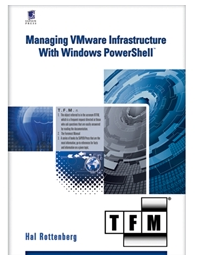
Book: Managing VI with Powershell


image

You can pre-order your book now: http://www.scriptingoutpost.com/

VMware is the king when it comes to virtualization. Windows PowerShell has gotten huge accolades as an extremely powerful tool for automation of IT tasks. These two technologies make a lot of sense together, and VMware is now making that happen with the release of their VI Toolkit for Windows.

In "Managing VMware Infrastructure with PowerShell", you will learn how to perform everything from simple ad-hoc reporting at the command-line ("are any of my virtual machines powered off?") to complex scripts to automate a massive deployment of hundreds of virtual machines. Simple, yet powerful; concise, yet robust; you will enjoy using this new language to solve your old problems using less code than you thought possible.

If you are a system administrator responsible for managing a VMware Virtual Infrastructure (version 2.0 or above), or a standalone ESX Server (version 3.0 or above), then you need this book. Aimed at scripters of every level, the book starts off with a PowerShell primer and continues well into the internals of virtualization on the VMware platform.

Table of Contents
  • Introduction – Why You Need This Book
  1. Windows PowerShell Crash Course
  2. Getting Started
  3. Scripting with Virtual Infrastructure
  4. Inventory and Reporting
  5. Deployment and Configuration
  6. Maintenance and Operations
  7. Troubleshooting and Problem Resolution
  8. Managing VMWare with PowerGUI

VMware: Creating VMware ESX Unattended Install Media


Paul Shannon heeft weer een super document gemaakt over het maken van een Unattended Installatie CD voor VMWare ESX. In de tijd van ESX 2.5.x heb ik ook eens zo’n CD gemaakt door de volgende guide te gebruiken: http://www.vmprofessional.com/index.php?content=kickstart_2. Helaas werkte deze guide niet meer met ESX 3.5. Ik ben dus erg blij met het document van Paul. Thanks Paul!

Paul schrijft het volgende op zijn blog:

I had a customer that had a requirement to backup the ESX Service Console settings and wanted to know the best files to backup. I suggested that it may be more prudent to create unattended installation media to make restores more seamless. This took a turn and I was asked to make a single CD that was capable of restoring any one of the 11 ESX hosts in the clusters. With a lot of reading and a lot of testing this was achieved and this document explains how I did it.

Download het document hier: http://www.vm-aware.com/files/tech_notes/Creating_Custom_ESX_CD.pdf

Bron: http://www.vm-aware.com/2008/12/22/creating-vmware-esx-unattended-install-media/

Add Custom Fields to VI Client with Powershell (Samples)


Hugo Peeters heeft zijn Powershell scripts voor het vullen van Custom Fields in vCenter gepost:

Snapshot Count

I already showed you how to do this, but I have now added an IF-statement so that only changes are updated (equal values are not overwritten). And I have added Julian Wood’s correction. Add-VMSnapshotCount.ps1

Total Snapshot Size

The number of snapshots is quite inetresting, but even more interesting, is the total size of the delta files all snapshots are occupying. They might be eating up all your precious SAN space. Plus, reverting to or committing a large snapshot is tricky. Add-VMSnapshotSize.ps1

Host Hardware Model

Want to see what models of hardware you are using in your datacenter? You could look at the summary tab of each host. Or run this script to add the info to the every Hosts tab in the VI Client. Select your Datacenter, select the Hosts tab and enjoy! Add-VMHostModel.ps1

Host ESX Version

Did you update all your ESX Servers to the latest version? Check it quickly using this script. Add-VMHostVersion.ps1

Host LUN Count

Last but certainly not least: are you sure every datastore you are using is available to all your ESX Servers? It is visible at a glance when you add the LUN Count to your VI Client! Add-VMHostLUNCount.ps1


Check zijn site voor allerlei top Powershell scripts: http://www.peetersonline.nl/


Bron: http://www.peetersonline.nl/index.php/vmware/add-custom-fields-to-vi-client-with-powershell-samples/

Script: Defrag all Local VMDK’s.


powerShellIcon

De volgende function zoekt eerst alle *.VMX bestanden op en vervangt daarna de extentie *.VMX naar *.VMDK. Deze *.VMDK bestanden worden in de $List geplaatst. Daarna worden alle VMDK’s gedefragmenteerd via de vmware-vdiskmanager.exe.

function Defrag-allVMDKs{
param([string]$path)
$vdiskmanager = “C:\Program Files\VMware\VMware Workstation\vmware-vdiskmanager.exe”
$parameter = “-d”
$List = get-childitem $path -recurse | where {$_.extension -eq “.vmx”} |
foreach-object -process { $_.FullName } | ForEach-Object {$_ -replace “.vmx”, “.vmdk”}
ForEach($vmdk in $List)
{
echo $vmdk
& $vdiskmanager $parameter $vmdk
}
}

Via het volgende commando kun de bovenstaande function gebruiken.

Defrag-allVMDKs <drive>\<path>

Als je dit in de Shell uitvoerd ziet het er als volgt uit:

image

VMware: Snapshot Information in vCenter


 image

Hugo Peeters heeft een powershell script gemaakt welke het aantal snapshots laat zien in een custom field binnen vCenter.

Although I spend quite some time in the Powershell Command Line Interface, the main tool for managing the Virtual Infrastructure remains the VI Client. So wouldn’t it be great if we could somehow show the results of our Powershell VI Toolkit scripts inside the VI Client?
Well, we can! Let’s take a closer look at Custom Fields / Custom Attributes.
If you select either a VMHost (ESX Server) or a VM in the VI Client and open the Summary tab, you will see the Annotations section in the bottom left. When you click Edit, I’m sure you have used the Notes section to enter Descriptions. But have you ever used the Attributes section? Here you can manually add and remove custom attributes and their values. Go ahead and create one. Then select a cluster or datacenter and click the Hosts or Virtual Machines tab. You will notice you can display your custom attribute in this table view, just like all the other properties of your VMs / Hosts. Pretty sweet!
image

Voor meer info zie Hugo zijn post: http://www.peetersonline.nl/index.php/vmware/add-snapshot-information-to-the-vi-client-using-powershell/

Script: Backup VMware Workstation VM’s


Via het onderstaande script kun je redelijk eenvoudig een backup maken van je VMware Workstation VM’s. Mocht de VM nog actief zijn, dan wordt deze “netjes” afgesloten en vervolgens gekopieerd naar een directory op een netwerk share. Dit script heb ik geschreven voor een VM die bij ons in productie draait onder VMware Workstation (deze VM heeft een seriële modem aangekoppeld). Zo wordt er elke dag via een scheduled task een backup gemaakt.

De volgende parameters moet je meegeven aan de onderstaande function backup-wsvm:

  • $vmname – de naam van de VM.
  • $vmx – pad naar het vmx bestand.
  • $vmdir – de directory waarin de VM staat.
  • $vmbackup – de directory waar de VM naar toe gekopieerd moet worden.

function backup-wsvm{
  param([string]$vmname, [string]$vmx, [string]$vmdir, [string]$vmbackup)
 
  $driveltr = “v:”
  $share = \\server\share
  $date = get-date -uformat “%m-%d-%Y”
  $vmrun = “C:\Program Files\VMware\VMware Workstation\vmrun.exe”
  $stop = “stop”
  $start = “start”
  $soft = “soft”
  $Result = test-path -path “$vmbackup\$date\$vmname”

  if ($Result -eq $false)
  {
    net use $driveltr $share
    New-Item “$vmbackup\$date\$vmname” -type directory
        & $vmrun $stop $vmx $soft
            Copy-Item $vmdir $vmbackup\$date\ -recurse
                & $vmrun $start $vmx
                    net use $driveltr /Delete
   }
}

Daarna kun je via de volgende code een backup maken van je vm:

$vmname = “Powershell_Lab”
backup-wsvm “$vmname” “D:\vmware\$vmname\$vmname.vmx” “D:\vmware\$vmname” “V:\vmbackup”