PowerCLI: Check CPU/Memory Hot Add


image

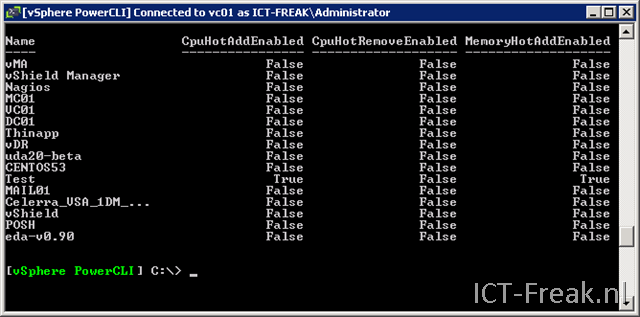
In my previous post I created a couple of functions to enable or disable the Hot Add features.  To check these settings, you can run this one-liner:

Get-VM | Get-View | Select Name, `
@{N="CpuHotAddEnabled";E={$_.Config.CpuHotAddEnabled}}, `
@{N="CpuHotRemoveEnabled";E={$_.Config.CpuHotRemoveEnabled}}, `
@{N="MemoryHotAddEnabled";E={$_.Config.MemoryHotAddEnabled}}

The following output will be generated:

image

PowerCLI: Enable/Disable the VM Hot Add features


image

Since the release of vSphere, you are able to Hot Add memory and vCPU. Quote from the VMware website:

Virtual Machine Hot Add Support— The new virtual hardware introduced in ESX/ESXi 4.0 supports hot plug for virtual devices and supports addition of virtual CPUs and memory to a virtual machine without powering off the virtual machine. See the Guest Operating System Installation Guide for the list of operating systems for which this functionality is supported.


So I wanted to see, if I was able to enable/disable this settings via PowerCLI and came up with a couple of functions.

The first function enables the Memory Hot Add feature:

Function Enable-MemHotAdd($vm){
    $vmview = Get-vm $vm | Get-View 
    $vmConfigSpec = New-Object VMware.Vim.VirtualMachineConfigSpec

    $extra = New-Object VMware.Vim.optionvalue
    $extra.Key="mem.hotadd"
    $extra.Value="true"
    $vmConfigSpec.extraconfig += $extra

    $vmview.ReconfigVM($vmConfigSpec)
}

You can run the function via the following command:

Enable-MemHotAdd vc01

When you verify the settings in the vSphere Client, You’ll see that the Memory Hot Add feature is enabled.
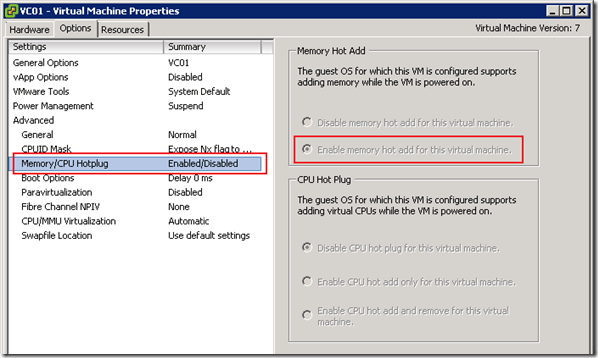
image

There is only one problem, the setting doesn’t work. You have to shutdown and start the VM, before you are able to hot add memory to the VM. When the VM is started again, I was able to Hot Add extra memory 🙂
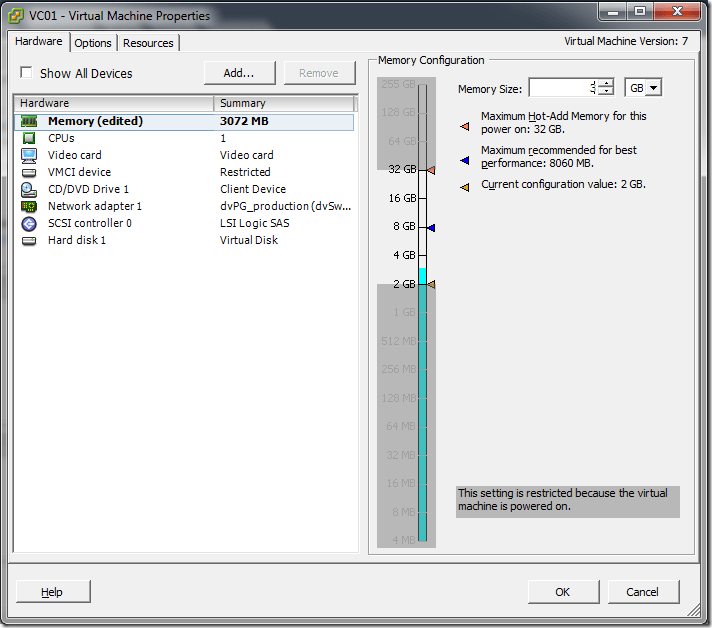
image

To add extra memory via PowerCLI, You have to run the following command:

Get-VM -Name "vc01" | Set-VM -MemoryMB "3072"


You can use the next function to disable the setting:

Function Disable-MemHotAdd($vm){
    $vmview = Get-VM $vm | Get-View 
    $vmConfigSpec = New-Object VMware.Vim.VirtualMachineConfigSpec

    $extra = New-Object VMware.Vim.optionvalue
    $extra.Key="mem.hotadd"
    $extra.Value="false"
    $vmConfigSpec.extraconfig += $extra

    $vmview.ReconfigVM($vmConfigSpec)
}

 

I have also created two functions which you can use to enable or disable the hot add feature for vCPU’s:

Enable:

Function Enable-vCpuHotAdd($vm){
    $vmview = Get-vm $vm | Get-View 
    $vmConfigSpec = New-Object VMware.Vim.VirtualMachineConfigSpec

    $extra = New-Object VMware.Vim.optionvalue
    $extra.Key="vcpu.hotadd"
    $extra.Value="true"
    $vmConfigSpec.extraconfig += $extra

    $vmview.ReconfigVM($vmConfigSpec)
}

Disable:

Function Disable-vCpuHotAdd($vm){
    $vmview = Get-vm $vm | Get-View 
    $vmConfigSpec = New-Object VMware.Vim.VirtualMachineConfigSpec

    $extra = New-Object VMware.Vim.optionvalue
    $extra.Key="vcpu.hotadd"
    $extra.Value="false"
    $vmConfigSpec.extraconfig += $extra

    $vmview.ReconfigVM($vmConfigSpec)
}

vSphere: You do not have permission to run this command


vmware-logo-new-2009-400-300x48

Since the release of vSphere, there is a new feature called Hardware Status plug-in.

The new vCenter Sever 4 Hardware Status plug-in provides the ability to monitor the hardware health of your VMware ESX hosts,
including key components such as fans, system board, and power supply. The health information displayed by the vCenter Hardware
Status plug-in are defined and provided by the server hardware vendor through the industry-standard Common Information Model
(CIM) interface.

You can find it on a new tab at the host level in vCenter server:

image

But when I want to view the information in the Hardware Status tab I got the error: You do not have permission to run this command

Luckily I was not the only one with this problem and there is already a topic about this error on the VMware Communities: http://communities.vmware.com/message/1360601#1360601

These are the steps I took to fix this issue:

  1. Stop the VMware VirtualCenter Management Webservices service.
  2. Delete the C:\Program Files (x86)\VMware\Infrastructure\tomcat\webapps\vws\data\VcCache-default-0.XhiveDatabase.DB file.
  3. Start the VMware VirtualCenter Management Webservices service.
  4. Reconnect to the vCenter Server
  5. After reconnecting to the vCenter server, I was able to view the Hardware Status again.image

On Page 6 of what-is-new-in-vmware-vcenter-server-4.pdf you can find more information about the Hardware Status tab.

vSphere: Deploy Template grayed out


image

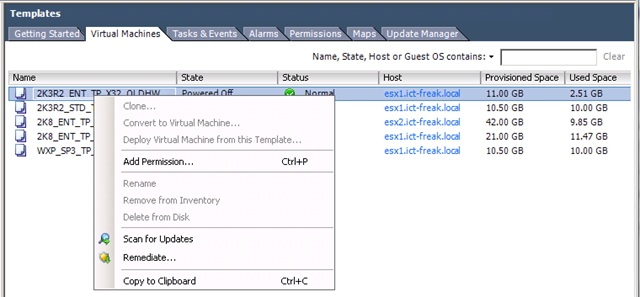
I wanted to deploy a template via the vSphere client but I was unable to achieve this task because the option was grayed out.  After restarting the vCenter services and the vCenter server I was still unable to deploy a template.

image

Non of the options where available. So PowerCLI to the rescue:

$templates = Get-Template *
    foreach($item in $templates){
        $template = $item.Name
                
            #Convert Template back to VM
            Set-Template $template -ToVM -RunAsync
            #Convert Template back to template :S
            $vmview = Get-VM $template | Get-View
            $vmview.MarkAsTemplate()
            
    }


After running the script above. I was able to deploy my templates again 🙂

image

VMware: Failed to get disk partition information in vSphere


image

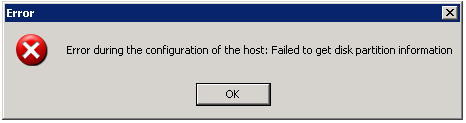
Today I wanted to add a new iSCSI Lun to my vSphere Lab. I got the following error:

image

I had this error in the past, see my previous post: vmware-failed-to-get-disk-partition-information. I tried the solution described in my previous post but it didn’t  work in vSphere.

So I had to search for another solution. Luckily VMware released a KB document. See KB1008886. In this KB document VMware uses the command esxcfg-vmhbadevs. This command is replaced with a new command called esxcfg-scsidevs.

So I ran the esxcfg-scsidevs command on the service console:

image

After running the command, write down the following line: Console Device: /dev/sdc. Start Parted and walk through the following steps.

Note: don’t forget to change the /dev/sdb to the device you need to fix. In my case /dev/sdc.

To change the label and partitioning scheme:

Caution: This removes the pre-existing partition table, and any data on the volume is no longer be available. Ensure you are operating against the correct disk.

  1. Start parted to analyze the existing partition. Print the existing partition information, taking note of the Partition Table, size, and name. Ensure this is the data intended to be removed.
    Run the following commands:
    [root@esx ~]# parted /dev/sdb
    GNU Parted 1.8.1
    Using /dev/sdb
    Welcome to GNU Parted! Type ‘help’ to view a list of commands.
    (parted) print
    Disk geometry for /dev/sdb: 0.000-512.000 megabytes
    Disk label type: gpt
    Number  Start   End    Size   File system  Name                          Flags 
    1      17.4kB  134MB  134MB               Microsoft reserved partition  msftres
  2. Change the partition table (disklabel) type to msdos. This deletes the pre-existing partitions. Print the partition table again to observe the changes. Quit parted.
    Run the following commands:
    (parted) mklabel msdos
    (parted) print
    Disk geometry for /dev/sdb: 0.000-512.000 megabytes
    Disk label type: msdos
    Minor    Start       End     Type      Filesystem  Flags
    (parted) quit
  3. Return to the VI Client and use the Add Storage wizard again. Choose the same LUN, create a new partition, and format it with a VMFS Datastore as normal.

Source: http://kb.vmware.com/selfservice/microsites/search.do?language=en_US&cmd=displayKC&externalId=1008886

vSphere: Rescan for Datastores


image

Today I added a second Lun on my iSCSI box. The next step was to configure this Lun on one of my vSphere boxes. So I did a rescan on vmhba34 and formatted it to VMFS. The next step, which I think is an excellent new feature in vSphere, was a “Rescan for Datastores”:

image

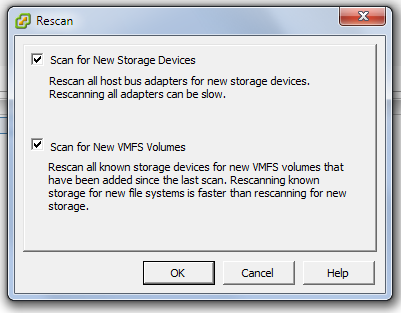
I started the wizard on a Cluster and it will only ask you to set two options:

image

So I checked both the options and did a Rescan. After a couple of seconds my other host was configured and showed the new Lun. 

PowerCLI: Upgrading vHardware to vSphere Part 1: Templates


image

With the release of vSphere VMware introduced a new hardware level for VM’s. De upgrade process to the new hardware level is already described on Scott Lowe’s blog: http://blog.scottlowe.org/2009/06/01/vsphere-virtual-machine-upgrade-process/.

I wanted to see if I could script this process with PowerCLI. My first goal was to upgrade al my templates. So I created the following script: http://poshcode.org/1214

Upgrade-vHardware_Templates

The script does the following:

  • Export template names to CSV
  • Convert templates back to VM’s
  • Check the vHardware version of the VM. If the hardware version is version 4 start the VM
  • When the VM is ready check the VMware Tools version. If the VMware Tools are old, the script will install the new version.
  • When the VMware Tools are Ok the VM gets a shutdown.
  • When the VM is down, the vHardware will be upgraded
  • The final step is converting the VM back to a template.

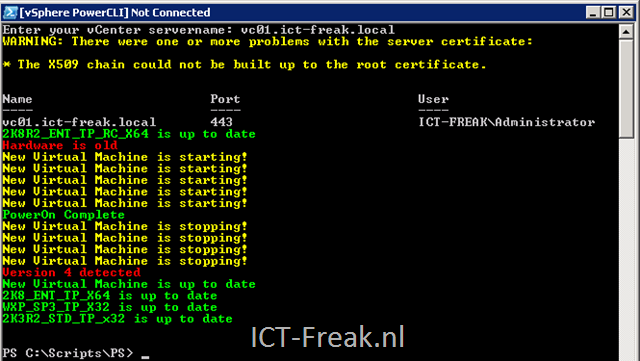
The following output will be shown at the PowerCLI console:

image

The next step will be the upgrade process of a regular VM. But for this process a need to capture the ip-address upgrade the vHardware and restore the ip-address into the VM. When I am finished with that part I am going to post Part 2.

List of VMware FT compatible CPUs


image

Gabrie  has created a nice post about CPU compatibility with the new feature FT in vSphere.

With VMware vSphere there is a new exiting function called VMware Fault Tolerant or VMware FT. With VMware FT you can protect a VM against failure by running this VM in lockstep with an exact copy on a different host. Every interrupt in the source VM is immediately replicated to the destination VM, which is “invisble” on the network. Should the host with the source VM fail, then the destination VM will become visible on the network and the users will not experience any downtime. Also a new destination VM is created on a different (third) host and will be kept “in lockstep”.

Now when selecting new servers or in my case a whitebox for my own testlab at home, one should pay attention to the CPU that is in the system, because not all new CPUs have this feature….

Read the rest of the article here: http://www.gabesvirtualworld.com/?p=456