Windows: Network Access Protection (NAP)


In deze post vind je allerlei informatie over Network Access Protection.


De Product website: http://www.microsoft.com/windowsserver2008/en/us/nap-product-home.aspx

De NAP Blog: http://blogs.technet.com/nap/default.aspx


Introduction to Network Access Protection

Network Access Protection (NAP) is one of the most desired and highly anticipated features of Windows Server 2008. NAP is a new platform and solution that controls access to network resources based on a client computer’s identity and compliance with corporate governance policy. NAP allows network administrators to define granular levels of network access based on who a client is, the groups to which the client belongs, and the degree to which that client is compliant with corporate governance policy. If a client is not compliant, NAP provides a mechanism to automatically bring the client back into compliance and then dynamically increase its level of network access.

NAP includes an application programming interface (API) for developers and vendors to create complete solutions for health state validation, limitation of network access or communication, and ongoing compliance. This paper describes the scenarios for NAP, the components of NAP, and how NAP works for the different enforcement methods included with Windows Server 2008, Windows Vista, and Windows XP Service Pack 3.

Included in This Document

•Introduction

•Components of NAP

•How NAP Works

Meer informatie en de whitepaper vind je hier:  http://www.microsoft.com/technet/network/nap/napoverview.mspx


Network Access Protection Platform Architecture

Network Access Protection (NAP) is a new platform and solution that controls access to network resources based on a client computer’s identity and compliance with corporate governance policy. NAP allows third-party software vendors and system integrators to create complete solutions for validating and enforcing system health requirements for network access or communication.

This white paper describes the architecture of the NAP platform and the details of how NAP works for enforcement methods that are provided with Windows Server 2008, Windows Vista, and Windows XP Service Pack 3.

Included in This Document

• Introduction

•NAP Platform Architecture

•NAP Client Architecture

•NAP Server-side Architecture

•How NAP Works

Meer informatie en de whitepaper vind je hier: http://www.microsoft.com/technet/network/nap/naparch.mspx


Step by Step Guides for creating demo / test labs

Step-by-Step Guide: Demonstrate IPsec NAP Enforcement in a Test Lab

Step By Step Guide: Demonstrate 802.1X NAP Enforcement in a Test Lab

Step-by-Step Guide: Demonstrate VPN NAP Enforcement in a Test Lab

Step-by-Step Guide: Demonstrate DHCP NAP Enforcement in a Test Lab

VMware: Windows 2008 Guest Customization


Helaas werkt de Guest Customization van een Windows 2008 VM / Template nog steeds niet out of the box in VirtualCenter 2.5.u2.

GuestCustomization20081

Gelukkig heeft Jasemccarty de oplossing in de VMware Communities geplaatst:

If you have a Windows 2008 guest that you wish to customize, it is fairly easy to do in VirtualCenter.

The sysprep.xml file is automatically generated by VirtualCenter, and does not require any additional tools from Microsoft, as they got smart, and included it in the base build of Windows Vista/2008.

Unfortunately, VC won’t customize a Windows 2008 guest… But it will customize a Windows Vista guest. Because they are a similar architecture (if not almost identical), changing the guest type to Vista, will allow you to customize a Windows 2008 guest.

All you have to do, is change the guest you wish to clone, or the template, to be configured as a Windows Vista guest.

You can then customize the guest (2008) the same way you would Windows Vista. When you are done deploying the guest, before you power it on, change it to be configured as a Windows 2008 guest.


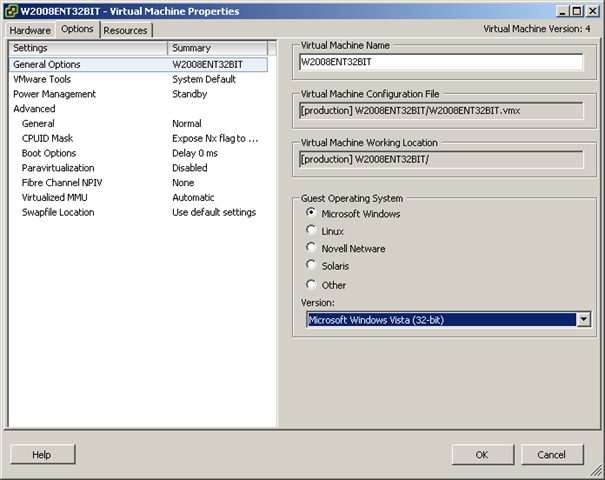
Converteer je Windows 2008 template weer terug naar een VM en stel de VM daarna in op Microsoft Windows Vista als Guest Operation System Version.

GuestCustomization2008

Daarna converteer je de VM weer terug naar een templat. Vanaf nu kun je de Windows 2008 template ook customizen.

Screenshot - 5-8-2008 , 18_15_55

Microsoft: GPMC and other MMC’s on Windows Vista SP1


Na de installatie van Windows Vista SP1 worden er een aantal MMC’s gedeïnstalleerd. Deed je op je Vista machine zonder SP1 nog Start – Run – GPMC.msc en je kun je GPO’s beheren. Na de installatie van SP1 gaat dit niet meer.

image 

Speciaal voor windows Vista zijn toen de Remote Server Administration Tools (RSAT) ontworpen.

Download de RSAT versie voor jouw OS.


Voordat je de Remote Server Administration Tools gaat installeren lees eerst de onderstaande quote van http://blogs.technet.com/grouppolicy/

RSAT should not be installed on a computer that is running the Windows Server 2003 Administration Tools Pack or Windows 2000 Server® Administration Tools Pack. Please remove all versions of Administration Tools Pack from the computer before installing RSAT.

Only one copy of RSAT can be installed on a computer at one time. Before installing a new package, remove any existing versions of RSAT, including any copies that are in different languages.


Mocht je geen adminpack van Windows Server 2003 hebben geïnstalleerd, dan kun je de RSAT tools installeren. Vervolgens merk je nog geen verbeteringen omdat je Tools nog aangezet moeten worden. Dit doe je via:

Control Panel – Programs and Features  – Turn Windows Features On or Off – Remote Server Administration Tools

In de Windows Features wizard kun je de verschillende tools inschakelen. Je kunt ook Remote Server Administration Tools in zijn geheel inschakelen.

image

Nadat de wizard even bezig is geweest, zie je in de map Control Panel – Administrative Tools de nieuwe MMC’s.

image

Vanaf nu kun je ook weer via Start – Run – GPMC.msc  weer het management console starten.

image

Meer informatie over RSAT vind je in: KB941314

Performance Tuning Guidelines for Windows Server 2008


This information applies for the Windows Server 2008 operating system.

What’s New:

• Added “Power Guidelines” under Server Hardware section and added “Performance Tuning for Virtualization Servers” section.

Included in this paper:

• Performance Tuning for Server Hardware

• Performance Tuning for Networking Subsystem

• Performance Tuning for Storage Subsystem

• Performance Tuning for Web Servers

• Performance Tuning for File Servers

• Performance Tuning for Active Directory Servers

• Performance Tuning for Terminal Server

• Performance Tuning for Terminal Server Gateway

• Performance Tuning for Virtualization Servers

• Performance Tuning for File Server Workload (NetBench)

• Performance Tuning for Network Workload (NTttcp)

• Performance Tuning for Terminal Server Knowledge Worker Workload

• Performance Tuning for SAP Sales and Distribution Two-Tier Workload

Je kunt de whitepaper hier downloaden: Perf_tun_srv

Microsoft: IIS 7.0 Manager (Vista / XP)


Download de software hier:  inetmgr

Supported Operating Systems: Windows Server 2003 Service Pack 1; Windows Vista Service Pack 1; Windows XP Service Pack 2

  • You must have the Microsoft .NET Framework version 2.0 or greater installed.
  • If you are installing on Windows Vista:
    You must have Windows Vista Service Pack 1 beta installed
    You must have the Internet Information Services 7.0 Management Console installed.
  • If you are installing on Windows XP:
    You must have Windows XP Service Pack 2 installed
    If you are installing on Windows Server 2003:
    You must have Windows Server 2003 Service Pack 1 installed

Zodra je de software hebt gedownload en je PC voldoet aan de bovenstaande voorwaarden, kun je de IIS 7.0 manager installeren.

image

Daarna hoef je alleen nog maar verbinding te maken met de iis server, site of application.

image

Microsoft: FTP Service for IIS 7.0


 iis-logo-thumb

Microsoft has created a new FTP service that has been completely rewritten for Windows Server 2008. This new FTP service incorporates many new features that enable web authors to publish content better than before, and offers web administrators more security and deployment options. This new FTP service supports a wide range of features and improvements, and the following list contains several of the improvements in this version:

  • Integration with IIS 7.0: IIS 7.0 has a brand-new administration interface and configuration store, and the new FTP service is tightly integrated with this new design. The old IIS 6 metabase is gone, and a new configuration store that is based on the .NET XML-based *.config format has taken its place. In addition, IIS 7.0 has a new administration tool, and the new FTP server plugs seamlessly into that paradigm.
  • Support for new Internet standards: One of the most significant features in the new FTP server is support for FTP over SSL. The new FTP server also supports other Internet improvements such as UTF8, IPv6, and adaptive networking bandwidth usage.
  • Shared hosting improvements: By fully integrating into IIS 7.0, the new FTP server makes it possible to host FTP and Web content from the same site by simply adding an FTP binding to an existing Web site. In addition, the FTP server now has virtual host name support, making it possible to host multiple FTP sites on the same IP address. The new FTP server also has improved user isolation, now making it possible to isolate users through per-user virtual directories.
  • Extensibility and custom authentication: The new FTP server supports developer extensibility, making it possible for software vendors to write custom providers for FTP authentication. Microsoft is using this extensibility feature to implement two new methods for using non-Windows accounts for FTP authentication for IIS Managers and .NET Membership.
  • Improved logging support: FTP logging has been enhanced to include all FTP-related traffic, unique tracking for FTP sessions, FTP sub-statuses, additional detail fields in FTP logs, and much more.
  • New supportability features: IIS 7.0 has a new option to display detailed error messages for local users, and the FTP server supports this by providing detailed error responses when logging on locally to an FTP server. The FTP server also logs detailed information using Event Tracing for Windows (ETW), which provides additional detailed information for troubleshooting.

Download hier de FTP Service for IIS 7.0:

Zodra de software binnen is, kan er worden begonnen met de installatie. Dit is gewoon recht toe recht aan “next, next en finish”.

image

Hier kun je nog wat features kiezen.

image

Mocht je de “oude” FTP server al geïnstalleerd hebben staan dan moet je deze verwijderen. Wat ik wel jammer vind is dat hij dit pas aan het einde van de wizard aangeeft.

image

Open de ServerManager en klik op Roles. Scroll naar de IIS role en klik op Remove Role Services.

image

Haal het vinkje weg bij FTP Publishing Service.

image

Even opnieuw opstarten en je kunt de installatie wizard opnieuw starten.

image

Nadat de wizard klaar is kun je deze sluiten.

image

Als je vervolgens de Servermanager start en naar de IIS tab gaat, zie je dat er een aantal nieuwe mogelijkheden zijn.

image

Jammer dat de FTP Service voor IIS 7.0 niet in de final release van Windows Server 2008 is verwerkt.

Building a OVF Repository with IIS 7.0


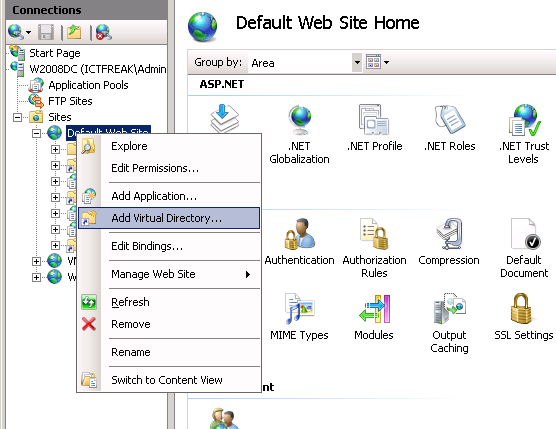
open de IIS management Console via Start – Run – inetmgr daarna voeg je een nieuwe Virtual Directory toe.

OVF_IIS7_1

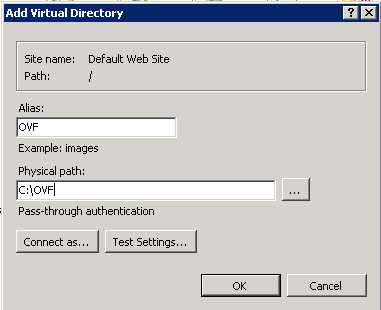
In mijn geval heb ik deze OVF genoemd en geeft het pad op naar de directory.

OVF_IIS7_2

Daarna moet je Directory Browsing inschakelen, anders gaat het helaas niet werken.

OVF_IIS7_3

Je kunt nog wat logging inschakelen.

OVF_IIS7_4

Als laatste moeten er nog een drietal MIME types worden toegevoegd:

  • .mf application/vmware
  • .ovf application/vmware
  • .vmdk application/vmware

OVF_IIS7_5

Vanaf nu kun je via de import wizard van VMware Workstation 6.5 beta 2 en VI 3.5 de appliances direct importeren d.m.v. een url die naar je OVF repository. Bijvoorbeeld http://iisserver/ovf/appliance.ovf

Backup Exec: Snapshot provider error (0x8007000E): Ran out of mem


Sinds ik SP2 op de SQL server had geïnstalleerd, kreeg ik de onderstaande foutmelding in mijn Backup Exec log file.

Click an error below to locate it in the job log


Backup- SQL1 
AOFO: Initialization failure on:
\\SQL\Shadow?Copy?Components.
Advanced Open File Option used: Microsoft Volume Shadow Copy Service (VSS).

Snapshot provider error (0x8007000E): Ran out of memoryCheck the Windows Event Viewer for details.

Dit probleem kun je oplossen door de hotfix te bestellen die vermeldt word in het volgende KB document: KB940239

Microsoft: Installing Powershell with ServerManagerCMD


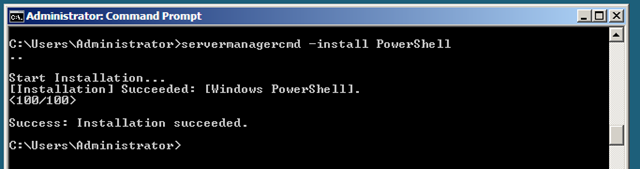
Via het commando:

servermanagercmd –install PowerShell

kun je eenvoudig Windows Powershell installeren op Windows Server 2008

image

De installatie word gestart.

image

Zodra het installatie proces word gestart, vind je in de taskmanager het proces TrustedInstaller.exe.

image

Powershell word geïnstalleerd.

image

Zoals je kunt zien is Powershell geïnstalleerd en operationeel.

image

Via het commando:

Servermanagercmd.exe –Query

Kun je nagaan welke roles er zijn geïnstalleerd:

image

Microsoft: ServerManagerCMD.exe


In deze post vind je een overzicht van de mogelijkheden m.b.t ServerManagerCmd.exe

The Server Manager command-line installation accepts parameters to install or to remove one role, role service, and feature per command instance. When you want to install or to remove more than one role, role service, or feature on a server by using a single command instance, use an XML answer file. For more information about the answer file that you can use with ServerManagerCmd.exe, see Creating an Answer File for Server Manager Commands.

Note:

ServerManagerCmd.exe can be executed from within any directory on the server’s local drives. You must be a member of the Administrators group on the server on which you intend to install or to remove software.

Important:

Because of security restrictions imposed by User Account Control, you must run ServerManagerCmd.exe in a Command Prompt window opened with elevated privileges. To do this, right-click the Command Prompt executable file, or the Command Prompt object on the Start menu, and then click Run as administrator.

Syntax :

ServerManagerCmd.exe -query [<query.xml>] [-logPath <log.txt>]

ServerManagerCmd.exe -inputPath <answer.xml> [-resultPath <result.xml> [-restart ] | -whatIf ] [-logPath <log.txt>]

ServerManagerCmd.exe -install <command-Id> [-setting <setting-name>=<setting value>][-allSubFeatures ] [-resultPath <result.xml> [-restart ] | -whatIf ] [-logPath <log.txt>]

ServerManagerCmd.exe -remove <command-Id> [-resultPath <result.xml> [-restart ] | -whatIf ] [-logPath <log.txt>]

ServerManagerCmd.exe [-help | -?]

ServerManagerCmd.exe -version


Voor een volledig overzicht van ServerMangerCMD.exe verwijs ik je naar de volgende pagina:

http://technet2.microsoft.com/

En op de volgende site tref je ook een mooi overzicht: http://blogs.techrepublic.com.com/datacenter/?p=294