Veeam is offering you the opportunity to win a FREE PASS to VMworld 2012 October 09-11 in Barcelona

So go to http://go.veeam.com and register to make a change of winning a FREE PASS. You need to register before September 24 so hurry up!
Veeam is offering you the opportunity to win a FREE PASS to VMworld 2012 October 09-11 in Barcelona
So go to http://go.veeam.com and register to make a change of winning a FREE PASS. You need to register before September 24 so hurry up!
Today I was trying to upgrade a test Veeam server with a Veeam v5 deployment to the latest v6.1 release. I used the following KB article to perform the upgrade KB1363. But when I tried to install the v6.1 software I got the following warning message:
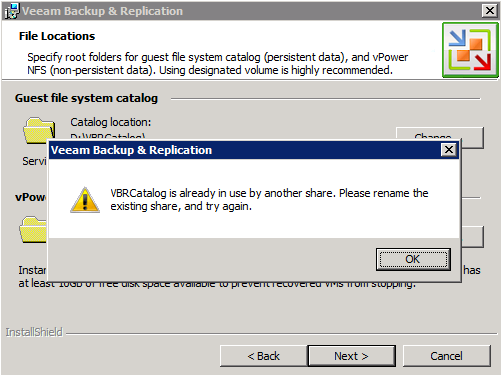
I think this ‘issue’ is some legacy stuff from moving the VBR catalog to another location. If you want to know how you can move the VBRCatalog to a different partition. Just read my previous post  .
.
To fix this ‘issue’ just remove the file share:
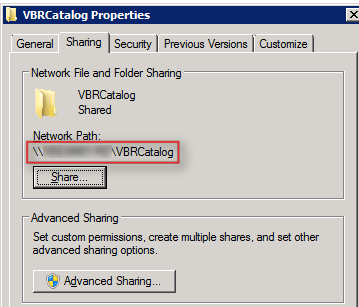
Now you’re good to go. Just restart the setup wizard and install version 6.1 and have fun.
Today I received an e-mail with some great news. The holiday season is about to start so it’s time for the holiday gift from Veeam.
HOLIDAY GIFT FROM VEEAM: FREE VEEAM BACKUP & REPLICATION v6 LICENSES FOR YOUR LAB
Free NFR Licenses for Evaluation and Demonstration Use available to VMware vExperts, VMware Certified Professionals, VMware Certified Instructors, VMUG members, Microsoft Most Valuable Professionals, and Microsoft Certified Professionals
You can register here for the Hyper-V version and here for the VMware version of Veeam Backup & Replication, to get your personal NFR license.
Today I was investigating an issue with Veeam Backup & Replication Instant Recovery. One of the sessions stopped with the status Dismounting…
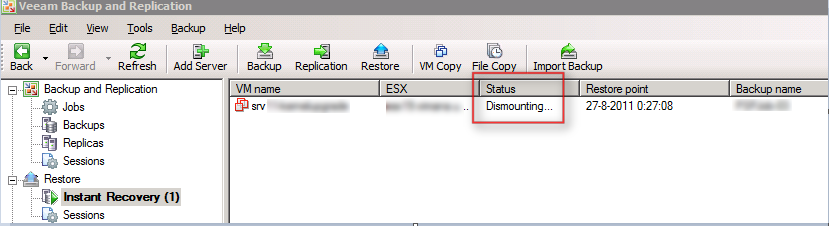
in the log of this sessions it stops on Removing VM from inventory.

The VM was removed from vCenter so why the jobs hangs, I don’t know. So the next thing was to stop and start the Veeam Backup Service. This didn’t help either. So I tried the a System reboot but unfortunately this didn’t work either. So I started to search the Veeam Forums and found a post of someone with the same error. After reading his post I contacted Veeam support and waited for a fix?
First off all before you continue, always contact Veeam support before trying the following solution.
Continue reading “Veeam: Instant Recovery stops with status Dismounting…”
Veeam launched the http://backupacademy.com/ website:
Backup Academy is an educational project designed to provide the necessary knowledge you need to become a VM Backup Expert.
You can:
- – Watch videos to expand your backup knowledge and skills
- – Pass the Backup Academy Exam
- – Receive the Backup Academy Certificate
You can also follow the Backup Acedemy on twitter via http://twitter.com/BckpAcademy.
On the Backup Acedemy site you can watch some sessions presented by some of the best guys in the business:
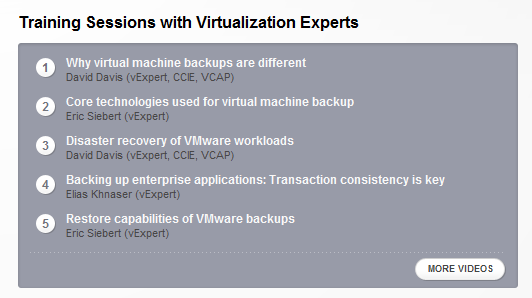
And when you think you’re ready to take the exam ,you can take the exam. You have to take 35 questions and I guess the passing score is 75%. So I took the exam during my lunch and 12 minutes later I passed the Exam 
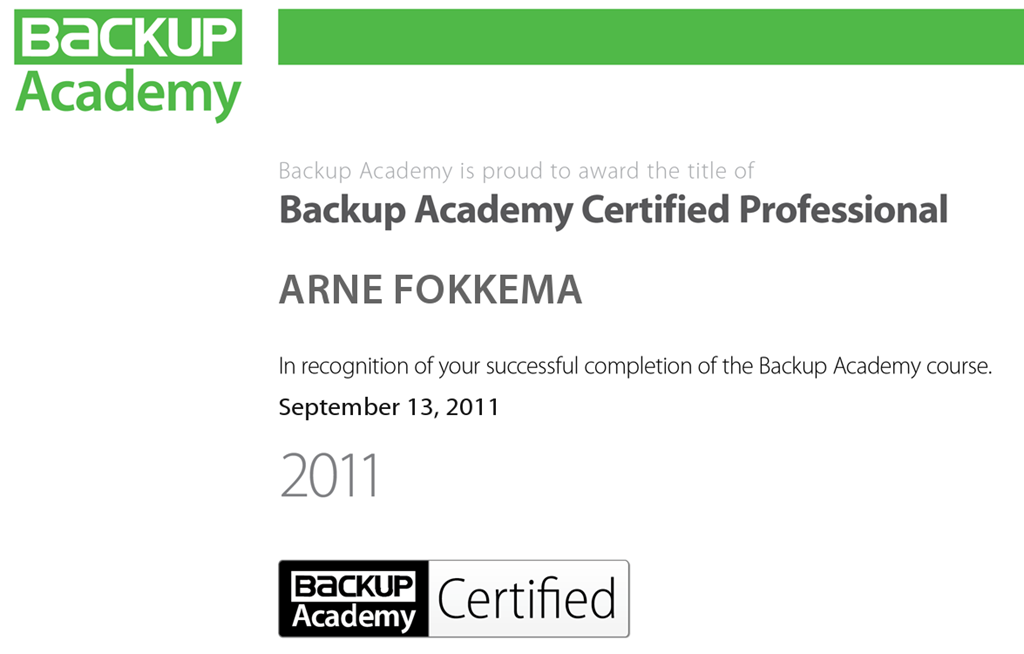
I think Veeam did a great job by putting this website together with good information and sessions. When you’re working with Veeam Backup and Replication please take a look at http://backupacademy.com/
Today another Veeam troubleshooting trick. It’s possible that you’ll receive the following error in one of your Veeam Backup Jobs:
Verifying change block tracking:
Disk “Hard disk 1” has incorrect changed block tracking configuration
This is how it looks like in the Veeam Backup console:

The procedure which Veeam describes in the solution for this problem works like this:
This is how you change the parameter to false:

In my case, the above solution did not solve the problem. So I had to troubleshoot the VM. While checking the configuration a noticed that the Disk was configured with the Independent mode enabled. You can change this setting when the VM is powered off. Go to Hardware, select the Hard disk and disable the checkbox by Independent:

The setting above can only be changed when the VM is powered off, if you’re using the vSphere client. It’s also possible to change this setting, on-the-fly with PowerCLI. That rimes  .
.
You can run the following one-liner to disable the Independent mode:
Get-VM <vmName> | % { Get-HardDisk -VM $_ | Where {$_.Persistence -eq "IndependentPersistent"} | `
% {Set-HardDisk -HardDisk $_ -Persistence "Persistent" -Confirm:$false} }
Disclaimer: this one-liner worked for me in my environment but test this first because I don’t know exactly what the impact is of this change.
After performing an Instant Recovery you might get the following error when the VM is trying to power on:
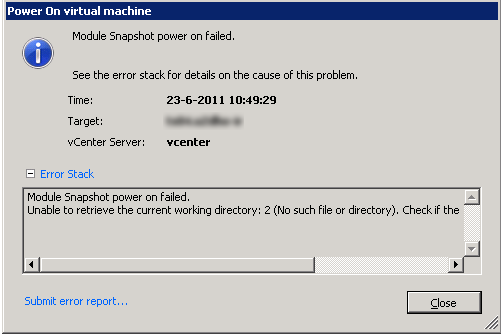
After a quick search on the Veeam Forums I found the following topic: http://www.veeam.com/forums/ about the same issue. In this topic I found the following solution to this issue:
Well, finally i get the issue fixed. I think it could be considered a bug. Let me explain.
If i set “F:\” as a vPower NFS destination, the error shows up. But if i set “F:\any_directory”, then all runs perfect!.
Well i write this here to help anybody with the same issue.
So vPowerNFS cannot be pointed directly to the drive letter of a partition. To change this setting you can use registry editor and your mouse, but you can also run the following Powershell script to change this setting:
$vPowerNFSDir = "D:\vPowerNFS\"

if((Test-Path $vPowerNFSDir) -eq $false){
    New-Item $vPowerNFSDir -type directory
}

If((Get-ItemProperty "HKLM:\Software\VeeaM\Veeam Backup and Replication" -name "NFSDefaultRootPath").NFSDefaultRootPath -ne $vPowerNFSDir){
    Set-ItemProperty "HKLM:\Software\VeeaM\Veeam Backup and Replication" -name "NFSDefaultRootPath" -value $vPowerNFSDir
}

if((Get-Service -DisplayName "Veeam Backup Service").Status -eq "Running"){
    Restart-Service -displayname "Veeam Backup Service"
}

if((Get-Service -DisplayName "Veeam vPower NFS Service").Status -eq "Running"){
    Restart-Service -displayname "Veeam vPower NFS Service"
}
The only thing you have to change in this script is the $vPowerNFSDir variable to the correct location of your Veeam Backup & Recovery Server. This script will check if the folder exists, If this is not the case it will create the folder. The next step is to check the Registry key for the correct location. If this is not the case the script will change the Registry for you. The last step is to restart the Veeam Backup Service and the Veeam vPower NFS Service.
| Source: | http://www.veeam.com/forums/ |
If you want to change the amount of restore points and the deleted VMs retention period, you can do this for your backup jobs by hand. But if you need to change a lot of Veeam Backup & Replication Jobs like I needed to do. You can find these settings in the Backup Job properties:

If you’re a reader of my blog, you know I like to automate this kind of jobs with Powershell. So I created a function to perform this change for me.
The function:
#requires -pssnapin VeeamPSSnapIn
Function Change-RestorePoints{
<#
.SYNOPSIS
    Change the Backup restore points and deleted VMs retention period
.DESCRIPTION

.NOTES
    Authors: Arne Fokkema
.PARAMETER JobName
    A Backup Job in Veeam Backup & Replication
.PARAMETER RetainDays
    The amount of restore points
.PARAMETER RetainCycles
    The amount of days for Deleted VMs retention period
.EXAMPLE
    PS> Change-RestorePoints -JobName "Job-01" -RetainDays "21" -RetainCycles "21"
#>
    param(
        [parameter(valuefrompipeline = $true,
            position = 0,
            Mandatory = $true,
            HelpMessage = "Enter a Veeam B&R JobName")]
            $JobName,
        [parameter(valuefrompipeline = $true,
            position = 0,
            Mandatory = $true,
            HelpMessage = "Enter the amount of restore points to keep on disk")]
            $RetainDays,
        [parameter(valuefrompipeline = $true,
            position = 0,
            Mandatory = $true,
            HelpMessage = "Enter a deleted VMs retention period in days")]
            $RetainCycles
    )

    begin{
        $vbrjob = Get-VBRJob  | where {$_.Name -eq $JobName}
    }

    process{
        $options = $vbrjob.GetOptions()
        $options.RetainDays = $RetainDays
        $options.RetainCycles = $RetainCycles
        Write-Host "Changing RetainDays: $($RetainDays) and RetainDays: $($RetainCycles) for job: $($vbrjob.Name)"
        $vbrjob.SetOptions($options)
    }
}
To change a particular job on a Veeam Backup & Replication server you can use the following one-liner:
Change-RestorePoints -JobName "Job-01" -RetainDays "30" -RetainCycles "30"
To change all the jobs on a particular Veeam Backup & Replication Server you can use the following foreach loop:
foreach($job in (Get-VBRJob | Sort Name)){
    Change-RestorePoints -JobName $job.Name -RetainDays "14" -RetainCycles "14"
}
The output will look like this:

Today just a quick post about how Powershell can help you change the VM attribute option in Veeam Backup & Replication. Imaging that you have 20 backup jobs and you want or need to change the VM attribute settings. You can do this for every job with 10 mouse clicks or you can do it in five seconds by running the script from this post.
This is the setting I am talking about from the GUI:

When you change the “Notes” value to some custom field in you environment, the script will apply this setting for you.
if((Get-PSSnapin -Name VeeamPSSnapIn -ErrorAction SilentlyContinue) -eq $null){
    Add-PSSnapin "VeeamPSSnapIn"
}

$vbrserver = Get-VBRServer | Where {$_.Type -eq "VC"}
Foreach($vbrjob in (Get-VBRJob)){
    $options = $vbrjob.GetOptions()
    $options.VmAttributeName = "Notes"
    $options.SetResultsToVmNotes = $true
    $vbrjob.SetOptions($options)
}
The first three lines of code checked if the VeeamPSSnapIn is loaded, if this is not the case it will be loaded via the Add-PSSnapin.
In this quick post I share a Veeam Communities post by rfn and some findings of myself to successfully move the VBRCatalog to a new location.
First, stop the Veeam Backup Services:

Move the VBRCatalog Direcotory to the new location. The next step is to change the Registry. Open Registry Editor and browse to HKEY_LOCAL_MACHINE\SOFTWARE\VeeaM\Veeam Backup Catalog. Open the CatalogPath key and change the path to the new location.
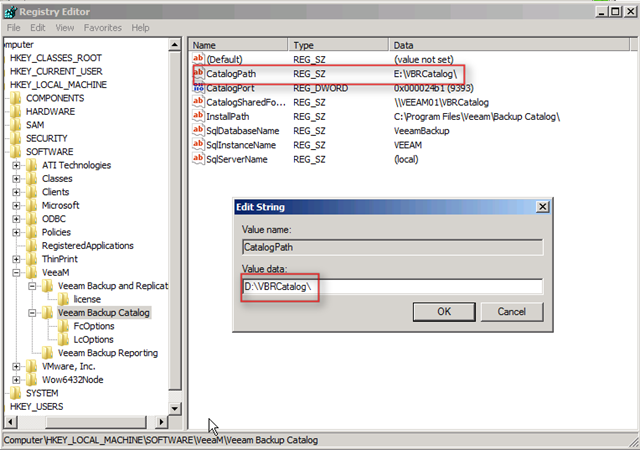
After changing this registry key just search through the registry for other E:\VBRCatalog keys. If you find other keys, just change them to the new location. If you don’t change them, you’re unable to upgrade to the later versions of Veeam Backup.
If you’re using the Search server, you have to reinstall the Search component to get things working again.
| Source | |
| Veeam Communities | http://www.veeam.com/forums/viewtopic.php?f=2&t=5593 |
 ICT-Freak.nl