vCenter 4.0 and SQL 2008 as a Database server

image

Last week I had to install a vCenter 4.0 server with a database on a SQL 2008 x64 server. Before you can connect to the SQL 2008 x64 you have to install the new SQL server 2008 Native client. You can find it here:

Download and install the package:

image

In my earlier post about how to create an ODBC connection to use with vCenter 4 on a x64 version of Windows 2008. You already read about the “special” way of starting the ODBC data Source Administrator. Start it via: Start –Run - %systemdrive%\Windows\SysWoW64\Odbcad32.exe. The next step is to select the new Native Client version 10.0

image 
The rest of the stuff is still the same ;-)

Powershell: Script to Query the Veeam Backup database

image

Earlier this year I wrote a post about how to query the Veeam Backup SQL database to get the total job running time. I wanted to see if I was able to run this Query via Powershell. So I started to search on Google and I found a great series of articles on http://www.databasejournal.com about how to use Powershell to access Microsoft SQL databases. After reading part two, I was able to create a script to run my Query.

The only thing you have to change are the next three variables:

$dbServer = "servername\instance" $db = "VeeamBackup" $veeamJob = "VeeamJobName" 


Run the next script to query the Veeam Backup database and return the total job time.

$dbServer = "servername\instance"
$db = "VeeamBackup"
$veeamJob = "VeeamJobName"
$Query = "SELECT [job_name],CONVERT(char(10),[creation_time], 101) AS start_date `
,CONVERT(varchar, [creation_time], 108) AS job_start,CONVERT(char(10), [end_time], 101) AS end_date `
,CONVERT(varchar, [end_time], 108) AS job_end, `
LEFT(CONVERT(VARCHAR,CAST([end_time] AS DATETIME)-CAST([creation_time] AS DATETIME), 108),5) AS total_time `
FROM [VeeamBackup].[dbo].[BSessions] WHERE [job_name] = '$veeamJob' ORDER BY start_date"

$SqlConnection = New-Object System.Data.SqlClient.SqlConnection
$SqlConnection.ConnectionString = "Server=$dbServer;Database=$db;Integrated Security=True"
$SqlCmd = New-Object System.Data.SqlClient.SqlCommand
$SqlCmd.CommandText = $Query
$SqlCmd.Connection = $SqlConnection
$SqlAdapter = New-Object System.Data.SqlClient.SqlDataAdapter
$SqlAdapter.SelectCommand = $SqlCmd
$DataSet = New-Object System.Data.DataSet
$SqlAdapter.Fill($DataSet)
$SqlConnection.Close()
$DataSet.Tables[0] | Format-Table -AutoSize 

You can also find the script on poshcode.org: http://poshcode.org/1316


The script generate the following output:

image

WSUS DB and large memory consumption

image 

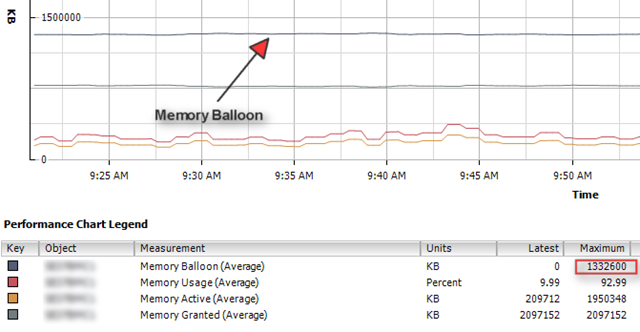
One of my VM’s is running WSUS 3.0 SP1 on the Windows Internal Database. This VM had a really high Memory Balloon value in vCenter server.

image

To verify the value above, I started a ssh session to the ESX Host and run the esxtop command. When esxtop is loaded, you can see the ballooning values if you press: v m f i

image

For more information about ballooning see Arnim his article here: http://www.van-lieshout.com 

So how can you solve the memory lurking of this VM. Well after looking around in the taskmanager, I found out that the sqlsrv.exe process was eating the memory. So after some searching on Google I found the following solution:

Open the command line (start – run –cmd) on the server with the sql 2005 express database. Go to: C:\Program Files\Microsoft SQL Server\90\Tools\Binn. Now run the following commands to limit the max memory to 256 MB:

osql -E -S <server name>\MICROSOFT##SSEE
1> sp_configure ‘show advanced options’, 1;
2> reconfigure;
3> go
Configuration option ‘show advanced options’ changed from 0 to 1. Run the RECONFIGURE statement to install.
1> sp_configure ‘max server memory’, 512;
2> reconfigure;
3> go
Configuration option ‘max server memory (MB)’ changed from 2147483647 to 512. Run the RECONFIGURE statement to install.
1> exit

Or via SQLCMD.EXE:

SQLCMD.EXE –E -S \MICROSOFT##SSEE
1> sp_configure ’show advanced options’, 1;
2> reconfigure;
3> go
Configuration option ’show advanced options’ changed from 0 to 1. Run the RECONFIGURE statement to install.
1> sp_configure ‘max server memory’, 512;
2> reconfigure;
3> go
Configuration option ‘max server memory (MB)’ changed from 2147483647 to 512. Run the RECONFIGURE statement to install.
1> exit

Sources:

SQL Query: Total time for a Veeam Backup job


I’m using Veeam Backup for while now, and one thing I can’t find is the total time for a backup job. The only two values are start and end time. I wanted to see what the total time for a backup job is, so I created the following query:

image
The query will generate the following output:

image

You can download the SQL file here:

RTM: Microsoft SQL Server 2008

image 

Keith Combs schrijft het volgende op zijn blog:

Transparent Data Encryption – Enable encryption of an entire database, data files, or log files, without the need for application changes. Benefits of this include: Search encrypted data using both range and fuzzy searches, search secure data from unauthorized users, and data encryption without any required changes in existing applications.

Auditing – Create and manage auditing via DDL, while simplifying compliance by providing more comprehensive data auditing. This enables organizations to answer common questions, such as, “What data was retrieved?”

Enhanced Database Mirroring – SQL Server 2008 builds on SQL Server 2005 by providing a more reliable platform that has enhanced database mirroring, including automatic page repair, improved performance, and enhanced supportability.

Automatic Recovery of Data Pages – SQL Server 2008 enables the principal and mirror machines to transparently recover from 823/824 types of data page errors by requesting a fresh copy of the suspect page from the mirroring partner transparently to end users and applications.

Hot Add CPU – Dynamically scale a database on demand by allowing CPU resources to be added to SQL Server 2008 on supported hardware platforms without forcing any downtime on applications. Note that SQL Server already supports the ability to add memory resources online.

Meer informatie vind je hier: SQL Server 2008


Bron: http://blogs.technet.com/keithcombs/archive/2008/08/06/microsoft-sql-server-2008-rtm-s.aspx

VMware: Create script for VC & VUM Databases

Voor het installeren van VirtualCenter 2.5 heb je een twee tal databases nodig. Een voor VC en een voor VUM. Ik werd gek van dat geklik binnen de SQL Server Management Studio. Voor dit proces heb ik nu een SQL script gemaakt. Dit script heb ik getest in SQL 2005.

Het onderstaande script maakt het volgende aan:

  • Database met de naam VC
  • Database met de naam VUM
  • User met de naam VCUSER, wachtwoord vmware
  • User met de naam VUMUSER, wachtwoord vmware
  • De beide Users krijgen de db_owner role en de sysadmin role.

CREATE DATABASE VC;
GO
CREATE LOGIN [VCUSER] WITH PASSWORD=’vmware’, DEFAULT_DATABASE=[VC], CHECK_EXPIRATION=OFF, CHECK_POLICY=OFF
GO

USE VC
GO
EXEC sp_grantdbaccess ‘VCUSER’
GO
EXEC sp_addrolemember ‘db_owner’, ‘VCUSER’
GO
EXEC sp_addsrvrolemember ‘VCUSER’, ‘sysadmin’
GO

CREATE DATABASE VUM;
GO
CREATE LOGIN [VUMUSER] WITH PASSWORD=’vmware’, DEFAULT_DATABASE=[VUM], CHECK_EXPIRATION=OFF, CHECK_POLICY=OFF
GO

USE VUM
GO
EXEC sp_grantdbaccess ‘VUMUSER’
GO
EXEC sp_addrolemember ‘db_owner’, ‘VUMUSER’
GO
EXEC sp_addsrvrolemember ‘VUMUSER’, ‘sysadmin’
GO

[/code]

Dit script kun je binnen de SQL Server Management Studio uitvoeren en na een F5 voor een refresh zie je de nieuwe databases en de nieuwe users.

Backup Exec: Snapshot provider error (0x8007000E): Ran out of mem

Sinds ik SP2 op de SQL server had geïnstalleerd, kreeg ik de onderstaande foutmelding in mijn Backup Exec log file.

Click an error below to locate it in the job log


Backup- SQL1 AOFO: Initialization failure on: \\SQL\Shadow?Copy?Components. 
Advanced Open File Option used: Microsoft Volume Shadow Copy Service (VSS).

Snapshot provider error (0x8007000E): Ran out of memoryCheck the Windows Event Viewer for details.

Dit probleem kun je oplossen door de hotfix te bestellen die vermeldt word in het volgende KB document: KB940239

VMware: VMotion Info in Excel 2007

Open een nieuw werkblad. Klik op ‘Gegevens’ gevolgd door ‘Van andere bronnen – Van SQL Server’

image

Voer de naam in van de SQL server en eventueel een gebruikersnaam en wachtwoord.

image

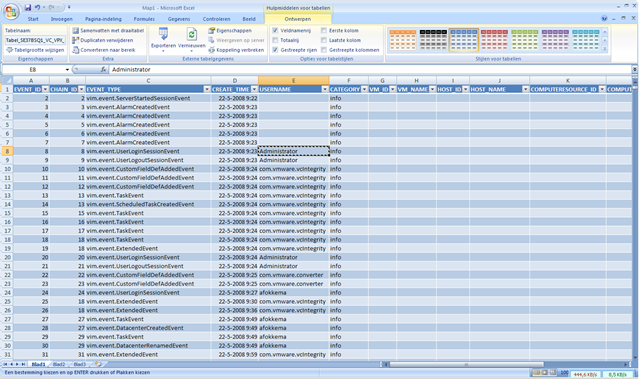
Selecteer de tabel ‘VPX_EVENT

image

Als laatste sla je het gegevensbestand op.

image

Nu moet je inloggen op de VC database.

image

En daarna word de informatie naar binnen getrokken. Dit is nogal wat, zeker als je VC server al een tijdje draait.

image

De informatie waar we naar op zoek zijn, is de VMotion informatie. Die kun je als volgt vinden:

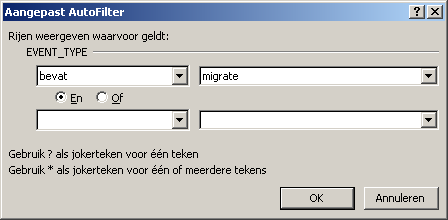
Open ‘Tekstfilters – Bevat…’

image

Geef nu het zoekwoord: ‘migrate’ op.

image

Daarna word er een selectie uitgevoerd en zie je alleen nog de rijen die van toepassing zijn.

image

Via de knop ‘Alles vernieuwen’ of Ctrl + Alt + F5 kun je de lijst vernieuwen.

image

VMware: VMotion Info

In deze post lees je hoe je informatie uit de VC database kunt halen d.m.v. een query. Het gaat dan in het bijzonder om het aantal VMotion taken die gestart zijn. Je kunt dan na gaan hoe vaak een VM wordt gevmotioned via een handmatige taak of via DRS.

De volgende query kun je loslaten op VC database:

SELECT vpx_event.event_type, vpx_event.vm_name, vpx_event.create_time from vpx_event where event_type like ‘%migrate%’
SELECT distinct(vpx_event.event_type) from vpx_event order by event_type


De volgende informatie komt dan terug uit de query:

Query_VC_VMotionInfo 

Het gaat dan om de volgende event_types:

  • vim.event.VmMigratedEvent (handmatige VMotion)
  • vim.event.DrsVmMigratedEvent (VMotion via DRS)


Meer informatie vind je in het volgende Topic op VMUG.nl gestart door Gabrie.

VMware: The DB user entered does not have the required permissions

Bij het vers installeren van VirtualCenter 2.5 kreeg ik bij het configureren de volgende foutmelding:

image

Dit kwam omdat ik bij de gebruiker in SQL 2000 geen ‘Server Roles’ had toegevoegd. De volgende Roles heb je nodig voor een succesvolle installatie:

  • System Administrators
  • Server Administrators
  • Database Creators (ik weet niet zeker of deze erbij moet, dit heb ik voor de zekerheid gedaan).

sql_rechten

Meer informatie over het installeren / upgraden van je VC Database vind je hier:

VM ID: 1003346

VM ID: 1003610

Follow

Get every new post delivered to your Inbox.

Join 902 other followers