
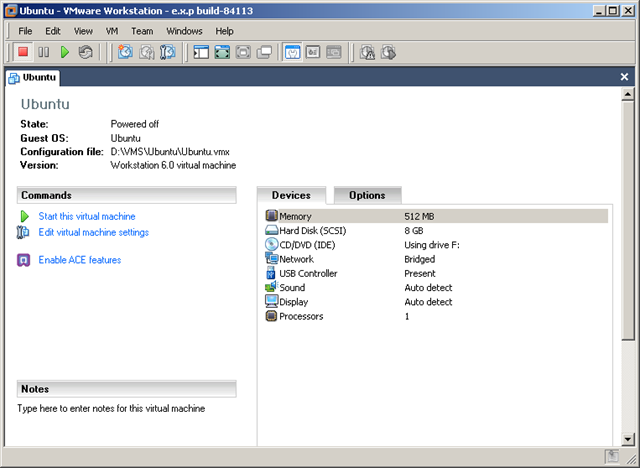
Het nieuwe virtualmachine scherm. Let op de gepimpte icoontjes.
De nieuwe optie voor 3D graphics.
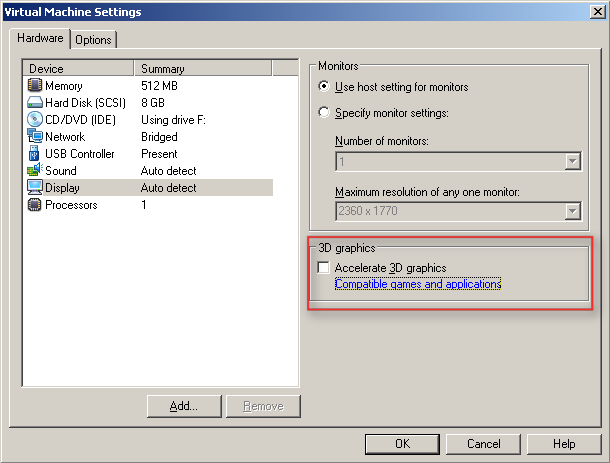
Meer informatie over de 3D graphics:
To take advantage of the 3-D capabilities of Workstation, the virtual machine must be running the version of VMware Tools included with Workstation 6.5 or higher. For example, you do not need to upgrade a Workstation 6.0 virtual machine to Workstation 6.5, but you do need to upgrade the VMware Tools running inside it. If you move the virtual machine and want to use the 3-D capabilities, be sure you have the correct version of VMware Tools installed.
Support for applications that use DirectX 9 accelerated graphics applies only to Windows XP guests, on hosts running Windows 2000, Windows XP, Windows Vista, or Linux.
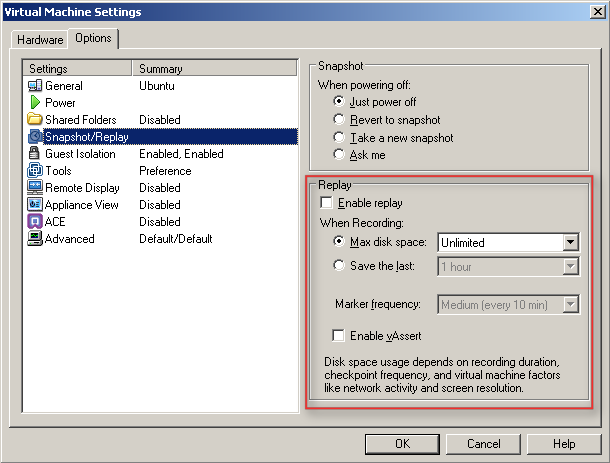
De snapshot en replay opties.
The replay control dialog box contains the following buttons:
- Play/Pause – The button is labeled Play if you want to play the last recording you made for the selected virtual machine. If the virtual machine is powered off, it is resumed, as if it had been suspended. It is labeled Pause if you want to suspend the replay and click the button again to resume replay.
- Go Live – Stops the replay that is in progress and reverts to the current state of the virtual machine.
- Add Marker – Takes a replay-specific snapshot at the current location within the recording. You can use this marker during replay to skip ahead in a recording.
- Go to Previous Marker – Plays the previous marker.
- Go to Next Marker – Plays the next marker.
- Current Replay Position Slider – Allows to preview a replay. You can drag and drop the Current Replay Position Slider to the nearest previous snapshot and start replaying. On Linux, the auto-scroll function of the zoomed in portion is enabled. The Current Replay Position Slider is a red arrow located in the progress timeline.
- Zoom Control – Controls the zoom in and out function during replay.
- Minimize – On Windows, the (-) button minimizes the dialog box to the bottom left hand side of the status bar. The minimized control allows you to view your recording in the virtual machine and use the controls in the status bar. The progress indicator in the status bar shows the timeline of the recording.
- Note Keep in mind that you cannot close the replay control dialog box.
Replay Speed Control – Controls the replay speed of a recording. Click the right button to increase the replay speed to the maximum. Click the left button to decrease the replay speed to normal.
Note The speed of a playback depends on the host activity and workload of the guest.
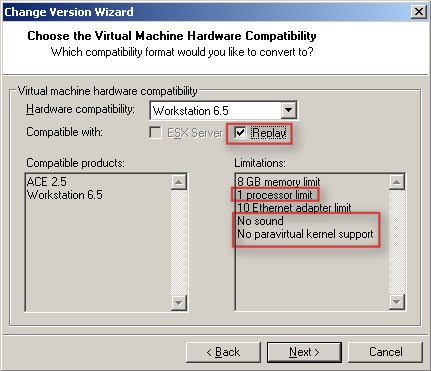
Voor de replay functie dien je wel de Hardware compatibility te verhogen naar Workstation 6.5.
Het upgraden van de VMware Tools heeft ook weer wat meer opties gekregen.
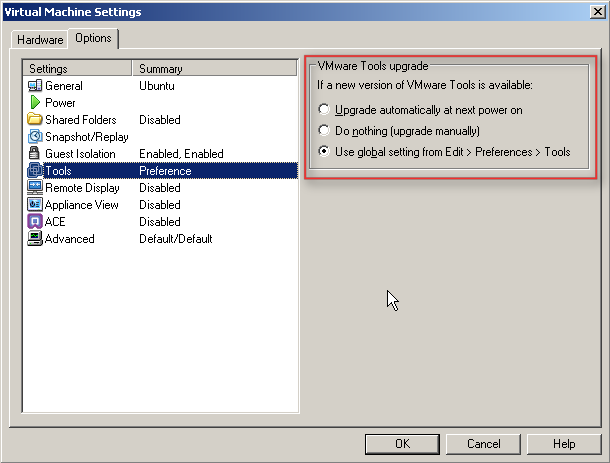
Bij het starten van de VM kwam de onderstaande melding.

Nadat je op Update Tools hebt gedruk krijg je netjes een uitleg over hoe je de upgrade uit kunt voeren.

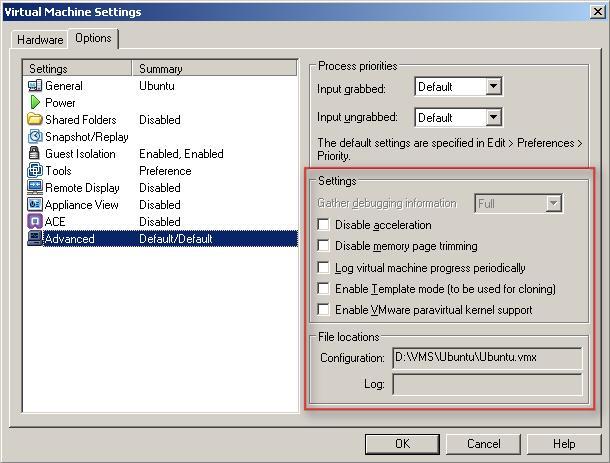
Wat verder opvalt bij de Advanced settings zijn de volgende opties:
- Disable Acceleration
- Disable memory page trimming
- Log virtual machine progress periodically
- Enable Template mode (to be used for cloning)
- Enable VMware parvirtual kernel support
Later meer……

 ICT-Freak.nl