EMC: Celerra Virtual Appliance and VI3


image

De virtualgeek is bezig met een howto serie over het configureren van de Celerra Virtual Appliance. Deze appliance kun je impoprteren binnen VMware Workstation of ESX server. Hoe dit in zijn werk gaat lees je in de volgende posts:

In de toekomst gaat EMC meer Virtual Appliances aanbieden van haar overige producten. Let wel op deze  appliances zijn alleen bedoeld voor test en studie doeleinden.

VMware heeft ook een document uitgegeven. De pdf kun je hier vinden: VMware_VI3_and_EMC_Celerra_IP.pdf

Series: Hyper-v, not in my Datacenter part2


Gabrie heeft Part 2 gepost van zijn serie Hyper-v, not in my Datacenter.

Guest OS

After you installed your hypervisor you want to virtualize your physical servers on it. When doing the research for my presentation I was very surprised to find some strange limitations in which guest are supported with Hyper-V. Can you believe that not all Windows Server versions are supported? Well neither could I.

The guest OS support of Hyper-V:

  • Windows 2000 Server is only supported with SP4 and 1 CPU.
  • Windows 2003 Server is only supported with SP2 and 1 or 2 CPUs.
  • Windows 2008 Server is supported with 1, 2 and 4 CPUs.
  • and there is Linux support for SUSE Linux Server 10 sp1 / sp2 with only 1 CPU.

This does look quite reasonable at first glance, because these are current versions. True, but when looking at the ESX environment I work in now, we would not be able to virtualize as many servers as we have running on ESX right now

Part 2 vind je hier: http://www.gabesvirtualworld.com/?p=104#more-104

Series: Hyper-v, not in my Datacenter part1


image

Gabrie van Zanten (www.gabesvirtualworld.com) is bezig met een serie over Hyper-V, not in my Datacenter.

I’ve written about Hyper-V and ESX is an objective view on how things are at the moment, but still it looks like the only thing I’m doing is Windows-bashing. I decided to dedicate a blog post to it, so everyone can find out for them self if my points are valid. The big question of my presentation is: “Which is better for my datacenter, Hyper-V or ESX?”.
I’m looking at both hypervisors to see which features they have that would make them suited for running in the datacenter discounting nice features that I would rarely use.  Here we go…….

Part 1 kun je hier vinden: http://www.gabesvirtualworld.com/?p=103#more-103.

Uit betrouwbare bron heb ik vernomen, dat morgen Part 2 gepost gaat worden. Dus hou www.gabesvirtualworld.com in de gaten.

VMware: Oh Dear I Lost My Descriptor


Nicolas de Wilde stuurde mij een mailtje met de volgende tip:

Occasionally ESX VMs crash in such a way that the descriptor file of a vmdk gets lost.
If you ever need to recreate a descriptor from scratch but still have the *-flat.vmdk this little tool may come handy.
Tool asks for a flat-file – like used by ESX 3 and Workstation. It ignores the CID and uses a bogus one. Output is named "newdescriptor.vmdk" – rename as needed. Doesn’t work for disks smaller than 1 Gb at the moment.

image

http://sanbarrow.com/moa23/files/oh_dear_I_lost_my_descriptor.zip


bron: http://communities.vmware.com/message/1107523#1107523

VMware: Service Console Memory


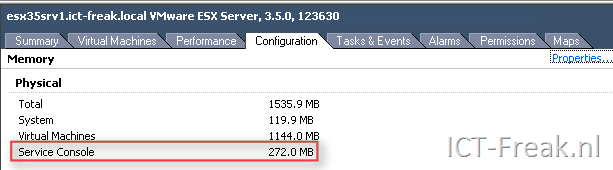
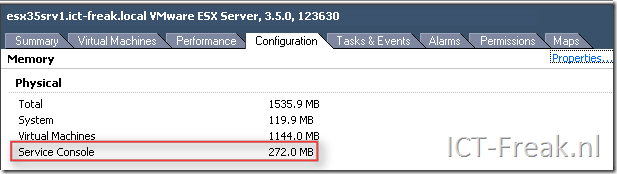
Als je ESX 3.x standaard installeerd krijgt het Service Console 272 MB geheugen.
image

Via fdisk –l  kun je de partitie informatie opvragen. Zoals je ziet heeft deze ESX server een Swap partitie van 1600MB. 

image

Standaard is de Swap partitie 544MB (2*272mb van het Service Console).  Mocht de swap partitie inderdaad “maar” 544mb groot zijn, dan kun je het geheugen van het Service Console niet verhogen. Hoe je dit verder kan oplossen lees je hier: http://communities.vmware.com/message/685697#685697

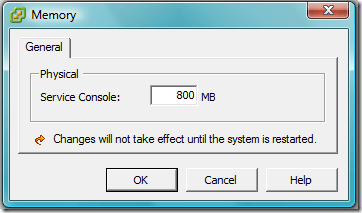
Je kunt het gehugen van het Service Console op twee manieren aanpassen, via de de VIC of via de commandline.

Via de VIC

klik op properties.

image

Voer daarna de juiste waarde in (800MB is de max):
image


Vanaf het Service Console

Via het onderstaande commando kun je opvragen hoeveel geheugen er voor het Service Console geconfigureerd is.

[root@esxserver root]# cat /etc/vmware/esx.conf | grep -i "memSize"
/boot/memSize = "272"

Als je dit wilt ophogen naar 800MB kun je dat doen via het commando:

vmware-vim-cmd hostsvc/memoryinfo 838860800 (http://communities.vmware.com/thread/173359)

Daarna even kijken of de settings is doorgevoerd.

[root@esxserver root]# cat /etc/vmware/esx.conf | grep -i "memSize"
/boot/memSize = "800"


Via de VI Toolkit:

$consoleMemMb = 800
Get-VMHost | Get-View | %{(Get-View -Id $_.ConfigManager.MemoryManager).ReconfigureServiceConsoleReservation($consoleMemMb*1mb)}
Thanks to LucD: http://communities.vmware.com/

De bovenstaande code past de setting aan op al je ESX servers in je VirtualCenter.

image

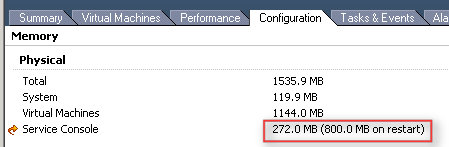
En in de VIC kun je zien dat de settings is aangepast en een herstart nodig is.

image

VMware: Missing Consolidation Button


Het kan zijn dat je in VirtualCenter 2.5.x geen beschikking hebt tot de Consolidation button. Na wat zoeken in de communities kwam ik de post van kjb007 tegen. Deze oplossing werkt als volgt:

Open c:\Documents and Settings\All Users\Application data\VMware\VMware VirtualCenter\vpxd.cfg in Wordpad. Verwijder daarna de geselecteerde tekst en sla het bestand op.

image

De volgende stap is het Installeren van de CapacityPlanner.exe. Deze vind je hier:

<cdrom>\vpx\CapacityPlanner.exe

Na de installatie herstart je de VirtualCenter server.

Zodra deze weer opgestart is op je services.msc en kijk je of de VMware Capacity Planner Service is gestart.

image

Als deze service gestart is kun je de VIC openen. Als het goed is heb je nu weer de beschikking over de Consolidation button.

image

VMware: Set VMware TimeSync option with the VI Toolkit


Ik was vandaag even met Gabrie van Zanten (http://www.gabesvirtualworld.com/) aan het brainstormen over het aanpassen van de Time synchronization optie, binnen de VMware Tools via de VI Toolkit.

image

Dit is uiteindelijk gelukt (met een beetje hulp van Niket en LucD http://communities.vmware.com/message/1106816).

Je kunt het script op twee manieren gebruiken:

Het aan of uitzetten van deze optie op alle VM’s kan via het onderstaande script.

$vCenter = ”

Connect-VIServer $vCenter

[Reflection.Assembly]::LoadWithPartialName("vmware.vim")

$vmConfigSpec = New-Object VMware.Vim.VirtualMachineConfigSpec
$vmConfigSpec.Tools = New-Object VMware.Vim.ToolsConfigInfo
$vmConfigSpec.Tools.SyncTimeWithHost = $True (or $False if you want to disable it)

Get-VM | % { (Get-View $_.ID).ReconfigVM($vmConfigSpec)} # For al VMs

Disconnect-VIServer -Confirm:$False


Wil je dit op een specifieke VM uitvoeren dan gebruik je de volgende Get-VM regel:

Get-VM -Name $vmname | % { (Get-View $_.ID).ReconfigVM($vmConfigSpec)} # VM with name vmname.

Je moet alleen dan wel de variable $vmname aanmaken.

Via het volgende commando kun je de actie controleren.

Get-VM | Get-View | %{Write-Host $_.Name $_.Config.Tools.syncTimeWithHost}

VMware: SRM Movies


De afgelopen week, was het de week van SRM. Verschillende blog posts zijn de rss feeds gepasseerd. Maar de meest uitgebreide kwam toch pas vandaag online. Chris heeft een video how to op zijn blog geplaatst. De blogpost vind je hier: getyournerdon.com

De volgende videos zijn zeker de moeite van het kijken waard:

Windows: Terminal Server and connected Terminal Services clients pause when a Terminal Services client logs on or logs off


De laatste weken ben ik samen met Aleks Nikolić van Virtualistic.nl bezig met het troubleshooten van verschilende TS problemen. Tijdens de zoektocht naar mogelijke oplossingen kwamen uit op KB324446.

In KB324446 wordt het volgende geschreven:

When a Terminal Services client logs on or logs off (either in a session or on the console of the Terminal server), the Microsoft Windows Server 2003-based or the Microsoft Windows 2000-based Terminal server together with the connected Terminal Services client computers may stop responding or may pause for several seconds. Users may also experience one or more of the follow symptoms:

  • When a user types in a document, characters do not appear on the screen until this pause has ended.
  • Keyboard input and mouse input are queued, but they are not processed until this pause has ended.
  • Live performance monitoring (Perfmon) graphs have missing data points during this pause.
  • All running programs appear to stop responding, or “hang,” during this pause.
  • When Spooler is under a load from a large number of users, a high CPU usage is displayed for it.

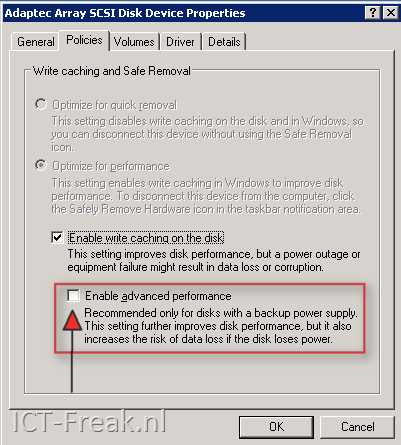
Als je een Terminal server hebt met twee voedingen (wat wel gebruikelijk is volgens mij) dan moet je zeker de volgende change doorvoeren: Deze optie moet je alleen instellen als je raidcontroller een battery-backup cache module heeft (thanks Sven).

Zet het vinkje aan bij “Enable advanced performance”

image

Nadat de bovenstaande settings zijn doorgevoerd, moeten er ook nog een aantal registry keys aangepast worden. Namelijk de volgende:

Note This section applies to both Windows Server 2003 and to Windows 2000.

  • In the HKLM\SYSTEM\CurrentControlSet\Services\Lanmanserver\Parameters subkey,
  • configure the following entries:
    • Name: MaxWorkItems
      Data Type: REG_DWORD
      Value data: 8192 (decimal)
    • Name: MaxMpxCt
      Data Type: REG_DWORD
      Value data: 2048 (decimal)
    • Name: MaxRawWorkItems
      Data Type: REG_DWORD
      Value data: 512 (decimal)
    • Name: MaxFreeConnections
      Data Type: REG_DWORD
      Value data: 100 (decimal)
    • Name: MinFreeConnections
      Data Type: REG_DWORD
      Value data: 32 (decimal)
  • In the HKLM\SYSTEM\CurrentControlSet\Services\Lanmanworkstation\Parameters subkey, configure the following entry:
    • Name: MaxCmds
      Data Type: REG_DWORD
      Value data: 2048 (decimal)
  • By default, your registry does not have a Configuration Manager subkey. To create the key, locate and then right-click the following subkey:HKEY_LOCAL_MACHINE\System\CurrentControlSet\Control\Session ManagerPoint to New, and then click Key. Type Configuration Manager, and then press ENTER.
    In the new HKEY_LOCAL_MACHINE\System\CurrentControlSet\Control\Session Manager\Configuration Manager subkey, configure the following entry:
  • Name: RegistryLazyFlushInterval
    Data Type: REG_DWORD
    Value data: 60 (decimal)

Ik heb deze registry keys even uitgewerkt in de volgende twee files:

LanManServerTuning_KB32446.reg

Windows Registry Editor Version 5.00[HKEY_LOCAL_MACHINE\SYSTEM\CurrentControlSet\Services\lanmanserver\parameters]
“MaxWorkitems”=dword:00002000
“MaxMpxCt”=dword:00000800
“MaxRawWorkItems”=dword:00000200
“MaxFreeConnections”=dword:00000064
“MinFreeConnections”=dword:00000020

KB32446_Extra.reg

Windows Registry Editor Version 5.00[HKEY_LOCAL_MACHINE\SYSTEM\CurrentControlSet\Control\Session Manager\Configuration Manager]
“RegistryLazyFlushInterval “=dword:0000003c

Nadat je alle changes hebt doorgevoerd, moet je de server opnieuw op starten.