How To: Unattended Windows installation DVD


Mijn collega ICT Freak Jimmy had een unattended DVD gemaakt voor Windows XP SP2 met daarop diverse software wat automatisch geïnstalleerd word. Dat laatste deed hij via batch script. Ik wil dit eigenlijk wat mooier doen en kwam uit op het RunOnceEx principe. Meer informatie hier over vindt je hier http://unattended.msfn.org/

In deze how to laat ik zien hoe je een unattended DVD maakt die automatisch software installeerd, Registry keys aanpast en vervolgens alles opschoont.

Zodra je klaar bent ziet het er als volgt uit

unattendediso1

Deze how to is geïnspireerd door de website http://unattended.msfn.org/.

Continue reading “How To: Unattended Windows installation DVD”

Script: Removehba.sh


Bouke Groenescheij van jume.nl heeft een script gemaakt waarmee je de hba drivers uit de ESX 3.0.x cd kan halen. Dit script is geinspireerd op de whitepaper van Dinny Davies (http://www.xtravirt.com/).

Zie hier het script in actie

removehba

Lees de rest van het artikel en download het script hier http://www.jume.nl/

VMware: Scripted installations


Ik ben de laatste tijd nogal bezig met het maken van een scripted installation voor VI3 (ESX 3.0.1). Ik maak hiervoor gebruik van UDA 1.4 welke je hier kunt downloaden: mirror 1: chaz6.com mirror 2: itservices.ne-worcs.ac.uk

Op de website van rtfm education vindt je meer informatie over uda: http://www.rtfm-ed.co.uk/.

Op http://www.vmware.com/community/ is nu een topic aan de gang over scripted installations. Hier vindt je vele handige scripts en add-ons voor je kickstart template.

happy scripting 😉

How to: Disable the GoogleToolbarNotifier


Info over de GoogleToolbarNotifier vindt je hier: http://www.bleepingcomputer.com/

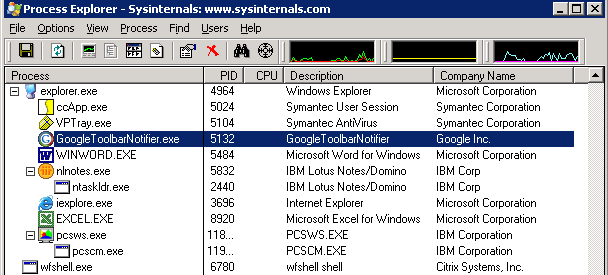
De GoogleToolbarNotifier wordt in elke sessie gestart via de HKCU- Run key. Zoals je ziet in in Process Explorer van Sysinternals:

googletoolbarnotifier.gif

Via de volgende kix code kun je de runkey laten verwijderen en start de GoogleToolbarNotifier niet meer op.

;* Disable GoogleUpdater
DelValue(“HKEY_CURRENT_USER\Software\Microsoft\Windows\CurrentVersion\Run”, “swg”)
If @error = 0 $LogItem = Log(“De GoogleToolbarUpdater is uitgeschakeld.”,$LogFile) EndIf

Script: VMware ESX3 Patch downloader


Introduction
————
Instead of downloading ESX 3 patches individually this application automatically batch downloads patches for you and can be used repeatedly to maintain your local patch repository.

This utility is designed for Windows XP, Vista and Server 2003 but may work on other Windows Operating Systems.

No support is provided for the utility but we will endeavour to reply to email requests for assistance.

Instructions
————

1. Unzip all the zip file contents in to a folder on your PC

2. Open an internet browser and navigate to http://www.vmware.com/download/vi/vi3_patches.html#c4310

3. Select the patches you want to download by selecting the text and copying it to your clipboard, eg: Ctrl + C. You can select all the patches if you want, or just some of them. You don’t need to be particular about the tidying up any uneeded text as the application filters the patch names to correctly identify them.

4. Once you have made you selection, paste the selection in to the textfile.txt file which is already included.

Note: the textfile provided is current to 12 April 2007 for all VMware ESX 3.0.1 patches and will work correctly as it is.

5. Save the file, and then double-click the VIPatchDownloader-v100.vbs file to start downloading your patches (ensure you have an internet connection before you start). You will be prompted where you wish to place the patches and the application will create a new folder called ‘VIPatches’. Make sure you have sufficient rights to create files in the destination location that you choose. A progress window will appear but it may take a few moments to initialise after you’ve selected the destination so please be patient. Patches are downloaded sequentially.

Note: closing the progress window part way through patch downloading will not stop the application. It will continue to complete the selected downloads unless you end the wscript.exe process through Windows Task Manager and close any open download screens.

6. Once the downloads are complete the progress window will advise and then close after 5 seconds.

HTTP Proxy
———-
To use wget through a proxy you must first create an environment variable. Type the following at the Windows command prompt:

set http_proxy=http://proxy.example.com:8080

Replace proxy.example.com with your actual proxy server and replace 8080 with your actual proxy server port.

Download het script hier: http://www.xtravirt.com/

Hier zie je het script in actie:

esxpatchdownloadscript.gif

VMware-Cmd: VM Shutdown Script


vmwarecmd.gif

De onderstaande code zorgt ervoor dat mijn Citrix Lab omgeving netjes afgesloten wordt. Het is eigenlijk een lijstje van VMs die een voor een worden afgeslote. Zoals je ziet zit er een pauze van 120 seconden tussen elke VM. Deze pauze zorgt ervoor dat de ESX server niet in eenkeer overbelast raakt en dat de Citrix Farm de tijd krijgt om alles te verwerken.

clear
echo#####################################
echo## ICTFreak.nl
echo## Shutdown script Citrix Lab
echo#####################################

#!/bin/bash

echo Stopping the Citrix testlab

echo Stopping the CTXLAB-WI
vmware-cmd /vmfs/volumes/lunc/CTXLAB-WI/CTXLAB-WI.vmx stop
sleep 120

echo Stopping the CTXLAB-MPS2
vmware-cmd /vmfs/volumes/lunc/CTXLAB-MPS2/CTXLAB-MPS2.vmx stop
sleep 120

echo Stopping the CTXLAB-MPS1
vmware-cmd /vmfs/volumes/lunc/CTXLAB-MPS1/CTXLAB-MPS1.vmx stop
sleep 120

echo Stopping the CTXLAB-SQL
vmware-cmd /vmfs/volumes/lunc/CTXLAB-SQL/CTXLAB-SQL.vmx stop
sleep 120

echo Stopping the CTXLAB-FILE
vmware-cmd /vmfs/volumes/lunc/CTXLAB-FILE/CTXLAB-FILE.vmx stop
sleep 120

echo Stopping the CTXLAB-DC
vmware-cmd /vmfs/volumes/lunc/CTXLAB-DC/CTXLAB-DC.vmx stop
sleep 120

echo Stopping the CTXLAB-ROUTER
vmware-cmd /vmfs/volumes/lunb/CTXLAB-ROUTER/CTXLAB-ROUTER.vmx stop hard

Vervang de “stop” waarde voor “start” (zonder het ” teken) en je hebt een startup script. Als je dit script wilt gebruiken dan kopieer je de code naar kladblok en slaat het bestand op als scriptnaam.sh. Vervolgens dien je het script op de ESX server te plaatsen. Dit kun je doen met het gratis programma WinSCP. Nadat je het script geplaatst hebt moet je nog even de rechten aanpassen.

Dit doe je met het volgende commmando:

chmod 0755 script.sh

Vervolgens kun je het script uitvoeren met het commando

sh scriptnaam.sh

Script: Input Locale


Op de website van Johan Eksberg kwam ik een batch file tegen voor het instellen van de Input Locale.
www.eksberg.se

Ik heb dit script vertaald naar de scripttaal kix. (http://www.kixtart.org)

;* Keyboard settings
If ComputerInGroup(‘GG_RES_K37InputLocaleUS’)
$Input = “\\se37bdc1\Netlogon\InputLocale\int-du-usl.txt”
Else
$Input = “\\se37bdc1\Netlogon\InputLocale\int-du-nl.txt”
Endif
If Exist(“H:\inputlocale.txt”)
Del “H:\inputlocale.txt”
Endif

copy “$Input” “H:\inputlocale.txt”

Shell ‘%comspec% /e:1024 /c “Rundll32 shell32,Control_RunDLL intl.cpl,,/f:”H:\inputlocale.txt”‘

Op de Microsoft site vondt ik een lijst met alle input locale instellingen. http://www.microsoft.com

Het script en de overige bestanden kun je hier downloaden:
InputLocale.zip