Installing Veeam Backup 3.01


image

After reading the post about the release of Veeam Backup 3.01 over at http://virtualfuture.info/. I downloaded the software and upgraded to version 3.01. In this post you’ll find the information you need about the upgrade process.

image

1. Uninstall Veeam Backup 3.0. Your Product configuration will be preserved in the Veeam Backup configuration database.
2. Download Veeam Backup 3.0.1 from http://www.veeam.com/download_all.asp
3. Extract the downloaded archive and run the Veeam_Backup_Setup.exe setup file.
4. Accept the terms of Veeam Backup and FastSCP License Agreement to install the product.
5. Provide setup program with your license file.
6. Specify the installation folder.
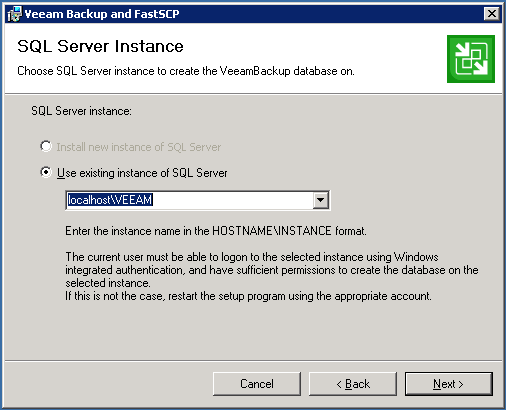
7. Specify the Microsoft SQL server database and instance to use for storing Veeam Backup configuration. You should select the same database and instance you have used for Veeam Backup 3.0.
image

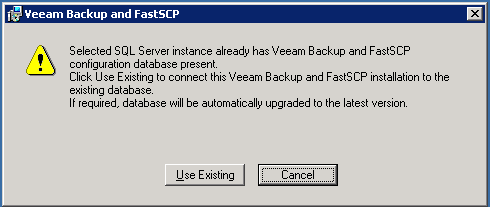
8. Confirm that you want to use existing Veeam Backup configuration database when prompted.
image

9. Specify the administrative credentials to run the Veeam Backup service. The account must have Local Administrator privileges on the computer where you are installing Veeam Backup.
10. Click Install to start the installation.
11. Launch the Veeam Backup product by clicking the Veeam Backup and FastSCP product icon on your desktop.

Source:  veeam_backup_3.0.1_release_notes.pdf

Release: Veeam Backup 3.0


image

What’s new:

  • Support for ESXi and ESXi Free
  • Linux File-Level Recovery
  • Windows 2008 VSS Support
  • VM Templates Backup
  • Improved Performance

Be sure to check the following pdf’s:

veeam_backup_3.0_whats_new.pdf

veeam_backup.pdf

Veeam_Backup_User_Guide_3.0.pdf

veeam_backup_3.0_release_notes.pdf

You can download the software here: http://www.veeam.com/vmware-esx-backup.html

Veeam: Snapshot creation failed: Could not quiesce file system


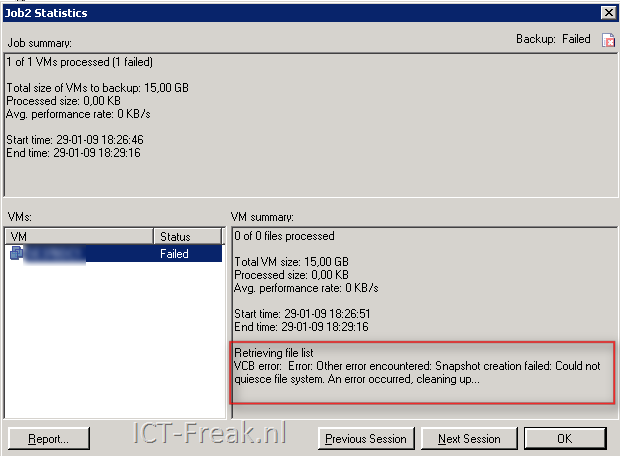
A couple of days ago, I was testing with Veeam backup and a new created VM. The backup stops with the following error:

image

In the Veeam Backup release notes (veeam_backup_2.0.1_release_notes.pdf) and the known errors section, you’ll find the following text:

If you attempt to backup a VM with VMware Tools VSS support module installed with Veeam Backup job having VSS option enabled, the backup would fail with the following error: VCB error: Error: Other error encountered: Snapshot creation failed: Could not quiesce file system. An error occurred, cleaning up…. To resolve this, disable VMware Tools quiescence in the backup job properties, or uninstall VSS support module.

So I checked de VM and uninstalled the VSS option.

Go to Control Panel –> Add/Remove Programs –> VMware Tools. The VMware Tools Setup starts and in this screen press modify.

image

Disable the VSS Support feature in the VMware Tools.

image

Finish the setup wizard and reboot the VM.


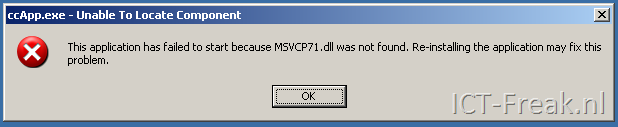
After a reboot, the following error might popup:

image

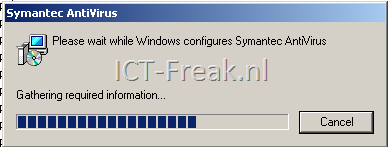
The fix was a little bit funny. When I pressed the right mouse button on My Computer or any other directory, the Symantec Antivirus installer starts with a repair job.

image

After the repair job is done and the VM is back online after a reboot, the VM acts normal again :-S

Veeam: FastSCP 3 Public Beta


Veeam released a public beta of FastSCP a couple of days ago. I downloaded the beta and installed it. It looks pretty cool so far.

FastSCP 3.0 FAQ (from the forum)

Q: Do I need to switch ESXi into “unsupported” mode and enable additional service console daemons in order to be able to use FastSCP v3?
A: No, FastSCP v3 does not rely on ESXi service console components. Instead, it uses VMware file management API to copy files.
Q: Are 64bit OS supported?
A: Officially, 64bit OS are not supported. However, but I’ve been running FastSCP successfully on a 64bit Vista since day 1. The only issue I have run into so far, is a COM error appearing when trying to copy the file between two datastores. Copying from and to the local computer works fine.
Q: I am new user. How do I copy files to my ESXi server?
A: First, you need to add the source and target servers to the interface via Add Server command. Note that your local computer is already there. Then, you have two options:
– Copy interactively: drag and drop, or copy and paste the required file or folder (similarly to how you copy files in the Windows Explorer).
– Copy using scheduled file copy job (if you want to schedule file copy for off-hours).

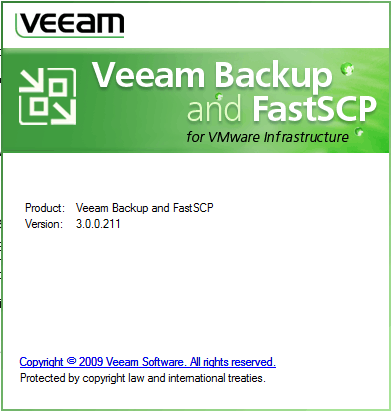
The about screen:

image

The new layout:

image

If you want to try it yourself, you can download your version over here: http://www.veeam.com for support and questions, go to the forum: http://www.veeam.com/forum/

Source: http://vmblog.com/archive/2009/01/18/veeam-s-free-fastscp-3-0-tool-reaches-public-beta.aspx

Veeam Backup: VM “vmname” (ref: “vm-##”) is “invalid”


 Veeam_logo

I had a strange problem with one of my VM’s. The VM-ID was changed and this change was not forwarded to my vCenter server. I use Veeam Backup for creating backups and the job skipped this VM with the following error:

image

This problem can be solved by restarting the services on the ESX server and the vCenter server.

The following command will do this on the ESX Server.

service mgmt-vmware restart

For vCenter (Windows) you can do this from the command line:

net stop "VMware VirtualCenter server"

net start "VMware VirtualCenter server"

After restarting the services, the backup job completed successfully.

Veeam Backup: Not enough licenses


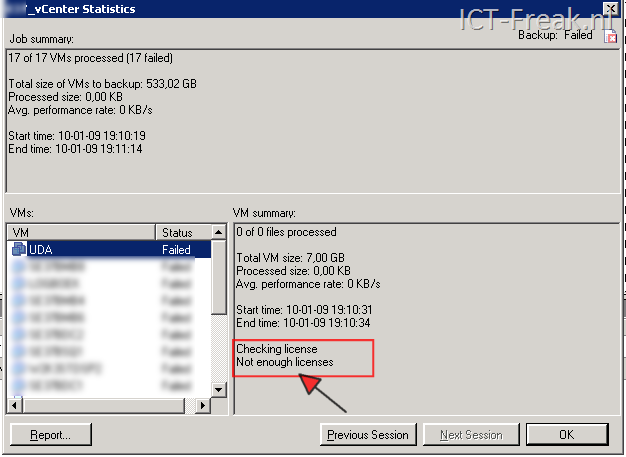
Nadat ik dit weekend de ESX Servers opnieuw had geïnstalleerd (upgrade naar ESX 3.5u3) werkte Veeam Backup niet meer. De volgende foutmelding verscheen in de logfiles:

image

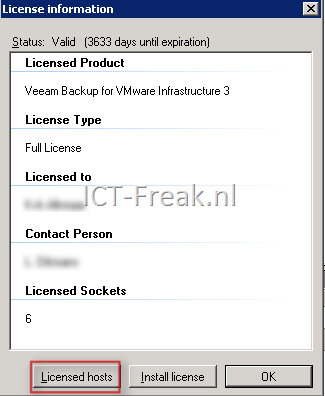
Dit is eenvoudig op te lossen. Ga naar Help –> License Information…

image

Klik op Licensed hosts

image

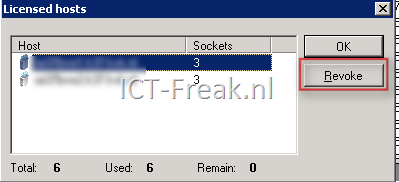
Klik daarna op de ESX Server gevolgd door Revoke

image

Daarna moet de backup weer normaal lopen.